
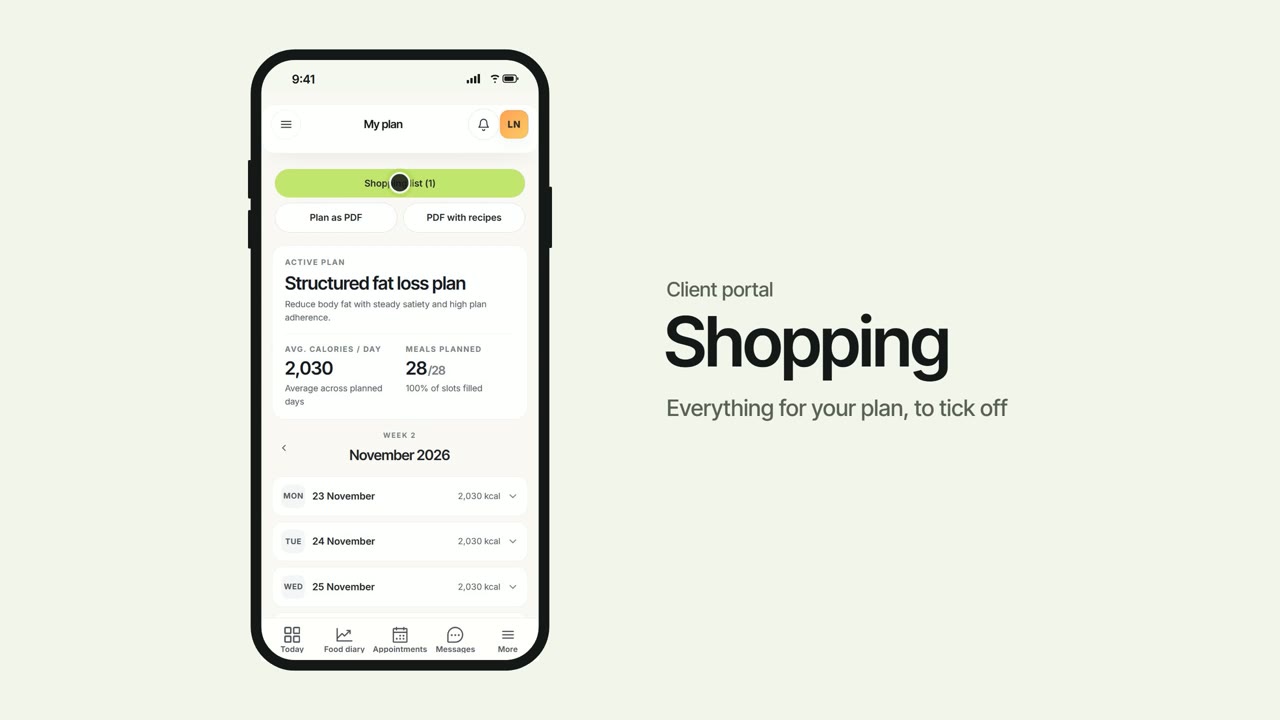
03 - My plan, recipes and shopping
Three sections that belong together: My plan shows your week, Recipes the preparation that goes with it and Shopping the list for the supermarket. You always see what your practitioner has released for you.
1. Opening My plan
Sidebar → My plan.
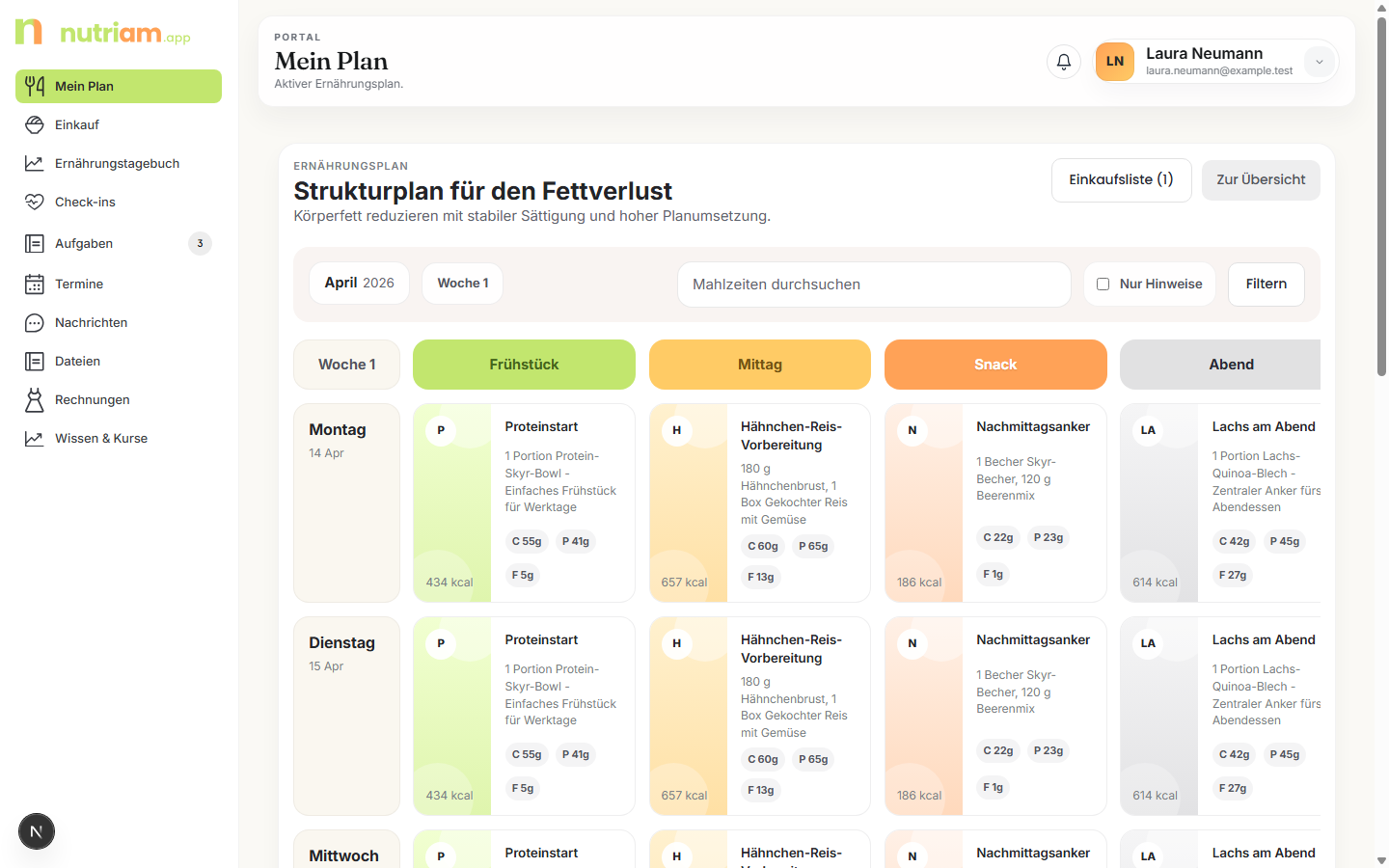
At the top right are these buttons:
| Button | What happens |
|---|---|
| Shopping list | jumps to the shopping list |
| Plan as PDF | downloads your active plan as a PDF file |
| PDF with recipes | the same PDF, followed by one page per recipe with ingredients and preparation (only for plans with recipes and if your practice shows you the Recipes section) |
| Back to overview | back to the Today start page |
If there is a number in brackets (e.g. Shopping list (2)), that is the number of published lists, not the number of ingredients.
The PDF is designed in your practice's style and is suitable for printing (e.g. for the fridge) or forwarding. It contains all weeks of your plan with meals, amounts and notes and, where stored, calories and nutrition values per meal and as a daily total. If a value is missing for individual items, it is marked with an asterisk, and the footnote after it says how many items have a value. n/a means: not available.
Below that you see three metrics:
| Metric | Meaning |
|---|---|
| Active plan | name of the plan, with your goal below it |
| Avg. calories / day | average across the days for which something is planned |
| Meals planned | e.g. 18/28 and 64% of slots filled |
If your practitioner hasn't stored a goal, it says “Weekly structure from your practitioner” (or “Weekly structure from” with your practice's name). Without nutrition values, the calories show a dash.
If your practitioner has hidden calories for you, the Avg. calories / day metric is missing entirely. The cells then show the first items of the meal instead of calories, and the plan PDF and recipe card do without kcal. For recipes, under Nutrition per serving you only see what your practitioner hasn't hidden. The nutrient tables (sections 4 and 5) then lack the Energy row and the pie chart of the energy distribution.
If your practitioner has hidden macros and nutrients for you, there is no nutrient table at all for recipes, no Nutrients this week evaluation under My plan and no Vitamins and minerals per serving block on the recipe card.
The daily total is only rounded at the very end. That way it matches what your practitioner sees in their plan view and in the PDF to the kilocalorie.
Below the metrics, you switch weeks with Previous and Next. The middle shows which week you are looking at (e.g. Week 2, with the month and year below). Only the weeks set up in the plan exist.
When you open it, the week containing today is always shown first. If the whole plan is in the past or still in the future, you see the week closest to today.
2. Reading the weekly grid
The grid is a table:
- Columns are the weekdays. The header shows abbreviations (Mon–Sun), the date and the day's calories. If no calorie figure is stored for a day, it shows a dash.
- Rows are the four meals: Breakfast, Lunch, Snack, Dinner. The top left corner is labelled Slot.
- Today is highlighted.
A cell shows the name of the meal with the calories below it. If no calories are stored, you see the first few ingredients instead. If you move the mouse over a cell, it shows all components of the meal. A dash (“—”) means: nothing is planned for this day and this meal.
Important: The cells can't be clicked. Tapping one doesn't open any details. You find ingredients and preparation in the Recipes section (section 5).
On a phone, the grid is too wide. There you see a list of days to expand and collapse instead. Today is already expanded. Below each meal, all its components are listed, for example bread, spread, fruit and plant-based drink. If nothing is planned for a day, the app says “No meals planned.”.
3. Logging something straight from the plan
On the left of each meal row is + Entry. It opens the Log a meal dialog with the matching meal already selected. On a phone, you find the + Food diary entry button below the list of days.
If your practice has switched off the food diary for you, both buttons are missing. You still see your plan as normal.
If your food diary assignment hasn't started yet or is complete, both buttons are grey. A short sentence above the weekly plan then says why (on a phone, directly below + Food diary entry instead), for example “Your food diary is complete. Your entries stay visible, but no new ones can be added.”
How the dialog works is described in 04 Food diary and check-ins.
If there are notes on individual meals, the Notes: Notes from your practitioner block (or Notes from with your practice's name) appears below the weekly plan, before Nutrients this week. It shows up to three notes, each with the name of the meal in front.
4. Nutrients this week
At the very bottom of My plan is the Nutrients this week block. It shows what the planned meals of the week shown provide in energy, macronutrients, vitamins and minerals. Recipes count with their ingredients. If you switch weeks with Previous and Next, the block shows the new week.
Under View you choose what you want to see:
| View | What you see |
|---|---|
| Average per planned day | the average across the days for which something is planned (e.g. Average of 5 planned days), plus the energy distribution as a pie chart |
| a day with its date, e.g. Monday, 12 Oct | the values for that day |
Days without planned meals can't be selected.
The values are grouped (Energy and macronutrients, Vitamins, Minerals, Trace elements, Other constituents). At first, all groups are collapsed; tapping a group expands or collapses it. You read the columns as for recipes (section 5, Nutrients per serving): vitamins and minerals are shown next to your own reference values from your needs assessment, with the Share of reference value. Here, Coverage shows for how many components of the week a value is available.
Good to know: Your plan shows what is intended. On individual days it can be a little more or less. A share below 100% doesn't mean anything is missing.
If nutrient values are missing for some items of the week, a line below the table says for how many, with up to three names. The values may then be slightly lower.
The average counts every day for which meals are planned. The Avg. calories / day tile at the top only counts days with a calorie figure, so the two averages can differ slightly.
5. Recipes
Sidebar → Recipes.
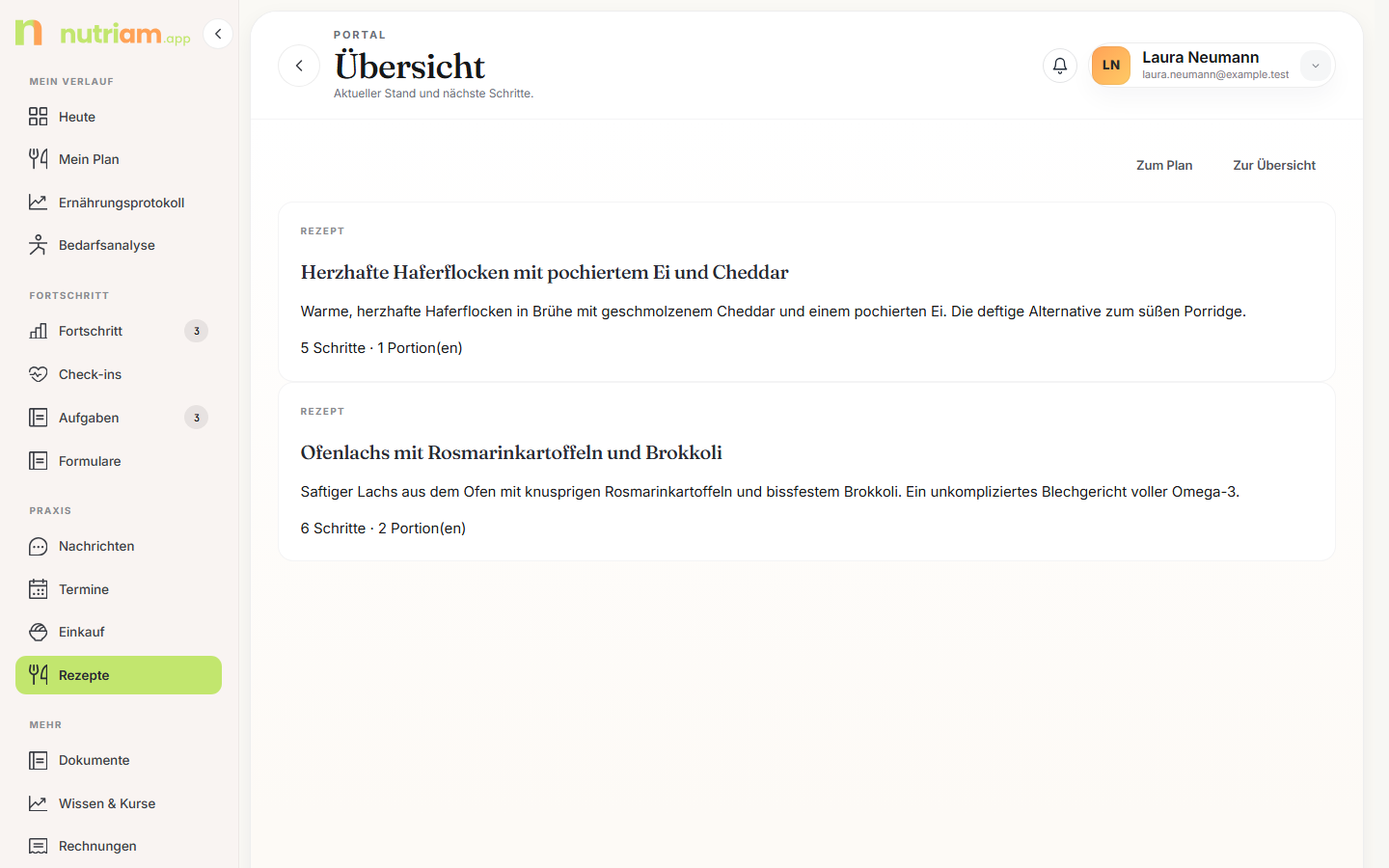
You see tiles in alphabetical order. Each tile shows the title, a short description and a line such as “6 steps · 2 servings”.
Tapping a tile opens the recipe:
- a photo, if your practitioner has added one,
- how many servings it is meant for,
- Nutrition per serving (kcal plus protein, carbohydrates and fat as P/C/F figures). This only appears if real nutrition values are stored for the ingredients. If only some ingredients have nutrition values, it says below how many ingredients the calculation is based on,
- Ingredients as a list,
- Preparation as numbered steps,
- below that, the Nutrients per serving card (see below).
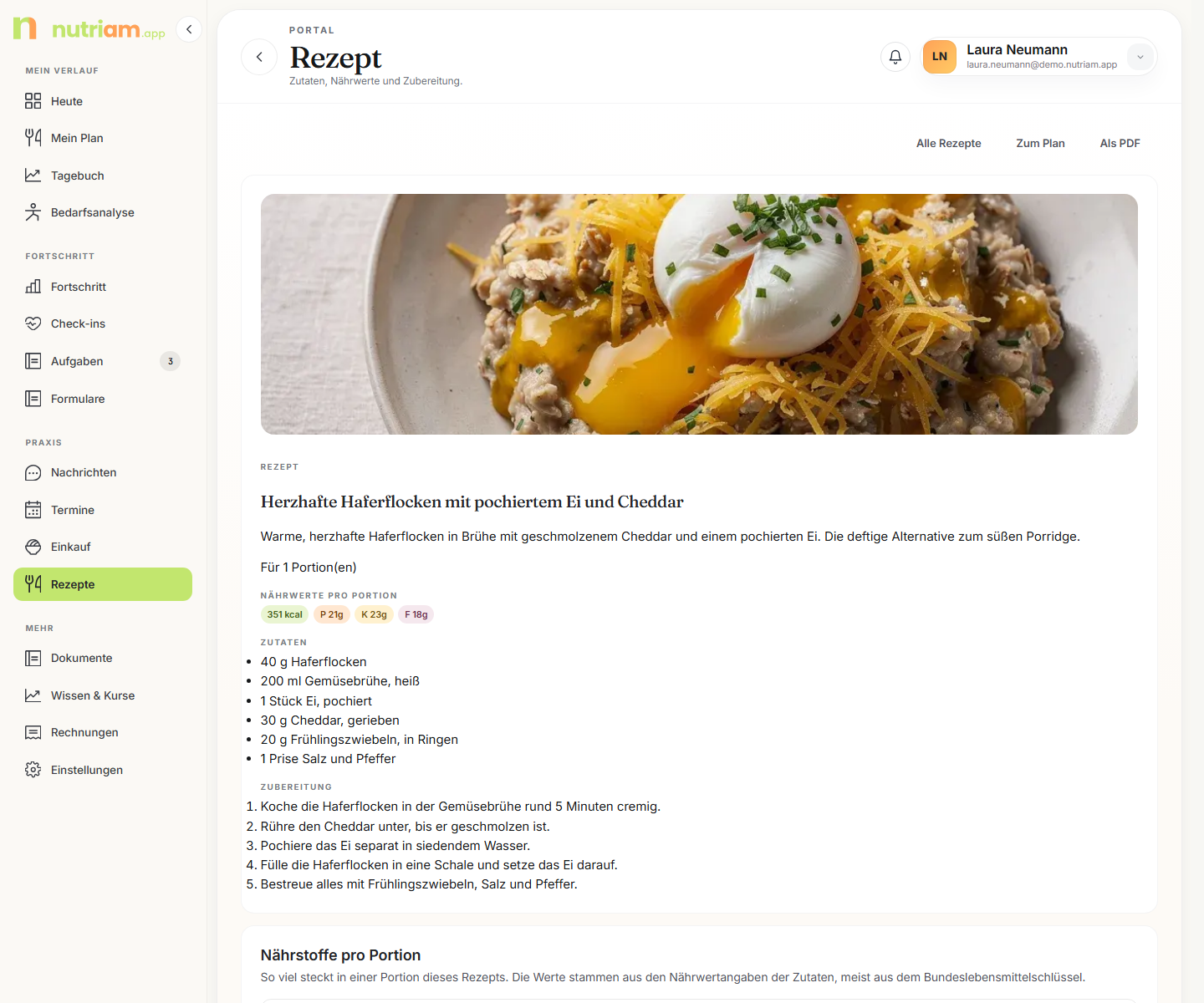
At the top, All recipes and Go to plan take you back out. As PDF downloads the recipe as a recipe card for printing: ingredients, preparation, servings and a nutrition table and, for recipes with a picture, also the photo your practitioner added. If a value in the table is missing for some ingredients, it says how many ingredients it is based on; n/a means: not available.
On the recipe card, this is followed by the Vitamins and minerals per serving block with the amount per nutrient and the Ingredients with a value column. Reference values and percentages are deliberately not shown there, because you might pass the card on. Vitamin K, biotin, pantothenic acid, copper, manganese and the Other constituents only appear in the table on the recipe page. Traces means: below the detection limit, counted as 0. If the block no longer fits completely on the page, it starts on the next one, so the recipe card usually has two pages. The PDF with recipes doesn't include the block; it sticks to ingredients, preparation and nutrition values.
Nutrients per serving
Below the recipe, a table shows how much one serving provides. The values come from the nutrition information of the ingredients, mostly from the BLS (German Nutrient Database, Bundeslebensmittelschlüssel). It appears for recipes with stored ingredients. Because the table uses the current food data and rounds more finely, energy and macronutrients can differ slightly from the Nutrition per serving above.
The nutrients are grouped: Energy and macronutrients (to expand), Vitamins, Minerals and Trace elements (already expanded) and Other constituents (to expand). Tapping a group expands or collapses it. On a phone, each nutrient is shown as its own small card, one below the other.
Under Other constituents you find, for example, omega-3 fatty acids, EPA and DHA, starch, sugars such as sucrose and lactose, sugar alcohols, leucine, the water content and alcohol. Only the amount and coverage are shown there. The water content is the water in the foods themselves; what you enter under Water today isn't counted.
| Column | Meaning |
|---|---|
| Nutrient | name, for some with a short note below |
| per serving | the amount in one serving; n/a means: not available, below detection limit/traces means: only traces, counted as 0 |
| Reference value | your daily reference value from the DGE and ÖGE (the German and Austrian nutrition societies), with Recommendation or Estimated value below |
| Share of reference value | what percentage of it the serving provides, with a grey bar |
| Coverage | for how many ingredients a value is available, e.g. 8 of 12 |
Above the table it says what the values are compared with, for example “Basis from your needs assessment: woman, 34 years old, mixed diet.” The reference values come from your own needs assessment. You only see the reference value and share if
- your practitioner has calculated your energy needs and shared the Energy requirement section of your needs assessment with you,
- your age and sex are stated there, and
- you are at least 19 years old (the stored values apply to adults).
Otherwise the table only shows the amounts, and a short sentence tells you why. In the Energy and macronutrients and Other constituents groups, and for sodium, vitamin D, copper and manganese, there is no share; only the amount is ever shown there. For copper and manganese, the DGE only gives a range, not a single reference value.
Good to know: Reference values are usually generous and are enough for almost all healthy people. A share below 100% doesn't mean anything is missing. A recipe is one part of your day; whatever a serving doesn't provide comes from your other meals.
The Energy distribution pie chart shows what share of the energy comes from protein, carbohydrates and fat. The percentages are also shown as text next to it.
If nutrient values are missing for some ingredients, a line below the table says for how many, with up to three names. The values may then be slightly lower.
Tip: Only the recipes that appear in your active, released plan are shown. If it says “No recipes yet”, your plan doesn't use any stored recipes at the moment.
If a recipe has no ingredients and steps, the page says so openly: “No details have been added for this recipe yet.” A short message to your practitioner then helps.
6. Shopping
Sidebar → Shopping.
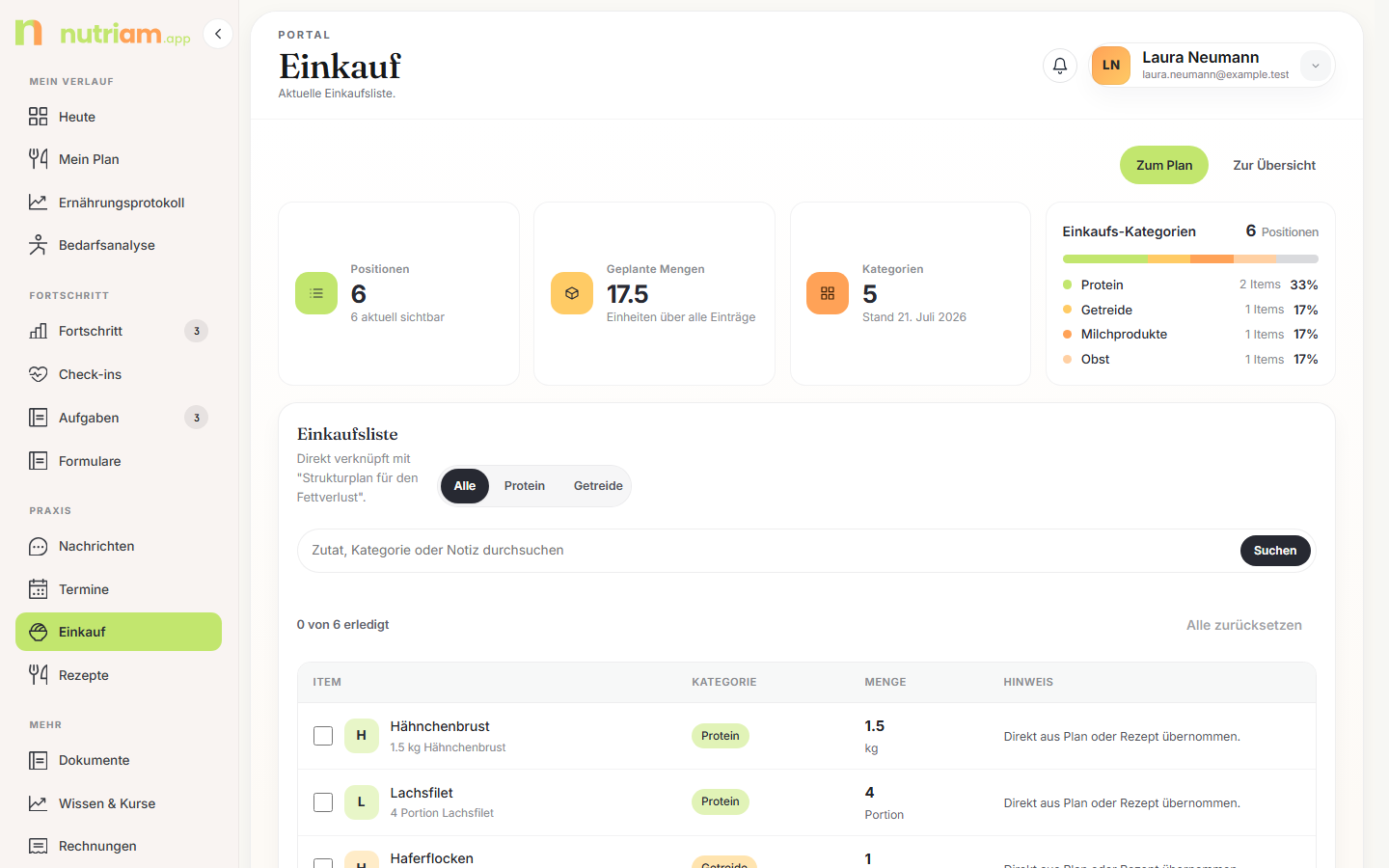
At the very top you see three metrics and a small breakdown:
| Card | Content |
|---|---|
| Items | number of all rows, with how many are currently shown below |
| Done | how many rows you have already ticked off on this device, e.g. 3 of 8 |
| Categories | number of categories, with the date of the list below |
| Shopping categories | bar with the share per category, below it the same categories as a list with count and percentage. The percentages add up to 100%. From six categories, the four largest are listed individually and the rest together under Others |
Below that you can narrow things down:
- Choose a category: All or one category (e.g. Protein).
- Search: the “Search the list” field, then tap Search.
The list itself has four columns:
| Column | Content |
|---|---|
| Item | tick box, name and detail line |
| Category | e.g. protein, fruit, dairy |
| Quantity | number and unit |
| Note | usually “Taken directly from your plan or recipe.” |
It always shows the most recently published list. You can no longer open older lists in the portal.
7. Ticking off and resetting
Above the list it says “X of Y done”, with the Reset all button next to it. The button is grey as long as nothing is ticked off.
In the supermarket, simply tap the box on the left of the row. The row is marked as done.
Important: The ticks are saved only on this device, not on the server. Ticked off on your phone means: unticked again on your laptop. Your practitioner doesn't see the ticks.
The ticks also disappear if
- your practitioner publishes a new list,
- the name, quantity or unit of an item changes,
- you use your browser in private mode (then they only apply while the tab is open).
Tip: The “X of Y done” counter only counts the rows currently shown. If you filter by a category, the number gets smaller, but everything stays ticked off.
8. If something doesn't suit you
- Something doesn't agree with you? Write to your practitioner via Messages. Changes to the plan are always made by your practitioner.
- Cooking for fewer people? Amounts are guidelines. Feel free to halve them and note in your food diary what you actually ate.
- A product isn't available? Take something similar from the same category and enter in your food diary what it actually was.
Frequently asked questions
“My plan is empty.” Then it says “No active plan visible yet.”. Your practitioner hasn't released a plan yet. As soon as that happens, it appears by itself.
“I can see the week, but no meals.” Then the page says “No weekly structure visible yet.”. The plan is there, but the weeks haven't been filled yet.
“How do I get from the plan to the recipe?” Via the sidebar → Recipes. There is no direct way to the recipe from the weekly grid.
“Can I add something to the shopping list?” No. The list comes from your plan. It's best to write your own shopping in a note on your phone.
“My ticks have suddenly gone.” Then there is a new list, or an item has changed. That is intentional: this way an old tick never ends up on the wrong row.
“The shopping list doesn't match the plan.” That happens when the plan is new but the list hasn't been published again yet. Ask your practitioner for a fresh list.
“The nutrient table only shows amounts.” Then a basis for your reference values is missing: your practitioner hasn't calculated your energy needs yet or hasn't shared the Energy requirement section of your needs assessment with you yet, your age or sex are missing there, or you are younger than 19. The sentence above the table tells you which of these applies.
“A vitamin shows less than 100%.” That needn't be a cause for concern. Reference values are usually generous, and a serving or a single day is only part of the picture. A share below 100% doesn't mean anything is missing. Your practitioner will be happy to answer any questions about it.
“Shopping or Recipes are missing from my sidebar.” Your practice can switch off both sections. They then disappear from the menu, and a direct link takes you back to Today. Without Recipes, this also applies to an individual recipe, and the recipe card PDF can no longer be loaded. In My plan, the PDF with recipes button is then missing. My plan is there for all clients of a practice; your practice can only hide it for you personally if you have agreed on this together.
What's still missing here
- Printing or exporting the shopping list isn't possible; it is still open whether this will come.
- There are no daily goals for energy and macros in the portal's nutrient tables, and the Nutrients this week evaluation doesn't show individual meals.
- In the weekly grid and for Avg. calories / day, a missing calorie figure still shows a dash, not n/a as on Today and in the food diary. A meal with a real 0 kcal shows its ingredients there instead of 0 kcal.
- How your practitioner creates the plan and list is described in the handbook for
practitioners and team admins under
docs/handbook-en/.