
06 - Documents and invoices
This is where your paperwork lives. You find shared files, can upload something yourself and see your invoices as PDFs. Both sections are in the More group in the sidebar.
1. Documents
Sidebar → More group → Documents.
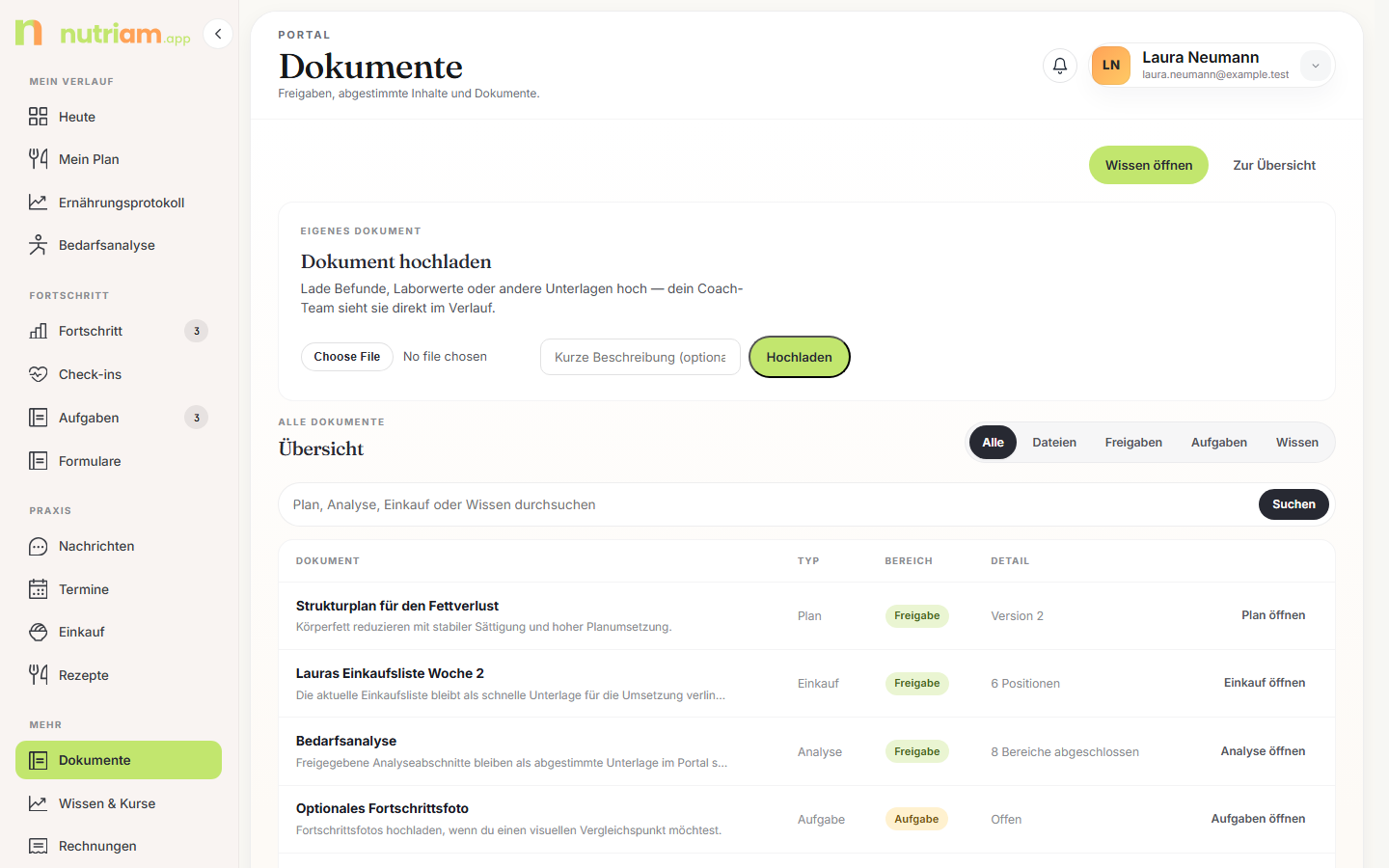
The section used to be called “Files”. Today it says Documents everywhere.
Uploading your own document
At the very top is the “Your own document / Upload a document” card with the sentence “Upload test results, lab values or other documents. Your practitioner sees them straight away in your history.”
- Drag the file into the dashed area or click “Choose file” and find it on your device. On your phone you can also take a photo directly. After that, the file name appears in the area; “Choose another file” lets you swap it.
- If you like, write something in the “Short description (optional)” field, for example “Blood test from 14 July”.
- Click “Upload”.
- During the upload, a bar shows the progress as a percentage. At the end, “Done ✓” appears and the file is shown in the list below.
| Rule | Value |
|---|---|
| Size | up to 15 MB per file |
| Allowed | PDF, images (JPEG, PNG, GIF, WebP, HEIC), Office documents, text and CSV |
| Not allowed | web pages, SVG graphics and programs |
| Number | one file at a time |
Important: If you haven't chosen a file, you get the message “Please choose a file first.” If the file is too large or in a format that isn't allowed, the portal tells you directly below the card.
Tip: Photos of paper test results work well. Make sure the light is good and the whole page is in the picture.
Important: There is no delete button in the portal. If you have uploaded the wrong thing, send your practitioner a quick note via Messages.
What the list shows
Below the upload is the “All documents” block with four switches and a search.
| Switch | Shows |
|---|---|
| All | Everything together |
| Files | Actual files: your own and those from your practitioner |
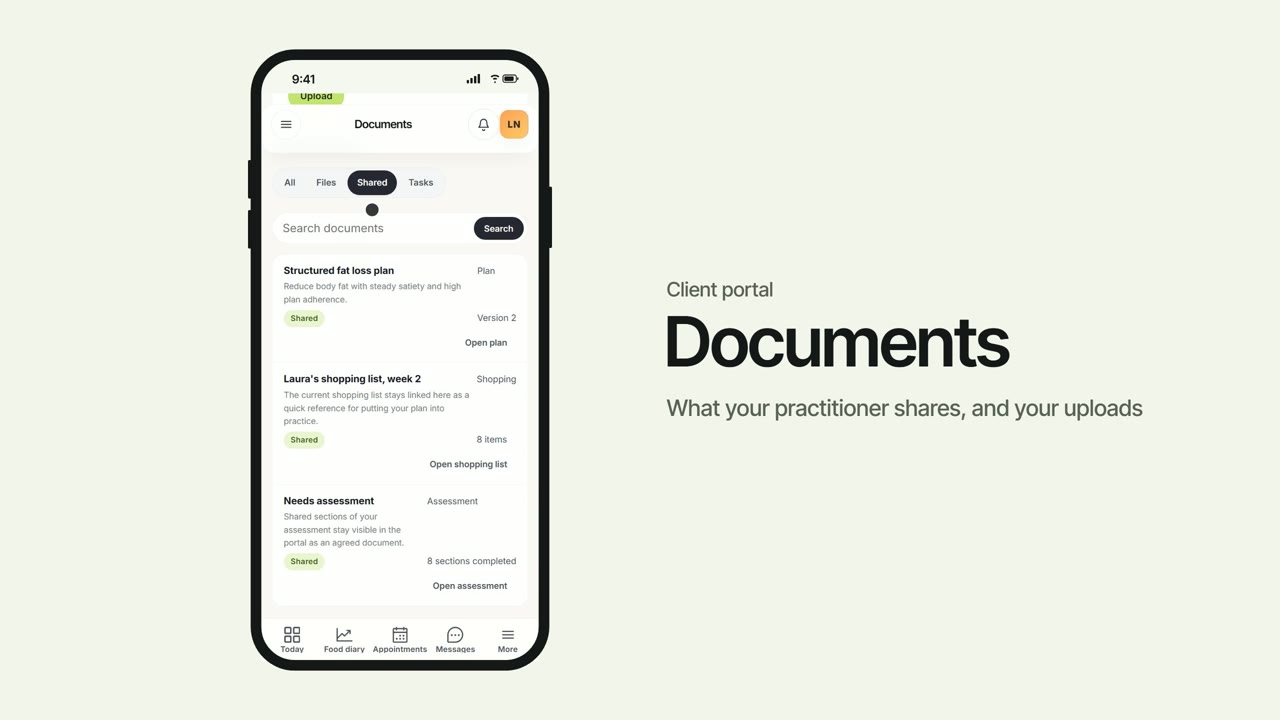
| Shared | Plan, shopping list and needs assessment as a link |
| Tasks | Tasks that are about a document |
The search field is called “Search documents”, with the “Search” button next to it.
The table below has five columns:
| Column | Content |
|---|---|
| Document | Name and a short description |
| Type | Where the entry comes from, e.g. Client, Assessment, Invoice |
| Area | Coloured pill: File, Shared or Task |
| Detail | Size and date, version or number of items |
| Action | The button on the right, e.g. “Download” or “Open plan” |
Your own uploads appear in the Type column as Client.
At the very bottom is a line with numbers: X shown, X files, X shared, X tasks.
Important: The list doesn't show an unlimited number of entries. It loads the newest files (up to twelve), plus at most three document tasks. It's best to find older files via the search, or just ask.
What else you can do
- Open or save a file: Click the name or “Download”.
- Jump to the plan: Click “Open plan”. More on this in 03 My plan and shopping.
- Jump to the needs assessment: Click “Open assessment”. More on this in 02 Needs assessment.
- Search: One keyword is enough; it searches the name, description and detail.
2. Invoices
Sidebar → More group → Invoices.
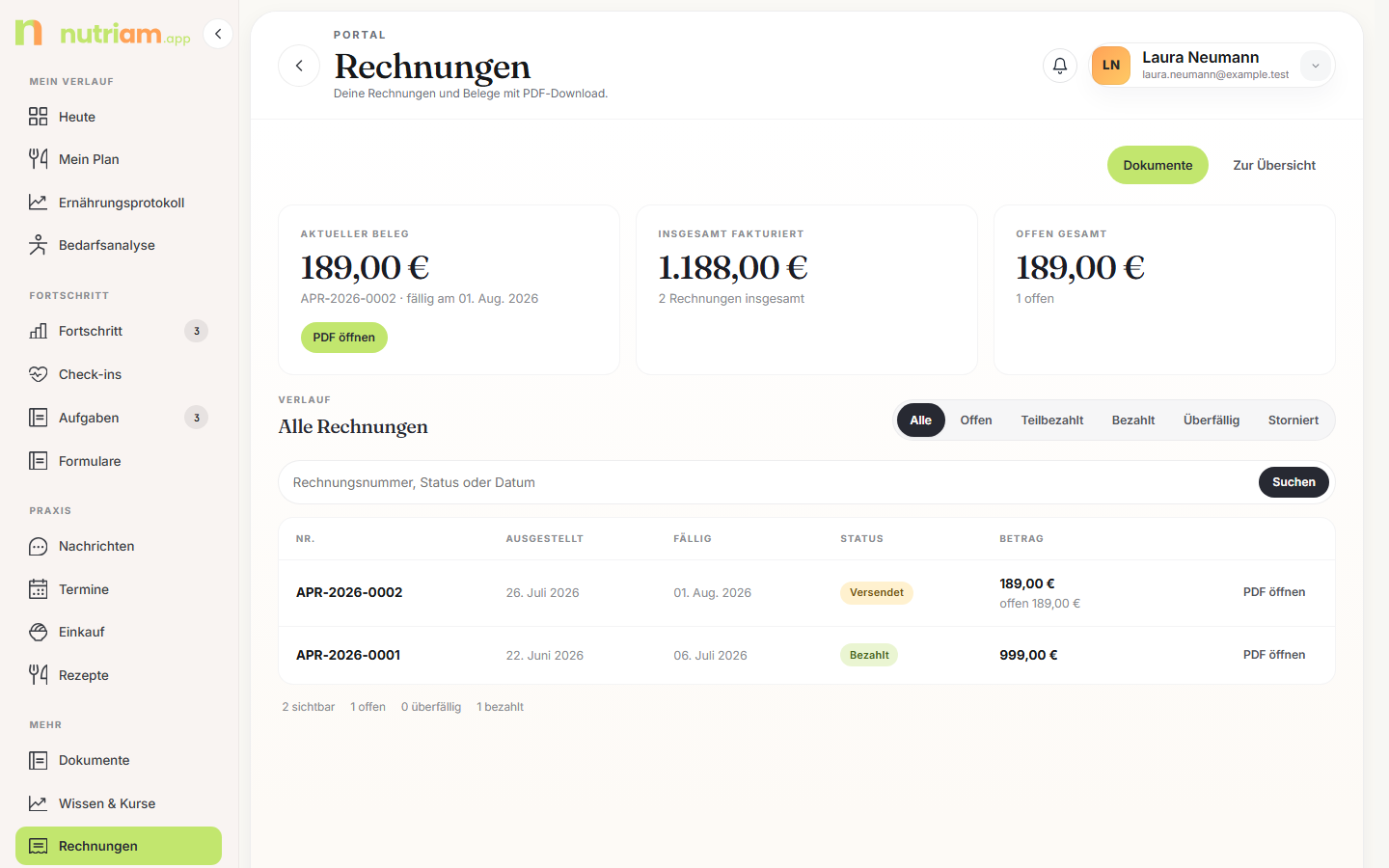
At the top right, “Documents” takes you to your other paperwork.
The card at the top
A card says what is open: the amount outstanding and, for one open invoice, its number and due date; for several, the number of invoices and the next due date. The button below opens the PDF of the invoice that is due next. If a payment is overdue, it says so above the amount. If everything is paid, it says “All paid.”. Below that it shows how much has been billed in total across how many invoices.
The list
Below that is “All invoices”, one row per invoice: on the left the number with a coloured status pill, below it the issue date and due date (for a part payment, also the remaining balance), on the right the amount and “Open PDF”. The PDF opens in a new tab.
From six invoices, switches and a search are added: All, Open, Partially paid, Paid, Overdue, Cancelled and the “Invoice number, status or date” search field.
| Status | Meaning |
|---|---|
| Open | The invoice has been sent and hasn't been paid yet |
| Partially paid | Part has been paid, a balance is still open |
| Paid | Settled in full |
| Overdue | The payment deadline has passed |
| Cancelled | The invoice is no longer valid |
With switches and search, there is also a line with numbers at the bottom: X shown, X open, X overdue, X paid.
Important: You can't pay in the portal. There is no pay button. How to pay (bank transfer, card or in person) is stated on the invoice itself. Open the PDF for this.
Important: You don't see draft invoices. An invoice only appears here once your practitioner sends it.
If something isn't right or you don't recognise an invoice: ask first, don't ignore it. A short message is enough.
3. If a menu item is missing
Every practice decides for itself which sections it offers in the portal. If a section is switched off, it disappears from the sidebar. If you open it directly via its address, you land back on the start page.
Of the sections in this chapter, Documents and Invoices can be switched off. That is a setting of your practice and not an error. If you are unsure, ask with a quick message.
Frequently asked questions
“Can I send my practitioner a file?” Yes. Upload it under Documents in the “Upload a document” card. Your practitioner sees it straight away. There are no attachments in Messages themselves.
“My uploaded file isn't in the list.” Wait a moment and reload the page. Then click the “Files” switch. If you still can't find it, send a quick message.
“Which files can I upload?” PDF, photos (JPEG, PNG, GIF, WebP, HEIC), Office documents and text and CSV files, each up to 15 MB. The portal rejects web pages, SVG graphics and programs.
“How do I pay an invoice?” Open the PDF via “Open PDF”. The payment method is stated there. The portal itself has no payment function.
“I can't see any invoices at all.” Either your practitioner hasn't issued any yet, in which case it says “No invoices available yet.”, or your practice doesn't use the section.
What's still missing here
- A description of how to remove an uploaded file is still missing. This isn't currently possible in the portal.
- You can manage reminders about invoices in the Settings section. That section isn't described yet.
- Up-to-date screenshots of both sections are still missing.