
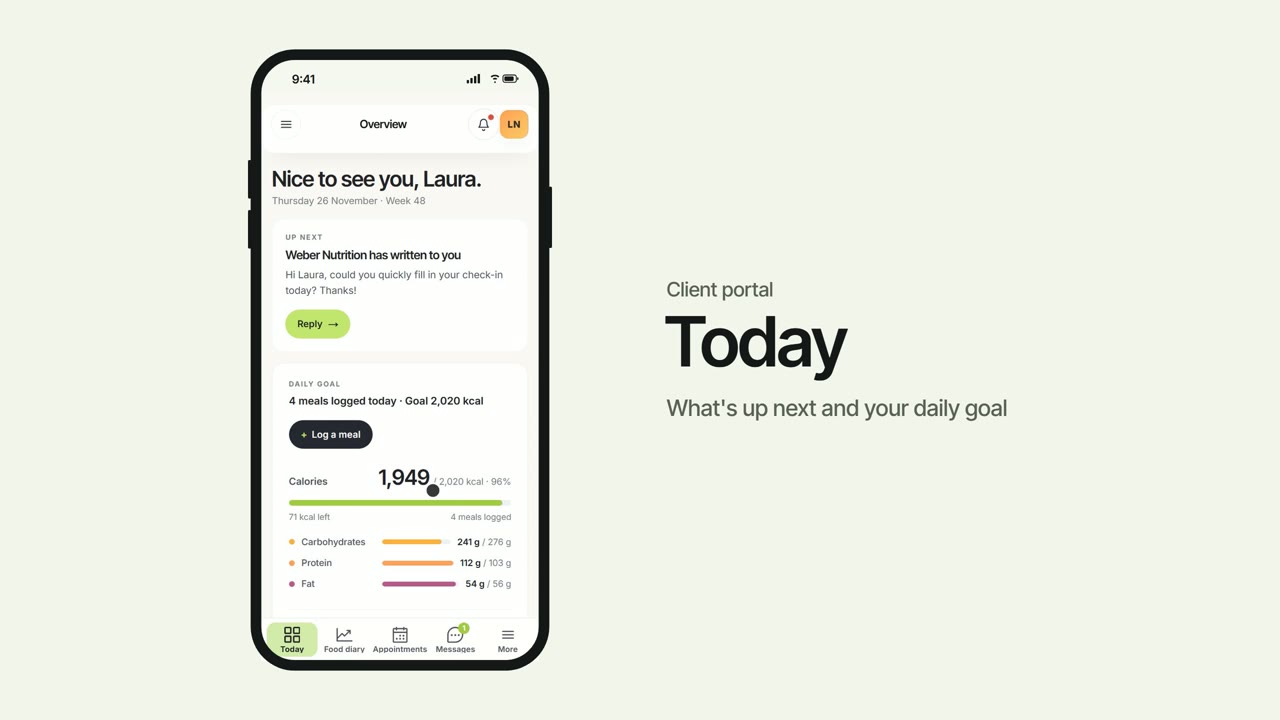
01 - First steps in the portal
Here you will find out how to sign in, how your portal is laid out and what you see on the Today start page. At the end you set the portal up as an app on your phone.
1. Signing in
What you need
- An invitation from your practice. It arrives by email and contains a
link ending in
/invite/.... - Your own password, which you choose yourself the first time.
- An up-to-date browser: Chrome, Edge, Firefox or Safari.
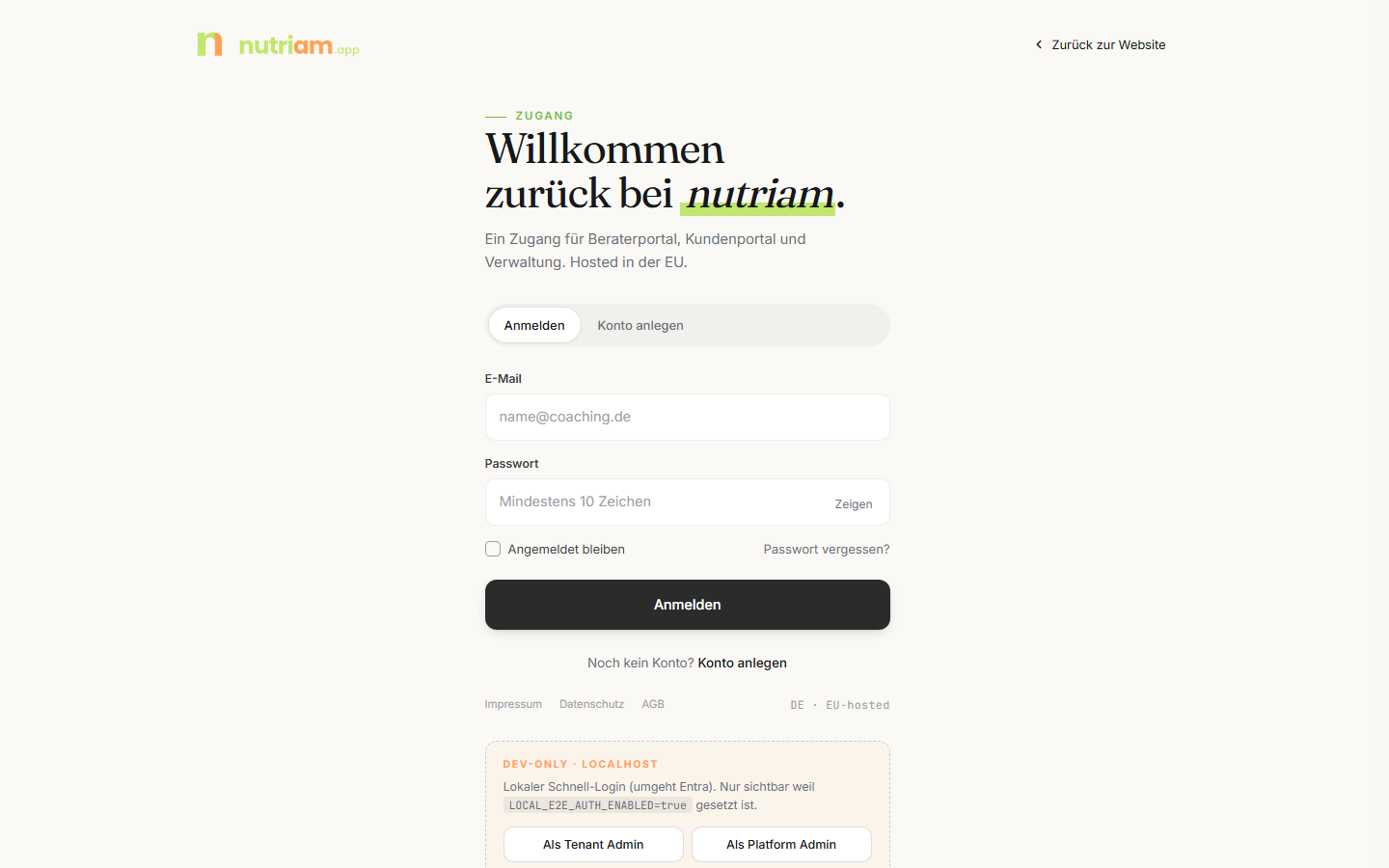
Important: You do not need a Microsoft account. Your access is a nutriam account with your email address and your password. As a client, you never need the Microsoft login on the sign-in page (“Sign in as operator with Microsoft”).
The first time
- Open the invitation email and tap the link.
- The page says “Set up your access”. Tap Set up access.
- The Create your account form opens. Your practice has usually already entered your first name, last name and email. You only set a password (at least 10 characters). Below it are the links to your practice's privacy notice and to the nutriam privacy policy. You don't have to confirm anything there.
- Tap Create account.
- nutriam sends you an email with a verification code. Enter it and tap Confirm code. If nothing arrives: Resend code. The code is also in the email's subject line, so you can already see it in the notification on your phone.
- Done. You land straight in your portal on the Today page.
Signing in after that
Bookmark the address your practice gave you. Then enter your email and password and tap Sign in. For security, we then send you a code by email, which you enter. It is also in the email's subject line. With the Stay signed in tick box, you don't have to sign in again every time.
Forgotten your password? Tap Forgot password? on the sign-in page. You get a code by email again and then set a new password.
2. How the portal is laid out
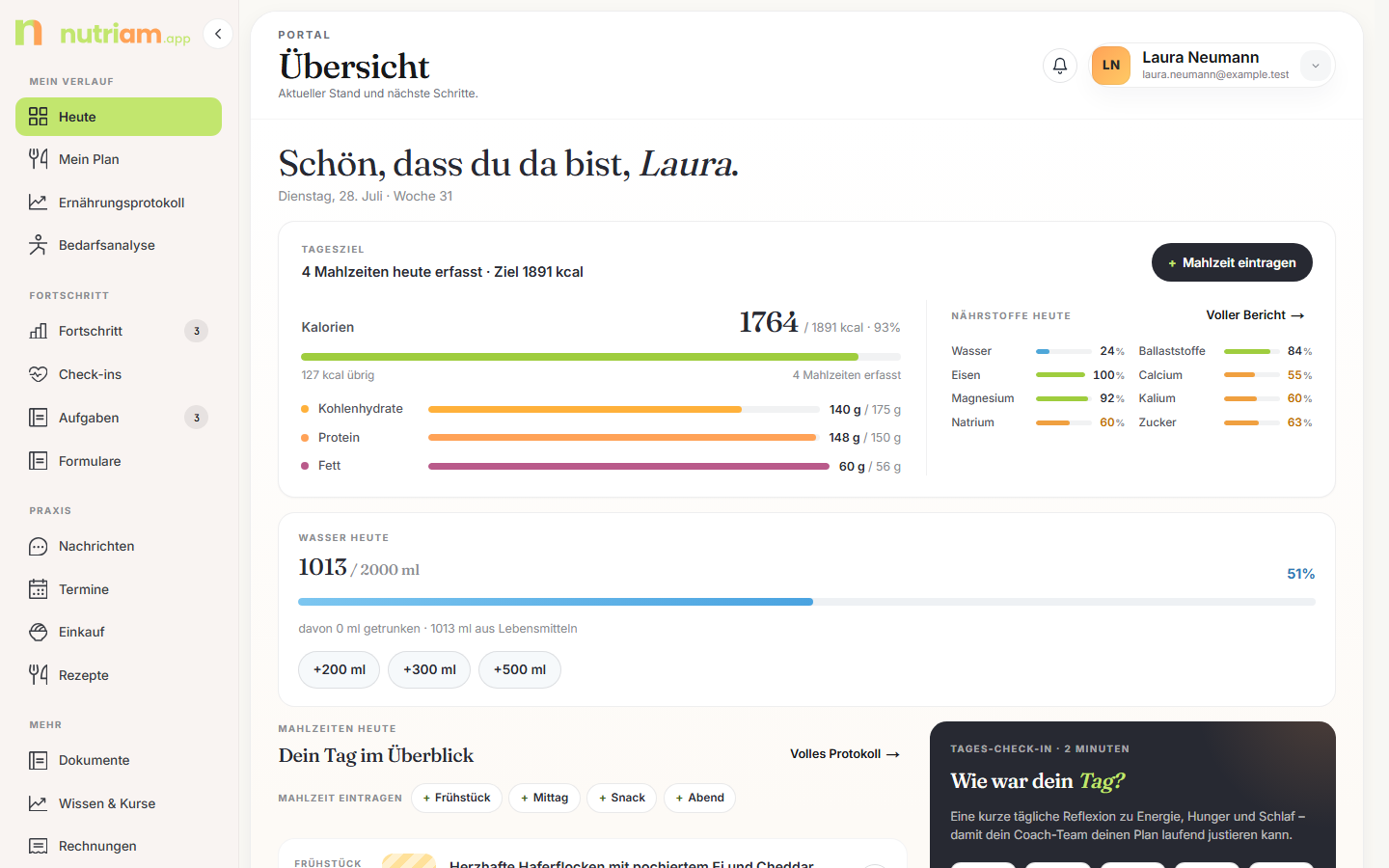
The portal has three parts:
- Menu on the left: your sections, sorted into four groups.
- Header at the top: page title, button for video guides, bell for notifications and your name.
- Middle: the content of the page you have just opened.
The menu looks like this:
| Group | Sections |
|---|---|
| My journey | Today · My plan · Food diary · Needs assessment |
| Progress | Progress · Feedback · Check-ins · Tasks · Forms |
| Practice | Messages · Appointments · Shopping · Recipes |
| More | Documents · Invoices · Settings |
Some items have a small number next to them. It shows how much is currently open there, for example unread messages.
The round button with the play symbol shows you a short video about the section you are in, for example in the food diary, how to log meals. The video has subtitles, so you can also watch it without sound.
The bell at the top right shows your notifications. Mark all as read tidies them up. If you click your name, a small menu opens with Profile, Give feedback and Sign out. With Give feedback you send the nutriam team a message directly, for example if something isn't working or you would like a feature. Please don't enter any health data there; discuss questions about your nutrition with your practitioner as usual via Messages.
Tip: The small arrow at the top of the menu collapses the sidebar to a narrow strip if you want more room for the content. The portal remembers this for this device.
3. The “Today” start page
At the very top is a greeting with your first name. It changes with the time of day: Good morning (before 11 am), Nice to see you (before 6 pm) and Good evening. Below it are the date and the week number.
Cards follow. Only the cards that have something to show appear:
| Card | What it shows |
|---|---|
| Up next | one thing that is due right now, with a button |
| First steps | right at the start: where to begin |
| Needs assessment | a note if sections are still open |
| Forms | a note if your practitioner has sent you forms |
| Daily goal | calories, macros and nutrients |
| Water today | amount drunk and daily goal |
| Habits today | a list of your habits to tick off |
| Meals today | what you have logged today, plus the week at a glance |
| Daily check-in | a short update on how your day was |
| Your practice's name (if no name is stored: Your practitioner) | latest status from your messages |
| Open tasks | tasks your practitioner has given you |
| Weight over time | your current weight as a small curve |
First steps
On your very first visit, a First steps card sits at the top with your first name and a single button: Log your first meal. It is your starting point. All other cards only show zeros at first, because there is no data yet.
Tap the button and enter what you last ate; a rough estimate is fine. After that, your daily goal, water and week at a glance fill up with your own numbers.
If further steps are coming up, a line “Next: …” appears below the button, for example the needs assessment or your first check-in.
The card disappears by itself as soon as your first entry is saved. You don't have to dismiss it, and it won't come back either. Because it depends on your data, it disappears on all your devices at the same time.
Up next
If something is due right now, the start page shows an Up next card directly below the greeting, with exactly one button:
| What is due | What the card shows |
|---|---|
| an appointment today that isn't over yet | time and title, Go to appointment button |
| your practitioner has written to you and you haven't opened the chat since | the start of the message, Reply button |
| your practitioner has replied about your food diary or check-in and you haven't read it yet | how many pieces of feedback there are, Read feedback button; it opens the Feedback page |
| from 6 pm, if you haven't checked in today | the Daily check-in card (see below) |
If more than one applies, the appointment comes first, then the message, then the feedback. Feedback counts as read as soon as you have opened the Feedback page or tapped it in the bell. If nothing is due, the card is not shown. While the First steps card is visible, it doesn't appear, so that there is only one starting point at the top. Whatever is shown at the top as up next does not appear a second time further down.
Daily goal
On the left, the card shows your calories as a bar, for example “1,480 / 2,000 kcal · 74%”, with “520 kcal left” below. Then come three bars for Carbohydrates, Protein and Fat. The targets come from your released needs assessment. They are the same goals the daily balance in your food diary is measured against.
Calories and macros only count what you have logged today. If you have logged something today but none of those entries has, for example, a kcal value, it shows n/a without a bar and without a percentage. If the kcal value is only missing for some foods, the bar shows the coverage instead of “kcal left”, for example 2 of 3 items with a value: the total is then too low.
On the right is Nutrients · avg. of the last 7 days with eight bars: water, fibre, iron, calcium, magnesium, potassium, sodium and sugar. It works out the average per day with entries over the last 7 days. Each bar shows the share of the reference value as a percentage, all in the same neutral colour, without any rating. For iron, calcium, magnesium and potassium, this is the same personal reference value your practitioner sees in your client file (based on age, sex, pregnancy or breastfeeding from your needs assessment); without a needs assessment, a general guideline applies. For water, fibre, sodium and sugar, a general guideline always applies. The sentence below the bars tells you what the percentages refer to.
If none of your entries has a value, for example for iron, it shows n/a (not available) and there is no bar. A real 0 shows as 0%. If you are above the reference value, the real share is shown, for example 240%; only the bar stops at full width. If the value is only missing for some foods, a line below the bars gives the coverage, for example Iron, Calcium, Magnesium and Potassium: 3 of 15 items with a value. The share is then too low, because foods without a value aren't counted.
On your phone and in narrow windows, this part is collapsed below the macros, so that the card starts with your day. Tapping the line expands it.
With the Log a meal button at the top right, you can log something to eat straight away. Full report → below the nutrients takes you to the food diary.
Note: Right at the start, this button is missing here. The First steps card then takes you to the same entry window.
If your practitioner has set a food diary assignment, a short sentence sometimes appears below the heading:
- Food diary not started yet or already complete: Then Log a meal is grey and can't be tapped, and so are the meal buttons under Meals today. The sentence tells you why, for example “Your food diary starts on 12/10/2026. Until then you don't need to log anything.”
- Today is just not a food diary day: Then the button stays available, so that you can add a food diary day you missed. The sentence gives the period and weekdays of your food diary.
More on this in 04 Food diary & check-ins.
Tip: If it says “No daily goal yet”, your value from the needs assessment is still missing. Only your practitioner can set it; the Go to needs assessment → link shows you whether any details from you are still missing there. More on this in 02 Needs assessment.
Without numbers: Your practitioner can hide calories for you if counting calories isn't good for you during your care. Then the calorie bar and your calorie goal are not shown; the bars for carbohydrates, protein and fat remain. If they also hide macros and nutrients, the card is called Food diary and only shows how many meals you have logged today, with the button for logging. Whatever is hidden doesn't appear anywhere in the portal, including plans, recipes, nutrient tables and PDFs.
Water today
The card shows your amount and your daily goal in millilitres, plus a bar and the percentage. With +200 ml, +300 ml and +500 ml you add some, and Undo removes the last entry again. If you have logged foods that contain a lot of water, it shows below how much of it comes from food.
Habits today
If your practice has set up habits for you, this list appears: “2 of 4 done”. Tap the circle on the left to tick something off or untick it again. For a habit you have managed several days in a row, the number of days in a row is shown on the right, for example “5 days”.
Meals today
The Breakfast, Lunch, Snack and Dinner buttons create an entry straight away. Below them are today's meals with the time and small figures (kcal, P, C, F). If a meal comes from a recipe from your practice, you see the recipe picture next to it. If you haven't logged anything yet, it says “Nothing logged today yet”.
At the very bottom of this block you see This week: seven days with small dots. The more dots are filled, the more meals you have logged on that day.
Daily check-in
The card asks “How was your day?” and shows five faces from Tough to Very good. If you tap one, the check-in opens with that mood already selected. The Start check-in → button opens it without a preselection. If you have already checked in today, it says “Already checked in today.” and the button is called Edit check-in →.
From 6 pm, the card appears at the very top as Up next as long as you haven't checked in today. More on this in 04 Food diary & check-ins.
4. On your phone
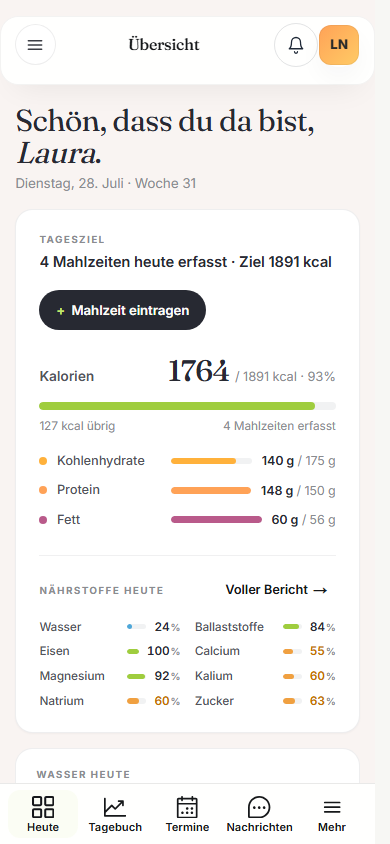
On your phone, a fixed bar with five icons sits at the bottom:
| Icon | Where it takes you |
|---|---|
| Today | start page |
| Food diary | your meals |
| Appointments | your appointments |
| Messages | your conversation with your practitioner |
| More | opens the full menu |
The icons can show small numbers when something new is waiting for you there. You reach all sections that aren't in the bar via More. Alternatively, tap the menu icon with the three lines at the top left.
5. Setting up nutriam as an app
You can put the portal on your home screen like an app. It then starts without the browser bar, and notifications arrive more reliably.
For this, the portal shows the nutriam as an app card:
- Android and computer: tap the Install app button and confirm the browser's prompt.
- iPhone and iPad: in the browser, tap Share and then Add to Home Screen.
Later or Got it hides the card. It only comes back after about 30 days, or not at all once you have installed the portal.
Important: On iPhone and iPad, push notifications only work once you have installed the portal this way and open it from the home screen. In a normal Safari tab, push stays off.
6. Settings
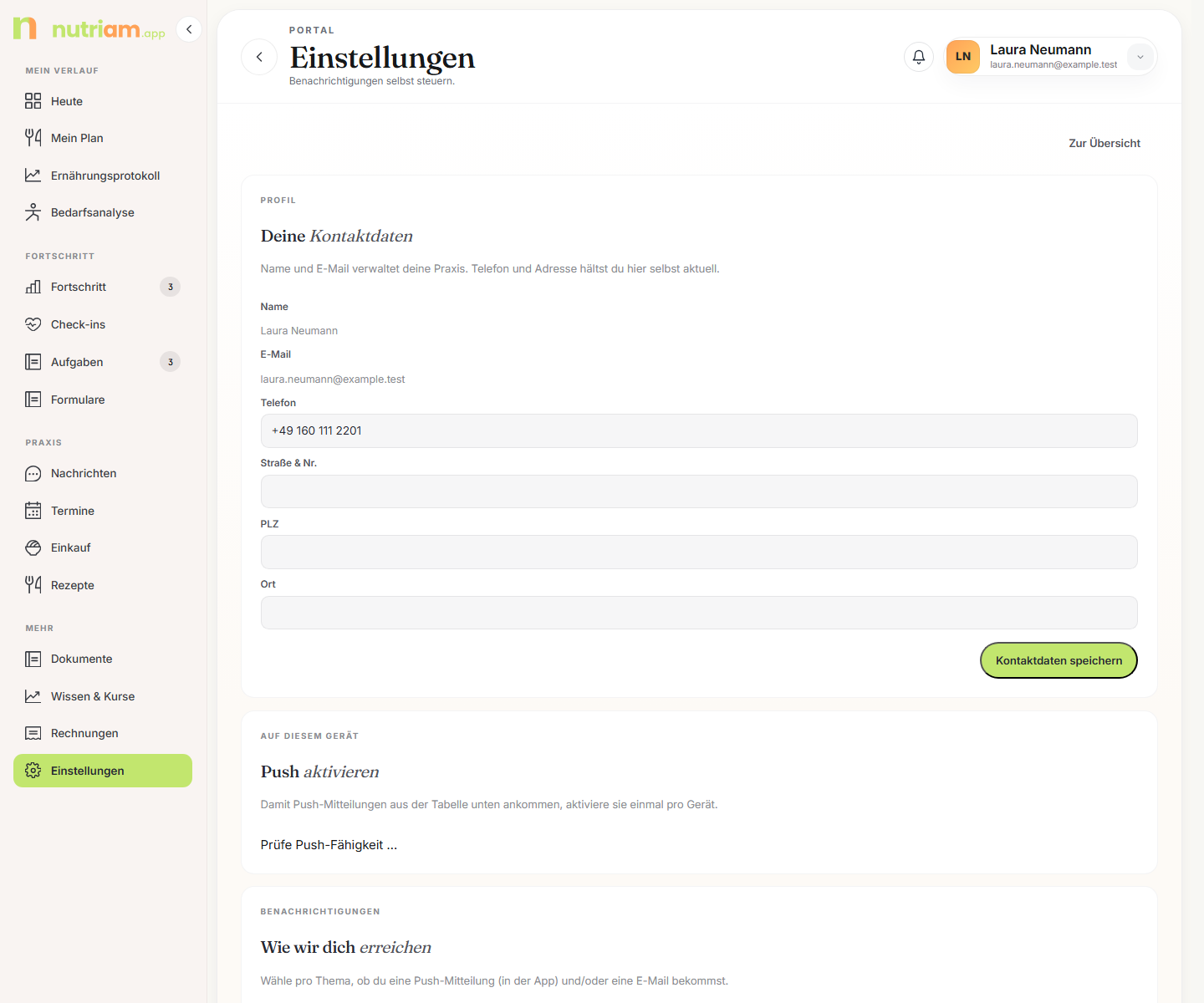
Under More → Settings you set four things. At the very bottom you can also request that your account be deleted.
Your contact details
Your practice manages your name and email; you can only read them here. You maintain Phone, Street & no., Postcode and City yourself and save them with Save contact details.
Push on this device
The Turn on push block always applies only to the device you are using right now. Tap Turn on push and allow notifications when the browser asks. It then says “You receive push notifications on this device” and you can use Send test push to check whether everything arrives. Turn off switches push off again for this device.
How we reach you
A table with six topics and two columns (Push and Email). Set the ticks in each row the way you want:
| Topic | What for |
|---|---|
| Messages from your practice | when your team writes to you, including feedback on your check-in or food diary |
| Appointment updates | new, cancelled or rescheduled |
| Invoices & reminders | new invoice or payment reminder |
| Check-in reminder | when your weekly check-in is due |
| Food log day reminder | in the morning on days when your food diary assignment is running; Push only, without a tick nothing appears in the bell either |
| New plan or task | when a plan is released or a task is assigned to you |
Below that you set Quiet hours, for example from 20:00 to 07:00. They only apply to push; emails still arrive. You can also tick Only urgent things at the weekend. Finally, tap Save settings.
Important: The push column only takes effect once you have turned on push on the device (see above).
AI photo recognition
At the very bottom it shows whether you have allowed meals to be logged by photo. If so, you see the date, the same notice as for the consent (where your photo goes, with a link to the privacy policy) and the Withdraw consent button. If not, it says that you can turn it on in the food diary if you want. Consent is voluntary and can be withdrawn at any time.
Delete account
Your practice manages your data. If you want them to delete your account and your data, tick the box under Delete account and tap Request deletion. Your practice receives the request as a task, reviews it and gets back to you. Nothing is deleted until your practice triggers it in your client file; they must keep invoices for tax reasons.
You can see the status in the same place: received, processed or closed, each with a date. While the request is open, the button isn't shown again. Once it is closed, you can submit it again. Once your client file has been deleted, you can no longer sign in.
7. If a section is missing
Your practice can switch off individual sections: invoices, shopping, recipes, documents, progress, check-ins and tasks. Switched-off sections disappear from the menu. If you still open them via an old link, you land back on Today.
Today, Messages, Appointments and Settings are always there. Your practice can hide My plan and Food diary for you personally if you have agreed on this together, for example because counting shouldn't be the focus right now.
8. If something doesn't work
| Problem | What you can do |
|---|---|
| The verification code doesn't arrive | Check your spam folder, then Resend code |
| The sign-in page closes when I open the code email | In the code email, tap Back to sign-in or open the link you came from again. You land back at the code entry and enter the code from the email. This works for about ten minutes |
| The password isn't accepted | Forgot password?, at least 10 characters |
| “Your portal access is not active yet.” | your account exists, but your practice still has to activate you |
| “Data is currently unavailable” | Wait a moment and reload; if it continues, let your practice know |
| The page doesn't load | Press F5 or Ctrl + R; on your phone, reload the page |
| Push notifications don't arrive | Settings → Turn on push; on an iPhone, install it as an app first |
Emergency: if you urgently need medical help, call the out-of-hours medical service (116 117 in Germany) or the emergency services (112). The portal is not an emergency channel.
Frequently asked questions
Do I need a Microsoft account? No. Your access is a nutriam account with your email and your password.
Can I sign in with a different email address? No. The address your invitation was sent to applies. If that should change, write to your practitioner via Messages.
After signing in, I only see “Your portal access is not active yet.” Your account has been created but isn't linked to your client file yet. Your practice does that. Just let them know.
Where do I find sections that aren't in the bar at the bottom? On your phone via More, on a computer in the menu on the left.
Do I have to install the portal? No, it also runs in the browser. Installed, it starts faster, and on an iPhone push notifications are only possible then.
How do I turn off emails without turning everything off? Settings → How we reach you table: set the ticks for each topic and column individually and tap Save settings.
Why is my start page so empty? Many cards only appear once there is data, that is, as soon as you log meals, enter water or your practitioner releases something for you. At the start, the First steps card takes you to your first entry.
The “First steps” card has suddenly gone. Did I do something wrong? No. It disappears automatically as soon as your first meal has been saved. That is intended.
How do I sign out? Tap your name at the top right and choose Sign out.
What's still missing here
- The Profile section (via your user menu) isn't described here.
- The screenshots show a sample account; your numbers and cards look different.
- What exactly a push notification says depends on the topic and isn't listed here.