
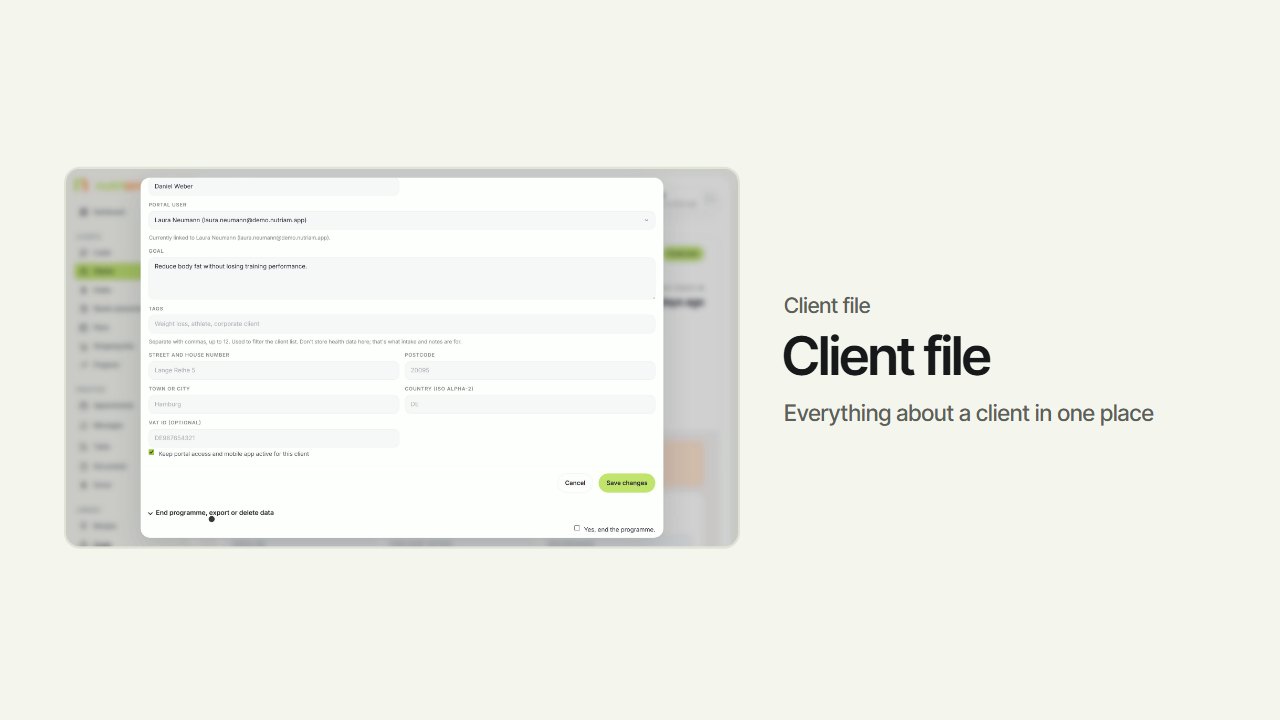
10 - Data protection and records in day-to-day work
Nutrition counselling means processing health data, which are special categories under Art. 9 GDPR (DSGVO, the EU General Data Protection Regulation). This chapter collects the tools nutriam provides for this: deleting, exporting, documenting consents and tracing what happened when. It only describes what the app actually does; it is not legal advice.
1. The tools at a glance
| Tool | Where | Who has access |
|---|---|---|
| End programme | Client file → Overview tab, client details block | Practitioner, team admin |
| Delete client data (GDPR) | Client file → Overview tab, red block | Practitioner, team admin |
| Export client data (JSON) | Client file → Overview tab, red block | Practitioner, team admin |
| Export data (whole practice) | /verwaltung, navigation on the left, Account group |
Team admin |
| Activity log | /verwaltung/protokoll |
Team admin (everything), practitioner (own activities) |
| Legal agreements | /verwaltung/rechtliches |
Team admin |
| Consent to progress photos | Client portal → Progress | Only the client themselves |
| Consent to AI photo recognition | Client portal → Settings | Only the client themselves |
| Confirmation for the AI analysis of documents (not a consent, see section 5) | Client file → Overview tab → Consents card | Practitioner, team admin |
| Agreements to your texts (your own consent, agreement, information) | Texts: Practice → Forms; sending: Consents card in the client file; agreeing: client portal → Agreements | Texts and sending: practitioner, team admin; agreeing, declining, withdrawing: only the client themselves |
Tip: Two pages are easy to miss. Activity log is in the sidebar under System. Legal agreements has no sidebar entry at all: you only reach the page via the button at the top right of the settings.
2. Ending, deleting, anonymising: what to use when
There are two completely different ways to end a client's programme. Both are in the client file on the Overview tab, at the bottom of the client details block, and both require you to tick a confirmation box.
| Option | What happens | Reversible |
|---|---|---|
| End programme | The status becomes Completed, all data is kept unchanged | No, there is no “Restore” action |
| Delete client data in line with GDPR | Health and personal data are deleted, the client details are anonymised | No, irreversible |
Ending the programme is the normal case. The client file only
disappears from the default list; you can still find it in /clients with
the Completed status filter. For programmes that have already ended, the
button is disabled.
Deleting is the exception: for an erasure request under Art. 17 GDPR or a clean offboarding. The red block is called “Delete client data (GDPR)”, and the tick box reads “I confirm the irreversible deletion of the personal data.”
What deletion removes
| Area | Details |
|---|---|
| Health data | Intake, needs assessments, energy calculations, check-ins, progress entries, food diary, water tracking, lab values, food diary favourites, the consent to progress photos |
| Client care | Nutrition plans, shopping lists, portal tasks, assigned forms including answers, habits including ticks |
| Contact history | Message threads, correspondence, appointments including appointment notes, running sequences and their deliveries |
| Team tasks | all tasks about this client disappear from the task board, including completed ones and those about open invoices. They contain the name in plain text (“Review client entries: …”) |
| Inbox | the client's bell entries and the team's entries about them (“New check-in from …”) |
| Files | all attachments except the invoice documents, including the files in storage, not just the entries |
| Portal account | is deactivated, email and display name are anonymised, push subscriptions and AI usage data are deleted, the login account in the identity service is removed |
| Client details | The first name becomes “Anonymised”; surname, phone, goal, notes, address, VAT ID and all tags are cleared |
| Lead entry | if the client file came from a lead, this entry is anonymised too (name, email, phone, message, notes). The lead's acquisition artefacts go as well: the publicly booked initial consultation (name in the subject, free text in the request), the initial consultation notes, the acquisition threads including messages, lead documents including the file in storage and the lead's history entries |
| Delivery logs | the recipient address in the email logs is pseudonymised, and so are subject lines that contain the name |
The record itself remains, otherwise the invoices would be left hanging. Afterwards it is set to Archived and carries a deletion timestamp.
What deletion leaves in place
Invoices including their line items, payments, payment reminder cases and the finalised invoice documents remain untouched: they are subject to the statutory retention obligation for tax purposes (more on this in 06 - Billing). Quotes are kept as well.
Caution: Deletion also clears this client's activity log. All previous entries for this client file disappear; exactly one new entry remains: “Client data deleted in line with GDPR”. If you need the history as evidence, run the export beforehand.
Caution: Tags are deliberately deleted too. If you have assigned clinical characteristics such as “diabetes” or “pregnancy” there, these are health data, and they must not survive a deletion.
And what about team members?
Employee data is personal data too. If someone leaves, the route goes via Administration → Team & access (see 08 - Administration) in three steps: set the status to Revoked, which blocks access immediately; hand over their clients; then Remove. The last step anonymises name, email, phone and title, deletes the membership and removes the login account.
Unlike with clients, the activity log stays complete: the entries document who did what in your practice and would be worthless as evidence if they disappeared along with the person. Afterwards they no longer carry a name, only the internal ID.
3. Right of access under Art. 15: one client, one file
The same red block contains “Export client data (JSON)”. Clicking it
immediately creates a download called kunden-export-<client ID>.json with
everything stored about this person:
| Included in the export |
|---|
| Client details from the client file |
| Intakes, needs assessments, energy calculations |
| Custom forms: assigned questionnaires with questions, answers and submission time |
| Nutrition plans, shopping lists |
| Check-ins, progress entries, lab values, food diary, water tracking |
| Appointments, correspondence and messages |
| Notes in the client file (including pinned ones) and appointment notes |
| Invoices |
| Consents: the current status (progress photos, AI photo recognition) and the history of all grants and withdrawals, including your confirmation for the AI analysis of documents |
| Documents, only as a list (file name, type, context, date), without the files themselves |
The file is machine-readable JSON, not a nicely formatted PDF. It is enough as the basis for answering an access request; preparing it for the data subject is up to you.
Tip: The export is also the best way to back up a client file before deleting it. The export itself is logged (“Client data exported”), so you can later prove when you prepared the information.
4. Full export of the practice data (Art. 20)
In Administration, on the left in the Account group, there is the entry
“Export data”. It is reserved for team admins and delivers all
structured data of your practice in one file:
nutriam-praxisdaten-YYYY-MM-DD.json.
The export also works after your subscription has ended: when the subscription expires, nutriam blocks access to the app, but the data export remains available to team admins. This way you can actually use the at least 30 days for taking your data with you that the terms and conditions (AGB) guarantee.
The header of the file tells you what is inside:
| Field | Meaning |
|---|---|
schemaVersion |
Version of the export format |
exportedAt |
Time of the export |
entityCount |
Number of exported data areas |
recordCounts |
Number of records per area, the quick plausibility check |
entities |
the data itself, sorted by area |
It includes, among other things, client files, intakes, needs assessments, plans including versions, plan templates, shopping lists, check-ins, progress, lab values, food diary, your clients' food diary favourites, appointments, messages, tasks, habits, content sequences, forms and templates, recipes, foods, service catalogue, quotes, invoices, payments, payment reminder cases, leads, team and invitations, practice settings, the legal agreements and the activity log. The complete list is in the terms and conditions, section 6a.
Deliberately not included:
- internal notes by nutriam support and its support sessions,
- your own nutriam subscription,
- raw AI data, email delivery logs and push device tokens,
- access credentials of any kind: fields with passwords, tokens or keys are always filtered out during the export,
- the binary files themselves; documents only appear as a list, your own recipe images only as a reference in the recipe. You can get the files on request as an archive in their original format.
Switching to another provider: Under the EU Data Act you can request at any time to switch or to have your data deleted. nutriam supports you with this for 30 days, after which you can still retrieve your data for at least 30 days. There is no charge for this. The details are in the terms and conditions, section 6a.
Caution: The file contains the health data of your entire practice in plain text. Store it encrypted and do not send it by email. This export is logged too (“Practice data exported”).
5. Progress photos: consent under Art. 9
Photos of one's own body are health data. nutriam therefore treats them more strictly than any other file.
Consent is given exclusively by the client themselves, in the client portal under Progress, section Photos. Without consent, they only see the card “Allow progress photos” there, with the note on Art. 9 GDPR, the link to the privacy policy and the button “I agree, allow”. As a practitioner, you cannot give this consent on their behalf: there is no way to do so in the interface and none in the system.
What follows from this:
| Rule | Effect |
|---|---|
| Upload only with consent | Without consent, the server blocks every upload, even if only a record without a file would be created |
| Upload only by the client | There is no way to upload a progress photo in the client file |
| No capture location | The portal re-encodes every photo in the browser before upload; EXIF data, including the GPS location and device, are left behind. For JPEG, the server also removes them |
| Withdrawal at any time | Via “Withdraw consent” in the portal. After that, no new uploads are possible; photos already uploaded remain until someone deletes them. The client can still see them in the portal after withdrawing and can permanently delete them there themselves |
| Real deletion | Progress photos are actually removed when deleted (entry and file). All other attachments are only archived |
| Versioned consent | If the information text changes in substance, the old consent counts as outdated and must be given again |
| History as evidence | Every grant and every withdrawal is also recorded as a separate history entry (evidence under Art. 7 GDPR); with a GDPR deletion, the person's history is deleted as well |
In the client file, you see the result on the Progress tab: the block “Progress photos · Uploaded by the client in the portal” shows the status in its header: “Consent since …” or “No consent”. If there is neither a consent nor a photo, the block does not appear at all. You remove individual images with Delete photo. Details on the client file are in 03 - Client file.
The second consent: AI photo recognition
Separately from this, there is the consent to AI photo recognition in the food diary. This one, too, is given and withdrawn only by the client themselves, in the portal under Settings, card “Meals by photo”. The text there names the processor and the location (Microsoft Azure OpenAI, EU/Frankfurt) and notes that conspicuous inputs may be stored for a limited time to prevent abuse and, in exceptional cases, may be seen by authorised persons in the EEA. Without this consent, search and barcode scanning remain available.
There is no separate AI consent for you as the practitioner. When you read in food diary sheets and lab reports, you pass your client's documents to the AI, not your own data. What counts is therefore their consent, and you confirm that it is in place (next section). Until 21 October 2026, nutriam also asked for your own AI consent; this has been dropped. You now find the note on abuse monitoring by Microsoft in the confirmation text.
The confirmation for the AI analysis: not yours, but theirs
Before the AI reads a food diary sheet or a lab report from your client (chapter 03, Read in a sheet and Import report (AI)), nutriam asks about one thing, and it is expressly not a consent within the product: you confirm once per client that their consent to the AI analysis of their documents is in place. The one confirmation covers food diary sheets and lab reports together. Unlike with the consents above, nobody gives a consent here; you confirm that the client has given it to you.
The reason is practical: people who hand in food diaries or reports on paper usually have no portal access. A click in the portal would have blocked the feature for exactly the clients it is intended for.
Where you set it. In the client file, Overview tab, Consents card, row AI analysis of documents: Confirm opens the information text with the tick box I have my client's consent to the AI analysis of their documents., after which the row shows on file with the date. If the confirmation is missing when you want to read in a sheet or a report, the same information text appears once directly in the dialog. If it is in place, the dialog only shows the line Consent to AI analysis is on file, confirmed on … with the link Manage in the client file. In the same card you see the status of the consent to progress photos; the client gives that one themselves in the portal, and you cannot change it there.
If, before 21 October 2026, you only confirmed the sheet import or only the report import, that confirmation continues to apply to its import. The card then shows So far only confirmed for food diary sheets or So far only confirmed for lab reports and offers Confirm for both.
| What happens | How |
|---|---|
| No import without confirmation | The server rejects the sheet or report before the AI sees it. Entering it by hand still works |
| The confirmation is logged | With the time and your name, in the same unchangeable history as the consents. The Consents card and the line in the dialog show the date of the confirmation |
| Withdrawing it | Via Withdraw in the Consents card, for example after the client has withdrawn their consent with you, or after a mistake. After that, sheet and report import stay closed for this client until you confirm again; an older confirmation for only the sheet or only the report is cancelled as well. The withdrawal also appears in the history with the time and name |
| Versioned information text | If the text changes in substance, nutriam asks again |
| Photo without capture data, PDF as a file | A photo is re-encoded as JPG in the browser before it is sent; capture location and device data do not travel with it. A PDF goes to the AI as a file, so its document metadata (creating program, date) goes along too. nutriam stores neither the photo nor the PDF |
| Deletion | When a client is deleted, the confirmation about them disappears too |
You obtain the consent yourself, not nutriam. For your clients' data you are the controller, nutriam is the processor. You decide how you obtain and document the consent: on paper at the initial consultation, in the intake form or digitally. nutriam only reminds you and records your confirmation.
For the AI report import (client file → Lab values tab → Import report (AI), available under the same conditions as reading in food diary sheets), the same confirmation applies. So before confirming, make sure that your client's consent also covers their lab reports. A lab report contains denser health data than a food diary sheet and usually the name, date of birth and medical comments. The AI does not transfer these details to the client file, but the file goes to the AI service as a whole. Mention this in your consent form, and cover the personal details on the report before taking the photo if you can. For a PDF, leave out pages without values beforehand, for example the explanation pages of a test report. Only what you select in the review list is transferred; nutriam stores neither the file nor the AI's result.
Recommendation for your consent form. Your client does not see any text from nutriam during sheet and report import. What they learn about the processing is in your form. So name both types of document in it: that photos or PDFs of their food diary sheets and lab reports go to Microsoft Azure OpenAI in the EU for automatic analysis, that nutriam does not store the files, and that Microsoft may store conspicuous inputs for a limited time to prevent abuse (abuse monitoring) and, in exceptional cases, have them viewed by authorised staff in the EEA. This is the same note that clients read for AI photo recognition in the portal and that you find in the confirmation text. The background is described in the data processing agreement (AVV) in Annex 3 under “On AI image analysis” (
/en/data-processing/agreement).
6. The activity log: what happened?
Sidebar → System → Activity log (/verwaltung/protokoll).
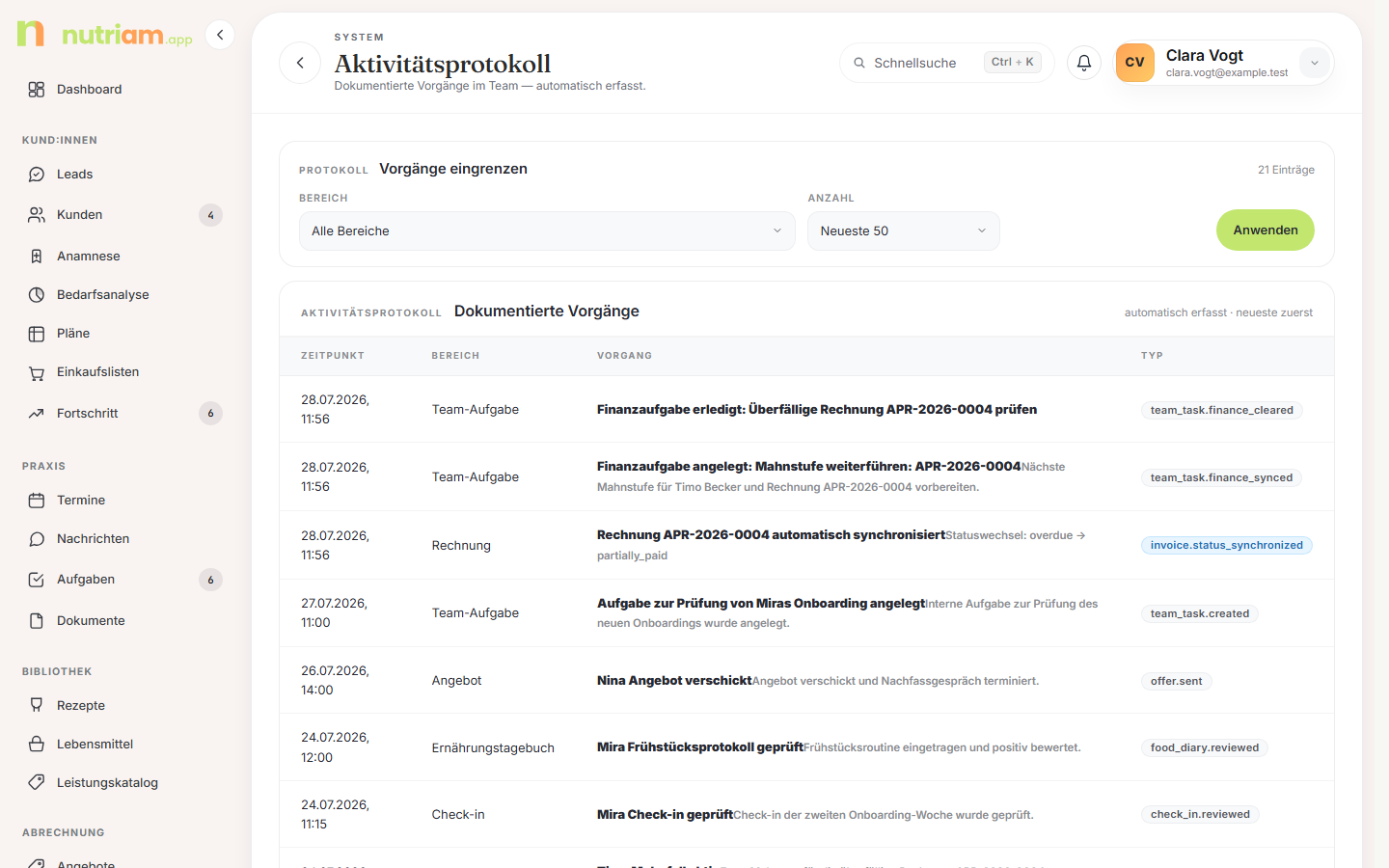
The page consists of a filter and a table. Logging happens automatically; you cannot add or delete anything.
Filter “Narrow down the list”
| Field | Values |
|---|---|
| Area | All areas or one of 20: Client, Lead, Invoice, Payment, Quote, Plan, Needs assessment, Check-in, Food diary, Shopping list, Portal task, Team task, Template, Membership, Invitation, User, Support access, Settings, Progress, Practice |
| Number | Latest 25, Latest 50 (default), Latest 100 |
Both fields take effect immediately: the list reloads as soon as you make a selection. The filter state is then in the address bar and can be bookmarked; “Apply” only remains as a fallback. The header shows how many entries are currently displayed and, as soon as an area is selected, the link “Reset filters”. Resetting the filter keeps the selected Number: it is working context, not a filter.
The table
| Column | Content |
|---|---|
| Time | Date and time |
| Area | the same wording as in the filter (Client, Invoice, …). There are also entries from the service catalogue (Product, Service package, Pricing rule, Contract clause) and from automations (Automation, Workflow template); they appear under All areas, but the filter does not offer them separately |
| Activity | Plain-text title, with a detail below it, e.g. “Client data deleted in line with GDPR”; for recorded messages, the type and direction, e.g. “Portal message, outbound” |
| Type | the kind of activity as a pill, e.g. Created, Sent, Reviewed or Completed automatically; anything nutriam cannot classify appears as Other. Hover over the pill with the mouse to see the technical event code |
Who gave whom which rights
The four areas Membership, Invitation, User and Support access answer the access questions that come up first in an audit. For these, an additional line “Concerns … · by …” appears below the activity: on the left who was affected, on the right who acted.
| Area | What it shows |
|---|---|
| Membership | Role and status changes in plain text, e.g. “Role: Practitioner -> Team admin; Status: Active -> Revoked”. Older entries (before the change in autumn 2026) still call the role “Coach” |
| Invitation | created, resent, withdrawn, accepted, with the invited address |
| User | Changes to accounts, the handover of clients between practitioners and the permanent removal of a team member |
| Support access | Sessions of the platform operator, with reason and period (see section 8) |
Note: Older entries may still show the technical values instead of the plain-language terms (
advisor,revoked,portal_message / outbound). They are translated on display where the pattern is recognisable; unknown values remain as written. The name of the person concerned is deliberately not stored in the log entry but added from the member list on display; otherwise it would survive a later deletion. People who have left the team therefore appear without a name line.
Who sees how much
- Team admins see all activities of the practice.
- Practitioners only see their own activities: their own clients, their own leads and their own actions. The header then shows “· own activities only”.
- Clients have no access to the page.
What does not end up in the activity log
Simply viewing something is not stored in normal operation, otherwise the log would consist of nothing but page views. “Viewed”/“listed” events are only recorded if the access took place during a support session (see section 8). Changes, on the other hand, are always written. This includes marking a food diary entry, a check-in or the client entries of a needs assessment as reviewed. Until the update in October 2026, these reviews were mistakenly classed as “viewed” and are therefore missing from the log for the period before that.
One exception applies to the notes next to the video call: they save automatically, and so that the log does not consist of intermediate states, one entry per call is updated there. If you save the same appointment documentation again within two hours, the entry shows the latest state and the time of the last save; intermediate states are not listed individually. Saving in the client file still writes a separate entry for each change.
Tip: For an individual person, the Activity log tab in the client file is the quicker route: it shows the same log, already filtered to this client file.
How far back the activity log goes
Entries remain for one year; after that, nutriam clears them automatically overnight. This is intentional: the log contains real names, and an unlimited history would mean storing more personal data than the purpose justifies (Art. 5(1)(e) GDPR).
One exception: activities relating to invoices and payments remain. They document the life cycle of a document (finalisation, cancellation, reminder levels) and are therefore part of the tax retention of the document itself. If you delete a client file in line with GDPR, these entries for that person disappear too.
If you need a longer history, for example for your own documentation obligation: the activity log cannot be exported (see What is still missing). In that case, take a screenshot in good time or record the activity elsewhere.
7. Your practice's legal agreements
/verwaltung → “Legal agreements” button at the top right.
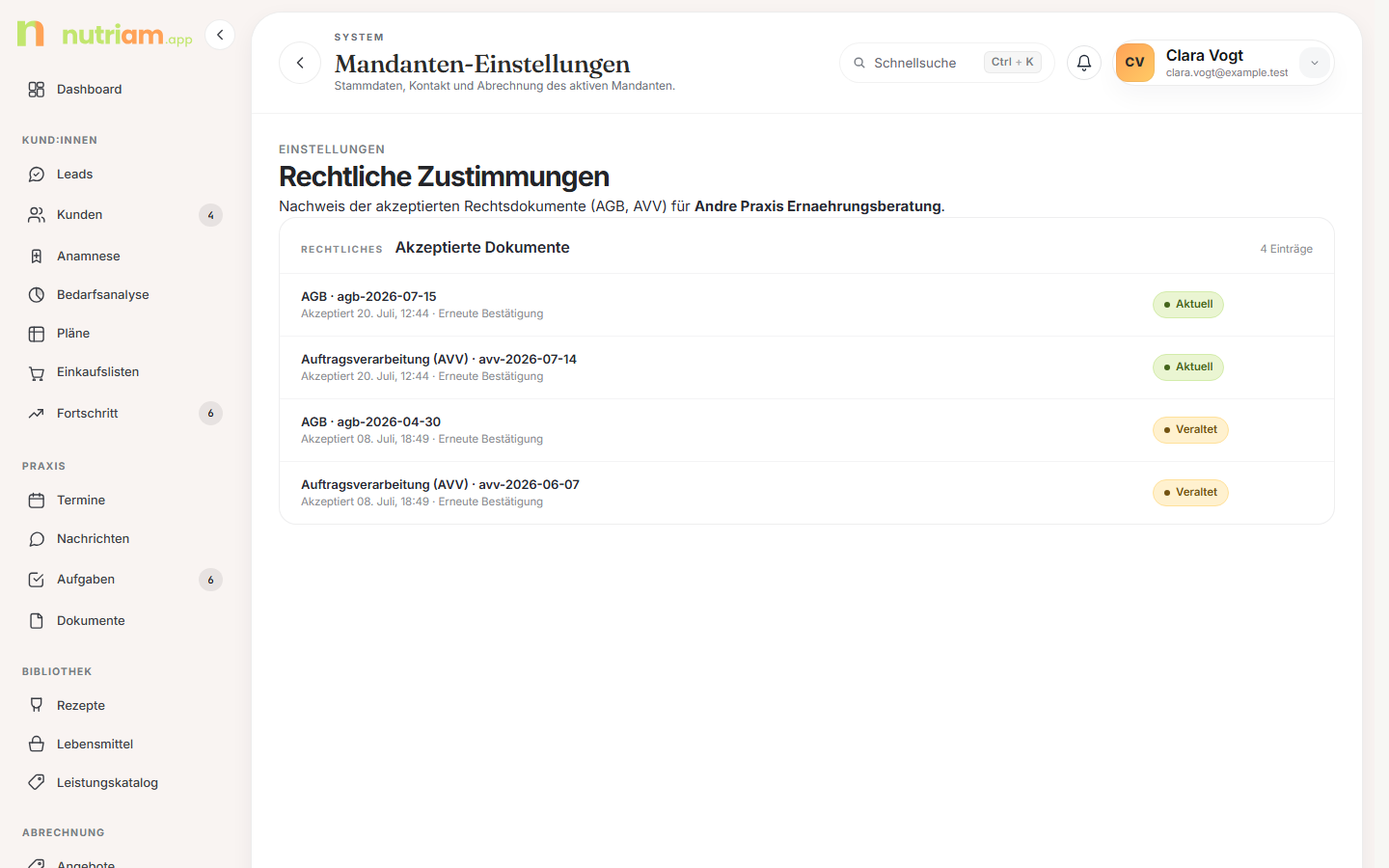
This page is the record of which legal documents your practice has accepted in which version. Per row:
| Item | Meaning |
|---|---|
| Document | Terms and conditions (AGB), Data processing agreement (AVV) or Privacy policy, linked to the public text |
| Version | the version stamp, e.g. agb-2026-07-15 |
| Accepted | Date and time |
| Source | Onboarding (when the team was set up) or Renewed confirmation (after an update) |
| Status | Current (latest version), Valid (older version) (an earlier version whose agreement still applies) or Outdated |
Older agreements remain listed as Outdated: the history is the actual record. Two documents are mandatory: the terms and conditions (AGB) and the data processing agreement (AVV). You conclude the AVV as the controller before you process real client data.
When a document changes
Not every change requires a new signature. For clarifications (such as more precise annexes), your existing agreement continues to apply: the entry then shows Valid (older version), and what has changed is described on the AVV page in the section “Changes to this agreement”.
Only for material changes do you, as a team admin, land on the page “Please confirm again.” after logging in. Until this is done, all write actions are blocked for the team admin role; reading is still possible, and practitioners carry on working as normal. After the confirmation, the entry appears in the list with the source Renewed confirmation.
You can also confirm if your trial or your subscription has expired. In fact, that is the first step: the billing address and plan under Administration → Subscription & trial can only be saved once the current version has been confirmed.
The page only asks about the documents that have actually changed, and states for each one what is new. If only the AVV has changed, you only see the AVV: a tick under an unchanged document would prove nothing and would only distract from what matters.
Below the button is the address for questions and objections. If it concerns a new sub-processor, section 6 of the AVV gives you the right to object for good cause relating to data protection. This does not go through this page but through the address given; in that case, get in touch before you confirm.
Not every new version triggers this block: nutriam distinguishes substantive changes (new obligations, changed processing, new subcontractors) from editorial ones, which merely clarify or add to existing commitments. Only substantive changes require renewed confirmation. With an editorial version, your existing agreement remains valid: the row then shows an older version number, but nothing is blocked.
Current case: AVV version avv-2026-09-03. This version adds Azure
Communication Services as a sub-processor, the service behind video
consultation. Because a new sub-processor is a substantive change and video
consultation is only enabled for practices that have agreed to this
version, we are asking everyone once for renewed confirmation. So you will
see the page “Please confirm again.” even if you do not intend to use video
consultation at all. Exactly what has changed is described on the AVV page
in the section “Changes to this agreement”.
Example of an editorial version: AVV version avv-2026-10-14.
This version explicitly names in Annex 1 the lab and measurement values that
you enter into the client file with the reference range from the report and
release for the client portal value by value (Lab values section in the
client file). This processing already took place before as part of the
client file, no new sub-processor is added, and nutriam does not assess the
values. So you do not have to confirm anything again: your agreement to an
earlier version from avv-2026-09-03 onwards continues to apply, and the
row just shows the older version number. avv-2026-10-20 is editorial
too: it names the AI import of lab reports, which uses the same AI service
as reading in food diary sheets. So is avv-2026-11-02: it names reading
in recipes using AI and your clients' agreements to your texts in the client
portal, both of which were already running before. And avv-2026-11-11:
it names reading in a blank questionnaire using AI, which creates a draft
form.
Caution: This page documents your relationship with nutriam, not your clients' consents. You obtain consent to the consultation itself, including Art. 9 consent for health data, with your own text: either outside the app or via Agreements in the client portal (see chapter 07, section 7). nutriam does not provide any wording for this and does not check your text; nutriam records the version, time and history for you.
8. Who else can see into your practice?
For incidents, nutriam support can open a support session on a tenant, either read-only or as access on behalf of a user. Every session has a reason and a period, and every change made during such a session is stored in the activity log with a note about the session. In this mode, plain read access is recorded as well.
Since October 2026, the operator's cross-practice activity overview only shows the type of activity, the time and technical IDs, such as “Team task completed”. Names, task titles, notes and addresses from your activity log do not appear there. Your own activity log shows them unchanged.
You can trace this in the activity log: the Support access area shows the start and end of every session, including the reason and the person who opened it. A separate session overview, with the live status and the option to end a session yourself, still does not exist in your workspace; it is with the operator (see “What is still missing”).
9. Two procedures for emergencies
Access request (Art. 15)
- Verify the identity of the person making the request, outside the app.
- Open the client file → Overview tab → Export client data (JSON).
- Add the files: the export only lists documents. You download the files themselves one by one on the Overview or Progress tab.
- Put the information together and hand it over in a secure way.
- The activity log then shows “Client data exported” with a timestamp: your evidence that you responded and when.
Erasure request (Art. 17)
If the request comes from the client portal (Settings → Delete account), it appears as the task Deletion request from the client portal on the task board (source Deletion request), due after 14 days. You must respond within one month at the latest. The client sees in the portal whether the request is open, completed or dismissed. Nothing is deleted automatically; you do that as described below, and the task disappears in the process. If you decline, for example because of retention obligations, tell the client and dismiss the task.
- Check whether retention obligations stand in the way: invoices are kept anyway, other documents you have to assess yourself.
- Export beforehand if you want to document the history.
- Client file → red block → tick the box → Delete client data in line with GDPR.
- Check the result: the client file is now called “Anonymised”, is set to Archived, and portal access is off.
- The activity “Client data deleted in line with GDPR” remains in the activity log.
Frequently asked questions
“A client wants to know what data you hold about them. What do I do?” Open the client file, Overview tab, red block, Export client data (JSON). The file contains everything structured, including invoices. Documents are only listed; you download the files separately.
“Do I have to delete a client file when the programme ends?” No. The normal case is archiving: all data remains, and the client file disappears from the default list. If the client comes back later, you set the client file back to Active in the client file under Edit profile with Resume programme (as a team admin or practitioner). Deleting is the route for a genuine erasure request or an offboarding.
“The client wants to be deleted but has an open invoice.” Deletion does not change anything about invoices, payments and payment reminders: they remain for tax reasons and can still be edited. Only the health and contact data are deleted.
“Can I give the photo consent for my client?” No. Only the client can give and withdraw the consent, in the portal. In the client file, you only see the status.
“The photo block is missing on the Progress tab. Is something broken?” No. The block only appears once there is a consent or at least one photo exists. Without either, it is hidden.
“Suddenly I can't save anything and end up on a confirmation page.” Then a new version of the terms and conditions (AGB) or the AVV with material changes has been published. As a team admin, you confirm it once; after that, everything is unlocked again. The confirmation then appears under Legal agreements. (Mere clarifications do not trigger this page; they are listed in the section “Changes to this agreement” on the AVV page.)
“Who exactly changed this plan?” The activity log shows the time, area, activity and type of activity. There is no separate person column, but as a team admin you see “by …” with the name below the activity, as long as the person still belongs to the team. As a practitioner, you only see your own activities anyway.
“Do I need an AVV with nutriam?”
Yes, and you have one: it is concluded when the team is set up. You find
the record with version and date under Legal agreements, and the
agreement text publicly at /en/data-processing/agreement. For guidance on
what else needs to be done in your practice, see the public GDPR checklist
(in German) at /dsgvo-checkliste.
What is still missing
- Hardly any retention periods in the product. nutriam does not delete client data, documents and invoices on its own after X years; every deletion is a deliberate action. Only the activity log after one year (see section 6) and internal delivery and operational data are cleared automatically.
- Activity log without a date filter. You can only filter by area and number (at most the latest 100). Who was involved is shown for team activities in the line “Concerns … · by …”, but it is not a separate column and cannot be filtered.
- The activity log cannot be exported. There is no CSV or JSON download, and the full export of the practice data deliberately does not include the activity log.
- The Art. 15 export does not cover everything. Habits, assigned forms, portal tasks and sequence deliveries are missing from it, even though they are removed on deletion. Files are only included as a list.
- No session overview for support access. The activities are in the activity log (Support access area), but there is no list of running sessions with the option to end them yourself in your workspace.
- Two kinds of consent in the product. Progress photos and AI recognition. The client gives both themselves in the portal. For sheet and report import, there is also your confirmation that the client's consent is in place. That is a record about the question, not about the consent. Everything else, i.e. the consultation contract, Art. 9 consent (including the one for sheet and report import) and the use of photos for marketing, you document outside nutriam.
- You cannot switch off AI recognition yourself. This also affects the sheet import. At your practice's request, nutriam support switches it off (see chapter 08, section 1.5).
- No record of processing activities, no DPIA (DSFA) template, no reporting workflow for data breaches in the app.