
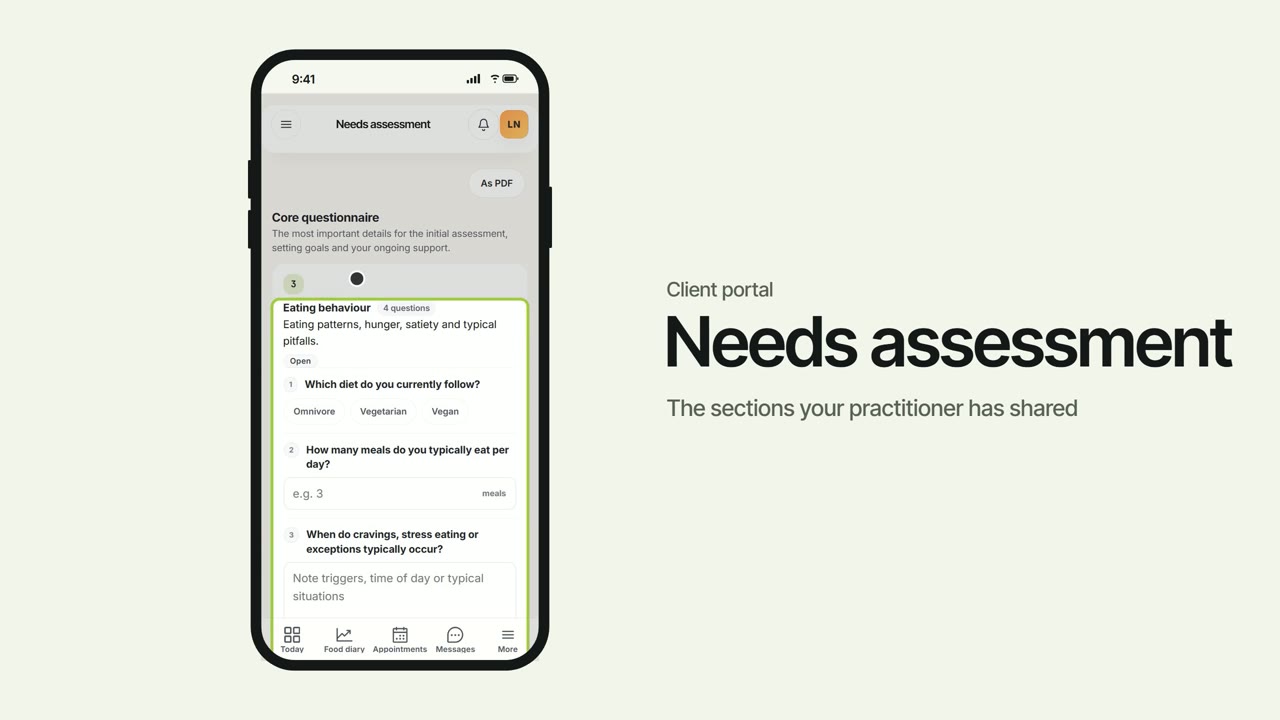
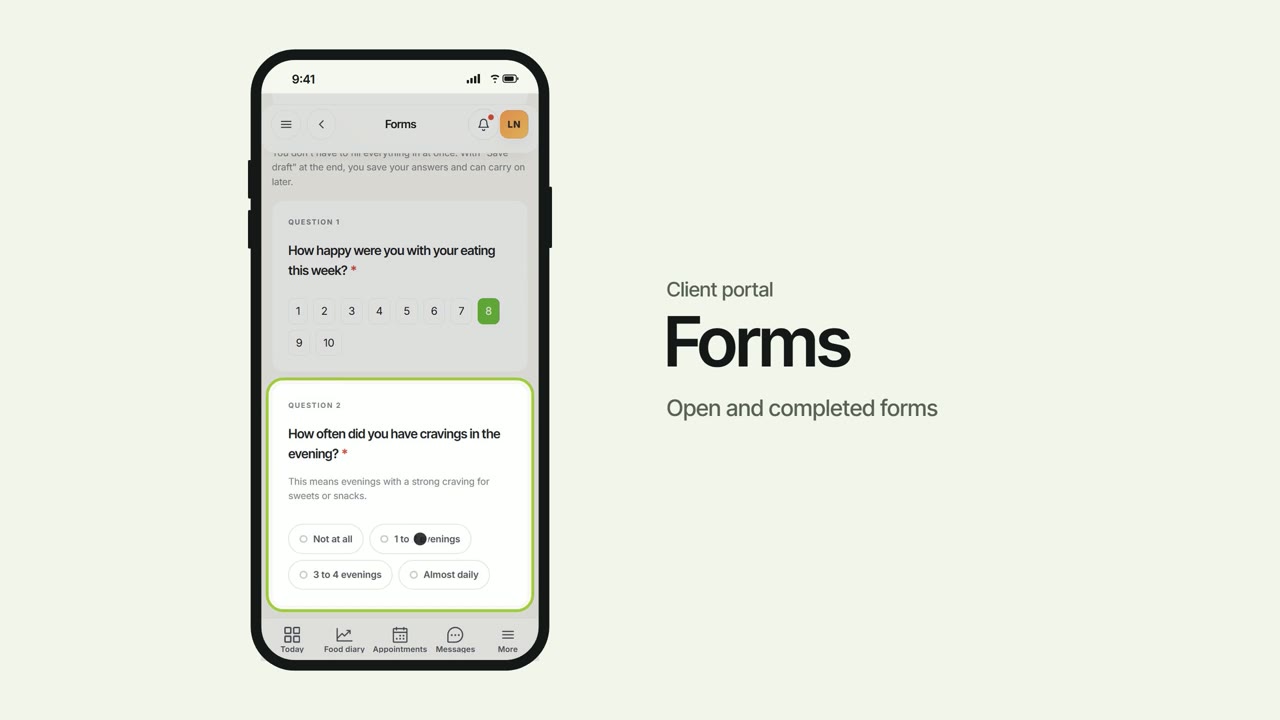
02 - Needs assessment and forms
So that your practitioner can tailor your plan and energy needs to you, you answer a few questions about yourself and your everyday life. That is the needs assessment. The end of this chapter covers forms, which your practitioner can also send you.
1. Where to find it
In the menu under My journey → Needs assessment. While sections are still open, the Today start page also shows a card:
Needs assessment · 2 / 5 sections Get your needs assessment done
Below it you see a progress bar and the names of the sections. The Continue needs assessment button takes you straight there. Once all sections released for you are complete, the card disappears.
2. Your practitioner releases the sections
You don't fill in the needs assessment in one go. Your practitioner releases it for you section by section. That is why the page can be in one of three states.
| What it says | What that means |
|---|---|
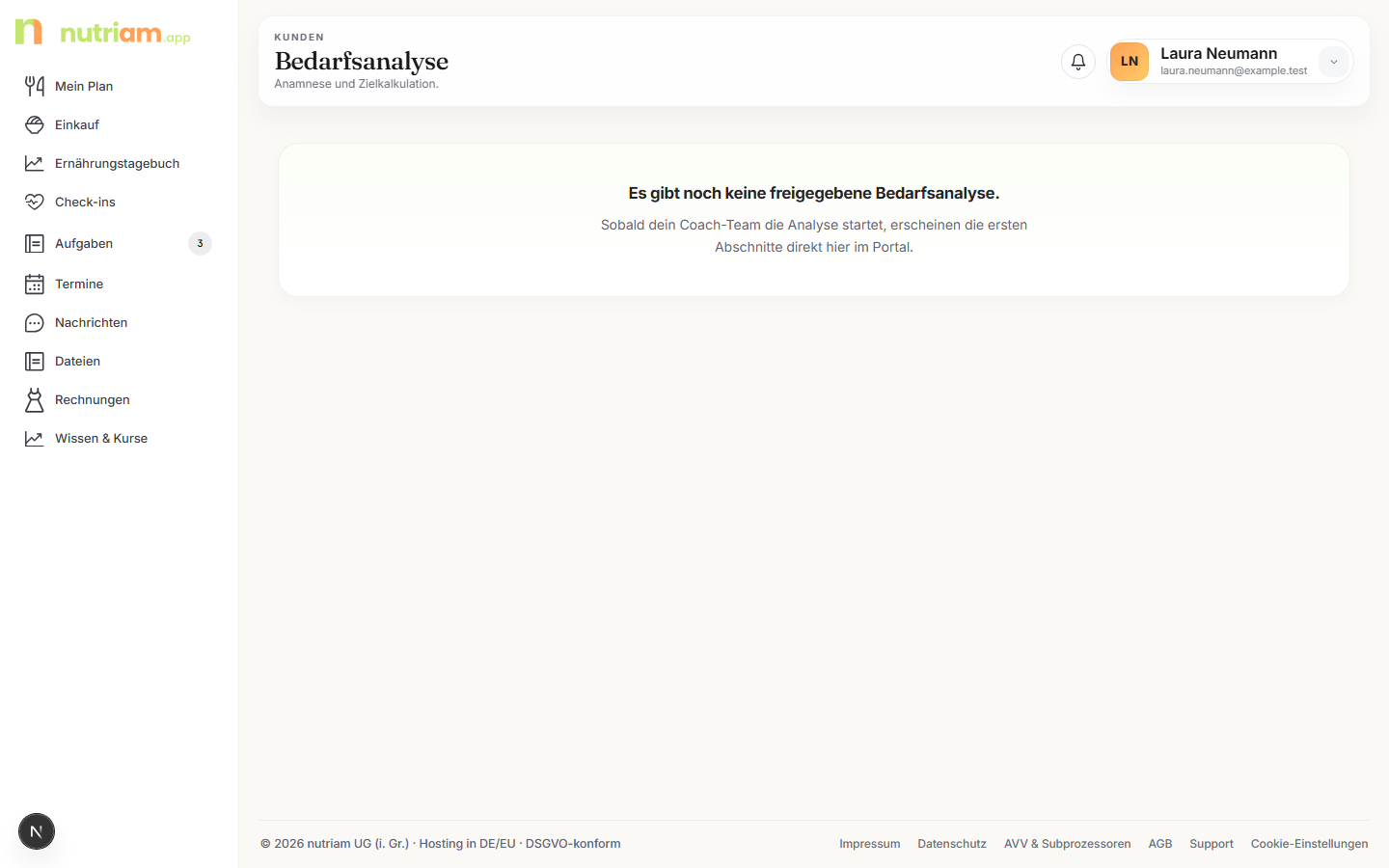
| “There is no released needs assessment yet.” | your assessment hasn't been created yet. Wait for your practitioner. |
| “Your practitioner hasn't released any sections yet.” (or with your practice's name) | The assessment exists, but nothing is visible to you yet. |
| Sections with questions | you can get started. |
Tip: You don't need to ask for anything. As soon as your practitioner releases another section, it appears the next time you open the page. If it is taking too long, send a quick note via Messages.
3. How the needs assessment is structured
The sections are sorted into three groups. You only see the groups in which something has been released for you.
| Group | Sections |
|---|---|
| Core questionnaire | Biometric data · Health · Eating behaviour · Physical demands · Goals |
| Additional questions if needed | Exercise & sport · Training routine |
| Energy & evaluation | Energy requirement |
Each section is its own card. At the top are the number, the name, the number of questions (“12 questions”) and a short explanation. On the right is the status:
| Status | Meaning |
|---|---|
| Open | you haven't entered anything in this section yet. |
| In progress | Some of the questions are answered. |
| Completed | All questions in this section are answered. |
4. Answering and saving questions
The fields look different depending on the question:
| Field type | How you answer |
|---|---|
| Choice | you tap one of the answers offered. |
| Number | you enter a number; the unit is shown next to it (e.g. kg). |
| Short text field | One word or a short detail. |
| Large text field | Several sentences in your own words. |
At the very bottom of each section is the Additional notes field. There you can add anything that doesn't fit any question. It is optional.
Important: Your answers are not saved automatically. Each section has its own Save section button at the bottom. Only then are your entries safe. If you close the page before that, your input is lost.
After saving, the page reloads and jumps back to exactly the section you were in. You can stop at any time and continue later. The saved state is kept.
5. The “Energy requirement” section
Your practitioner fills in this section. That is why you see the note Read-only in the portal, and there are no input fields. It shows, among other things:
| Field | What it shows |
|---|---|
| Method | how your requirement was calculated |
| Goal | e.g. lose weight, maintain, build muscle |
| Calories | your daily goal in kcal |
| Basal metabolic rate | energy used at complete rest |
| Maintenance | energy use at which your weight would stay the same |
| Protein, Carbohydrates, Fat | your macros in grams, one line each |
| Macro profile, Diet | the chosen distribution and type of diet |
| Status | calculated automatically or set manually |
The Calories value becomes your daily goal on the start page, see 01 First steps.
If your practitioner has hidden calories for you, Calories, Basal metabolic rate and Maintenance are missing here; without macros, Protein, Carbohydrates, Fat and Macro profile are missing. If both are hidden, this section doesn't appear for you at all. The same applies to the needs assessment PDF.
Why are there sometimes no numbers? During pregnancy and breastfeeding, for certain medical conditions and for minors, the app deliberately does not calculate your requirement automatically, because the usual formulas don't apply there. In these cases your practitioner sets the values personally, and until then the fields stay empty.
6. Sending your entries
At the very bottom of the page is a final block. What it says depends on where you are:
| Heading | What to do |
|---|---|
| All filled in? | All released sections are complete. Tap Send entries. |
| Fill in all released sections first | At least one section is still open or in progress. |
| Your entries are with your practitioner (or with your practice's name) | you have sent them. The date and review status are shown. |
| There is nothing to fill in here | The released sections are read-only. |
If your practitioner releases another section while you have the page open, sending shows the message “Please fill in all released sections before you send them.” Reload the page, fill in the new section and then send.
Important: If you save a section again after sending, your submission counts as withdrawn. The block then shows All filled in? again. Tap Send entries again so that your practitioner is notified.
7. Saving as a PDF
As soon as sections have been released for you, the As PDF button appears at the top right. It opens your needs assessment as a PDF in a new tab. It only contains what has been released for you.
8. Forms
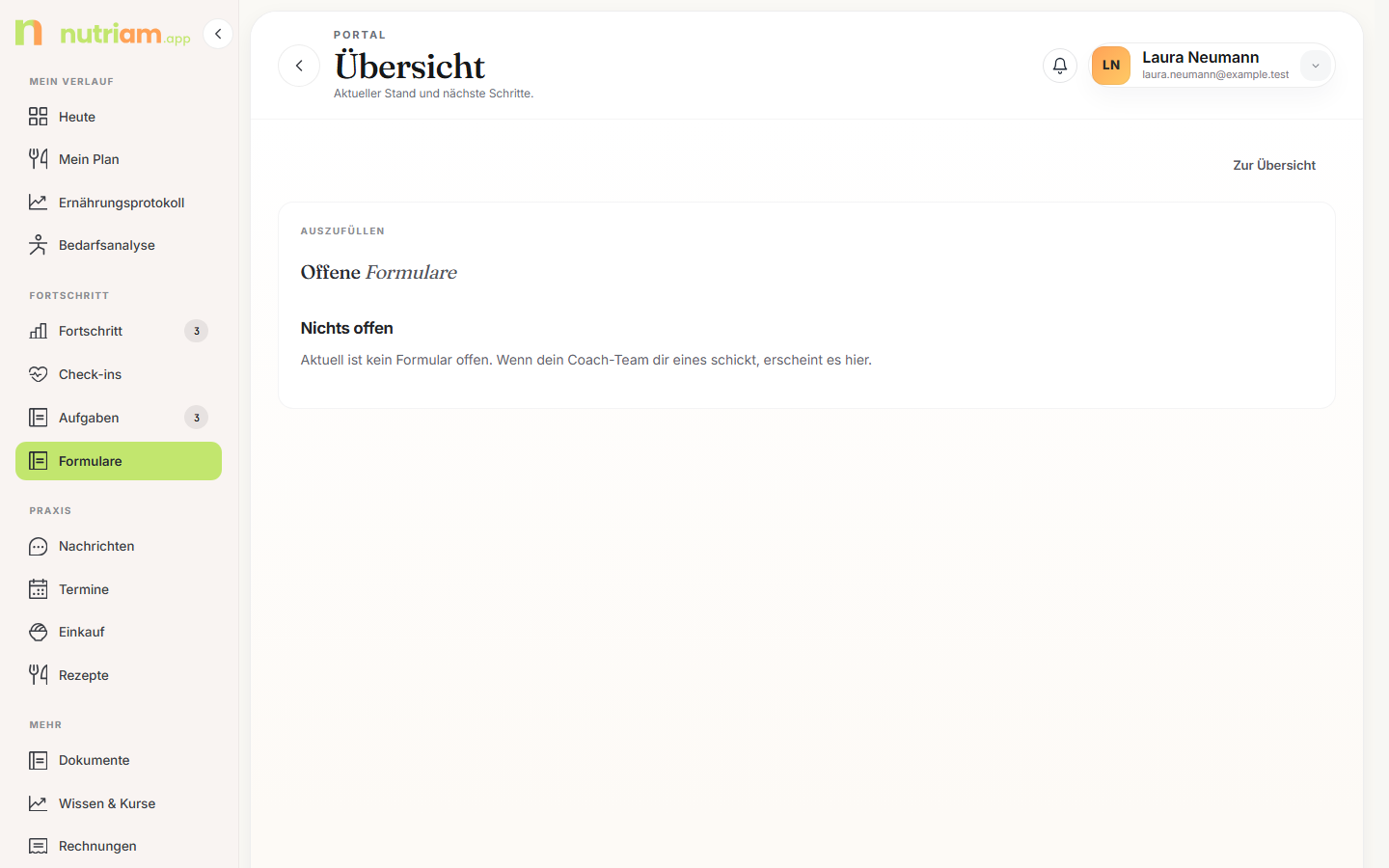
Besides the needs assessment, your practitioner can send you individual forms, for example a short questionnaire before an appointment. You find them in the menu under Progress → Forms. If anything is open, the start page also shows a card with the Fill in now button.
The page has two areas:
| Area | Content |
|---|---|
| Open forms | Title, number of questions, where applicable “draft saved on …” and “due by …” with a date, Fill in button (Continue after saving a draft) |
| Completed forms | Title, date, View button |
If nothing is open, it says “Nothing open”.
Some forms your practitioner only wants filled in once you have agreed to one of their texts, for example their consent to the processing of your health data. The form then shows only after you agree to “…” and, instead of Fill in, the Agree first button. It takes you to the text (see section 9). After that you can fill in the form.
Filling in a form
Each question is on its own card, numbered Question 1,
Question 2 and so on. An asterisk (*) means: you must answer this
question. Depending on the question, you answer with text, a number, a
number from 1 to 5 (or more), Yes/No, a single choice or several
options to tick. You tap answers to choose from as tiles;
the selected one has a green background.
Longer forms are often split into sections. You then only ever see one section, with, for example, Section 3 of 12 and a progress bar at the top. The questions in a section are listed compactly one below the other: you choose Yes/No on the right of the row and type short answers directly next to it. Several similar questions (such as “How often do you …”) appear as a table in which you tap one dot per row; on your phone you instead see the answers as tiles below each question. Next takes you to the next section and saves your progress. With Back you can still change answers. If you open the form again later, it continues after the last section you answered. The last section has the Send form button.
For forms without sections: you don't have to fill everything in at once. At the bottom, tap Save draft; your answers are then saved, even if required questions are still open. Next to it you see “Saved on …”. If you open the form again later, even on another device, your answers are still there. Your practitioner only sees them once you send the form.
When you are finished, tap Send form. You then land back in the overview and see “Form sent. Thank you!” at the top.
Important: You can't change a form once it has been sent. You can only view it. If something is wrong, write to your practitioner via Messages.
9. Agreements
Sometimes your practitioner sends you a text to read and confirm, for example their consent to the processing of your health data, their terms of consultation or their privacy notice. Your practitioner writes the text themselves. You get a notification in the portal, by push and by email, and the start page shows the To confirm card with the Read now button. You can also find all texts via Forms in the Agreements card.
Depending on the type of text, there are different buttons:
| Type | What you can do |
|---|---|
| Consent | Tick I have read the text and agree, then Agree; or Decline. Later, Withdraw consent at any time |
| Agreement | Tick the box, then Agree; or Decline. If you have questions afterwards, contact your practitioner |
| Information | I've read this |
Under Your agreements you can always see which text you agreed to and when, word for word. If you didn't agree or have withdrawn your consent, you can still agree later.
Some practitioners make a text a requirement, for example their terms of consultation. The Agreements page then says at the top: Before you add anything in the portal, … asks for your confirmation. Until then you can read everything, write to your practitioner and change your settings, but not enter anything. If you try, the portal takes you to the text.
If your practitioner has added their privacy notice, a link to it appears at the very bottom of the Agreements page.
Frequently asked questions
I can't see any questions at all. Did I do something wrong? No. Your practitioner hasn't released any sections for you yet. The text on the page tells you which of the two cases applies.
Do I have to fill everything in in one go? No. Save the section you are working on and carry on later.
Why does my section stay “In progress”? Because not every question in this section has been answered yet. Only when all questions are filled in does the status change to Completed.
I made a mistake. Can I change an answer? Yes, as long as the section is released for you to fill in. Change it, tap Save section and then Send entries again.
Why can't I enter anything under Energy requirement? This section is maintained by your practitioner. You can only read it.
I don't understand a question. What now? Leave it empty for now and ask via Messages. Better not to guess: realistic answers matter more than complete ones.
What happens to my answers? They are stored in your client file at your practice. Your practitioner uses them for your energy needs, your goals and your plan.
Can I still correct a form I have sent? Not yourself. Write to your practitioner; if needed, they can send you a new form.
What's still missing here
- Which questions exactly are in a section is decided by your practice. That is why no individual questions are listed here.
- How your practitioner releases and reviews sections is described in the handbook
for practitioners and team admins under
docs/handbook-en/. - A screenshot of the completed needs assessment with released sections is still missing.