
05 - Tasks, appointments and messages
These are the three sections you will use most in everyday life. Tasks tell you what is due. Appointments show when you will see each other. Messages are your direct line to your practitioner. You find all three on the left in the sidebar, on your phone in the bottom bar or via “More”.
1. Tasks
Sidebar → Progress group → Tasks.
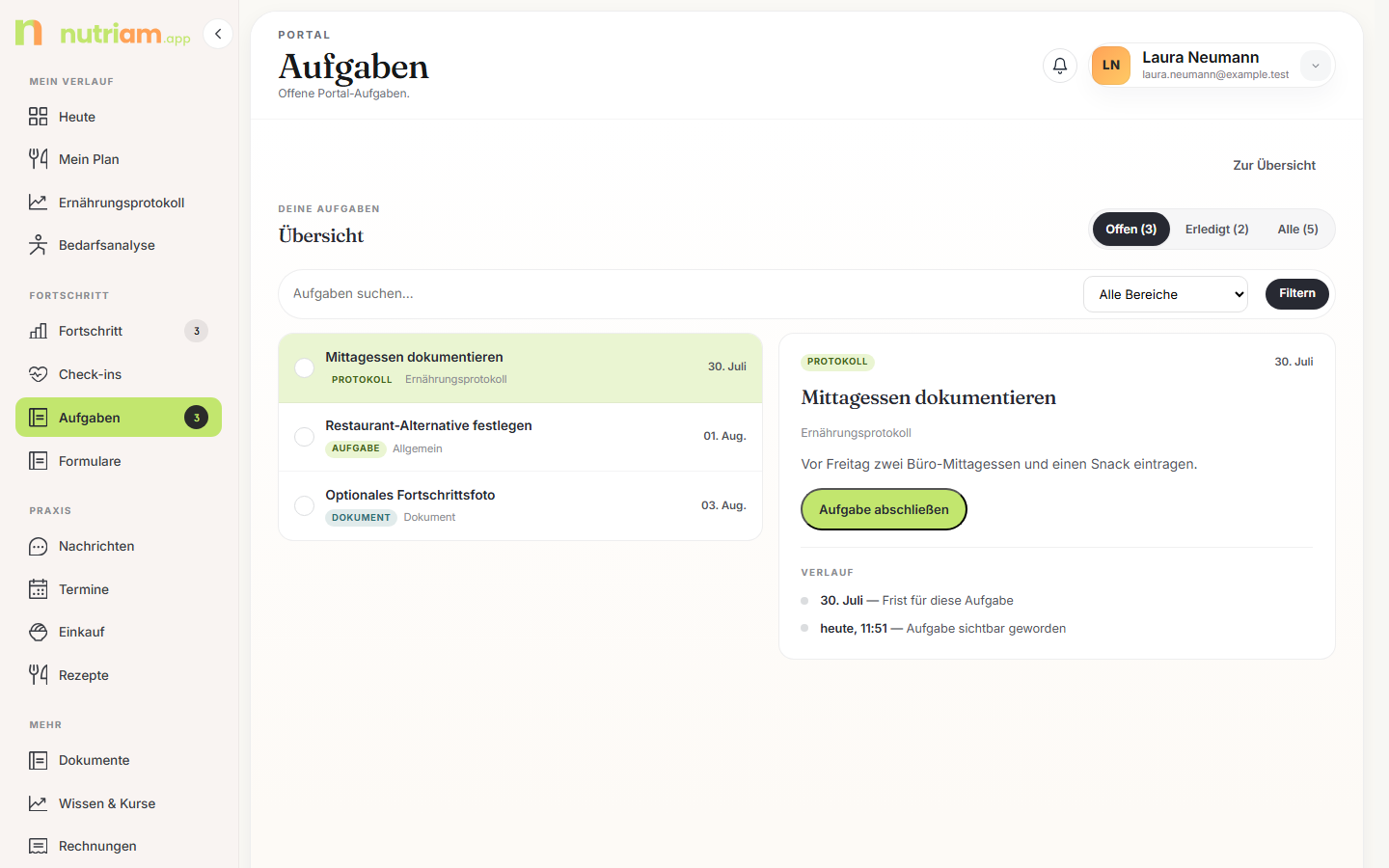
Your practitioner creates tasks for you. You can't create any yourself. If a task has a deadline, you see it on the right of the row. A typical task in the Document area is “Bring your latest lab report”: your team would like to discuss a new report with you at your next appointment, and the deadline shows you by when.
What you see on the page
At the top right is the “Back to overview” button. It takes you back to the start page. Below it is the “Your tasks / Overview” block with three switches:
| Switch | Shows |
|---|---|
| Open (n) | Everything that still needs doing. This is the default view. |
| Done (n) | Tasks you have already completed. |
| All (n) | Both together in one list. |
Below that is a search row: the “Search tasks…” field, an “All areas” selection and the “Filter” button. The selection offers General, Check-in, Food diary, Document and Plan.
Below the search row, the list is on the left and the detail card on the right. On your phone, they are shown one below the other.
Each row in the list shows a circle (with a tick when done), the title, a coloured pill for the area and, on the right, the deadline or “No deadline”.
| Pill | Area | What it is usually about |
|---|---|---|
| Task | General | Anything that doesn't fit any other area |
| Check-in | Check-in | Filling in a short update |
| Food diary | Food diary | Logging meals or adding missed ones |
| Document | Document | Reading or uploading a document |
| Plan | Plan | Looking at and confirming a new plan |
Completing a task
- Click the task in the list. The detail card opens on the right with title, area, deadline and description.
- Read the description. If there is none, the portal shows the sentence “This feedback is still waiting for you. Open it directly in the matching area of the portal.”
- Do what it is about, for example log a meal.
- Then click “Complete task”.
Below the card is the History: when the task became visible, when it is due and when you completed it.
For a completed task, instead of the button it says “Already completed”.
Important: The button only completes the task itself. The portal doesn't automatically jump to the matching area afterwards. So first log your meal or your check-in, and tick off the task afterwards.
Tip: The Tasks menu item shows a small number as long as something is open. Once the number is gone, everything is done.
Important: Questionnaires your practitioner sends you are not tasks. They are in their own Forms section (sidebar → Progress group) under “Open forms” with the “Fill in” button.
2. Appointments
Sidebar → Practice group → Appointments.
What you see on the page
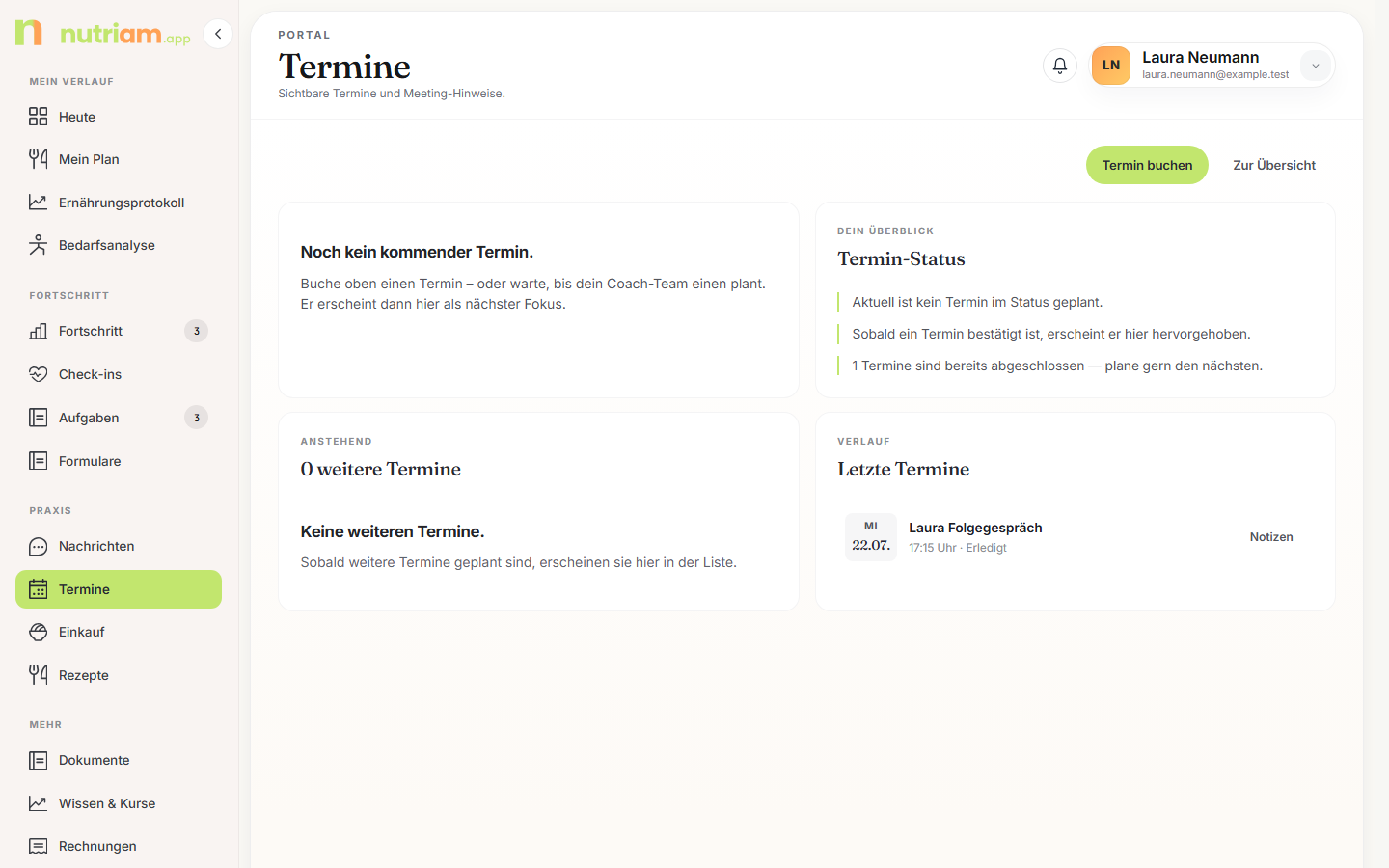
Three buttons at the very top:
| Button | What happens |
|---|---|
| Book appointment | Opens the “Request an appointment” window |
| Export to calendar | Downloads all upcoming appointments as an appointments.ics file |
| Back to overview | Back to the start page |
“Export to calendar” only appears if you have at least one upcoming appointment.
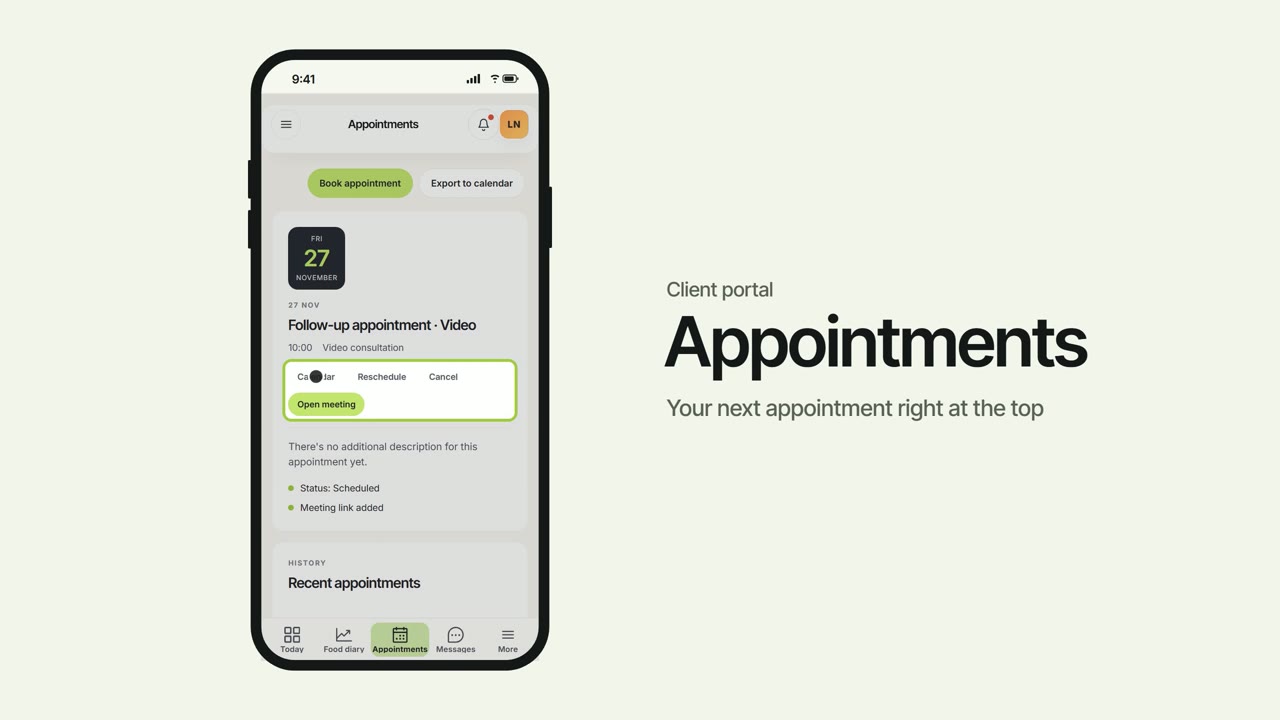
Below that is the “Next appointment” card: a large date (weekday, day and month), time, the type of appointment and location. The type is shown the same way throughout the portal, for example “Follow-up appointment · Video” or “Initial consultation · In person”. For a video appointment it says “Video consultation”, for a phone appointment “Phone”. If no location has been set yet for an in-person appointment, you read “Location to follow”. On the right of the card are the actions:
- Calendar downloads just this one appointment as a file.
- Reschedule opens the “Reschedule appointment” window. If no fixed practitioner is assigned to the appointment, you land in Messages instead, with a prepared text.
- Cancel opens the “Cancel appointment” window.
- Open meeting only appears if a link for an online meeting has been added. Otherwise it says Prepare, which takes you to Messages.
Below the card are the description and two short lines: the status and whether a meeting link has been added.
Below that, each only if there is something to show:
- “Upcoming”: all further upcoming appointments, each with a calendar button.
- “History / Recent appointments”: your last six appointments.
If no appointment is coming up, the card at the top only shows the notice “No upcoming appointment yet.”; the history below it remains.
The statuses
| Status | Meaning |
|---|---|
| Scheduled | The appointment is in the calendar but not confirmed yet |
| Confirmed | your practitioner has firmly confirmed the appointment |
| Completed | The appointment has taken place |
| Cancelled | The appointment isn't taking place |
| Missed | The appointment wasn't attended and wasn't cancelled |
Video appointments directly in nutriam
Some practices hold video calls directly in nutriam, in the browser and without any extra program. In that case, your appointment's meeting link (in the appointment email and behind Open meeting) leads to a join page with your practice's logo. You don't need to sign in there: the link itself is your access. So don't pass it on.
This is how joining works:
- Open the link. You can join from 10 minutes before the start; before that, the page tells you when it begins.
- Click Check camera and microphone. Your browser asks for permission; after that you see yourself as a preview and, if you have several devices, can choose your camera, microphone and speaker.
- Join now starts the call.
During the call you can turn your microphone and camera on and off, share your screen, switch devices under Settings and go into Full screen mode. End call hangs up; at the latest 15 minutes after the appointment ends, the room closes by itself.
The call is not recorded and no transcript is made. The transmission is encrypted, and processing takes place in Germany.
Booking an appointment
- Click “Book appointment” at the top. The “Request an appointment” window opens.
- At the top you see who looks after you. Below it is the “Free slots / Choose an appointment” block with up to ten specific times, one on each of the next available days. Choose one of them.
- No time suits you? Then choose “No fixed slot” and fill in “Or send a preferred time” below:
| Field | What you enter |
|---|---|
| Preferred date | the day you would like |
| Alternative date | A second day, in case the first doesn't work |
| Time of day | Any time, Morning, Midday, Afternoon or Evening |
| Format | Video, Phone or In person |
| Note on availability | For example: only Tue and Thu after 5 pm |
| Message to your practitioner (or to your practice's name) | What should the appointment be about? |
Finally, click “Send request” at the bottom.
Important: Even a selected slot is only a request at first, not a fixed appointment. After sending, you read: “Your preferred slot has been requested. You'll get the confirmation by email.” For a preferred time only, it says: “Your preferred time has been sent.”
Tip: You must either choose a slot or fill in at least one field. Otherwise you get the message “Please choose an appointment or enter a preferred time.”
The “Free slots” block is missing if your practitioner hasn't released any times at the moment. The preferred-time part is still there.
Possible: a form for the appointment. Some practices ask you to fill in a short questionnaire before the appointment. In that case, after booking you find a new form under Forms (sidebar → Progress group), due at the start of the appointment. As usual, you get a message in your inbox and an email about it. Whether a questionnaire comes, and which one, is decided by your practitioner.
Rescheduling an appointment
- Click “Reschedule” on the next appointment.
- The “Reschedule appointment” window shows your current appointment at the top.
- Under “Free slots / Choose a new time”, choose a new time.
- If you like, write a short reason in the “Reason (optional)” field.
- Click “Reschedule appointment”.
The duration and contact person stay the same. Afterwards you read: “Your appointment has been rescheduled. Your practitioner has been notified.”
If an open form is attached to this appointment, its deadline moves automatically too. So you again have until the new start time. Anything already sent stays sent.
If no slot is free right now, it says “No online slot is free right now.” and there is no send button. In that case, use the “No suitable time? Send a preferred time as a message” link. It takes you to Messages, with the subject and text already prepared.
Cancelling an appointment
- Click “Cancel” on the next appointment.
- In the “Cancel appointment” window, check the type, time and location.
- If you like, write a reason. The field is optional.
- Click “Cancel appointment”. Your practitioner is notified.
For a new appointment, use “Book appointment” again afterwards.
Important: Reschedule and Cancel are only available for the next appointment. If you want to change a later appointment, send your practitioner a quick note via Messages.
3. Messages
Sidebar → Practice group → Messages.
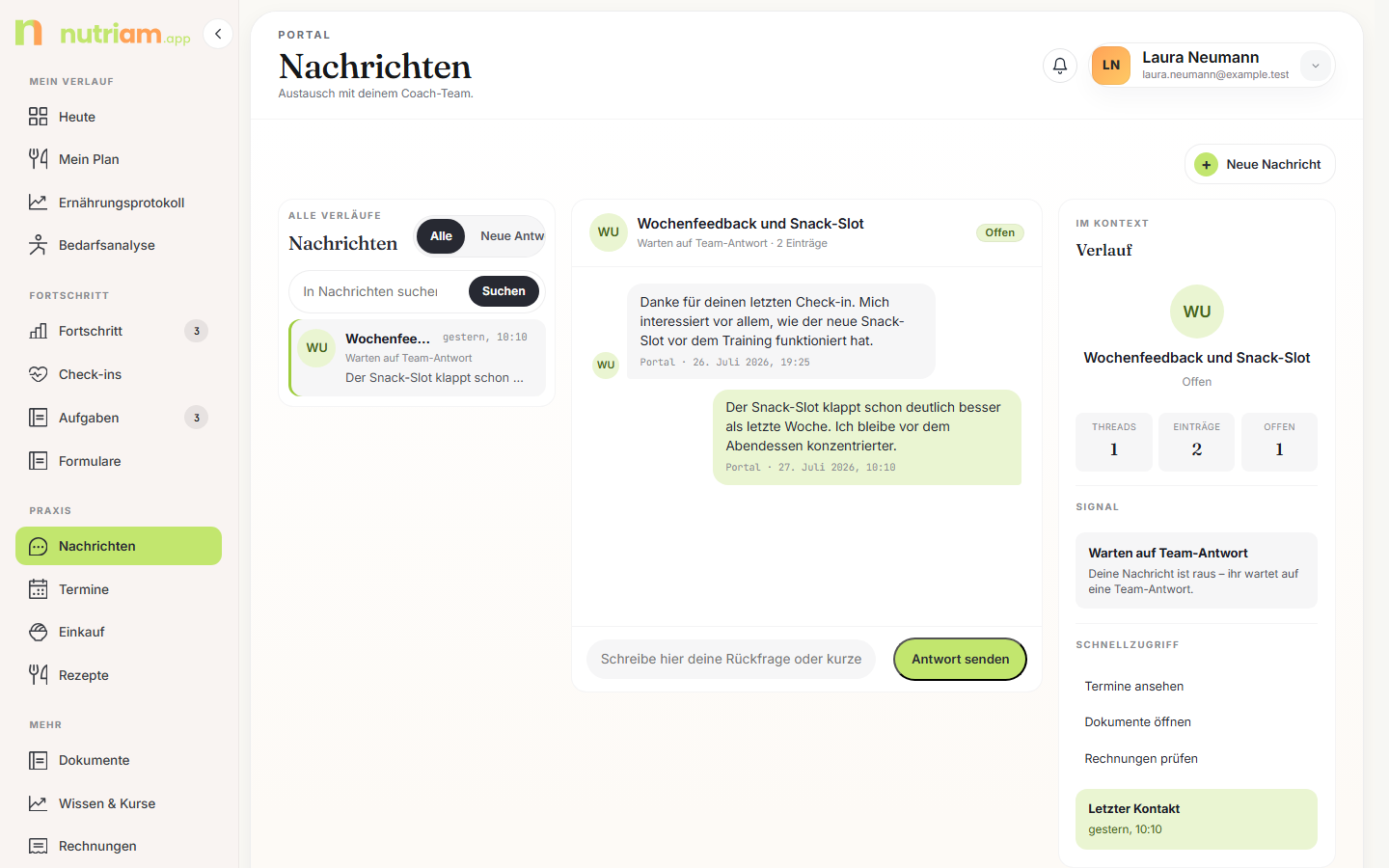
Messages are a chat with your practice, just like the ones you know from your phone. At the top are your practice's initials and name, below them all messages in order, and at the bottom the line for writing.
What you see on the page
- Your own messages are on the right and light green; your practitioner's are on the left.
- Above each day's messages is the date, and each speech bubble shows the time. If a message didn't come via the portal, the channel is shown before it, for example Email.
- Your own messages show a tick as soon as they have been sent, and two ticks with Read as soon as someone from your practice has opened the chat.
- When a new topic starts, a small “Topic: …” marker appears in the chat. That way you can see what the conversation is about from then on.
- The chat opens at the newest message. You read older ones by scrolling up.
If your practitioner replies while you have the page open, the new message appears in the chat automatically. You don't need to reload the page.
As soon as you open the chat, your practice's messages count as read: the number next to Messages in the sidebar disappears, and your practice sees Read on their message.
Writing a message
- Write your text in the line at the very bottom (“Write a message…”).
- Tap the arrow (labelled “Send message” on screen). Your message appears straight away on the right of the chat.
You don't need a subject. Your message belongs to the most recently open topic. If none is open, a new one starts with the date as its title, for example “Message from 20/10”.
Tip: If you come here from another section with a prepared text, such as a preferred time for an appointment, the top shows “New topic: …” and the text is already in the line. Check it quickly and send it.
What messages are good for
- Questions about your plan or food diary.
- Quick updates between two appointments.
- Appointment requests for which no slot fits.
- Letting your practitioner know about symptoms or changes they should be aware of.
What messages are not meant for
- Emergencies. If you urgently need medical help, call the out-of-hours medical service (116 117 in Germany) or the emergency services (112).
- Very long texts. If a topic is big, it's better to suggest an appointment.
4. If a menu item is missing
Every practice can switch off individual portal sections. If a section is off, it disappears from the sidebar. If you still open it directly via its address, you land back on the start page.
Of the sections in this chapter, Tasks can be switched off. Appointments and Messages are fixed sections and are always there.
If you miss something you used to see: ask with a quick message. That is a setting of your practice, not an error.
Frequently asked questions
“I can't see any tasks. Is that an error?” No. If your practitioner hasn't created any tasks, the list is empty. It then says “No open tasks.”
“I ticked off a task too early. Can I undo that?” Not yourself. Send your practitioner a quick note via Messages.
“Why hasn't my booked appointment been confirmed yet?” Because every booking is a request at first. Your practitioner checks their calendar and confirms by email. Until then, the appointment shows Scheduled.
“How do I get the appointment into my own calendar?” With “Export to calendar” (all upcoming appointments) or with the “Calendar” button on an individual appointment. Simply open the downloaded file, and your calendar adds the appointment.
“I can't see any free slots. Can I still book?” Yes. Just fill in the “Or send a preferred time” part. Your practitioner will get back to you with suggestions.
“How can I tell that a new message has arrived?” The Messages menu item shows a number. In the chat, the new message is at the very bottom.
“Can I attach a file to a message?” No. Upload the file under Documents; your practitioner sees it there. How that works is described in 06 Documents and invoices.
What's still missing here
- The Forms and Progress sections are only mentioned here and need their own description.
- How to turn reminders for appointments and messages on and off is in the Settings section. That isn't described yet either.
- Up-to-date screenshots of all three sections are still missing.