
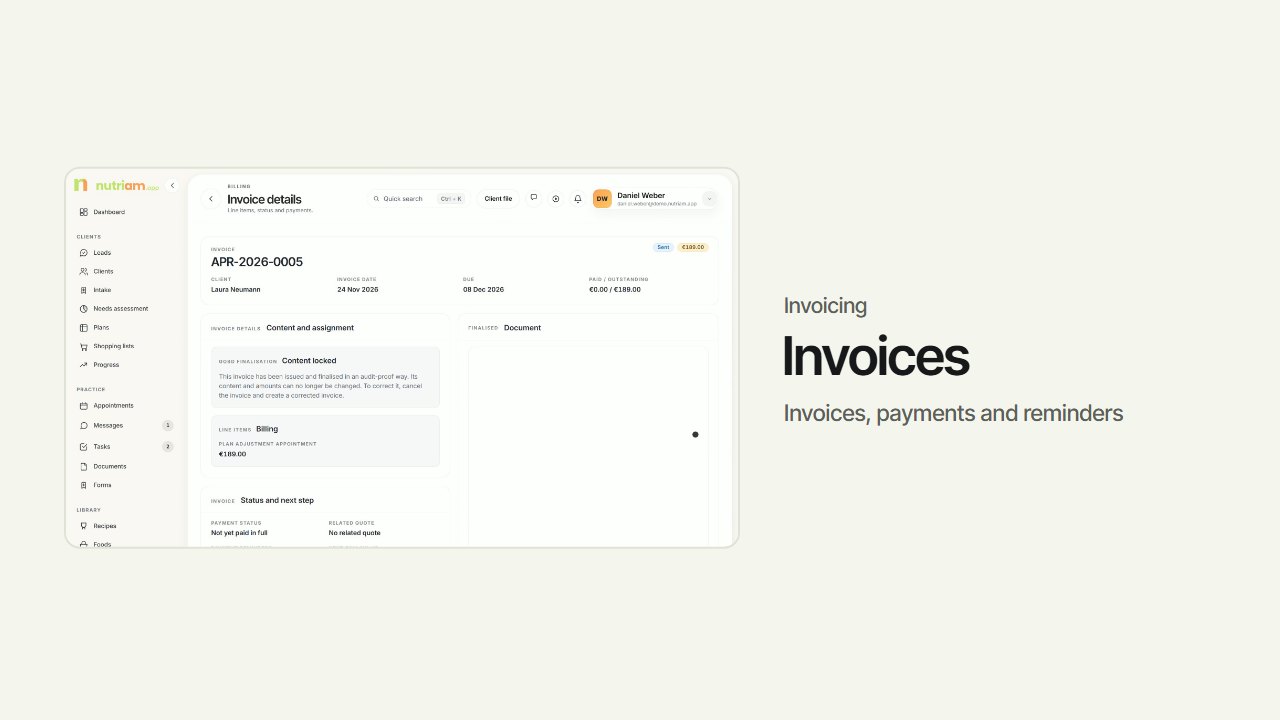
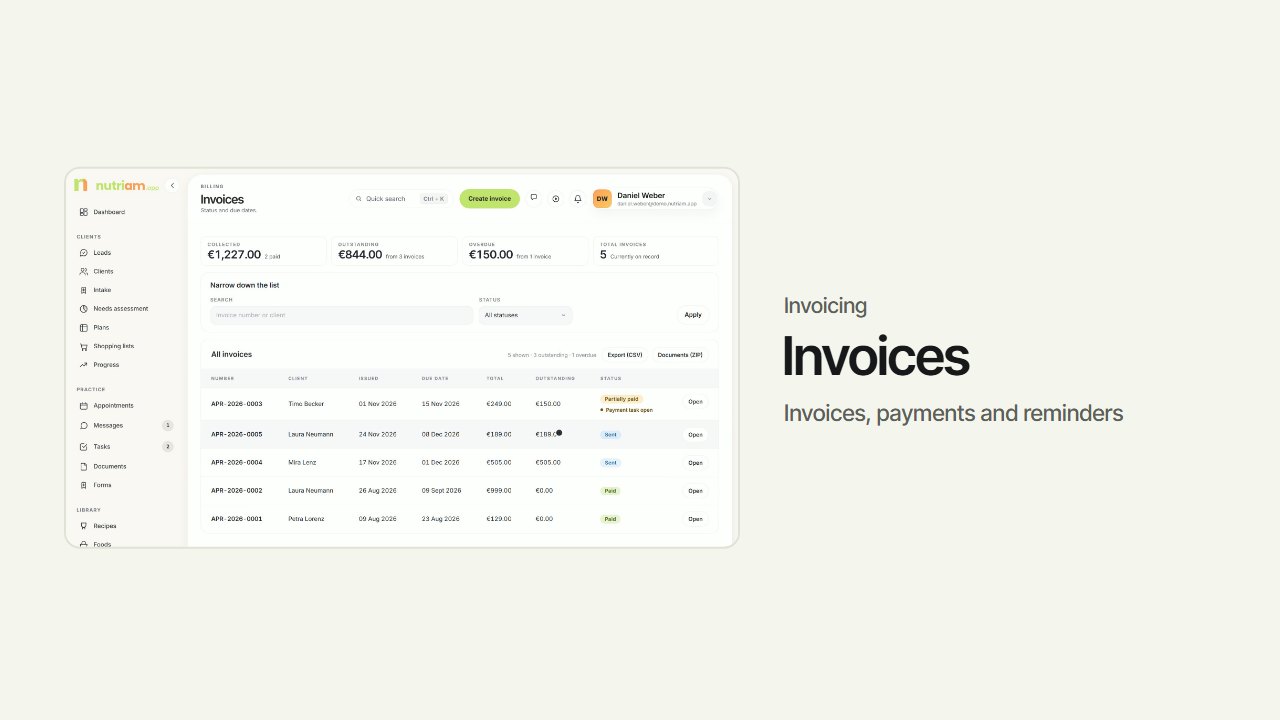
06 – Quotes, invoices, payments
The sidebar group Billing holds the complete money trail: write a quote, issue an invoice, record the payment and, if necessary, send payment reminders. Once it has been sent, an invoice is finalised in an audit-proof way. After that, it can only be corrected with a cancellation invoice (in German “Storno”: a separate document with negative amounts that reverses the original, while the original itself stays unchanged).
- Quotes (
/offers) - Invoices (
/invoices) - Payments (
/payments)
1. From quote to payment
| Step | Where | What happens |
|---|---|---|
| Create quote | /offers/new |
Enter line items, status Draft |
| Send quote | Quote detail page | Status Sent, an email with the PDF goes out |
| Accept quote | Quote detail page | Status Accepted, content locked |
| Create invoice | /invoices/new?offerId=… |
Line items and client prefilled |
| Send invoice | Invoice detail page | Document is finalised + emailed |
| Record payment | /payments/new |
Invoice moves to Partially paid / Paid |
| Send payment reminders | Invoice detail page | Reminder levels 1–4, each level sends an email |
You don't have to follow this path all the way: an invoice works without a quote too. The quote is, however, the only way to enter line items once and carry them over into the invoice later.
2. Master data and invoice design first
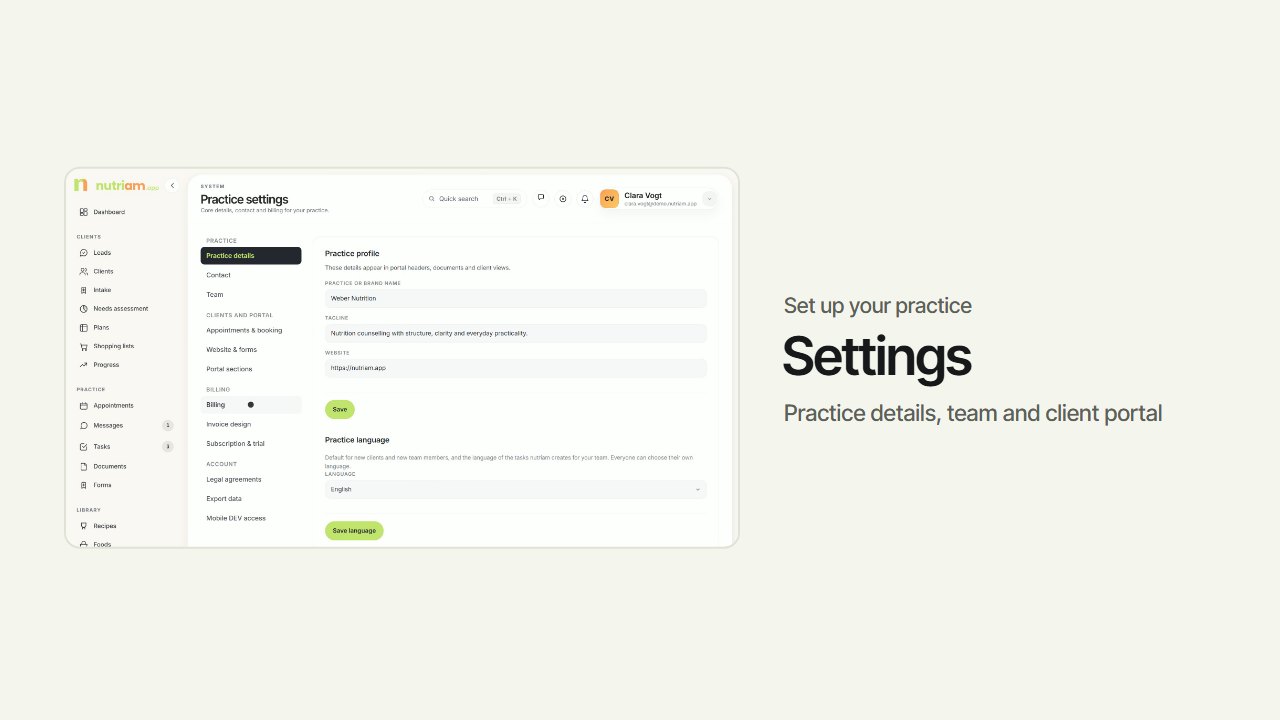
Everything that appears on quotes, invoices and payment reminders comes from two tabs in Administration, see 08 Administration:
| Tab | Content |
|---|---|
| Billing | Sender name, billing email, billing address, footer for documents, default currency, payment term (days) |
| Billing → ZUGFeRD/Factur-X (the e-invoice details, see section 8) | Street, postcode, town or city, country, VAT ID, tax number, VAT mode, reason for exemption, IBAN, BIC, account holder |
| Invoice design | Brand colour, second accent colour, font, introduction text, closing text, upload/remove logo, letterhead preview and sample document as PDF. The logo appears at the top right of the letterhead, up to about 6 cm wide and just over 2 cm high, and the letterhead grows with it |
Caution: Only the team admin role maintains these details. As a practitioner, you only see the practice's VAT setting in the Billing tab, and in the Invoice design tab the note “These settings are managed by the team admins.” (details in 08 Administration).
Caution: The app does not block sending if details are missing. An incomplete billing profile only leads to a sparse document and to a ZUGFeRD XML in the fallback profile. Check both tabs before the first real invoice goes out.
So that you don't only notice this on the finished document, nutriam warns you right where you act: on the Create invoice page and on the detail page of a draft, before you issue it with Send invoice. If mandatory details under § 14 UStG are missing (§ 14 of the German VAT Act, Umsatzsteuergesetz, lists what every invoice must contain; here: practice name, sender name, address or tax number/VAT ID), a yellow notice appears there listing the missing fields.
Team admins and practitioners see the notice alike. It names the tab where the details are: Administration → Billing for sender name, address and tax details, Administration → Practice details for the practice name. It asks practitioners to let the team admins know, because only they can change these details. The notice doesn't block anything. However, once an invoice has been finalised, it can only be corrected by cancelling it, so it's worth checking before the first invoice.
Changes to the invoice design apply to future documents. Invoices that have already been finalised keep their layout. That's intentional.
3. VAT: set it once
In Administration → Billing there is exactly one “VAT” selection. It applies automatically to quotes and invoices:
| Option | Effect on the document |
|---|---|
| Small business scheme (§ 19 UStG), no VAT | No VAT shown, mandatory note on the document. Under § 19 UStG, small businesses below a turnover threshold don't charge VAT |
| Tax-exempt medical treatment (§ 4 Nr. 14 Buchst. a UStG), no VAT | 0% and category E (exempt; the letters are the VAT category codes of the European e-invoice standard) as the default per line item, exemption note on the document (see Reason for exemption below). § 4 Nr. 14 Buchst. a UStG exempts medical treatment by qualified health professionals from VAT |
| Standard taxation, 19% VAT | Net + 19% (Austria, AT: 20%) as the default per line item |
| Standard taxation, 7% VAT (reduced) | Net + 7% (AT: 13% or 10%) as the default per line item |
If you choose Tax-exempt medical treatment, 0% with category E is the
default for all line items, and below the selection it says: “Only choose
this if you mainly provide medical treatment, e.g. nutrition therapy on
medical prescription or with a medical certificate of necessity. Prevention
courses, coaching and talks without a medical indication are usually
taxable. Set these to 19% per line item. If in doubt, check with your tax
adviser.” For country AT it reads: “Only choose this if you mainly provide
medical treatment. Set taxable services to 20% per line item. If in doubt,
check with your tax adviser.”
The fixed sentence below the selection says that it applies automatically to quotes and invoices and that individual line items can differ. With Small business scheme, the part about line items is missing, as there is no VAT per line item there.
For orientation: Tax-exempt under § 4 Nr. 14 Buchst. a UStG is nutrition therapy with a therapeutic aim, e.g. on medical prescription, with a medical certificate of necessity or in preventive care and rehabilitation, provided by suitably qualified professionals. Prevention courses (including ZPP-certified ones, i.e. approved by the Zentrale Prüfstelle Prävention for statutory health insurers), weight loss coaching without a medical indication, talks, supervision, books and pure portal access are usually taxable. Video, phone and in-person sessions are treated the same. You make the decision in each individual case with your tax adviser.
Germany or Austria
nutriam derives the jurisdiction from the Country in Administration →
Billing. With AT, the Austrian rates are available (20/13/10%), and the
documents cite the öUStG (Austrian VAT Act) instead of the German UStG:
Germany (DE and all other countries) |
Austria (AT) |
|
|---|---|---|
| Tax-exempt option | “Tax-exempt medical treatment (§ 4 Nr. 14 Buchst. a UStG), no VAT” | “Tax-exempt medical treatment (§ 6 Abs. 1 Z 19 UStG, e.g. dietetics), no VAT” |
| Small business note | “Steuerbefreiung für Kleinunternehmer nach § 19 UStG.” (tax exemption for small businesses under § 19 UStG) | “Umsatzsteuerfrei aufgrund der Kleinunternehmerregelung (§ 6 Abs. 1 Z 27 UStG).” (VAT-free under the small business scheme) |
| Tax-exempt line items, no reason selected | “Steuerfreie Leistung nach § 4 UStG. Es wird keine Umsatzsteuer berechnet.” (tax-exempt service under § 4 UStG; no VAT is charged) | “Steuerfreie Leistung gemäß § 6 Abs. 1 Z 19 UStG. Es wird keine Umsatzsteuer berechnet.” (tax-exempt service under § 6 Abs. 1 Z 19 UStG; no VAT is charged) |
| Standard rates | 19% / 7% | 20% / 13% / 10% |
This applies to the note below the document totals and to the
machine-readable exemption reason in the e-invoice (BT-120, the field for the
exemption reason text in the European e-invoice standard EN 16931; the
e-invoice is the XML embedded in the invoice PDF, see section 8). Calculation,
schema and categories are the same in both countries; only the citations and
the permitted rates change. Without a country on file and for any country
other than AT, the German column applies.
The texts apply to newly generated documents. Issued invoices come unchanged from the archive. Quotes aren't finalised: if you call up a quote that has already been sent, it shows the current texts, while the attachment in the email to your client stays as it was.
In the line item editor, for quotes just as for invoices, you see this directly:
- With Small business scheme, the VAT fields disappear completely. Instead it says “No VAT, set up under the small business scheme in Administration → Billing”.
- With Standard taxation, the VAT fields are collapsed. A note names the default (e.g. “19% VAT on net prices”) and offers the button “Adjust VAT per line item”.
- If you expand them: empty VAT fields inherit the default. Only values entered explicitly differ. One exception: if a line item has a category without tax (E, Z, AE, K, G or O), an empty rate counts as 0% and not as the practice's default rate.
Practitioners see the same notes and the same collapsed fields. Because only team admins can change the VAT setting, they see “set by your team admins” instead of the link.
Tax-exempt line items on quotes and invoices
If only some of your services are tax-exempt, you set this per line item: expand “Adjust VAT per line item” and choose the category “E: Exempt” for the line item. nutriam then sets the rate to 0% automatically. A tax-exempt line item always has both on the document: rate 0 and category E.
| You enter | What happens |
|---|---|
| Category E or Z, rate empty | counts as 0%, not as the practice's default. The same applies to AE, K, G and O |
| Category E, Z, AE, K, G or O and a rate above 0% | Note below the line item. Saving and sending only work once you've corrected the rate or category; your other entries stay as they are |
| 0% without a category | nutriam visibly prefills the category with E: Exempt so that the exemption note appears on the document. The note below asks you to check whether the service really is tax-exempt. If not, choose another category; your choice then stays |
| Category Z (zero rate) | Note: Z is not a tax exemption, choose E for tax-exempt services |
| Category S or AA with 0% | Note below the line item. Saving and sending only work once you enter a rate or change the category |
The notes on Z and on the E prefill don't block anything. If you issue an invoice with 0% without E (say from an older draft or with an older setting in Administration), the success message afterwards names the affected line items under “Note:”. The invoice is then already finalised: it can only be corrected by cancelling it and issuing a new invoice (section 7). An older draft with a contradiction (e.g. 19% and E) can only be issued once you've corrected the line item.
On the document:
- The note on the tax exemption appears below the totals as soon as at least one line item is tax-exempt, not only when all of them are.
- On mixed documents (quote or invoice with tax-exempt and taxable line items), each line item carries a label for its tax group. The total of the tax-exempt line items is called “steuerfrei” (tax-exempt) instead of “zzgl. USt 0 %” (plus 0% VAT).
- Columns and totals: If the document shows VAT, the price columns are called “Einzelpreis netto” (net unit price) and “Betrag netto” (net amount). Below them are “Summe Netto” (net total), the VAT per rate or “steuerfrei” and, highlighted, “Gesamtbetrag inkl. USt” (total including VAT). Without VAT shown (only tax-exempt line items or small business scheme), they're called “Einzelpreis”, “Betrag” and “Gesamtbetrag” (unit price, amount, total), and there's no “Summe Netto” row.
- Finalised invoices come unchanged from the archive. If an issued invoice shows VAT on a tax-exempt service, you correct it by cancelling it and issuing a new invoice (section 7).
Important: Whether a service is tax-exempt is for your practice to assess in each individual case, on the quote just as on the invoice, ideally together with your tax adviser. nutriam doesn't derive any exemption from line item texts, intake or client file. The only prefill: if you enter 0% without a category, the editor prefills E, because in Germany 0% on services practically only occurs with a tax exemption. Then check whether the service really is tax-exempt.
Tip: Line item texts appear in the PDF and in the email sent with it. Word them neutrally, e.g. “Nutrition counselling, 60 minutes” rather than a diagnosis in the text. Health data belongs in the client file, not on the document.
Tip: Quotes calculate VAT like invoices: rate and category per line item, and the same columns and totals on the document. Below the totals, a quote additionally shows “Der Gesamtbetrag enthält die ausgewiesene Umsatzsteuer.” (the total includes the VAT shown), with the small business scheme “Alle Preise sind Endpreise. Steuerbefreiung für Kleinunternehmer nach § 19 UStG.” (all prices are final prices; tax exemption for small businesses under § 19 UStG). The email for the quote calls the amount “Gesamtbetrag inkl. USt” (total including VAT), with only tax-exempt line items “Gesamtbetrag (umsatzsteuerfrei)” (total, VAT-exempt), otherwise “Gesamtbetrag” (total). The quote value is the total, i.e. including VAT if your practice shows it. If an invoice is created from the quote, it takes over the rate and category per line item. For quotes without VAT per line item (saved before this change or still under the small business scheme), see Legacy quotes in section 4; for quotes with VAT after a switch to the small business scheme, see Switching to the small business scheme there.
Reason for exemption
Below tax-exempt line items, the document states the reason for the exemption. Which reason appears there is set in Administration → Billing in the Reason for exemption field next to the VAT setting. The field only exists if tax-exempt line items are possible, so not with the small business scheme.
| Option | Note below the totals, only tax-exempt line items | Note on mixed documents |
|---|---|---|
| No reason selected | “Steuerfreie Leistung nach § 4 UStG. Es wird keine Umsatzsteuer berechnet.” (tax-exempt service under § 4 UStG; no VAT is charged) | “Positionen mit dem Kennzeichen ‘steuerfrei’ sind steuerfreie Leistungen nach § 4 UStG.” (line items labelled ‘tax-exempt’ are tax-exempt services under § 4 UStG) |
| Tax-exempt medical treatment (§ 4 Nr. 14 Buchst. a UStG) | “Steuerfreie Heilbehandlung nach § 4 Nr. 14 Buchst. a UStG. Es wird keine Umsatzsteuer berechnet.” (tax-exempt medical treatment under § 4 Nr. 14 Buchst. a UStG; no VAT is charged) | “Positionen mit dem Kennzeichen ‘steuerfrei’ sind steuerfreie Heilbehandlungen nach § 4 Nr. 14 Buchst. a UStG.” (line items labelled ‘tax-exempt’ are tax-exempt medical treatment under § 4 Nr. 14 Buchst. a UStG) |
| Custom text (up to 120 characters) | your text, followed by “Es wird keine Umsatzsteuer berechnet.” (no VAT is charged) | “Positionen mit dem Kennzeichen ‘steuerfrei’:” (line items labelled ‘tax-exempt’:), followed by your text |
- Country: Medical treatment under § 4 Nr. 14 Buchst. a UStG is
available for country
DEand without a country. WithAT, the option is called Tax-exempt medical treatment (§ 6 Abs. 1 Z 19 UStG), and the document then says “Steuerfreie Heilbehandlung gemäß § 6 Abs. 1 Z 19 UStG. Es wird keine Umsatzsteuer berechnet.” (tax-exempt medical treatment under § 6 Abs. 1 Z 19 UStG; no VAT is charged). In other countries, only “No reason selected” and the custom text are available, and below the field it says “Tax-exempt medical treatment is only available for country DE or AT. Check the ‘Country’ field.” - Notes in the form: Without a selected reason, the note below the field names the general text from the document. You'll find the note “Only choose this if you mainly provide medical treatment …” below the VAT option Tax-exempt medical treatment (see above), not with the reason for exemption: here, medical treatment also works with standard taxation, and then only for the line items you set to tax-exempt individually.
- Custom text: one line, at most 120 characters, e.g. “Steuerfreie Bildungsleistung nach § 4 Nr. 21 UStG” (tax-exempt educational service). If there's no punctuation mark at the end, the document adds a full stop. When saving, an empty text, “inkl. USt” (including VAT) and a reference to the small business scheme are rejected; you set the latter in the VAT selection.
- E-invoice: The same reason appears as text in the embedded XML
(BT-120). For tax-exempt medical treatment, the code
VATEX-EU-132-1Cis added (BT-121, the code for Article 132(1)(c) of the EU VAT Directive, medical care); with the custom text and without a reason there's no code. - Fixed per invoice: When issued, the invoice takes over the reason that currently applies; a cancellation invoice takes the reason of the original. If you change the reason later, this only applies to new documents. Quotes always show the current reason.
- One reason per document: If line items need different reasons (e.g. medical treatment and an educational service), create separate documents. The e-invoice only allows one exemption reason per invoice.
4. Quotes
Sidebar → Billing → Quotes:
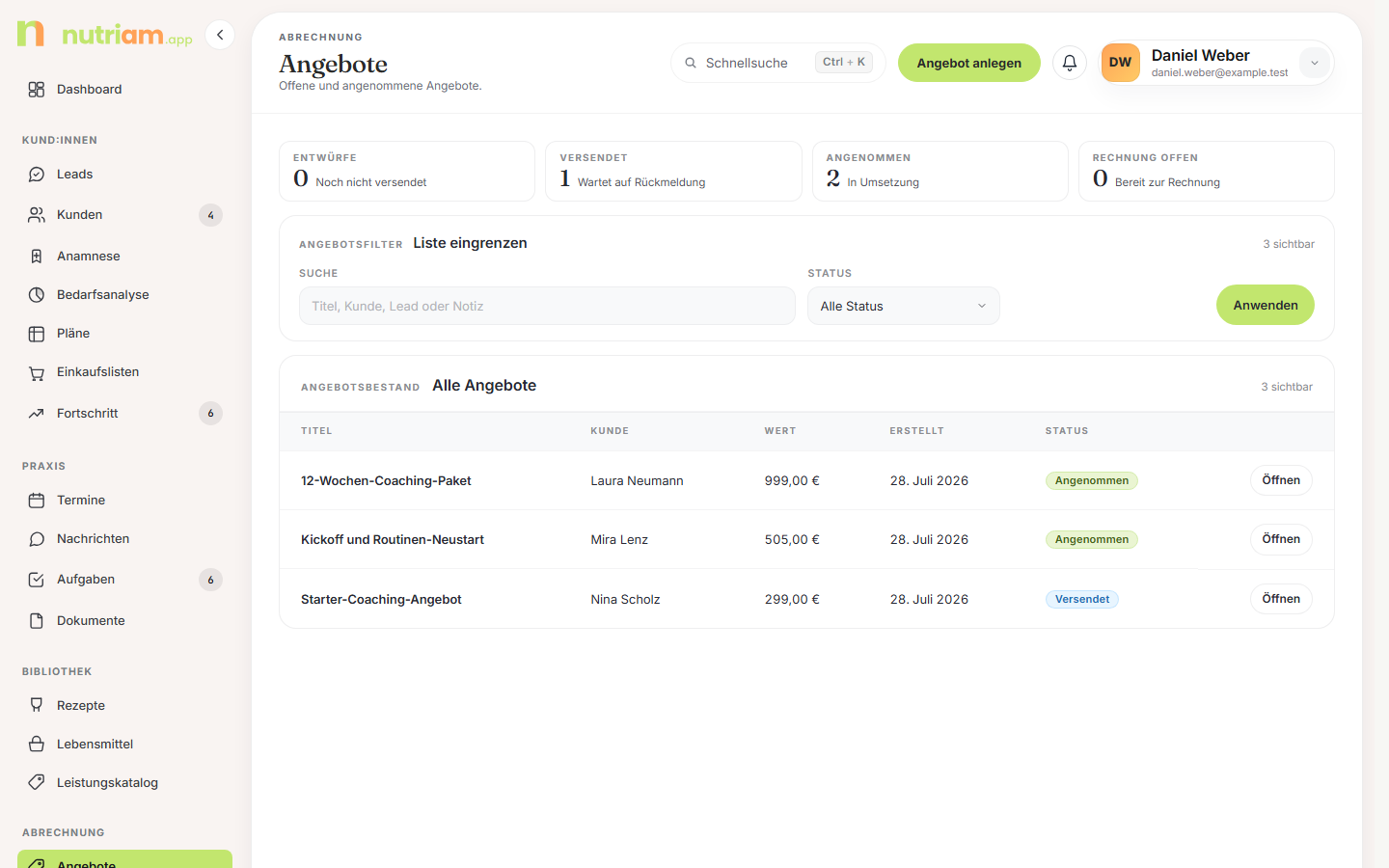
A quote is a proposal to a lead or to existing clients, e.g. “12 weeks of nutrition counselling”.
KPI tiles
| Tile | Meaning |
|---|---|
| Drafts | Not sent yet |
| Sent | Awaiting a response |
| Accepted | In progress |
| Invoice pending | Accepted, but no invoice created yet |
The tiles are display only and not clickable. The first three always count the total; “Invoice pending” refers to the currently filtered list.
Filter
The card “Narrow down the list” has:
- Search across title, client, lead, note or currency.
- below that the status pills with match counts: All, Draft, Sent, Accepted, Declined. Exactly one is active.
- the “Apply” button as a fallback.
Both take effect immediately: the search shortly after you type (from two characters), the pills when clicked. Clicking a pill keeps the search term and vice versa. The card header shows “N shown · N total”; as soon as a filter applies, “Reset filters” appears next to it.
List columns
| Column | Content |
|---|---|
| Title | Quote title, opens the detail page |
| Client or lead | linked client or lead |
| Value | Total of the quote; for legacy quotes the net total (see Legacy quotes below) |
| Created | Creation date |
| Status | Status pill, additionally Invoice pending if applicable |
| (no heading) | “Open” button, additionally “Create invoice” if applicable |
Quote statuses
| Status | Meaning |
|---|---|
| Draft | In progress, not sent yet |
| Sent | Sent to the client or lead |
| Accepted | Acceptance received, content locked |
| Declined | Rejection recorded; the quote can no longer be accepted |
Create a new quote
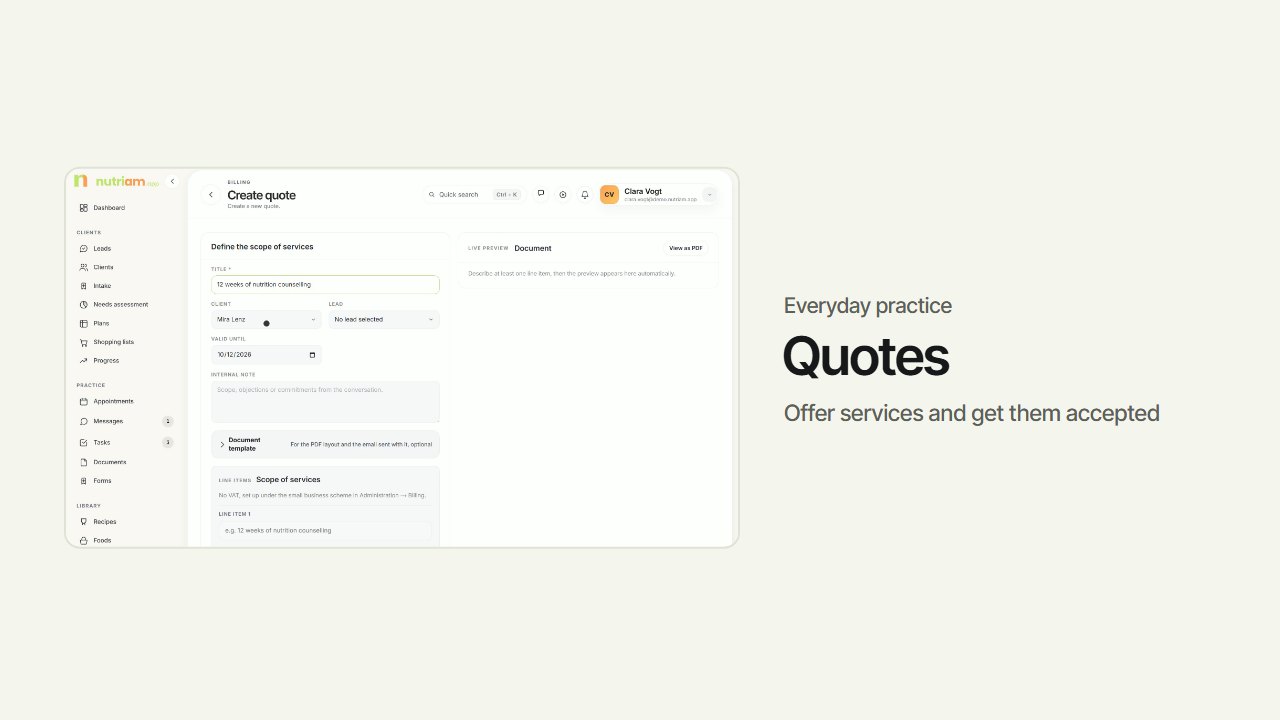
“Create quote” at the top right opens the card “Define the scope of services”. To its right, as when creating an invoice, runs the card “Live preview / Document”:
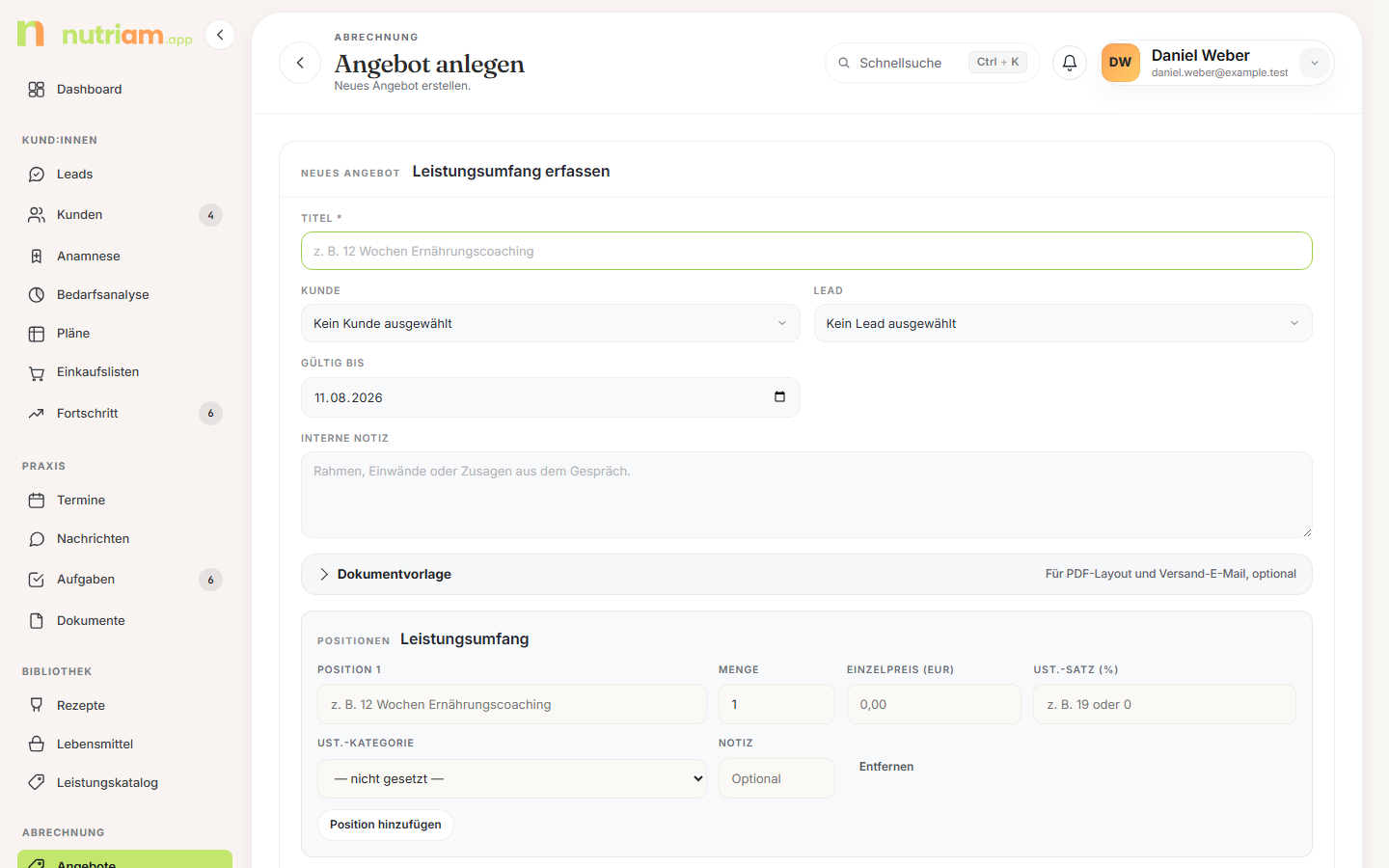
| Field | Required | Note |
|---|---|---|
| Title | ✓ | e.g. “12 weeks of nutrition counselling” |
| Client | no | selection from your clients |
| Lead | no | alternatively a lead from acquisition |
| Valid until | no | prefilled with today + 14 days |
| Internal note | no | scope, objections or commitments from the conversation |
| Document template | no | collapsed, controls the PDF layout and the email sent with it |
| Line items | no | description, quantity, unit price (EUR), VAT fields if applicable, note |
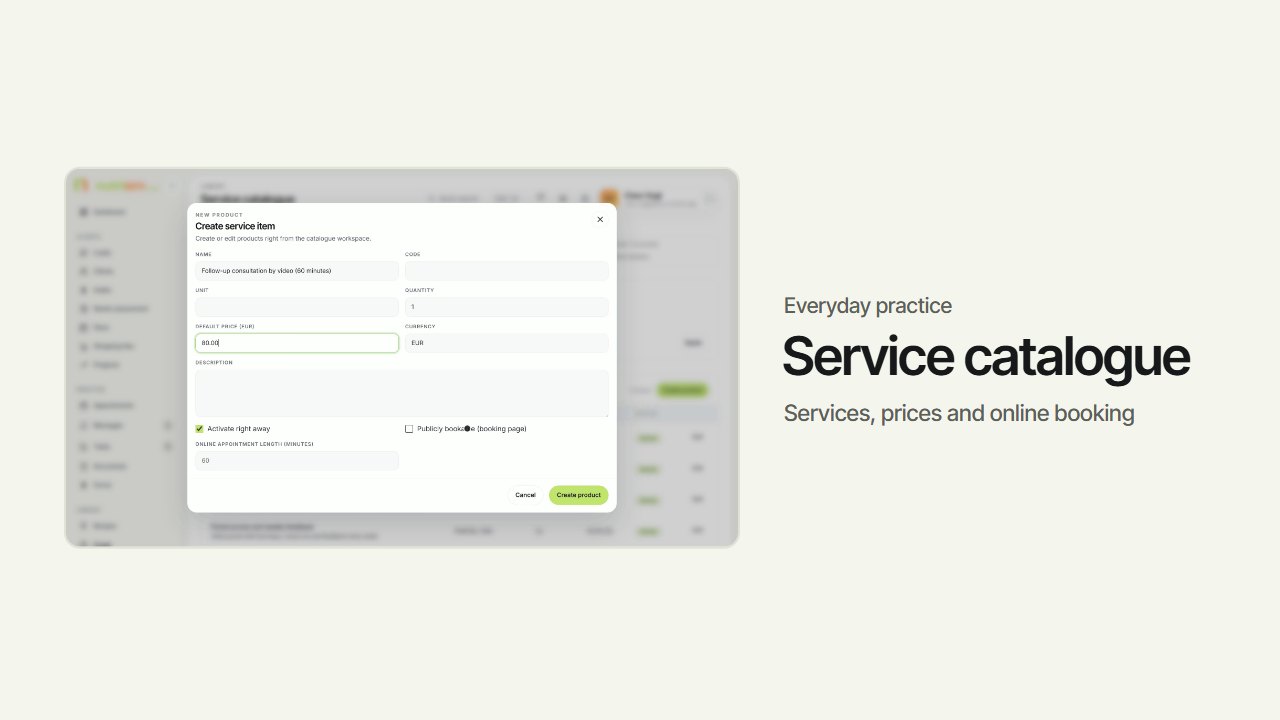
Below the line items is the picker “Add from service catalogue”. It creates a line item from an active product (description, quantity, unit price); the catalogue is maintained in 07 Practice. Without active products, the picker is hidden.
Alongside the individual products, it also lists your active service packages. A package inserts all of its rows at once, instead of you clicking them together one by one. Each row created this way remembers its package, so that it stays traceable later what was billed. After that, they're completely normal line items: you can change or delete them individually. If you have no active packages, the group simply doesn't appear.
From two line items onwards, next to “Remove” there are the up and down arrows and, with a mouse or trackpad, a drag handle (six dots). Use them to set the order of the line items; that's also how they appear on the document. The arrows move a line item by one position; with the handle, you drag it to another position, and a line shows where it will land.
The VAT fields per line item behave as when creating an invoice (section 3): hidden with the small business scheme, collapsed with standard taxation showing the practice's default, and individually changeable via “Adjust VAT per line item”.
The live preview re-renders the quote as soon as at least one line item has a description. It shows the totals like the later PDF: with VAT, the net total, the VAT per rate or “steuerfrei” and the total including VAT; with only tax-exempt line items or the small business scheme, just the total with the exemption or small business note (see Columns and totals in section 3). You don't need a client or lead for this, both are optional on a quote; if selected, they appear as the recipient on the document. “View as PDF” opens the same preview as a PDF. Nothing is saved in the process, and as long as the quote hasn't been created, the document shows “Entwurf” (draft) instead of a number.
With “Save quote” you create the quote as a draft. You then land in the quote list, with the confirmation “Quote created.” at the top; Open takes you into the draft. There, the line item editor shows exactly the line items you entered; add more with “Add line item”.
Quote detail page
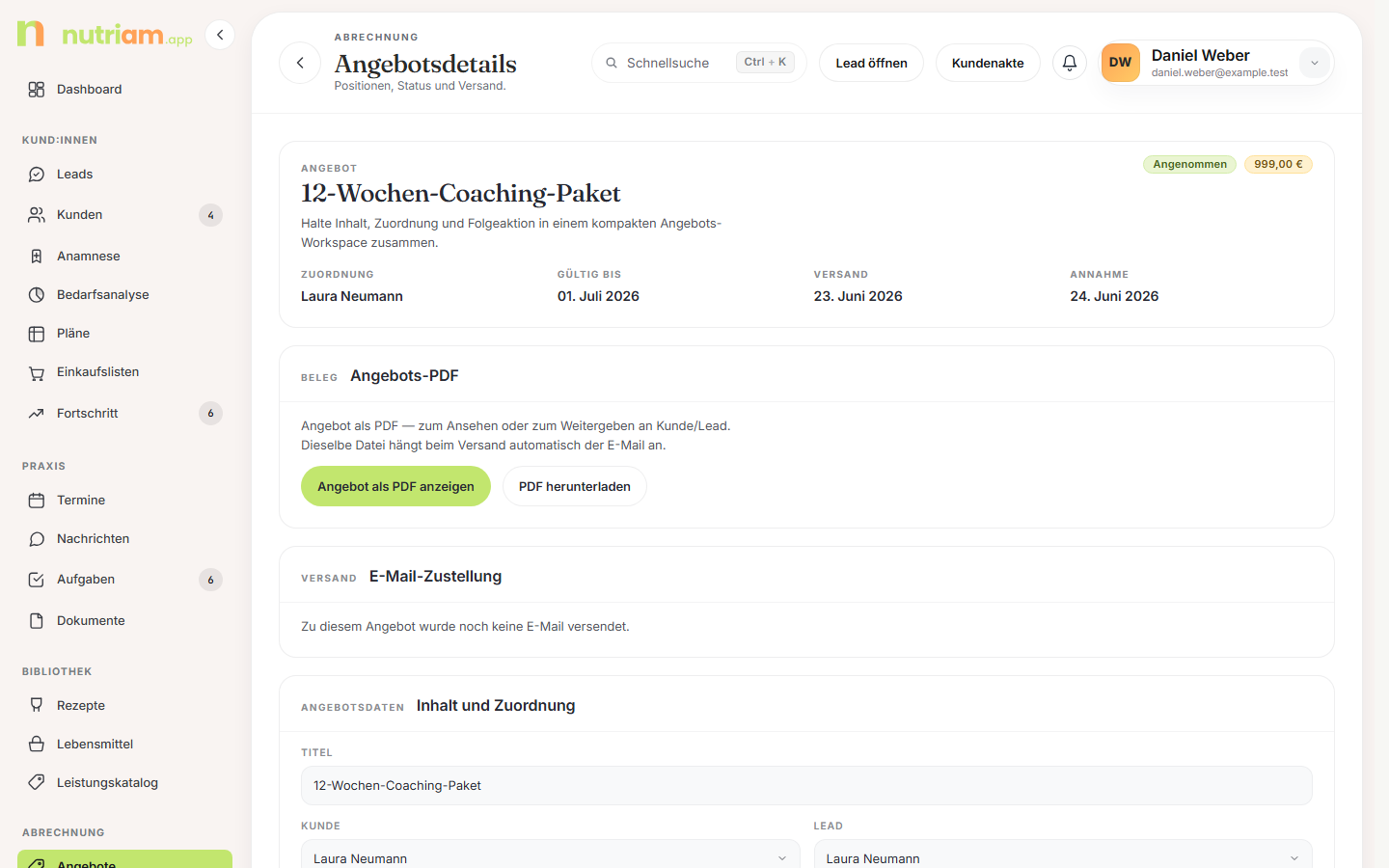
At the top right, depending on what's linked, you'll find “Open lead” and “Client file”. From top to bottom, the page is structured like this:
| Card | Content |
|---|---|
| (document header) | Title, status pill, amount and Assigned to, Valid until, Sent, Accepted |
| Document / Quote PDF | Buttons “View quote as PDF” and “Download PDF” |
| Sending / Email delivery | Status of the quote email, see section 9 |
| Quote details / Content and assignment | Title, client, lead, template, valid until, internal note + line items, button “Save quote”. To the right, the document (see below) |
| Actions / Move the quote forward | see below |
| Documents / Matching templates | Quote, email and general templates |
| Communication / Activities | Timeline of all events |
| Note / Add entry | free entry in the timeline |
To the right of “Quote details” is the document, as when creating. As long as the quote can be changed, this is the live preview: it follows every change in the form immediately, without saving, and keeps the quote's number and date. For an accepted quote, the content is locked, and the right-hand side then shows the saved document exactly as it was sent.
If a pricing rule from the service catalogue applies, it doesn't appear as a separate line item in the form. nutriam recalculates it every time you save, and the live preview shows it as a row “Preisregel: ” (pricing rule). Above the line items it then says “Pricing rules are recalculated when you save. The preview includes them.” For an accepted quote, this sentence is omitted: the content is locked, and the pricing rule is in the saved document on the right. Details on pricing rules in 07 Practice.
The card “Actions / Move the quote forward”:
| Button | Active when | Effect |
|---|---|---|
| Send quote | Status Draft | Status → Sent, email with the quote PDF to the client or lead. From then on, the document shows the sending date as the quote date, before that the creation date. A legacy quote with a default rate above 0% and a draft with VAT after the switch to the small business scheme only after saving again (see below) |
| Mark as accepted | Status Sent | Status → Accepted, acceptance date is set |
| Mark as declined | Status Sent | Status → Declined; records the rejection |
| Create invoice | Accepted and client linked | opens /invoices/new with prefilled line items |
Mark as declined is deliberately set apart in its own box and needs the tick box “Rejection received: mark the quote as declined.” After that, the quote can no longer be accepted. You set the lead to Lost separately in 02 Leads.
Caution: An accepted quote is locked in terms of content. Changes to line items, amount, client/lead and currency are rejected with an error message (“The content of an accepted quote can no longer be changed.”). If a non-cancelled invoice has already been created from it, the quote can't be reset either. For changes, create a new quote.
Legacy quotes
If your practice uses standard taxation, quotes in which no line item has a tax category are called legacy quotes here. There are two cases:
- Quotes saved before quotes carried VAT per line item.
- Quotes you saved under the small business scheme before you switched to standard taxation in Administration → Billing. Under the small business scheme, nutriam doesn't save any tax details per line item.
Their amount doesn't include VAT. With a default rate above 0%, their PDF carries the sentence “Alle Preise sind Nettopreise. Auf steuerpflichtige Positionen kommt bei Rechnungsstellung die gesetzliche Umsatzsteuer hinzu.” (all prices are net prices; statutory VAT is added to taxable line items on invoicing). Columns and total row are still called “Einzelpreis”, “Gesamtpreis” and “Gesamtsumme” (unit price, total price, grand total) there. Legacy quotes saved before the change therefore look as they did back then. For quotes from the time under the small business scheme, this sentence replaces the small business note in the PDF after the switch.
On the detail page, the document header and the area above the line items show the note “This quote doesn't have VAT per line item yet.”, followed by a sentence depending on the status:
| Status | What you do |
|---|---|
| Draft | Click “Save quote” once. With a default rate above 0%, nutriam calculates VAT according to your setting, and the total may change. After that, the quote can be sent. If your practice's default is 0% (tax-exempt medical treatment), saving only adds the tax details per line item; you can also send it beforehand |
| Sent | Your client received the quote with the previous amount. With a default rate above 0%, VAT is added to taxable line items on the invoice created from it. Saving again doesn't help here: sending again isn't possible yet, so your client wouldn't receive the new version |
| Declined | Your client received the quote with the previous amount. There's nothing to do |
| Accepted | The content is locked. The invoice created from it calculates VAT like any invoice: with a default rate above 0%, VAT is added to taxable line items, and the invoice amount is then higher than the accepted amount |
With a default rate above 0%, a legacy quote in draft can only be sent after saving. If you click “Send quote” beforehand, the top of the page shows “Please save the quote once more. The total will then show the VAT and you can send it.” Quotes you save under standard taxation aren't affected: they carry VAT from the start.
Tip: If you switch from the small business scheme to standard taxation, all quotes saved until then become legacy quotes. Save open drafts once more before you send them.
Switching to the small business scheme
If, conversely, you switch from standard taxation to the small business scheme, the quotes saved until then still carry VAT per line item. In nutriam, documents of a practice under the small business scheme don't show VAT. Therefore:
- A draft already appears in the PDF the way the next save will store it: without VAT, with the sum of the line items as the total and with the small business note. It can only be sent after clicking “Save quote” once. If you click “Send quote” beforehand, the top of the page shows “Please save the quote once more. It still carries VAT per line item from an earlier practice setting. You can send it afterwards.” The value in the list changes when you save.
- Sent, accepted and declined quotes still show the state in which your client received them. An invoice created from them is calculated without VAT, and the invoice amount is then lower than the accepted amount.
On the detail page, the note “This quote still carries VAT per line item from an earlier practice setting.” appears, followed by a sentence depending on the status.
5. Invoices
Sidebar → Billing → Invoices:
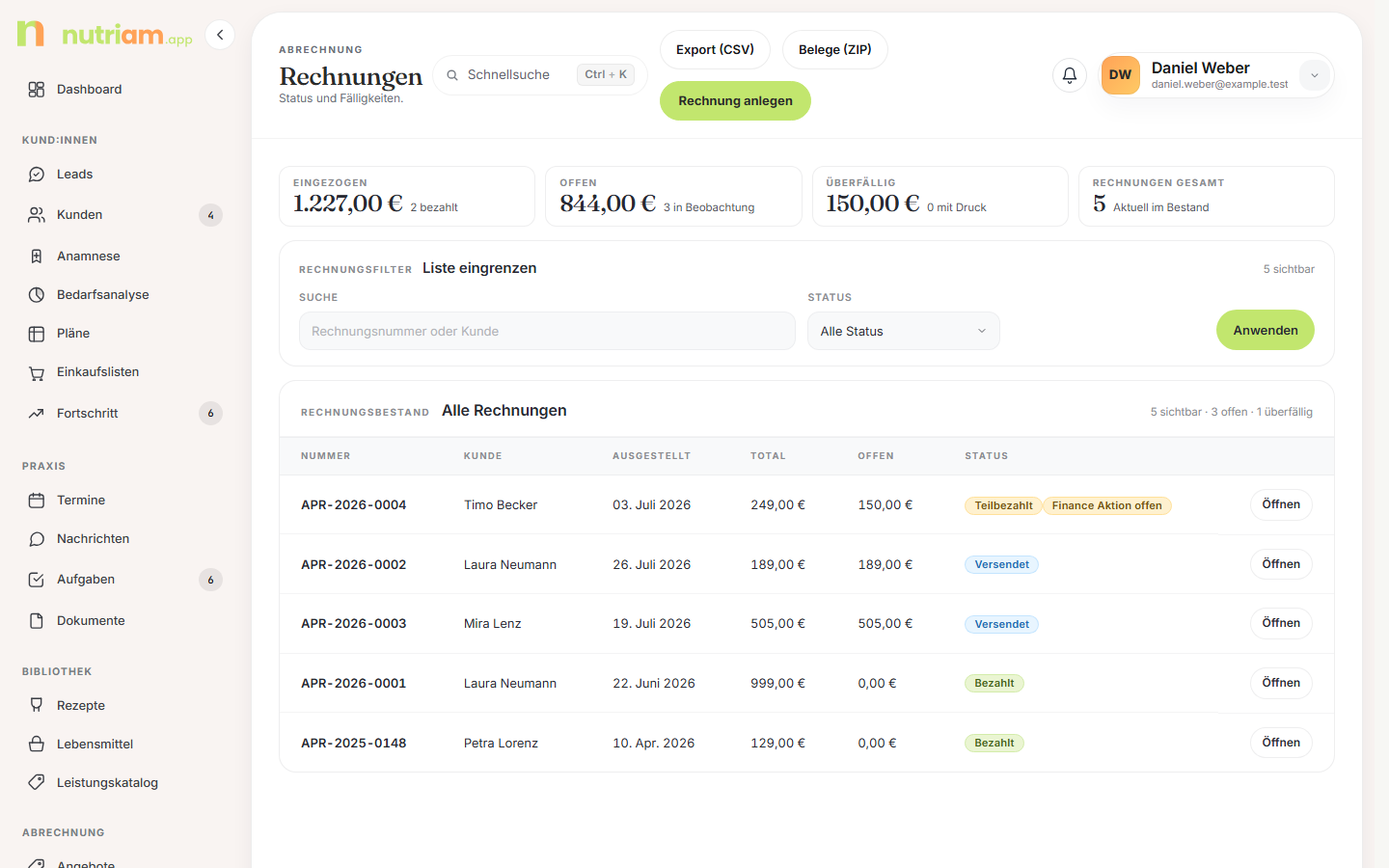
“Create invoice” is at the top right; the exports “Export (CSV)” and “Documents (ZIP)” sit in the header of the All invoices list (details in section 12).
KPI tiles
| Tile | Meaning |
|---|---|
| Collected | Sum of all recorded payments, with “N paid” below |
| Outstanding | Euro total of open receivables, with “from N invoices” below |
| Overdue | Euro total of overdue amounts, with “from N invoices” below |
| Total invoices | Number on record; with standard taxation, “Net … · VAT …” below |
These tiles are also displays, not filters.
Filter and list
The card “Narrow down the list” has a search field (invoice number or client), a status select (All statuses / Draft / Sent / Partially paid / Paid / Overdue / Cancelled) and the “Apply” button.
Both take effect immediately: the search shortly after you type (from two characters, here with a slightly longer pause, because every invoice list also pulls in several financial evaluations), the status directly when selected. “Apply” is only a fallback now; as soon as a filter applies, “Reset filters” appears in the card header.
Note: Unlike quotes and payments, there are deliberately no status pills here: six statuses plus “All” would make too long a row. The status stays a select field.
Below that is the card “All invoices” with a meta line “N shown · N outstanding · N overdue”.
| Column | Content |
|---|---|
| Number | Invoice number, opens the detail page |
| Client | Name from the client file |
| Issued | Invoice date |
| Due date | Payment term. An invoice is only overdue from the day after |
| Total | Gross total |
| Outstanding | Total minus payments already recorded |
| Status | Status pill, plus a signal line Payment task open or Payment reminder active if applicable |
| (no heading) | “Open” button |
An invoice only counts as overdue after the due date has passed, not on the day itself. On the due date it is therefore still Sent, and the payment reminder run also applies at the earliest on the following day.
The reminder and payment status appears as a small line with a dot BELOW the status pill (one pill per row: two pills of equal weight read like two statuses):
| Signal line | Meaning |
|---|---|
| Payment task open | There's a recommended action (start a payment reminder run, send the next level, check a closed reminder case). Orange = due now, yellow = scheduled |
| Payment reminder active | The invoice is overdue or has an ongoing reminder case |
The list automatically sorts rows with one of these signals to the top, then overdue invoices, then by invoice date.
Invoice statuses
| Status | Meaning |
|---|---|
| Draft | Still in progress: editable and deletable, no invoice number yet, no document, no payments possible |
| Sent | Issued and finalised |
| Partially paid | At least one payment recorded, remainder outstanding |
| Paid | Settled in full |
| Overdue | Due date passed, amount outstanding |
| Cancelled | The original after cancellation, or a cancellation invoice itself |
Create a new invoice
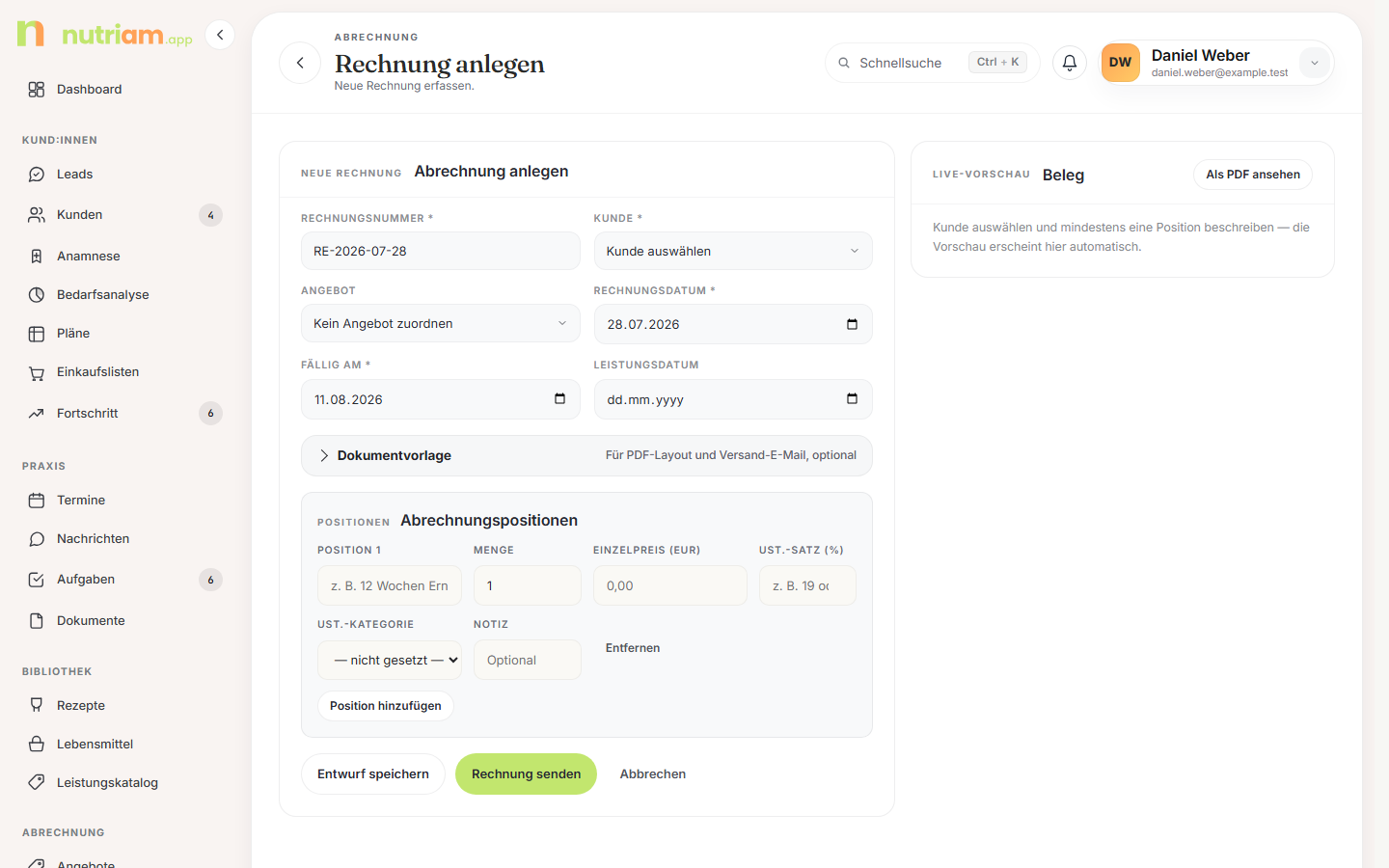
The form is on the left, the accompanying card “Live preview / Document” on the right.
| Field | Required | Note |
|---|---|---|
| Invoice number | no | not an input field: nutriam assigns the sequential number automatically when issuing; the form only shows the expected next number (e.g. RE-2026-0007) |
| Client | ✓ | selection from your clients |
| Linked quote | no | optional reference; filtered to the selected person |
| Invoice date | ✓ | prefilled with today |
| Due date | ✓ | prefilled with today + 14 days |
| Service date | no | when the service was provided, for bookkeeping |
| Service period until | no | only for services spanning several days (e.g. a month of support); if set, the document shows the period, e.g. “Leistungszeitraum” (service period) 01.06.2026 to 30.06.2026, instead of a single date |
| Document template | no | collapsed, controls the PDF layout and the email sent with it |
| Line items | no | description, quantity, unit price, VAT fields if applicable, note |
Service date or service period? The law requires the time of the service (§ 14 Abs. 4 Nr. 6 UStG); if it spans several days, the period may be stated instead, and for a month of support the calendar month is enough according to § 31 Abs. 4 UStDV (the implementing ordinance of the German VAT Act). If you leave the end empty, the document shows a single service date; if you enter one, it becomes a service period. This also applies to the e-invoice: the period goes into the embedded ZUGFeRD XML as BG-14, a single date as BT-72.
Here too you have the picker “Add from service catalogue”, and the line items can be reordered with arrows or the drag handle, as on the quote. There's no note field at invoice level: notes are attached to the line item or later to the timeline.
The live preview re-renders the document as soon as a client and at least
one line item with a description are in place; “View as PDF” opens the
same preview as a PDF. As long as the invoice is a draft, it's called
“Rechnung (Entwurf)” (invoice, draft) there, and the header line says
“Rechnung Nr.: Entwurf” (invoice no.: draft). The cover text leaves out the
number (“anbei erhalten Sie Ihre Rechnung.”, please find your invoice
attached), and so does the placeholder {{ document.number }} in your
document template. On issue, the real number moves into both places.
There are three buttons at the bottom:
| Button | Effect |
|---|---|
| Save draft | Invoice stays editable, nothing goes out |
| Send invoice | Invoice is created and issued immediately: document finalised + email to the client's address |
| Cancel | back to the previous page |
Note: The invoice number is only created on issue: nutriam then takes the next number from your practice's sequential number sequence (the same sequence that cancellation invoices get their numbers from) and locks it. Until then, a draft has no number. That way a discarded draft doesn't use up a document number, the number sequence stays without gaps, and the draft can be deleted at any time.
Number format: You set the structure of the number, i.e. prefix and pattern with placeholders such as
{PRÄFIX}(prefix),{JAHR}(year),{MM}(month) or the required counter{NNNN}, in Administration → Billing → Invoice numbers (chapter 08). The default is{PRÄFIX}-{JAHR}-{NNNN}(e.g.RE-2026-0007); the counter runs across the whole practice and isn't reset at the turn of the year.
Tip: From an accepted quote, click “Create invoice”, in the quote list or on the quote detail page. The notice “Prefilled from quote” then appears at the top; line items and client are taken over and can still be adjusted. There's no “Convert to invoice” menu item.
The invoice also takes over the VAT per line item from the quote: rate and category, e.g. “E: Exempt” for a tax-exempt service. If a line item differs from the practice's default, the VAT fields are expanded right away. Line items without details (say from a legacy quote) inherit the default as always.
The invoice doesn't take over pricing rules, because invoices don't have pricing rules. If the quote contains one, the yellow notice “Pricing rule not carried over” appears at the top with name and amount, e.g. “The discount of €50.00 net from the pricing rule ‘Loyalty discount’ has not been carried over. Enter it as a reduced unit price.” You then factor the discount into the unit price of the line item concerned. Like the unit prices, the amount is net; the “net” is shown if your practice charges VAT. At 19%, the invoice total drops by €59.50.
Invoice detail page
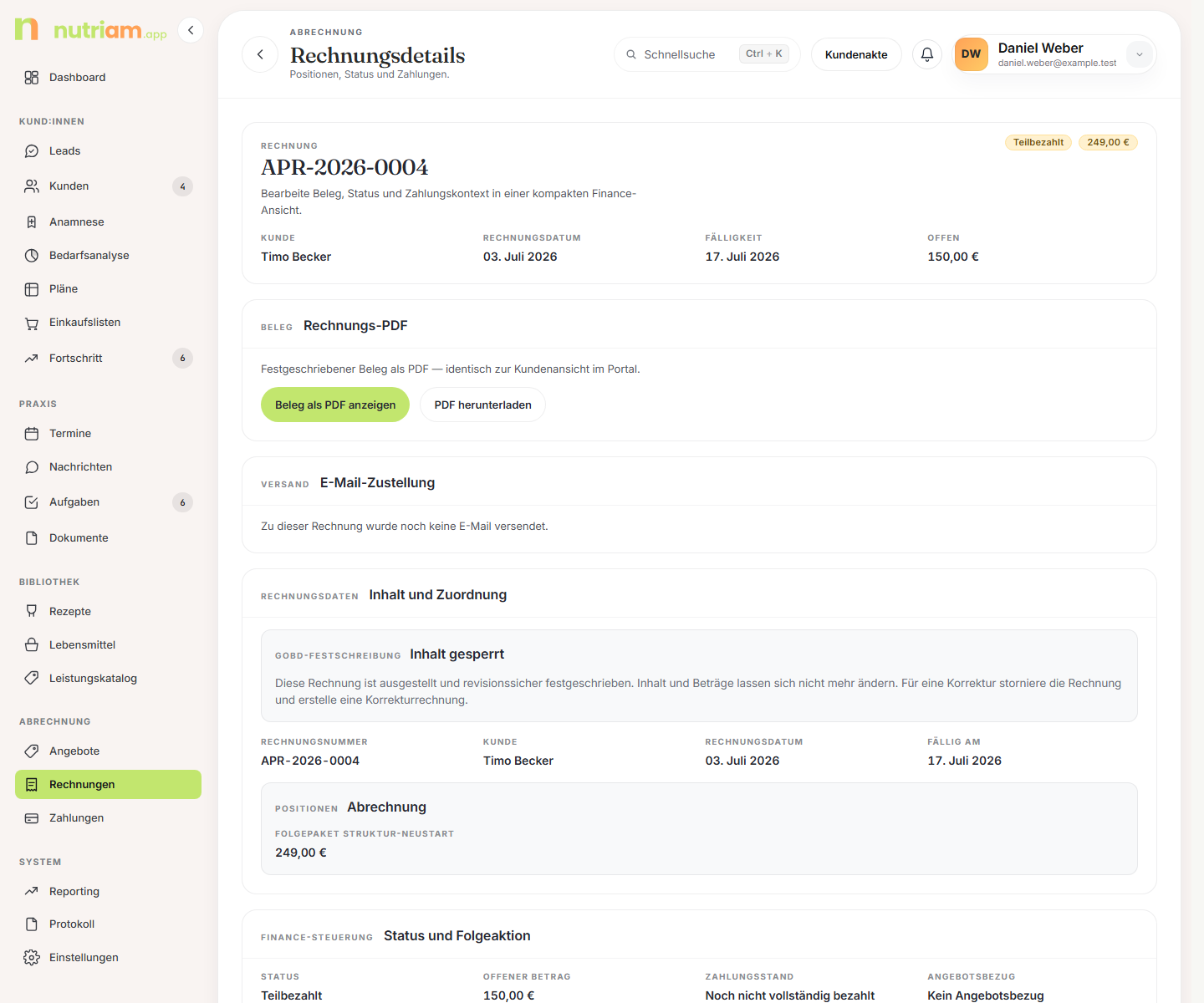
At the top right you'll find “Client file” and, if a quote is linked, “Open quote”.
| Card | Content |
|---|---|
| (document header) | Invoice number (for drafts: “Draft (no number yet)”), status pill, amount and Client, Invoice date, Due, Paid / outstanding |
| Invoice details / Content and assignment | For a Draft a form, otherwise the block “GoBD finalisation / Content locked” (GoBD are the German Federal Ministry of Finance's principles for proper electronic bookkeeping and record keeping; they require issued documents to stay unchanged). To the right, the document (see below) |
| Invoice / Status and next step | Fact grid + all buttons, see below. Sits directly below the invoice details, also to the left of the document |
| Sending / Email delivery | Delivery status of the invoice and payment reminder emails |
| Document / Invoice PDF | Buttons “View document as PDF” and “Download PDF” |
| Documents / Matching templates | Invoice, email and general templates |
| Recorded payments | each payment as a clickable row leading to the payment detail page |
| Communication / Activities | Timeline plus form for your own entries |
To the right of “Invoice details” and “Status and next step” is the document, as when creating, and it stays visible while you scroll. For a draft, this is the live preview: it follows every change in the form immediately, without saving. For an issued invoice, it shows the finalised document as a PDF, exactly as the client sees it in the portal. The next step (record payment, send, send a reminder) stays at the top left, so you don't have to scroll past the document first. On narrower screens, the document moves below the status card.
The fact grid shows Payment status, Related quote and the reminder facts (Payment reminders, Next follow-up, Reminder level as Level N, Reminder letter as in the email subject, e.g. First reminder). Status and outstanding amount only appear in the document header at the top, not again here. For a cancellation invoice, the row Document type: Cancellation invoice (correction document) is added.
The action row holds the everyday actions. Only the buttons that actually work for this invoice appear:
| Button | Visible when | Effect |
|---|---|---|
| Send invoice | Status Draft and email address in the client file | issues the invoice, finalises the document, emails it |
| Issue without email | Status Draft | issues the invoice and finalises the document, but doesn't send an email (e.g. if you hand over the invoice in person or print it) |
| Send again by email | issued (including Paid), not cancelled, email address available | sends the finalised document again; status and invoice number stay the same |
| Record payment | outstanding amount (Sent, Partially paid, Overdue) | jumps to the payment form, prefilled |
If the email address is missing, a note appears below the buttons. A draft can then only be issued without email; you add the address in the client file. nutriam rejects sending the same invoice twice within one minute, so that a double click doesn't trigger a second email.
Below that, set apart in their own boxes and each with a required tick box, are the actions that shouldn't be triggered by accident:
| Box | Active when | Tick box | Effect |
|---|---|---|---|
| Delete draft | Status Draft | “Understood: delete the draft irrevocably.” | removes the draft permanently; not a GoBD issue, because it doesn't have a document number yet. The invoice list then confirms “Draft deleted.” |
| Mark as paid (without payment) | Sent, Partially paid or Overdue | “Understood: mark as paid without recording a payment.” | sets the status directly to Paid |
| Cancel invoice (GoBD correction document) | Sent, Partially paid or Overdue, no cancellation invoice | “Understood: create the cancellation invoice irrevocably.” | creates a cancellation invoice |
Caution: “Mark as paid” does not create a payment. The invoice is then Paid, nothing appears in the payment list, reports don't count the money received, and it can no longer be cancelled. For real payments received, always use “Record payment”.
Mandatory details check on issue
Send invoice stops if the document is missing a mandatory detail under § 14 UStG. The message says what's missing and where to add it:
| Missing | Where to add it | Mandatory from |
|---|---|---|
| Address of the practice | Administration → Billing | always |
| Tax number or VAT ID | Administration → Billing | above €250 gross |
| Address of the client | Client file → client details | above €250 gross |
The €250 limit comes from § 33 UStDV: up to that amount, the document counts as a small-amount invoice (Kleinbetragsrechnung) and needs neither the client's address nor a tax number, so you can issue a €75 consultation invoice without either.
Why exactly here? The draft is left untouched: you can save it, view it and preview it as a PDF. Only the step that finalises the document is checked: after that, the document can't be changed, and a missing mandatory detail can only be fixed by cancelling it. The check also stops before the number is assigned, so a failed attempt doesn't leave a gap in the sequential document numbering.
6. Drafts can be deleted, issued invoices are finalised (GoBD)
A draft can be edited freely: client, quote, template, invoice date, due date, service date or period and all line items. The invoice number isn't one of them: it's assigned automatically on issue and can't be changed manually. Because a draft doesn't have a number yet, isn't finalised and has never reached the client, you may also delete it permanently (box “Delete draft” on the detail page); no gap appears in the number sequence. This means you and your team can safely work with test drafts.
As soon as the invoice has been issued (status Sent or later), nutriam replaces the form with the block “GoBD finalisation / Content locked”:
This invoice has been issued and finalised in an audit-proof way. Its content and amounts can no longer be changed.
Still visible there, if applicable, are the quote and the service date or period as well as the line items with their totals; number, client, invoice date and due date are already in the document header at the top and aren't repeated. At the same time, on issue the PDF is frozen once as the archive document; every later retrieval delivers exactly this file.
Tip: As long as you're unsure, save as a draft. Only a draft can still be reworked at will, or deleted completely. After sending, the only way is cancellation.
7. Cancelling and correcting an invoice
“Cancel invoice” doesn't delete anything. The click creates a separate cancellation invoice (correction document):
- its own sequential number from the practice sequence (e.g.
RE-2026-0001), - all line items with negated amounts,
- title and text referring to the original (“Storno zu Rechnung …”, cancellation of invoice …),
- its own PDF, finalised immediately,
- the key fact Document type: Cancellation invoice (correction document) on the detail page.
The original stays fully intact and changes to Cancelled. You then make a correction as a new invoice.
| Case | Behaviour |
|---|---|
| Invoice still has active payments | rejected: void the payments first |
| Invoice is fully paid | rejected: handle the refund separately |
| Document is itself a cancellation invoice | rejected: a cancellation isn't cancelled |
| Invoice is a draft | no cancellation needed: you edit or delete drafts directly |
8. Document PDF and e-invoice (ZUGFeRD/Factur-X)
Both detail pages have the Document card:
- On the invoice detail page, the card shows the document embedded directly. It loads by itself when you open the page, so you don't have to click anything to see what your clients receive.
- On the quote detail page, the document is to the right of the “Quote details” form: as a live preview while the quote can be changed, after acceptance as the saved document.
- “View document as PDF” or “View quote as PDF” opens the file in a new tab.
- “Download PDF” saves it locally.
Note: The embedded preview is the same document as the download, but does not appear in the activity log. That's intentional: it loads on every page view, and an entry “Invoice document exported” or “Quote document exported” per view would flood the document history with mere looking. The two buttons remain logged exports.
For an invoice draft, this is a preview (“not yet finalised”), and from issue onwards the finalised archive document, identical to the file sent by email and the one your clients see in the portal.
The invoice email always carries the PDF as an attachment. It only contains the link to the portal for clients with portal access, i.e. after they've accepted the invitation.
In addition, nutriam embeds a ZUGFeRD/Factur-X XML in every invoice PDF. ZUGFeRD/Factur-X is the German-French e-invoice format: a normal PDF with a machine-readable XML file inside, based on the European standard EN 16931. Accounting programs such as DATEV, lexoffice or sevDesk can therefore read the invoice in automatically, without anyone typing it up.
Open invoices also carry a GiroCode (the standard QR code for SEPA bank transfers) next to the bank details in the PDF. Your clients scan it with their banking app and get the transfer filled in: recipient, IBAN, outstanding amount and the invoice number as the payment reference. This requires a valid IBAN under Administration → Tax & bank details. Paid invoices, cancellation invoices and quotes don't carry a code.
| Requirement | Result |
|---|---|
| Structured address, VAT ID/tax number and bank details on file | Profile BASIC with a complete seller block and SEPA details |
| Details incomplete | Fallback to profile MINIMUM |
| A discount row with a negative amount | Profile BASIC: in the XML, the discount appears as a negative quantity with a positive price; amount and tax stay the same |
Good to know: For tax purposes, profile MINIMUM doesn't count as an e-invoice but as an “other invoice” (sonstige Rechnung). For invoices to private individuals, this doesn't matter. If you issue invoices to businesses (for which German law is gradually making e-invoices mandatory), complete the billing profile so that the XML is created in profile BASIC. Since November 2026, discount rows no longer stand in the way.
For small businesses and for tax-exempt line items, the XML contains the
same exemption reason as the PDF (BT-120), in the wording of the respective
jurisdiction. For tax-exempt medical treatment, the code VATEX-EU-132-1C
is added (BT-121, see Reason for exemption in section 3).
Quote PDFs don't contain a ZUGFeRD XML, as they aren't invoice documents.
PDF and XML carry the same tax amounts. nutriam rounds the VAT per tax rate commercially to whole cents (€49.50 at 19% gives €9.41). Line items with category AA (reduced rate) appear in the XML as category S with their rate, e.g. 7%, because the e-invoice standard doesn't know AA. In the editor, category AA stays. If AA and S with the same rate are on one invoice, the PDF, like the XML, combines them into one VAT row.
9. Has the email arrived?
Quote and invoice each have a “Sending / Email delivery” card. It shows one row per email with status pill, type of event, date and recipient address.
| Pill | Meaning |
|---|---|
| Delivered | The email was accepted by the mailbox |
| Failed | Sending failed; the reason is shown in the same row |
| Skipped | Nothing was sent, usually because no email address is on file |
The types of event are Quote sent, Invoice sent, Invoice sent again and Payment reminder.
If the header of a quote shows a date under Sent but the card shows no email, it says, for example, “Marked as sent on 31 July 2026. No email from nutriam has been logged for it.” This happens, for instance, with a quote without a client and without a lead: it gets the status Sent, but no email goes to anyone. Without sending, it still says “No email has been sent for this quote yet.”
Quote, invoice and payment reminder emails come from portal@nutriam.app
like all other emails to clients, with the display name “
über nutriam” (German for “via nutriam”). For your clients, an invoice is
therefore nothing special, just another email from their practice. As the
reply-to address, nutriam sets the billing email from the practice details,
or the support address as a fallback. The finalised PDF is attached.
Quote, invoice and payment reminder emails also carry the practice branding: the logo and brand colour stored under Administration → Invoice design appear in the email header (without a logo, the practice name); nutriam only mentions itself discreetly in the footer. The email's look therefore matches the attached document PDF.
Caution: Without an email address in the client file, no email goes out. The invoice still counts as issued and is finalised. The delivery card then shows Skipped with No email address on file, and the message after issuing says so too. Pass on the document yourself (download the PDF) or add the address and use “Send again by email”. The same applies if an email has Failed.
For a quote, the delivery card likewise shows Skipped with No email address on file if the client or lead has no address; the status stays Sent. If the email already fails while being created, for example because of the PDF, it shows Failed with the note “The quote email couldn't be created.” Sending the email again isn't provided for quotes: download the PDF via “Download PDF” and pass it on yourself.
Tip: The document template only controls the PDF layout, not whether an email goes out. You maintain templates in 07 Practice.
10. Payment reminders
Payment reminders sit on the invoice detail page in the card “Invoice / Status and next step”. There are four levels:
| Level | Reminder letter | Email subject | Next follow-up |
|---|---|---|---|
| 1 | Payment reminder | “Zahlungserinnerung: Rechnung …” | + 3 days |
| 2 | First reminder | “Erste Mahnung: Rechnung …” | + 5 days |
| 3 | Second reminder | “Zweite Mahnung: Rechnung …” | + 7 days |
| 4 | Final reminder | “Letzte Mahnung: Rechnung …” | none, final level |
| Action | Effect |
|---|---|
| Next reminder level | Creates the reminder case or raises it by one level; automatically sends the matching reminder email with invoice number, outstanding amount and due date |
| Close reminder case | Ends the reminder case (e.g. after payment has been received or after an agreement) |
| Postpone | Form “Next reminder” (date/time) plus “Note”: moves the follow-up without an email |
Requirements for “Next reminder level”: the invoice must be overdue and still have an outstanding amount. The reminder buttons therefore don't appear at all for drafts, cancelled and paid invoices. Level 4 can neither be raised further nor postponed. “Close reminder case” and “Postpone” are only there while a reminder case is ongoing.
In addition, nutriam waits for the next follow-up: while it's still in the future, “Next reminder level” is missing until it's reached (the backend also rejects a premature call). This protects against an accidental double click: otherwise two reminders of different levels would reach the same client within seconds, without the deadline in between ever being observed. When the next level is possible again is shown in the card under Next follow-up; with Postpone you can move this date.
As soon as a payment settles the invoice, nutriam closes the reminder case itself. In the invoice list, you can spot open reminder work by the signal lines Payment task open and Payment reminder active (see section 5).
Tip: Every reminder sent appears in the “Sending / Email delivery” card as Payment reminder. There you can also see whether it really went out.
The reminder email only goes out after the reminder level has been saved. If sending fails (say because the email provider is temporarily unreachable), the level therefore stays set and the failed attempt is shown in the same card; the reminder isn't repeated automatically the next day. In that case, contact the client directly.
Automatic payment reminder run
nutriam can trigger the reminder run itself on working days at 9:20 am: it looks for all overdue invoices with an outstanding amount and carries out exactly the actions that the interface suggests to you anyway, namely Start reminder run for invoices without a reminder case and Next reminder level for due follow-ups. Each level sends the same reminder email as a manual click, and each run is recorded in the practice's activity log.
There are two cases the automatic run deliberately does not touch:
- Closed reminder cases whose invoices have nevertheless remained unpaid. They're only counted and stay with you as Check reminder status: you decide whether a closed case is reopened.
- Level 4 (Final reminder). It's the final level; after that, nothing more happens automatically.
Important: The automatic reminder run only becomes active once the operator enables it, in two steps. First it runs in observation mode: it only determines which invoices would be due and writes exactly one entry to the activity log. In this mode, it verifiably changes nothing: no invoice changes status, no automation starts, no task is created, no email goes out. Only with the second activation does it set reminder levels and send reminder emails. Until then, payment reminders work exactly as described in this section: you trigger each level yourself.
11. Payments
Sidebar → Billing → Payments:
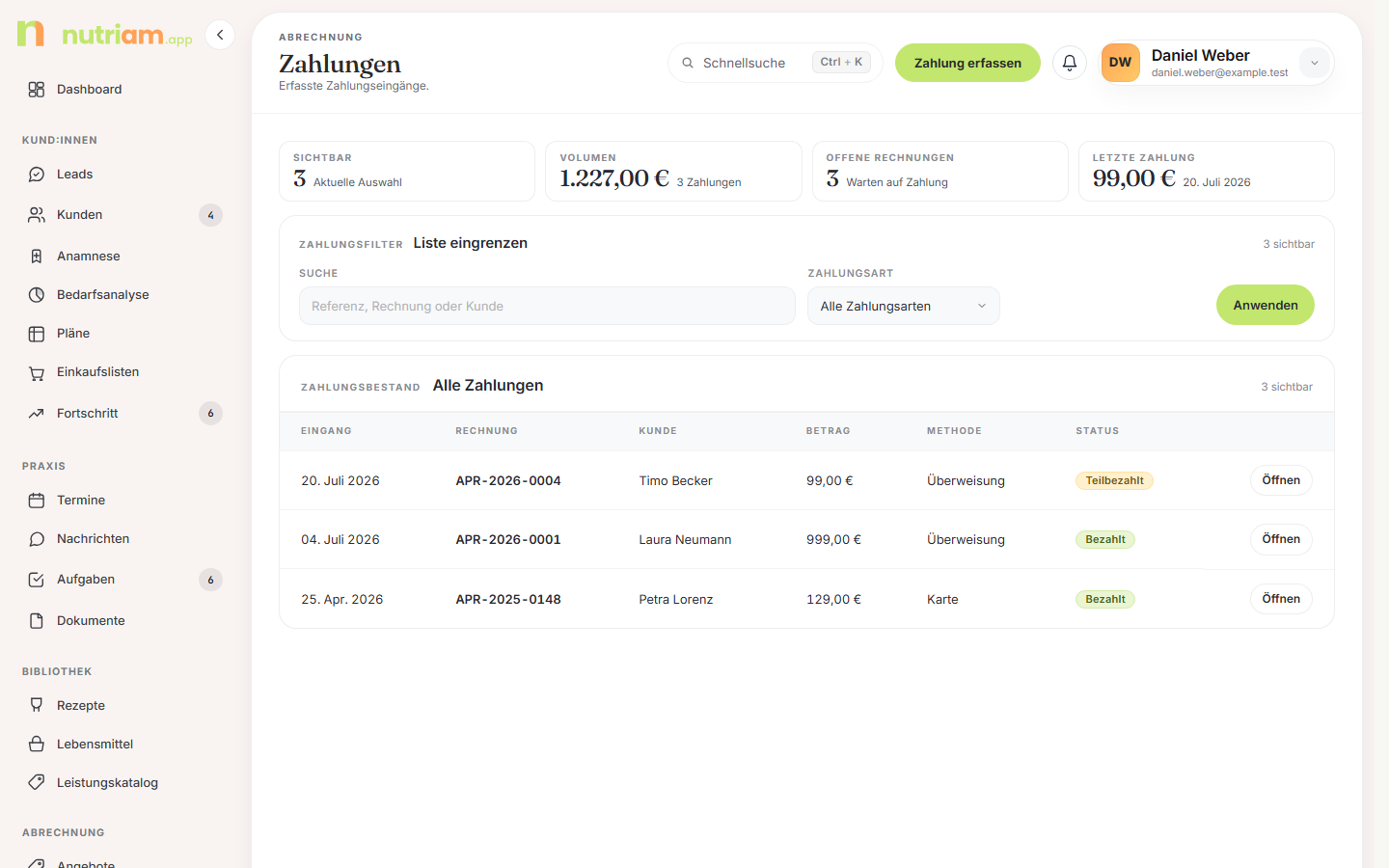
This is where all manually recorded payments received for your client invoices are kept.
| Tile | Meaning |
|---|---|
| Volume | Sum of all payments, with “N payments” below |
| Open invoices | Invoices that are neither paid nor cancelled |
| Latest payment | Amount and date of the most recent payment received |
The card “Narrow down the list” has a search field (reference, invoice or client), below it the payment method pills with match counts (All, Bank transfer, Cash, Card, Other) and the “Apply” button as a fallback.
Both take effect immediately: the search shortly after you type (from two characters), the pills when clicked. “Reset filters” appears in the card header as soon as something is set.
| Column | Content |
|---|---|
| Received | Date the money was received |
| Invoice | Invoice number, opens the payment detail page |
| Client | Name from the related invoice |
| Amount | Amount recorded |
| Method | Bank transfer, cash, card or other |
| Status | Status of the invoice, not of the payment |
| (no heading) | “Open” button |
Caution: Stripe does not create any entries here. Stripe only handles your practice's nutriam subscription. You always enter your clients' payments yourself.
Record payment
“Record payment” at the top right opens the card “Record payment received”. From within an invoice, the invoice is already preselected:
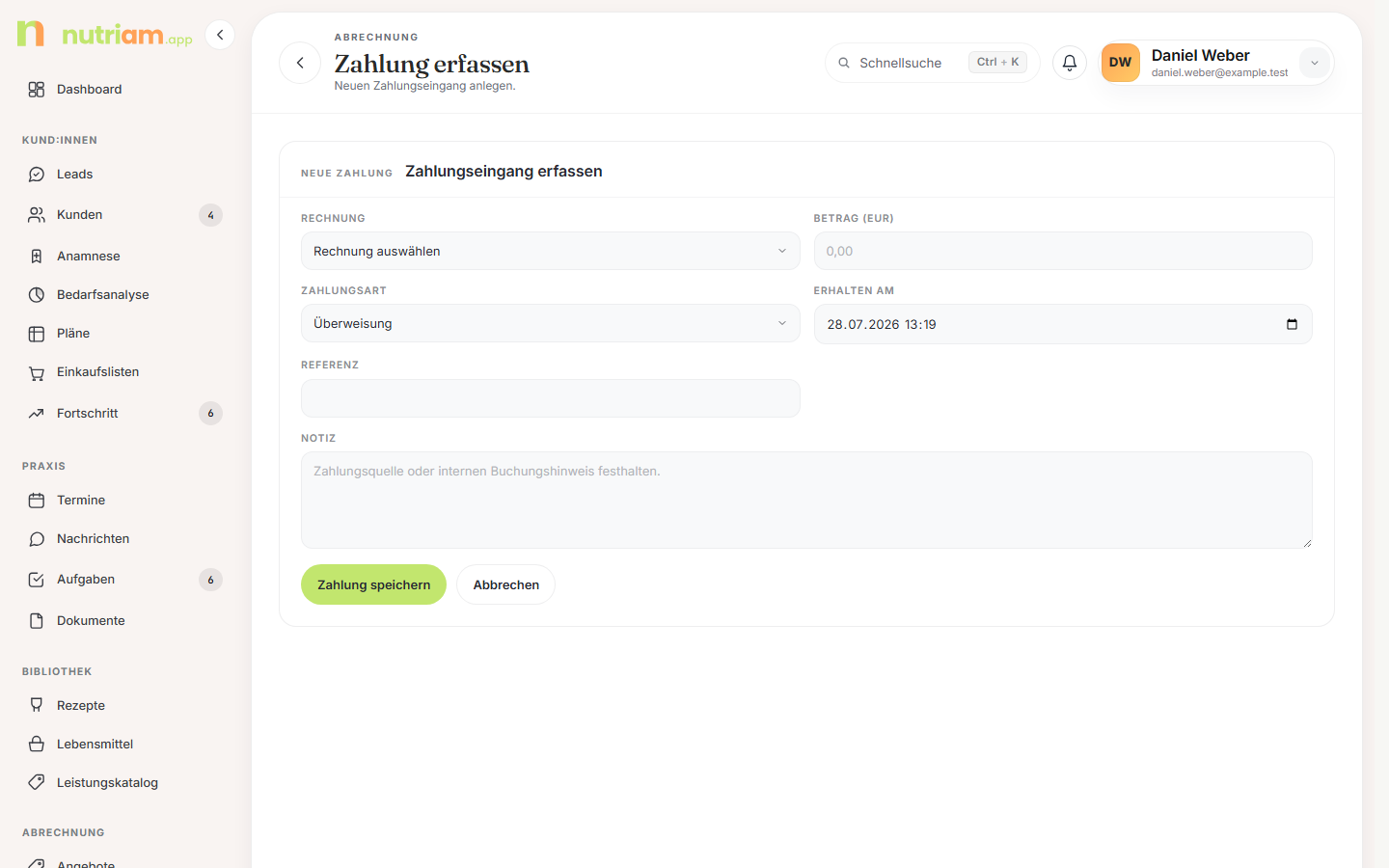
| Field | Required | Note |
|---|---|---|
| Invoice | ✓ | only invoices with an outstanding balance; each row shows number, client and balance, e.g. “RE-2026-0007 · Anna Muster · €297.50 outstanding” |
| Amount (EUR) | ✓ | at least 0.01; if you come from an invoice, the outstanding balance is already filled in |
| Payment method | no | prefilled with Bank transfer |
| Received on | no | date and time, prefilled with now |
| Reference | no | e.g. payment reference or bank reference |
| Note | no | internal booking note |
There's no currency field: the payment is booked in the invoice's currency.
Tip: The usual case is therefore a two-click process: click “Record payment” in the invoice, and the form already has the invoice and the amount right; just save.
The backend rejects the payment if:
- the invoice is still a draft or is cancelled,
- the amount is greater than the outstanding balance,
- “Received on” is in the future.
Invoices paid in full don't even appear in the dropdown.
After saving, nutriam recalculates the invoice: depending on the remaining balance it moves to Partially paid or Paid, and an ongoing reminder case is tidied up.
Payment recorded incorrectly?
At the bottom of the payment detail page is the card “Void payment” with an optional field “Reason (optional)” (e.g. booked in error, recorded twice, charged back), the required tick box “Understood: mark the payment as void irrevocably.” and the button “Void payment”. Voiding can't be undone.
The payment is not deleted but marked as void in an audit-proof way; the invoice is recalculated automatically. Payments that have already been voided only show “Voided on … / Reason: …”.
Payment detail page
At the top right you'll find “Open invoice” and “Client file”. The structure:
| Card | Content |
|---|---|
| (document header) | Amount, the invoice's status pill, payment method and Received, Invoice, Client, Reference |
| Payment details / Transaction details | Amount, payment method, received on, reference, invoice, client, created, updated, plus the Internal note if there is one |
| Linked invoice | clickable row with number, status, amount, due date and amount already paid |
| Activity / History | Timeline of the transaction events |
| Void payment | see above |
| Note / Add entry | free entry in the timeline |
12. Exports for your tax adviser and bookkeeping
The header of the invoice list has two downloads:
| Button | File | Content |
|---|---|---|
| Export (CSV) | rechnungen-YYYY-MM-DD.csv |
Invoice journal of all documents, semicolon-separated, decimal comma, UTF-8 with BOM, opens cleanly in Excel |
| Documents (ZIP) | rechnungen-YYYY-MM-DD.zip |
One PDF per issued document plus rechnungsjournal.csv as an index |
Columns of the CSV, with their German headings: Rechnungsnummer (invoice number), Belegart (document type: Rechnung / Stornorechnung, invoice / cancellation invoice), Status, Rechnungsdatum (invoice date), Fälligkeitsdatum (due date), Kunde (client), Währung (currency), Gesamtbetrag (total), Bezahlt (paid), Offen (outstanding), Bezahlt am (paid on), Storno zu (cancellation of), Erstellt am (created on).
All dates (in the journal, in the PDF and in the embedded ZUGFeRD/Factur-X file) are German calendar days (Europe/Berlin). An invoice created shortly after midnight therefore carries the same date everywhere as on the visible document. Documents already issued aren't affected: their PDF has been in the archive unchanged since issue.
Drafts aren't included in the ZIP, as they don't have a document yet.
Frequently asked questions
“Where do I find overdue invoices?” Sidebar → Invoices, set the status select to Overdue; the list updates immediately, you don't need “Apply”. The KPI tiles aren't clickable. Invoices with an open payment task or an ongoing reminder case are at the top of the list automatically anyway.
“I made a typo in an invoice I've already sent. How do I correct it?” Not directly: the invoice is finalised. Click “Cancel invoice” (this creates a correction document) and then create a new, correct invoice. If payments have already been recorded, void them first.
“My quote has been declined. What now?” There's no button for it. Record the reason via “Add entry” in the quote's timeline and set the lead to Lost in 02 Leads. The client file stays unchanged.
“Less money arrived than expected. How do I book a partial payment?” Record exactly the amount received via “Record payment”. The invoice automatically moves to Partially paid, and the Outstanding column shows the rest. The app doesn't let you book more than the outstanding balance.
“How do I send an invoice to clients?” On the invoice detail page, “Send invoice” (only for Draft). The document is finalised and sent automatically by email to the address from the client file. Whether it worked is shown in the “Sending / Email delivery” card. If you hand over the invoice in person, use “Issue without email”.
“The client can't find the invoice email any more. Can I send it again?” Yes: “Send again by email” on the invoice detail page. nutriam sends the same finalised document again; invoice number and status stay unchanged.
“Why is my invoice more expensive than the quote?” Quotes show VAT like invoices, and the invoice takes over rate and category per line item. It becomes more expensive if the quote is a legacy quote with a net total (section 4), if your setting in Administration → Billing has changed since the quote (say from the small business scheme to standard taxation) or if the quote contained a pricing rule that the invoice doesn't take over (section 5).
“I charged VAT on a tax-exempt service. What now?” If the invoice has already been issued, cancel it and issue a new one with the category E: Exempt (sections 3 and 7). nutriam doesn't change the finalised document. If in doubt, check with your tax adviser whether the service is tax-exempt.
“What about Stripe?” Stripe only concerns your own nutriam subscription, not the invoices to your clients. For those, there are exactly four payment methods: bank transfer, cash, card and other. You enter them manually.
“What does my client see of this?” The issued invoice including the PDF appears in the client portal, see Portal handbook → Files, invoices, knowledge. Quotes and payments aren't visible there.
What's still missing here
- No online payment for clients. There's no payment link and no direct debit; payments received are recorded manually only.
- No bank reconciliation. Bank transactions aren't imported or matched automatically.
- No “Declined” for quotes. The status exists in the filter, but there's no control for it.
- No editable invoice number sequence. Prefix and counter only exist in the data and can't be changed in the interface. The document number itself is no longer an input field either: nutriam assigns it automatically on issue and locks it afterwards.
- No reminder run button in the UI. There is an automatic reminder run (section 10), but it's an operator setting and can be neither seen nor started in the interface. Without activation, you trigger each level by hand; the app only suggests them via the Payment task open signal.
- No refunds. For paid invoices, there's no cancellation or credit note route in the interface.