
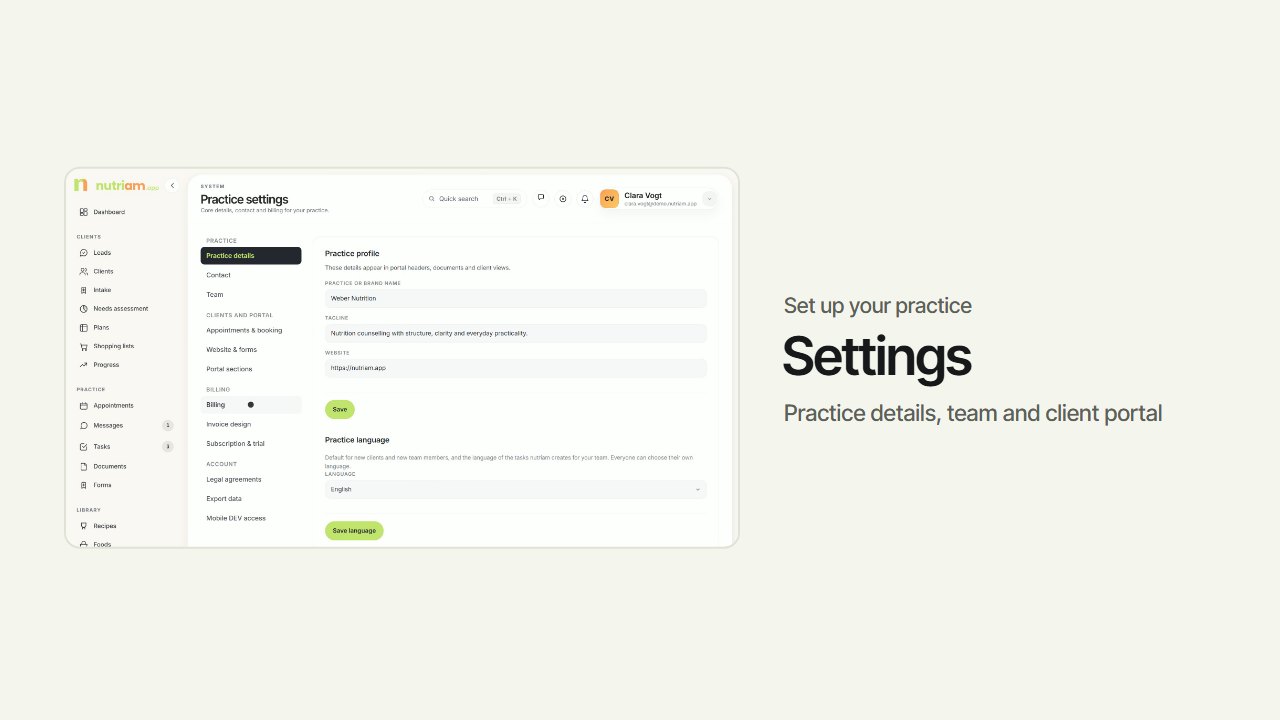
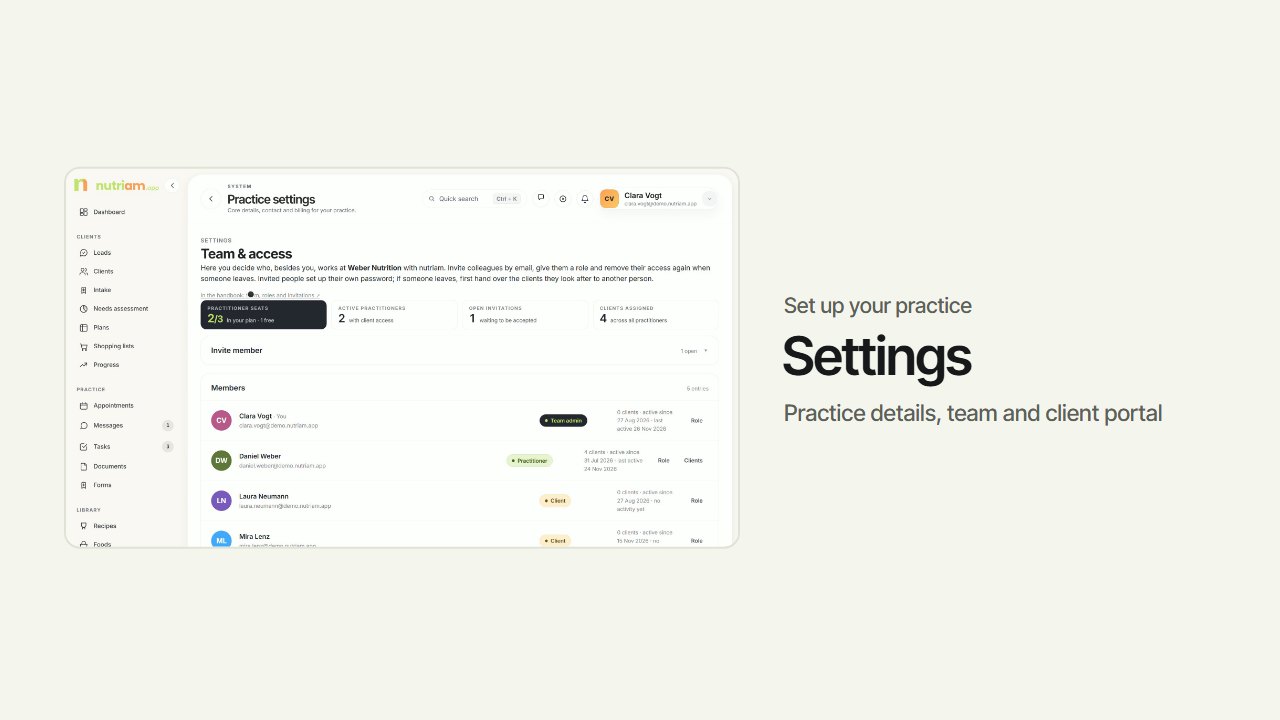
08 – Administration: practice details, team, subscription, profile
The sidebar group System holds everything that concerns your team, your access and your own profile. What you see of it depends on your role: a team admin can change everything. A practitioner changes nothing in the settings, only sees part of them there (see “What practitioners see” in section 1) and has neither Subscription & trial nor team management. Everyone maintains their own profile, including their calendar (section 6).
The group System contains: Reporting (included in all packages), Activity log, Settings, Subscription & trial (team admin only) and Platform (only for platform and support admins). Team management is deliberately not in the sidebar: you reach it via your profile or in the settings under Practice → Team.
1. Settings: the seven tabs
Sidebar → System → Settings (/verwaltung). The page header calls the
area “Practice settings”. On the left is the Administration navigation in
four groups; the same navigation also appears on Subscription & trial. On
narrow screens and on phones it sits collapsed above the content: tap
Section to expand it.
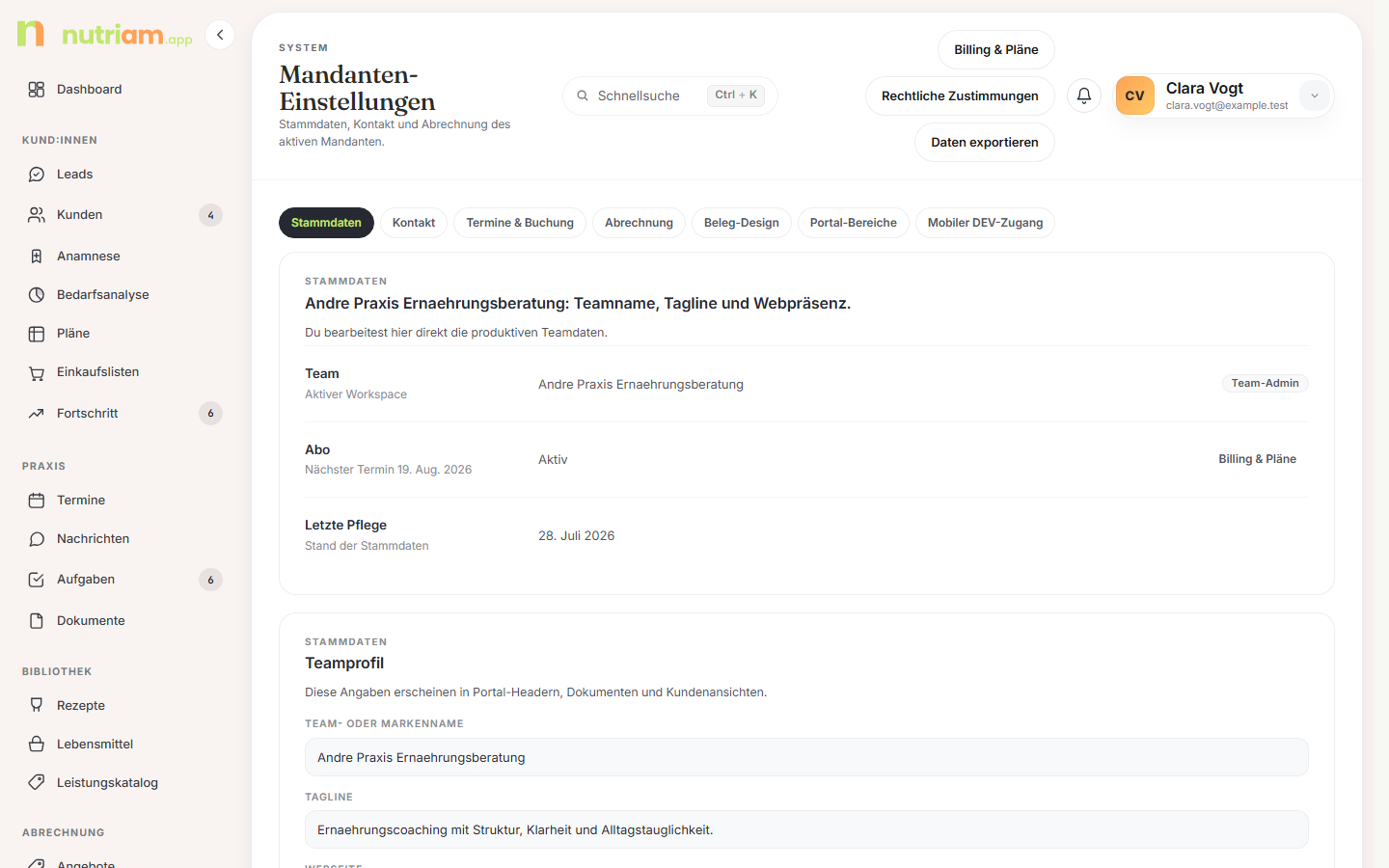
| Group | Section | What it covers |
|---|---|---|
| Practice | Practice details | Team name, tagline and web presence |
| Contact | Support details for your team and clients | |
| Team | User management, separate page (section 2), team admin only | |
| Clients and portal | Appointments & booking | Online booking, cancellation deadline, appointment reminders |
| Website & forms | Links and embed snippets for your public forms, confirmation of receipt, short name (slug) | |
| Portal sections | Which sections your clients see in the portal | |
| Billing | Billing | Billing profile, address, tax and bank details, payment term |
| Invoice design | Logo, colours and texts for invoices and quotes | |
| Subscription & trial | Trial, plan and Stripe, separate page (section 3), team admin only | |
| Account | Legal agreements | /verwaltung/rechtliches, team admin only |
| Export data | GDPR (DSGVO, the EU General Data Protection Regulation) export as a JSON download, team admin only | |
| Mobile DEV access | Only visible locally, see section 1.8 |
The seven sections without a page of their own are the tabs of
/verwaltung. Each tab is its own form with its own Save. In
Website & forms only four settings are editable (your practice page
including the legal notice link, your privacy notice, the confirmation of
receipt and the short name, section 1.4); links and snippets are there for
copying. Switching tabs discards unsaved input: save first, then switch. In
Website & forms nutriam asks first whether you want to discard your
changes.
Who sees what? The practice setup items (practice details, reply address, invoice design, online booking, team) only appear in the list for team admins, because only they may save these settings. The only exception is Connect your calendar: the calendar belongs to the individual person, so this item also appears for practitioners without admin rights.
Shortcut: The setup checklist on the dashboard links straight to the right tab: practice details to Billing (or to Practice details if only the practice name is missing), invoice design and online booking to their respective tabs. A practice counts as complete once practice name, sender name, street, postcode, town, country and either VAT ID or tax number are filled in: exactly the details that § 14 UStG (German VAT Act) requires on invoices. More on this in 01 Basics.
Subscription notice and operator reporting
If something is due on the subscription (trial ending, payment outstanding), the page also shows a reminder banner with the button “Open subscription & trial”. Platform and support admins reach operator reporting via Platform in the sidebar.
What practitioners see
As a practitioner you see the same tabs, but no forms. nutriam loads the full settings only for team admins. Each tab therefore shows you either real values to read or a short note, never a field with a default value that doesn't even apply to your practice. If you open the settings from the sidebar, the page starts for you in Website & forms, the first tab with values, and not in Practice details.
| Tab | What you see as a practitioner |
|---|---|
| Practice details, Contact, Invoice design | the note “These settings are managed by the team admins.” |
| Appointments & booking | the same note and the pointer to My profile: you connect your calendar yourself |
| Website & forms | Direct links and website snippets for copying. Only team admins change the confirmation of receipt and the short name; whether online booking is enabled is not shown here |
| Billing | your practice's VAT setting, e.g. “Standard taxation, 19% VAT”, “Tax-exempt medical treatment, no VAT” or “Small business, no VAT”. Only with standard taxation or tax-exempt medical treatment does it add that individual line items can differ. Under the small business scheme there is no VAT per line item. You don't see the reason for exemption here |
| Portal sections | Visible or Hidden for each section that can be switched off |
Note: The small business scheme and tax-exempt medical treatment appear in your view without section numbers of the law. Which law applies depends on the practice's country, and only team admins see that. Quotes and invoices use the same setting as for the team admins.
1.1 Practice details (team profile)
Exactly three fields; these details appear in portal headers, documents and client views:
| Field | Note |
|---|---|
| Practice or brand name | your visible name in the app, on documents and in the client portal |
| Tagline | short description of your team |
| Website | public URL, starting with https:// |
Note: The client portal uses the practice or brand name to refer to your practice when speaking to your clients, for example “Notes from Green Practice” or “Green Practice has sent you a form.” If the field is empty, it says neutrally “your practitioner”. The portal never speaks of a “coach” or a “coach team”, not even in push notifications.
Tip: Logo and brand colours are not here but in the Invoice design tab.
1.2 Contact (support & contact channels)
Also lean: Support email and Support phone. The practice address belongs in the Billing tab.
The Support email is required as long as there is no billing email in the Billing tab: one of the two must be filled in. The reason: nutriam sends all emails to your clients from a sender mailbox that nobody reads. As the reply address, each of these emails carries your contact address: first the support email, otherwise the billing email. If both are missing, your clients simply cannot reply to appointment, portal and quote emails; they then only get an automatic reply that sends them back to the client portal. As long as nothing is filled in, the item Reply address for client emails stays open in the setup checklist on the dashboard (01 Basics).
1.3 Appointments & booking
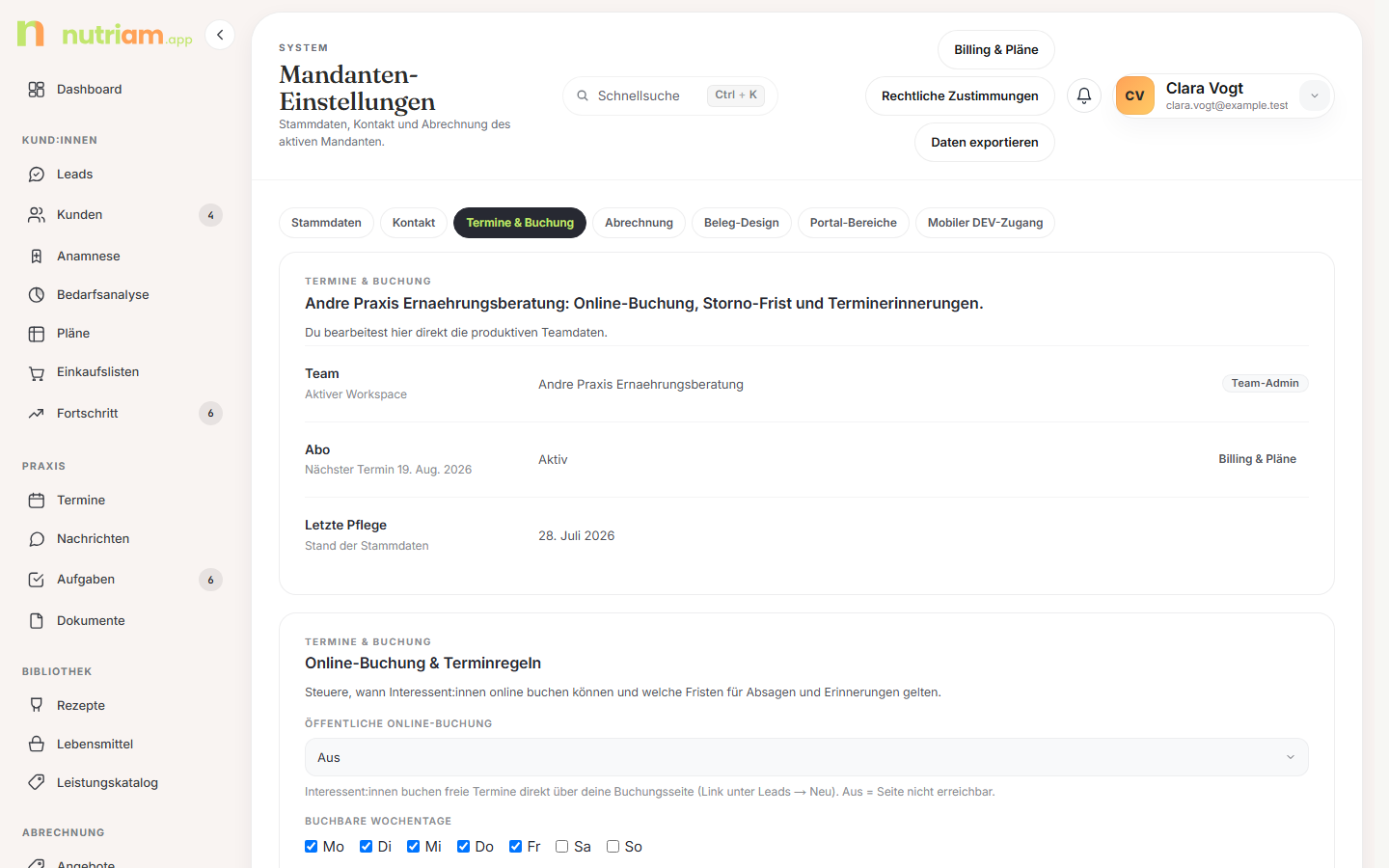
Here you control when prospects can book online and which deadlines apply to cancellations and reminders.
| Field | Values / default |
|---|---|
| Public online booking | Off or Active; off = booking page not reachable |
| Enquiry form: confirmation of receipt | Active (default) or Off |
| Automatic Teams links for video appointments | Off (default) or On |
| Video consultation directly in the client portal | Off (default) or On |
| Opening hours per weekday | seven rows (Monday to Sunday), each with a tick box plus its own from/to time in 15-minute steps; default Mon–Fri, 09:00–17:00 |
| Slot grid | every 15, 20, 30, 45 minutes or hourly (default 30) |
| Notice period (hours) | 0–168; the shortest notice at which a slot can be booked |
| Bookable in advance (weeks) | 1–12, default 4; how far ahead online booking shows free times. On the booking page, prospects browse through the days week by week |
| Client portal cancellation deadline (hours) | 0–720; empty = 24 h, 0 = no deadline |
| Appointment reminder lead time (hours) | 1–336; empty = 24 h (email + push) |
| Second reminder (hours before appointment) | 1–336; empty = off |
| Form for client bookings | No form (default) or one of your form templates |
Caution: The second reminder only takes effect if its value is smaller than the regular lead time. Otherwise nothing happens.
Opening hours per weekday. Each day has its own time window, so Mondays 9:00–17:00, Thursdays 14:00–20:00 and closed on Saturdays can be set up. The tick means “bookable on this day”; without a tick the day is closed, and there is no separate “closed” field. The former shared window for all days no longer exists.
Which appointment types can be booked is not set here but in the service catalogue: every product with the tick Publicly bookable (booking page) becomes a selectable appointment type, with the Online appointment length (minutes) set there. If no product is marked, the built-in fallback list applies (Initial consultation, Follow-up consultation, Needs assessment). See 07 Practice.
Enquiry form: confirmation of receipt. If it is set to Active, the default, everyone who submits your public enquiry form immediately receives a short email in your practice branding: “Enquiry received”, with the time of receipt and a note that you will get in touch. The email takes the logo and brand colour from the Invoice design tab; without a stored logo it simply shows your practice name. With Off this email is not sent; your lead board, the inbox bell and the push notifications to your team carry on unchanged. More on the enquiry form in 02 Leads and acquisition.
Automatic Teams links means: if an appointment has the format Video, its meeting link is empty and the person responsible has connected their Microsoft calendar in their profile, nutriam creates the meeting itself and enters the join link. This applies to appointments from the team, to online bookings and to series. Links you entered yourself stay untouched, and if creating the link fails, the appointment is still created, just without a link. Details in 05 Communication.
Existing Microsoft connections must be reconnected once. Connections from before this feature may only read free/busy. In the profile of the person concerned, the Microsoft row then shows the note Reconnect for automatic Teams links.
Video consultation directly in the client portal is the second route to a video appointment: the call takes place directly in nutriam, in the browser and without any additional program. If the switch is on, every appointment with the format Video and an empty meeting link automatically gets a join address. Clients join via the link in the appointment email or the client portal, without signing in. The two video switches are mutually exclusive because both set the meeting link; nutriam refuses to save if both were set to On. Video consultation is enabled for every practice; only if nutriam explicitly switches it off for your practice does the switch have no effect, and appointments are then created without a join link. If the switch is on, the status of the monthly minute allowance appears below it, for example “120 of 300 video minutes used this month.” Process, allowance and call page in 05 Communication.
Without this step the switch has no effect for this person.
Form for client bookings. If you choose a template here, nutriam assigns it automatically as soon as a client with portal access books an appointment themselves through the client portal, due at the start of the appointment. The assignment appears in the portal under Forms, with inbox, push and email like any other assignment.
The selection list shows your active templates. If you later retire the template stored here, it still stays visible with the suffix (archived); otherwise the setting would disappear unnoticed the next time you save. New bookings then no longer get a form assigned, though; in that case choose an active template or No form. If the templates cannot be loaded right now, the field is locked and a note explains this; the saved selection stays unchanged in that case.
Public bookings are excluded. If someone books through your public booking page (
/t/<slug>/termin), a form assignment is never created, even if a template is set here. Prospects have no portal account and could not fill in the form. For these cases you link the form later by hand in the appointment dialog, once the lead has become a client with portal access; see 05 Tasks, appointments, messages.
The selection stays empty as long as you haven't created a form template yet; you maintain templates in a client file under Forms.
You'll find the link to your public booking page and the embed snippet in the neighbouring tab Website & forms (section 1.4).
1.4 Website & forms
You save the practice page, privacy notice and confirmation of receipt together with one button: Save changes sits in a bar that moves along at the bottom edge as you scroll. Next to it you can see whether there are Unsaved changes. Only team admins may save. Only the short name at the end of the tab has its own button, because it changes all addresses.
At the very top is Your practice page (link in bio). The settings are on the left, a phone preview on the right. It shows every change immediately, even before you save. On narrow screens the preview sits below the form.
| Area | What you set |
|---|---|
| Publish | Address /t/<slug> with a Copy button, switch Show practice page publicly and Link to your legal notice (Impressum) (only https, required to switch the page on; the enquiry and booking pages also link to it instead of nutriam's legal notice) |
| Template and colours | Template Portrait or Clear, background Cream, Light or Practice colour, optionally your own accent colour instead of the one from the invoice design |
| Images | Profile picture and, in the Portrait template, a cover image. nutriam reduces and crops the images in the browser (profile picture square, cover image wide), so large phone photos are no problem |
| Texts | Name or heading, short description (up to 200 characters), text of the main button, up to three badges and a longer “About me” text (up to 1,200 characters) |
| Contact | Email and WhatsApp number with country code (e.g. +49 170 1234567) for the icon row |
| Links | up to five links, each made up of a name and an address (only https), each with an optional preview image. Empty rows are ignored, nutriam rejects half-filled ones |
| Files | up to five PDFs to download (each no larger than 10 MB), for example an info sheet, a checklist or a recipe booklet. Add PDF uploads the file and suggests the file name as the title; visitors see the title on the button. Open shows the file, Remove takes it off the page |
| Sections and order | Show or hide and sort appointments, offers, links, “About me” and files: with the arrows Move up and Move down or, with a mouse or trackpad, using the drag handle (six dots) |
Caution: Everything in the Files section is public: anyone with the link to the practice page can download it. Only upload material meant for everyone there, never your clients' documents or data. For individual clients, you store documents in their client file.
You don't maintain the offers and free slots here: the page shows all services that are bookable online in the service catalogue, and their free times. If online booking is off, the main button leads to the enquiry. How the page looks for visitors is described in 09 Public enquiry and online booking, section 1.
Good to know: The editor uploads images and PDFs immediately, but they only become public with Save changes while the page is switched on. While a file is uploading, the button waits. If you remove a PDF from the page and save, its download link stops working immediately. Before saving, the editor checks the input (legal notice link, email, WhatsApp number with country code, links with
https://), jumps to the errors under the practice page settings and doesn't discard any of your changes.
Below that is Your privacy notice: a link to your website or, if you
have no website of your own, one of your texts of the type Information
from Forms. The link takes priority. nutriam shows the text at
/t/<slug>/datenschutz; the enquiry form, online booking and client portal
link to it, see
09 Public enquiry and online booking,
section 9.
Below that are the addresses of your two public pages, each as a direct link to pass on and as a website snippet for embedding in your own homepage. Each field has a Copy button; below the links, “… in a new tab” leads straight to the page that visitors see.
| Entry | What it is | Activation |
|---|---|---|
| Enquiry form: direct link | /t/<slug>/anfrage, for your email signature, social media bio or a button |
active immediately |
| Enquiry form: website snippet | two lines of HTML, loads the form as an iframe with automatic height | active immediately |
| Online booking: direct link | /t/<slug>/termin, visitors choose a slot themselves |
opt-in in Appointments & booking |
| Online booking: website snippet | embeds the complete booking flow | opt-in in Appointments & booking |
The enquiry form creates a lead, a booking creates a lead and an appointment. What visitors see on both pages is described in 09 Public enquiry and online booking.
Caution: If online booking is switched off, this is shown right at the direct link: link and snippet are still visible, but the page cannot be reached. Switch it on in Appointments & booking (section 1.3). Practitioners only see here that activation lies with the team admins.
Enquiry form: confirmation of receipt sits between the addresses of the enquiry form and those of the online booking (only visible to team admins). If it is set to Active, the default, everyone who submits the enquiry form immediately receives a short email in your practice branding: “Enquiry received”, with the time of receipt and a note that you will get in touch. With Off this email is not sent; your lead board, the inbox bell and the push notifications to your team carry on unchanged.
Change short name (slug) is at the end of the tab, below the save bar, with its own Change short name button (only for team admins). Your short name is part of all four addresses; the field automatically converts input to lower case (ä→ae, space→hyphen), and the system rejects short names that are already taken or reserved for the platform with a message.
Caution: After saving, the new addresses apply immediately. Old links, snippets already built into your website and “Manage appointment” links in emails already sent no longer work; there is no redirect. Copy the links and snippets again from this tab afterwards and replace them on your website. It's best to change the short name before you embed the links anywhere.
1.5 Billing (billing profile)
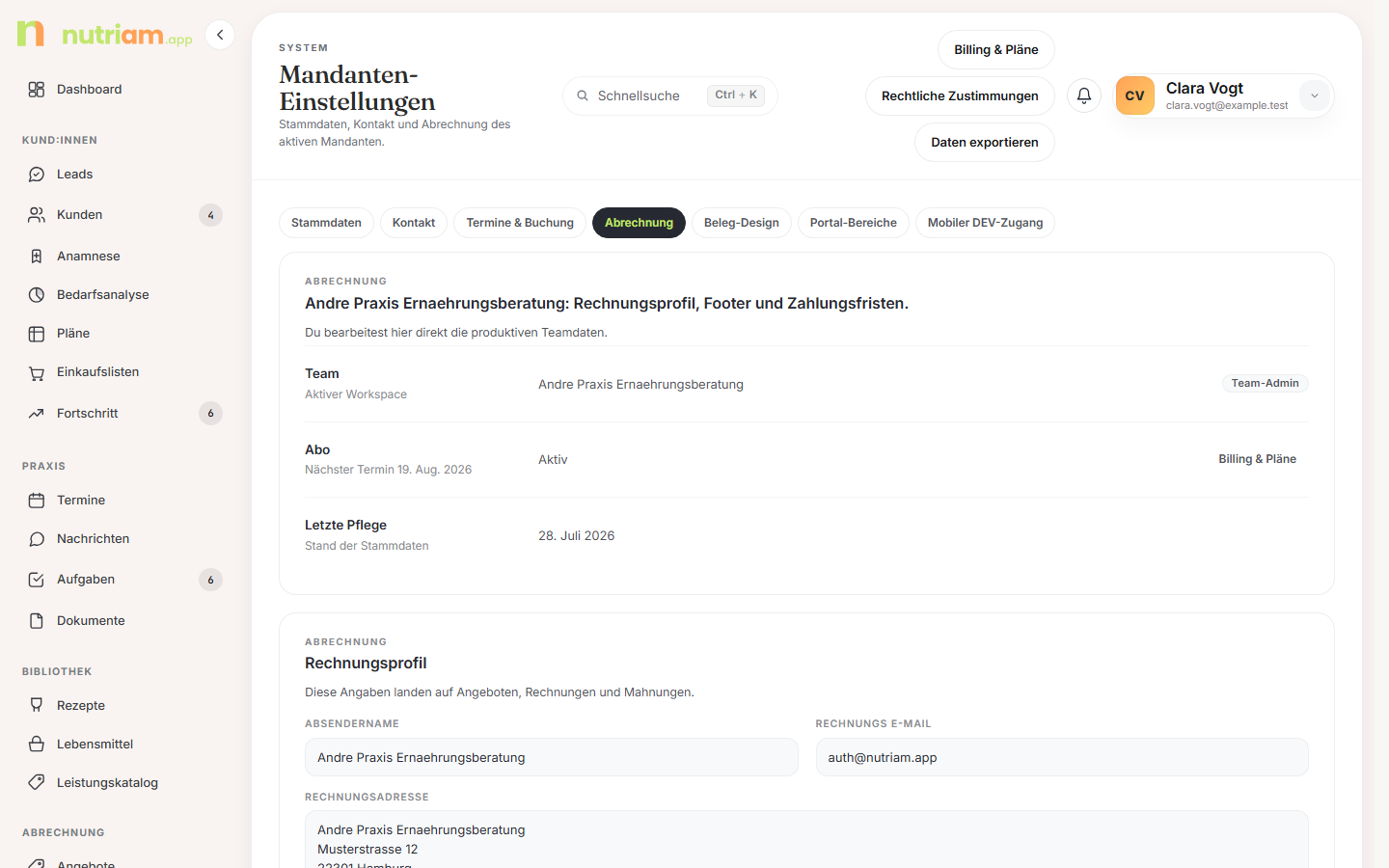
These details appear on quotes, invoices and payment reminders. In this tab practitioners only see the practice's VAT setting (see “What practitioners see” in section 1); team admins maintain everything that follows.
Upper block: billing profile
| Field | Note |
|---|---|
| Sender name | Prefilled with the team name |
| Billing email | Sender address for documents |
| Street and house number, Postcode, Town or city | Practice address, a mandatory detail under § 14 UStG |
| Country | two characters, default DE; also controls the jurisdiction, see below |
| Footer for documents | optional free text, e.g. register court or management |
| Default currency | default EUR |
| Payment term (days) | e.g. 14 |
The address is only entered once. Until August 2026 it also appeared here as a free-text field “Billing address” and further down once more in separate fields for the e-invoice. The visible letterhead is now built from street, postcode and town, so the PDF and the embedded XML can no longer diverge. If you used to maintain a multi-line free text (e.g. with a “c/o” line), you keep it until you save the separate fields.
Middle block: “Invoice numbers”
Here you define how the consecutive document number is structured. The
default is RE-2026-0001; you can adjust it freely with a pattern with
placeholders.
| Field | Note |
|---|---|
| Prefix | Short code for the placeholder {PRÄFIX}, e.g. RE. Automatically converted to upper case. |
| Next number | The consecutive counter for {NNNN}. Only increase it: a value below numbers already issued leads to a collision when issuing. |
| Pattern | The structure of the number. Empty = standard scheme {PRÄFIX}-{JAHR}-{NNNN}. |
Available placeholders (upper or lower case doesn't matter):
| Placeholder | Meaning |
|---|---|
{PRÄFIX} |
the prefix from above |
{JAHR} |
four-digit year, e.g. 2026 |
{JJ} |
two-digit year, e.g. 26 |
{MM} |
month, e.g. 08 |
{NNNN} |
consecutive counter; the number of Ns determines the number of digits (leading zeros) |
The English spellings {PREFIX}, {YEAR} and {YY} keep working;
patterns already saved remain valid.
Examples: {PRÄFIX}-{JAHR}-{NNNN} → RE-2026-0001,
{PRÄFIX}/{JJ}/{MM}/{NNNN} → RE/26/08/0042. A live preview below the
field immediately shows what the next number looks like.
Required: The pattern must contain exactly one counter (
{NNNN}); otherwise invoice numbers would no longer be unique (§ 14 UStG). The form rejects unknown placeholders and numbers that are too long (over 40 characters) when you save.
No annual reset: The counter keeps running and is not reset to 1 at the turn of the year, so the numbering does not jump to
RE-2027-0001by itself. Documents already issued always keep their number; the pattern only affects future invoices.
Lower block: “Tax & bank details”
These details appear in the footer of the documents and also go into the machine-readable invoice embedded in every PDF (ZUGFeRD/Factur-X, the German and French e-invoice format). The more complete they are, the less your tax adviser has to add: with address, tax number or VAT ID and IBAN, bookkeeping software (DATEV, lexoffice, sevDesk) reads in the invoice including the payment details automatically. If something is missing, the document remains valid. It then only transfers the key data.
| Field | Note |
|---|---|
| VAT ID | e.g. DE123456789 |
| Tax number | required without a VAT ID, e.g. for small business owners |
| VAT | modes depend on the country, see below |
| Reason for exemption | next to VAT, not for small business, see below |
| IBAN, BIC, Account holder | BIC and account holder optional |
If a valid IBAN is stored, every open invoice in the PDF carries a GiroCode (the EPC QR code for bank transfers) next to the bank details. Anyone who scans it with their banking app gets a ready-filled transfer: recipient, IBAN, outstanding amount and the invoice number as the payment reference. Paid invoices, cancellation invoices and quotes carry no code. Without an account holder, the invoice's sender name appears as the recipient in the code.
The VAT selection applies automatically to quotes and invoices;
individual line items may differ, except with Small business: there is no
VAT per line item there, and the note below the selection leaves out that
sentence. Which modes are available depends on the Country field: AT
shows the Austrian ones, every other country the German ones.
Country DE (and all others) |
Country AT |
|---|---|
| Small business scheme (§ 19 UStG), no VAT | Small business scheme (§ 6 Abs. 1 Z 27 UStG), no VAT |
| Tax-exempt medical treatment (§ 4 Nr. 14 Buchst. a UStG), no VAT | Tax-exempt medical treatment (§ 6 Abs. 1 Z 19 UStG, e.g. dietetics), no VAT |
| Standard taxation, 19% VAT | Standard taxation, 20% VAT |
| Standard taxation, 7% VAT (reduced) | Standard taxation, 13% VAT (reduced) |
| (none) | Standard taxation, 10% VAT (reduced) |
If you choose Tax-exempt medical treatment, 0% with the category
“E: Exempt” applies as the default for all line items. Below it says:
“Only choose this if you mainly provide medical treatment, e.g. nutrition
therapy on medical prescription or with a medical certificate of necessity.
Prevention courses, coaching and talks without a medical indication are
usually taxable. Set these to 19% per line item. If in doubt, check with
your tax adviser.” For AT it reads: “Only choose this if you mainly
provide medical treatment. Set taxable services to 20% per line item. If in
doubt, check with your tax adviser.” When a service is tax-exempt is
explained in the Orientation box in chapter 06,
section 3.
Note: If “Previous selection, 0% VAT without tax exemption” appears at the very top, your setting comes from an older version: it calculates with 0%, but without a tax exemption, so quotes and invoices show no exemption note. If you mainly provide tax-exempt medical treatment, choose “Tax-exempt medical treatment” and save. nutriam does not switch this over by itself.
Reason for exemption
Next to VAT you define which reason quotes and invoices state below tax-exempt line items. The field is missing while Small business is selected and comes back as soon as you choose a different VAT setting.
| Selection | When |
|---|---|
| No reason selected | Default. The document shows the general note “Steuerfreie Leistung nach § 4 UStG” (tax-exempt service under § 4 UStG; for AT “… gemäß § 6 Abs. 1 Z 19 UStG”) |
| Tax-exempt medical treatment (§ 4 Nr. 14 Buchst. a UStG) | only for country DE or without a country |
| Tax-exempt medical treatment (§ 6 Abs. 1 Z 19 UStG) | only for country AT |
| Custom text (up to 120 characters) | the field Custom text appears below: one line, no more than 120 characters |
Below the custom text it says: “Name the reason for the exemption, e.g.
‘Steuerfreie Bildungsleistung nach § 4 Nr. 21 UStG’. The text appears on
quotes, invoices and in the e-invoice.” The note on medical treatment
(“Only choose this if …”) is shown by the VAT selection above, not by the
reason for exemption: the reason also exists with standard taxation, where
it only applies to the line items you set to tax-exempt individually. If the
Country field contains something other than DE or AT (empty counts
as DE), medical treatment is missing from the selection, and below the
field it says “Tax-exempt medical treatment is only available for country
DE or AT. Check the ‘Country’ field.”
The reason is only saved if you change it. If it doesn't match the country,
saving rejects it with a message at the top of the page, e.g. “Tax-exempt
medical treatment under § 4 Nr. 14 Buchst. a UStG only applies to a
practice based in Germany.” If you then switch the country between DE and
AT, the old reason appears in the list as “Previous selection: …”, and new
documents show the general note. How the reason appears on the document and
in the e-invoice, and why issued invoices keep it, is explained in
chapter 06, section 3 Reason for exemption.
Caution: The country only takes effect after saving. If you switch from
DEtoAT, save first and then choose the new VAT mode. Until then the previous mode appears as its own option “Previous selection, 19% VAT” at the top of the list, so the selection always shows the current state, and saving without a change switches nothing.
Tip: Sender name, billing email and the address are the three details checked as “Setup” in the Documents area (see 07 Practice). If something is missing, nothing is blocked: the document renderer then uses fallback values such as the team name. It's still not clean, though.
“AI usage” block (read-only)
At the very bottom of the tab is the cost control for AI recognition over the last 30 days: Recognitions (below it, how many of them were successful and how many were sheet imports from the client file, which are considerably more expensive than a plate photo), Active users, Tokens and Estimated costs based on Azure list prices. If AI is not enabled for your team, a note says that there are no AI costs.
Below that is the Monthly AI budget: the AI features are included in the package, within a monthly budget per package (fair use). The line shows how much of it has been used in the current calendar month. From 80 per cent it points this out, from 100 per cent it shows the remaining goodwill allowance. Once the goodwill allowance is also used up, sheet import, lab report import and recipe import pause until the first of the month; your clients' photo and text logging in the client portal carries on. Nothing is charged afterwards. At 80 and at 100 per cent your practice receives an email to the support or billing address.
AI recognition is switched on for every practice from the start. The same switch also applies to sheet import in the client file: as long as AI recognition is on, the Read in a sheet card appears under Add entries. If it is off, the card is missing, and adding entries by hand still works (see chapter 03, tab “Food diary”).
Caution: The buttons “Enable AI access” / “Revoke AI access” are only visible to the platform operator. As a team admin you can read the figures but not switch access yourself. If you want AI recognition switched off for your practice, contact nutriam support. At your request nutriam switches it off for the whole practice, and with it sheet import. This is also how the privacy policy and the data processing agreement describe it.
1.6 Invoice design
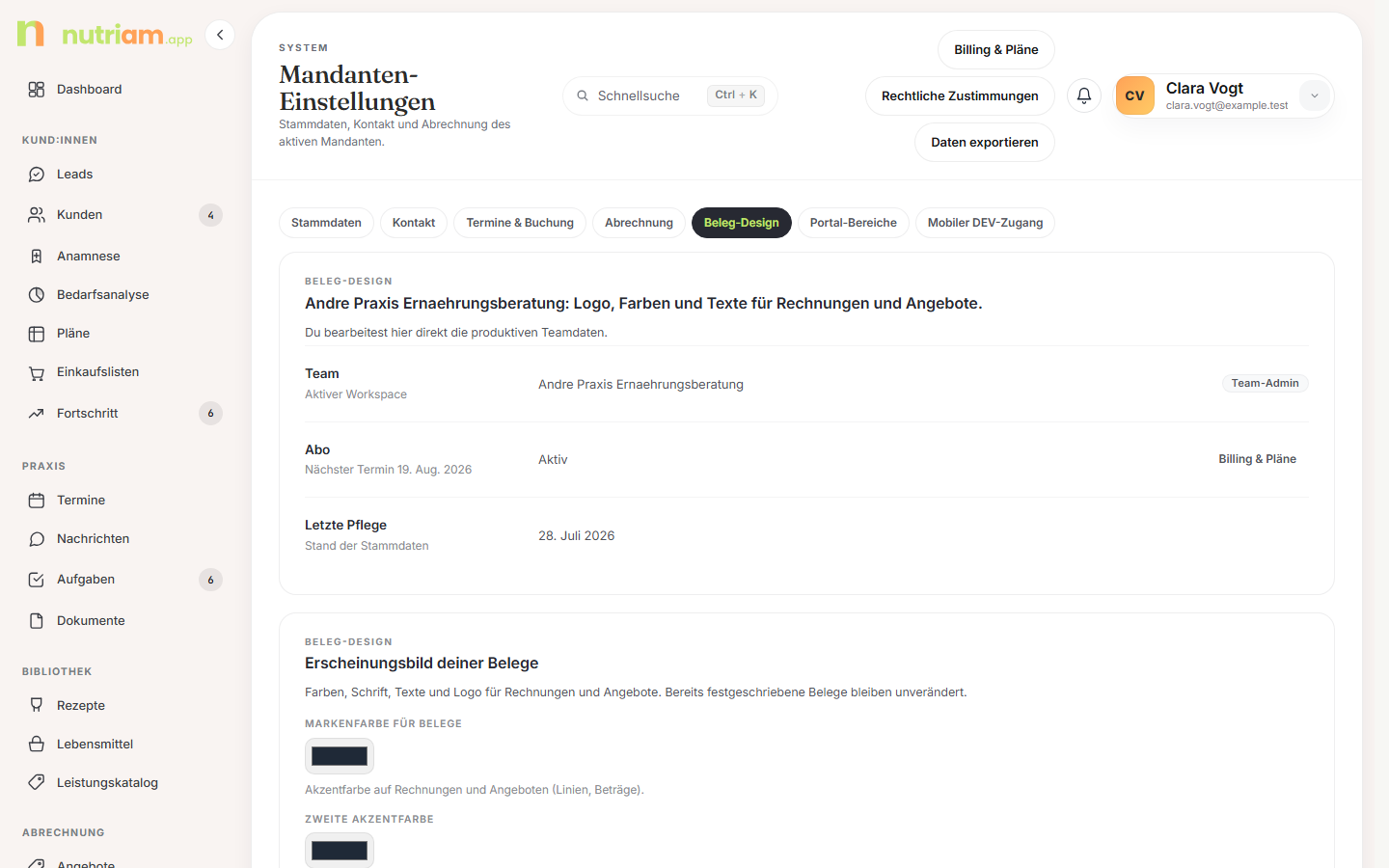
Colours, font, texts and logo for invoices and quotes.
| Field | Note |
|---|---|
| Brand colour for invoices and quotes | Accent for lines and amounts |
| Second accent colour | Colour for title and tagline; same = single colour |
| Font | Modern (sans serif), Classic (serif), Typewriter |
| Introduction text (invoices and quotes) | appears above the line items |
| Closing text (invoices and quotes) | appears below the totals |
You can use placeholders in both texts: {Vorname} (first name), {Name},
{RechnungsNr} (invoice number), {Praxis} (practice), {Datum} (date).
Below that is the “Logo for invoices and quotes” block with the letterhead preview: a section of the document at original size with practice name, tagline, accent line and your logo in the document's proportions (a square logo gets the full height of just over 2 cm, a wide one the full width of around 6 cm; the letterhead grows with it). Without a logo there is a placeholder. A landscape wordmark at least 600 pixels wide is the recommended file; the browser reduces images over 2 MB before uploading. The sample document as PDF link opens a complete sample invoice with your colours, texts and sender details, but with a made-up client and made-up line items; it is not saved anywhere. That way you can check your design before the first real invoice is created.
Then a drop area (drag the logo in or “Choose logo”), “Upload logo” (PNG or JPEG, max. 2 MB) and “Remove logo” once a logo is stored. Larger images are reduced automatically in the browser before they are uploaded, so you don't need to crop them yourself. If the upload reports an error, nothing is saved for the first logo; if you had already stored one before, upload it again if in doubt and check the preview.
Caution: Documents that are already finalised stay unchanged. A new design only affects documents you create afterwards; see 06 Billing.
1.7 Portal sections
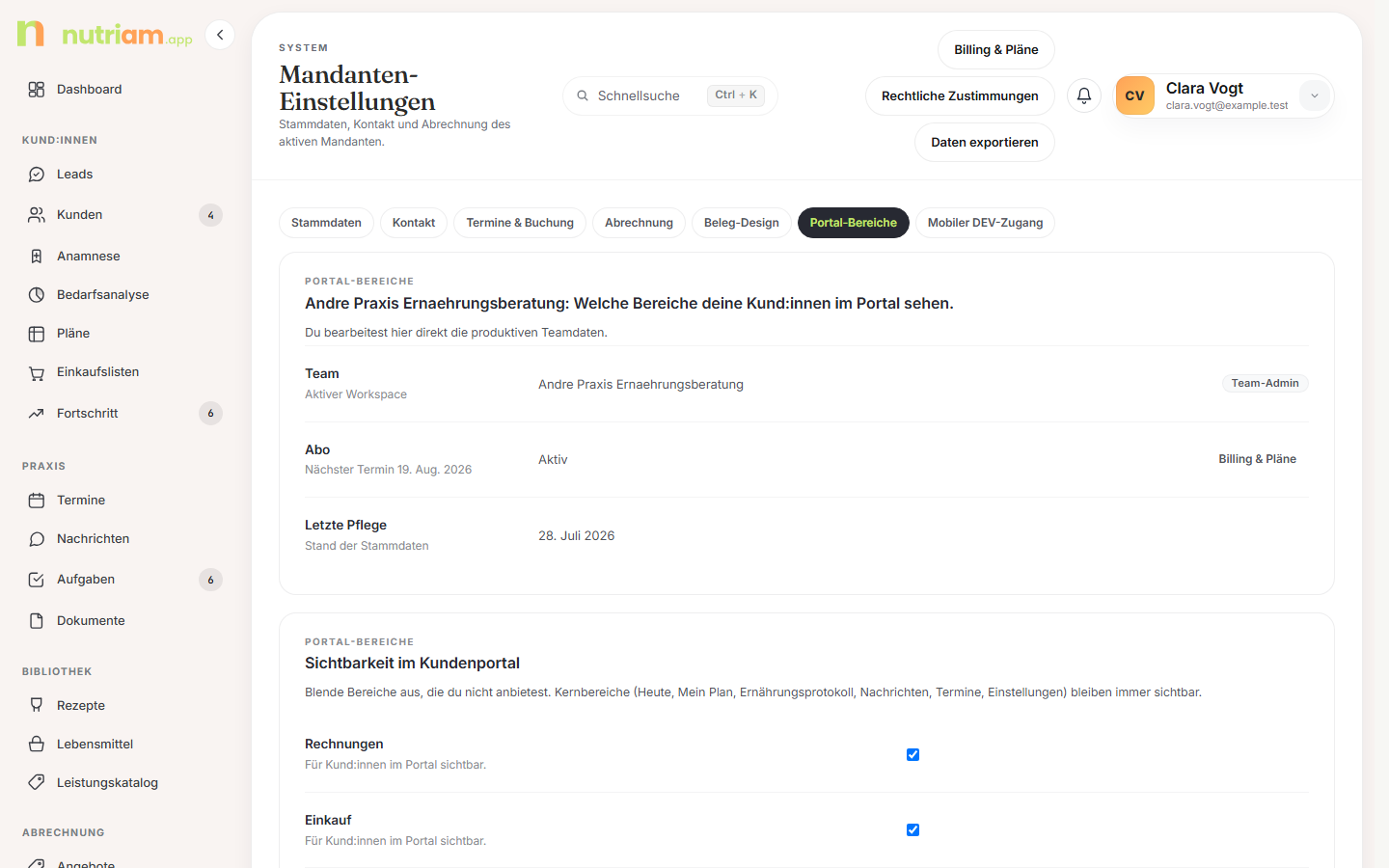
Here you hide sections you don't offer. Ticked = visible to clients. Instead of the tick boxes, practitioners see Visible or Hidden for each section. Seven sections can be switched off:
Invoices, Shopping, Recipes, Files, Progress, Check-ins, Tasks.
The portal currently doesn't show Knowledge and Courses at all as long as there are no posts for clients. Their switches are therefore hidden; an earlier setting stays saved.
The core sections stay visible for the whole practice: Today, My plan, Food diary, Messages, Appointments and Settings.
If Check-ins is off, nutriam no longer sends any check-in reminders either: not by email, not by push and not to the bell in the portal.
For individual clients you can go further: in the client file (tab Overview, block Client portal · Visible areas) you can switch off all nine sections and additionally My plan and Food diary for just this person, plus, separately, the Calories and the Macros and nutrients throughout the portal and in their PDFs. This is intended for care in which tracking or the figures should deliberately not be in the foreground. Anything switched off here for everyone stays locked there; the client file can only restrict further, not bring things back. Details in 03 Clients.
Tip: If clients “can't find” a section any more, look here first, then in the Visible areas block of the client file concerned.
1.8 Mobile DEV access
This tab only appears when the app runs locally with
LOCAL_E2E_AUTH_ENABLED=true. It lists LAN URLs and the DEV profiles
(Platform admin, Team admin, Practitioner, Client) so you can open the app
from a phone on the same network. In production the tab doesn't exist.
2. Team & access
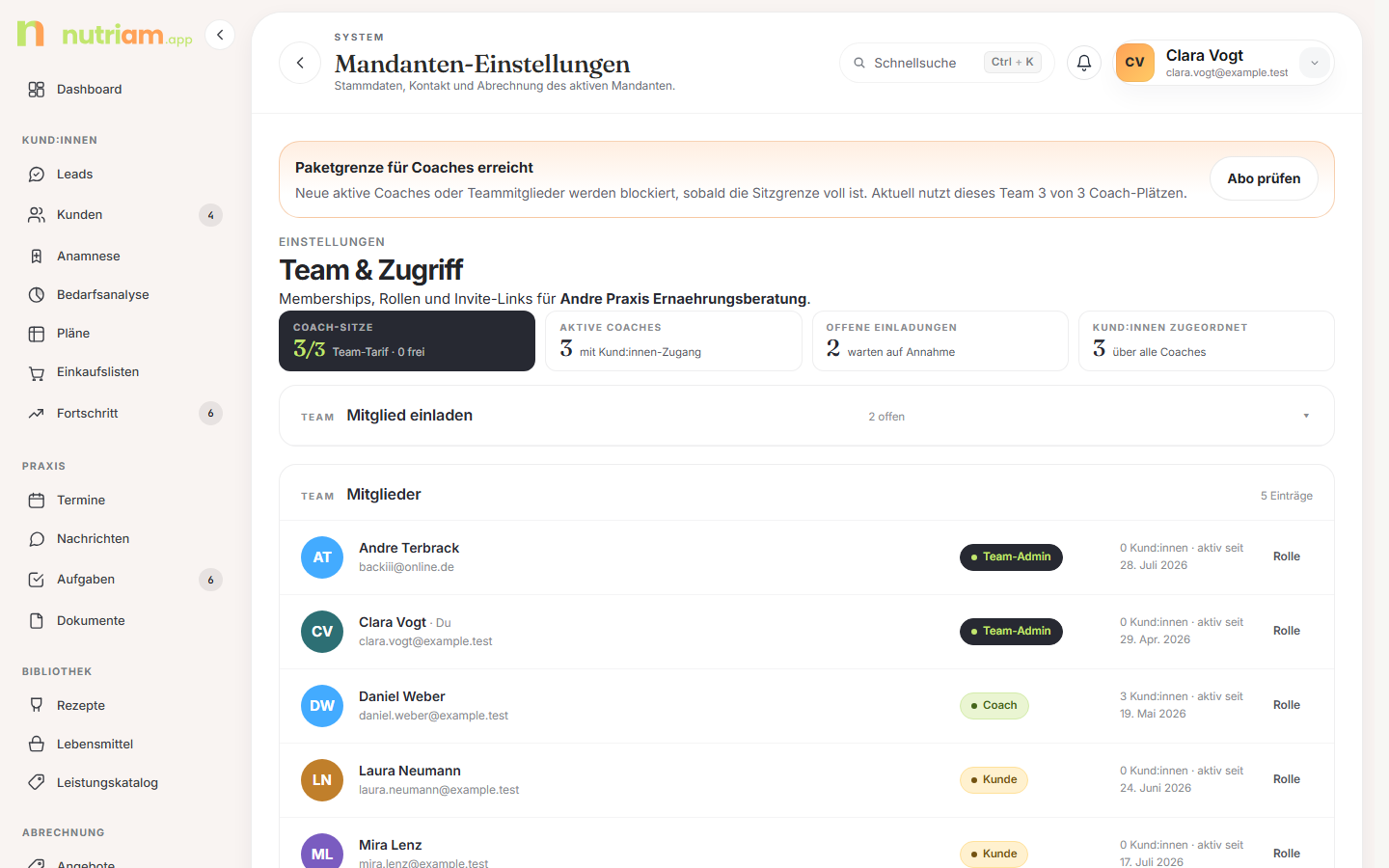
The page is at /verwaltung/team and is called “Team & access” there.
It is not in the sidebar, nor in the user menu in the header (that only
has Profile and Sign out).
Caution: The only way there: Profile → “Team & invitations”. The button only appears for team admins; practitioners see “Go to portal” in the same place.
What practitioners see of the team: The member list with email addresses is reserved for team admins. So that assignments still work for everyone, every team role gets a lean team directory: name, role and whether the account is active, without email and without client accounts. The names in selection fields such as Assigned to, Assigned practitioner or Responsible come from it. Inactive accounts stay in it so that existing assignments keep a name; only active accounts are available for a new assignment. When assigning and filtering, practitioners can only choose themselves, because they may only make new assignments to themselves; they see an existing assignment to a colleague with the colleague's name.
KPI tiles
| Tile | Meaning |
|---|---|
| Practitioner seats | occupied seats as “n/m”, below it “In your plan · n free” or “No plan limit” |
| Active practitioners | active members with client access |
| Open invitations | waiting to be accepted |
| Clients assigned | across all practitioners |
If the seats are full or exceeded, a red banner “Practitioner limit of your plan reached” with the button “Check subscription” appears above the tiles.
“Invite member” card
The card is collapsed by default and shows on the right how many invitations are open. Expanded, it contains the invitation form:
| Field | Required | Note |
|---|---|---|
| ✓ | Address of the person you invite | |
| Display name | no | optional |
| Role | ✓ | Owner / team admin, Practitioner (default), Assistant / client |
| Client file for client invites | (✓) | Required for the role Assistant / client, otherwise not allowed |
| Responsible practitioner | (✓) | Required for Practitioner and Assistant / client; prefilled with you |
Submit with “Create invitation”.
Caution: The two selection fields look optional (“No client link”, “Not assigned”), but they aren't: without a client file a client invite fails, and without a responsible practitioner both practitioner and client invites fail. The app always rejects invitations for platform or support admins.
After you submit, nutriam sends the invitation automatically by email. The feedback tells you what happened:
| Message | Meaning |
|---|---|
| “… has been invited.” | Email has been sent |
| “… the email couldn't be sent. Use the invite link manually.” | Sending failed |
| “Sending emails is currently switched off.” | Sending is off in this environment |
The generated link /invite/<token> then appears in the card as a plain
line of code, only needed if you have to pass it on by hand. Invitations
expire after 14 days.
“Members” section
Per row: avatar with initials, name (your own row carries “· You”), email, role pill and “n clients · active since …” or “invited …”. On the right the “Role” drop-down with two selection fields and Save:
| Selection | Values |
|---|---|
| Role | Owner / team admin, Practitioner, Assistant / client |
| Status | Active, Paused, Revoked |
Platform admin only appears in the role list if you are a platform admin yourself.
For active memberships the same row also shows “last active ”: the last logged activity of this person. If there has been none in the last 180 days, it says “no activity for over 180 days”; anyone who joined more recently and hasn't done anything yet gets “no activity yet”. This is the quickest way to find a forgotten account that is still taking up a practitioner seat. Activities are counted, not sign-ins: someone who only signs in and does nothing rightly appears as inactive. For paused and revoked memberships this information is omitted.
Caution: The last active team admin can neither be downgraded nor deactivated, not even by themselves. Otherwise nobody could manage roles and invitations any more.
Handing over clients
If a member looks after clients, there is a second drop-down “Clients” next to it. It contains a selection field “Hand over n clients to” with the other active team members and Hand over. No fixed assignment releases the responsibility without giving it to anyone else; the clients then stay with the team.
This action affects all of this person's clients at once; you make individual changes in the client file (see 03 Clients). It is independent of the status: you can also hand over clients for holiday cover without touching the membership.
Caution: Hand over before revoking. Setting the status to Revoked blocks access immediately but leaves the clients with this person; they then no longer show up for any practitioner. Handing over is still possible afterwards, as the menu stays.
Removing a member permanently
For revoked memberships, “Remove” also appears. This is the last step and cannot be undone: it deletes the membership, anonymises the user data (name, email, phone, title) and removes the login account. The row then disappears from the member list.
What remains: all logged activities of this person. They are your record of who did what and when, and they stay in the activity log, just without a name. Invoices, plans and client files aren't tied to the user account anyway.
The order is fixed:
- Set the status to Revoked. Without this step “Remove” stays hidden: the status change can be reversed, removal cannot.
- Hand over the assigned clients (see above). As long as active clients are linked to the person, the button is locked.
- Tick the box and click Remove permanently.
You cannot remove your own membership. Closed client files don't hold up the process: for them the assignment is released and the practitioner then shows as “Not assigned”.
Note: If deleting the login account fails, for example because the connection to the sign-in service is stuck, the feedback says so explicitly and asks you to inform the operator. The anonymisation is still completed, and the person can no longer sign in, in this case too.
“Open invitations” section
Lists open and expired invitations, newest first: name or email, below it “Invited … · Expires … · Responsible: …”, plus a role pill. Accepted invitations no longer appear here, you'll find the person under “Members”; withdrawn ones disappear completely. Actions:
- Open link: jumps to the page for redeeming the invitation (always available).
- Send again: sends the email again, for open and expired invitations.
- Withdraw: only for open invitations.
There is no copy button here; use “Open link” and the address bar.
3. Subscription & trial
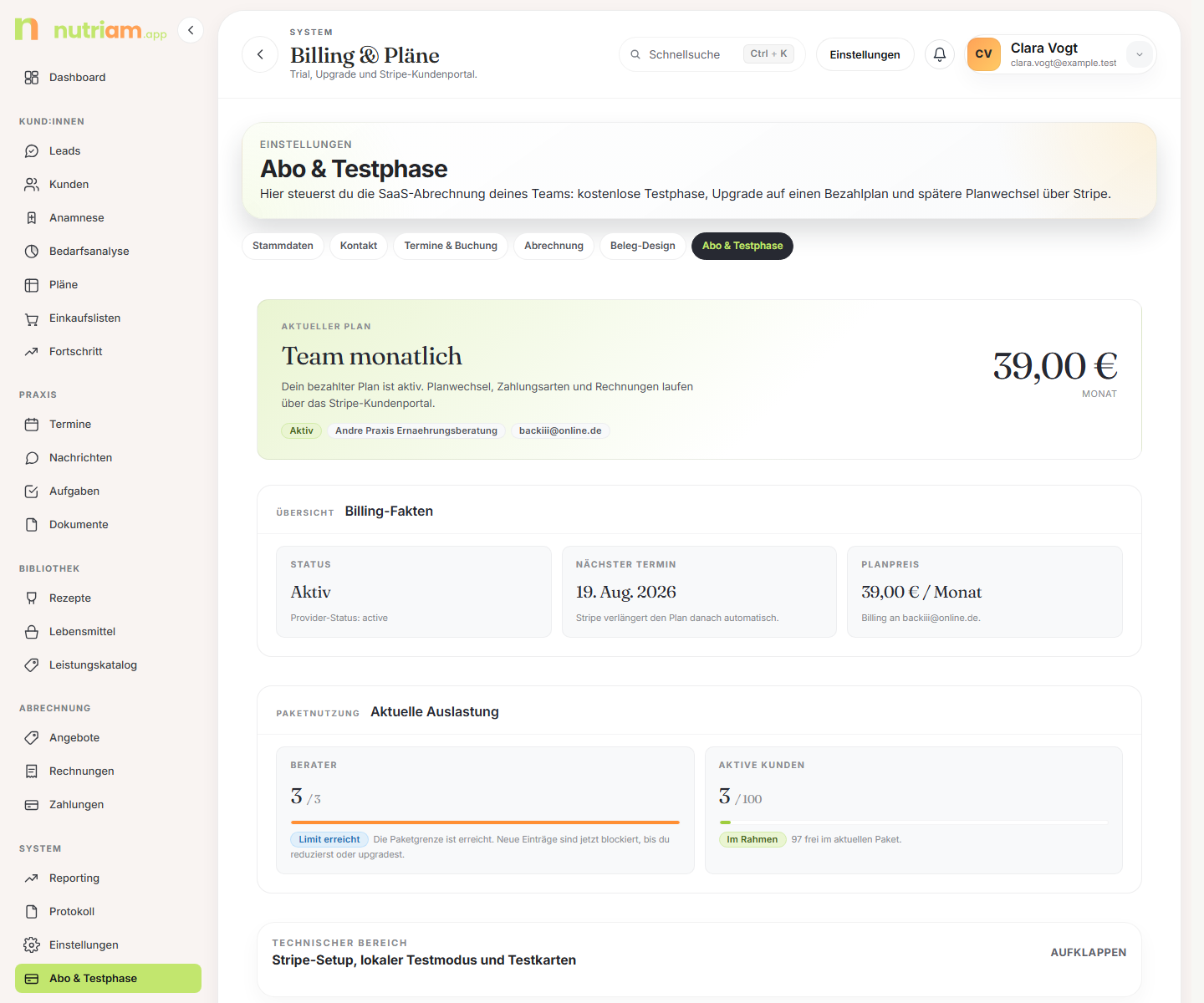
Sidebar → System → Subscription & trial (/verwaltung/abo). The entry
is only visible to team admins; practitioners who open the page directly
get the note “Only team admins and platform admins can manage the
subscription.”
In the nutriam app (iOS and Android) there is no subscription management. App Store and Google Play rules prohibit purchase and upgrade routes there that bypass their payment systems. In the app the page only shows “You manage your nutriam subscription in the browser at nutriam.app.”; the same text appears instead of the buttons Check subscription, View package or Open subscription & trial on the other pages. Nothing changes in the browser.
Subscription banner
At the top are the current plan (or “Free trial”), a text describing the status and three pills: Status, team name and billing email. On the right the price and, depending on the situation, the actions “View plans” and “Open customer portal”.
Beta access
Teams from the launch waiting list use nutriam free of charge during the current beta phase, with no fixed end date, as a thank-you for feedback from the beta. You can recognise such teams by the additional pill “Free during the beta” in the banner; the plan is then called “Beta access” instead of “Free trial”, and all dates refer to “Beta end” instead of “Trial end”.
The end of the beta will be announced in good time. From then on access stays free for another 6 months, and only for that date does the same apply as for the trial: Beta access does not renew and does not automatically turn into a paid plan. Without a chosen paid plan, access ends on the stated date (after that the grace period for exporting data applies, see the section Access blocked).
You can switch earlier at any time. If the beta end is already fixed, the free days are kept: you are only charged from the beta end (the plan cards say “If you book earlier, it stays free until then”). Without a fixed beta end you are charged from the switch (“If you start earlier, you pay from the switch onwards”).
Whether a team was recognised as a beta team is decided by the billing email address: it must be on the waiting list and have been invited from there. Anyone who registered with a different address silently gets the regular 14 days; in that case only the operator view under Platform → Tenants helps, where beta teams carry a Beta chip.
Billing facts
Three tiles: Status (with the provider status from Stripe, otherwise “Local: Trial without an active Stripe subscription.”), Trial / Beta access / End of term / Next date depending on the situation, and Plan price including the billing address.
Billing details
The card “Recipient of your subscription invoices” records who nutriam addresses your practice's subscription invoices to: invoice recipient, street, optional additional address line, postcode, city, country and, optionally, the VAT ID. A status pill shows “Complete” or “Incomplete, required before booking”.
Without complete billing details no paid plan can be booked; the plan buttons then show “Billing details missing”. Online booking is also currently limited to practices based in Germany; practices outside Germany should contact support.
The address is also the basis for VAT: when you book, nutriam passes it to Stripe, and the checkout shows the VAT (19%) on top of the net price. An address entered in the checkout itself is not taken over; this card always takes precedence.
Video consultation add-on
If your package runs through nutriam, the subscription page shows the card Video consultation add-on with price, included minutes per month and the status: Not booked, Booked or Cancelled. Book add-on attaches it to your current subscription; the rest of the current billing period is included, and it is charged from the next subscription invoice, as a separate line item there. Cancel add-on takes effect at the end of the paid period; until then the minutes remain, after that the starter credit applies again as long as it lasts. Beyond the allowance, video consultation is paused until the first of the month; if you don't want that, book extra minutes on the same card: minutes beyond the allowance are then charged per minute with the next subscription invoice (the price is shown on the card, a confirmation tick is required). You can stop the extra minutes at any time.
When the free starter credit for video consultation ends, your practice receives an email at least six weeks in advance with the cut-off date, the price of the add-on and your usage so far. Until the cut-off date there is also a note on your home page, as long as no add-on is booked. What is counted and how the limits work is explained in 05 Communication.
Your subscription invoices from nutriam
The “Invoices” card lists all subscription invoices nutriam has issued to your practice, with number, date, service period, amount and status pill (Paid, Cancelled for a cancelled original, Cancellation invoice for the cancellation invoice itself). The PDF link downloads the finalised original document.
The invoice is created automatically after each successful charge and also
arrives by email from kontakt@nutriam.app. It also serves as the payment
confirmation; nothing is outstanding afterwards. Before the first payment
the list is empty.
The PDF also contains the machine-readable e-invoice (ZUGFeRD/Factur-X). So you can pass the file on unchanged to your bookkeeping or your tax adviser. Their software reads amounts and tax directly.
If you redeemed a discount code in the checkout, the invoice shows the reduced net amount and the VAT on it. In rare special cases, for example when Stripe has offset a credit, nutriam issues the invoice by hand; it then appears in the list a little later.
Current usage
There are exactly two quantity metrics. The labels come from the backend:
| Tile | Counts |
|---|---|
| Active clients | client files with the status active |
| Practitioners | active memberships except clients (team admins and practitioners) |
Each tile shows the value, the limit (∞ without a limit), a bar and a
status pill:
| Pill | Meaning |
|---|---|
| Within limit | below the limit, the rest is shown as “n free” |
| Limit reached | value = limit. For clients only a note, new team members are blocked |
| Over limit | value > limit, the excess is shown as a number |
| Unlimited | not currently limited in this package |
What a limit actually blocks
Existing data always stays visible. Only creating or activating is blocked:
| Limit | Blocks |
|---|---|
| Active clients | creating a client file; setting an archived file back to active |
| Practitioners | creating and accepting an invitation for a team admin or practitioner; a role or status change that takes up a new seat; memberships bootstrap |
The app then responds with a clear error message, for example “The current package includes a maximum of 3 active practitioners or team members. Please deactivate an active team member first or switch to a larger package.”
Tip: Invitations with the role Assistant / client use no practitioner seat. They only count towards the client limit once the associated client file is active.
Subscription status
| Status | Meaning |
|---|---|
| Trial | trial running (default 14 days; beta teams 6 months, then labelled “Beta access”); also after booking, until the first charge |
| Checkout in progress | Stripe checkout started, payment pending |
| Active | paid plan running |
| Payment due | Stripe invoice open or failed |
| Ended | subscription cancelled |
| Expired | trial or beta access has run out |
Depending on the status, the page shows notice banners, including “Package limit reached”, “Current package is already exceeded”, “Checkout still in progress”, “Payment needs attention” and “Trial expired” (for beta teams “Beta access expired”).
If a charge fails, nutriam also sends you an email to the billing address: at the first failed attempt with the date of the next attempt, and once more when no further automatic attempt will follow. The button “Check payment method” leads to this page; via the customer portal you add a new card or a different account there. If the last attempt also fails, the subscription ends. The second email says so, your team can then still use nutriam for 30 days, and with “Book subscription again” you book again with a working payment method.
Choosing a paid plan
The “Paid plans for your team” block shows the packages Start (for getting started, with the suffix “· Recommended”, as on the pricing page), Praxis (for the running practice) and Vollbetrieb (for full capacity). The packages differ only in the number of active clients and practitioner seats; all features are included everywhere. If you exceed the client limit, you get a note; nothing is blocked. Per card:
- Capacity line from the real plan limits, e.g. “Up to 3 practitioners and up to 60 active clients”.
- Pill “n% off yearly” if there is a monthly and a yearly rate.
- Price as the yearly price normalised to one month, below it the yearly amount and the comparison “instead of €X / month when paying monthly”.
- Fit pill “Fits”, “Just right” (limit exactly used up) or “Too small” (your current usage doesn't fit into the package).
- Buttons “Choose yearly” / “Choose monthly”; for the active package instead “Active · yearly” or “Manage in portal”.
The first upgrade runs through Stripe Checkout: the payment form appears directly on the subscription page in the Pay section, you don't leave nutriam for it. Cancel takes you back to the package selection. After paying, the page reloads and reports Payment complete; your subscription is then active immediately. All later plan changes and cancellations run through the Stripe customer portal. nutriam deliberately has no cancel button of its own.
Booking during the trial: Your remaining trial days are kept. Below the packages it then says “Your trial continues: the first charge is on …”, and the payment form shows the free days and the first charge date. After booking, the page reports Subscription booked; at the top it says that the plan is booked and when Stripe will charge you for the first time. Until then the status stays Trial with full access and no package limits, notes and emails about the end of the trial are dropped, and you cannot book a second plan (changes go through the customer portal). If the trial ends in less than two days or has no fixed end, you are charged immediately, as before.
You can pay by card (also via Apple Pay or Google Pay) or by SEPA direct debit. With direct debit your plan is active immediately, but the bank only confirms the charge after a few days. During this time the status stays Active, even if the direct debit is only just being processed at the end of the trial. Your subscription invoice only arrives once the money has been received. If the direct debit bounces, the status changes to Payment due.
Caution: If it says “No paid plans configured yet.” or the buttons are disabled as “Not ready yet” / “Setup missing” / “Webhook missing”, the Stripe configuration is missing on the server (Stripe prices, webhook, customer portal). This is not an operating error: contact the platform team. If, on the other hand, the buttons show “Billing details missing” or “Germany only”, it's down to your own billing details further up the page.
“Manage in portal” also requires a stored customer portal configuration. If it is missing or only a placeholder is stored, the app reports this as a missing configuration instead of running into an error when you click.
Plan features
Besides the quantity limits there are plan-bound features: appointments,
reporting and labReportImport are included in all packages, video
consultation (videoConsultation) is enabled for every practice,
regardless of package and trial; the minute allowance sets the minutes. If
nutriam switches a feature off for your team, the backend blocks it; for
Reporting, with a booked package, the sidebar entry also disappears for
team admins. During the trial all features are available; the plan
matrix only applies after the upgrade.
Grace period after the end
If the trial or subscription runs out, access remains for another 30 days so that you can back up your data. The subscription page then shows the banner “Access ends soon: back up your data now” with the date and the button “Export invoices (ZIP)”. You'll find the full data export in section 4.
Technical area (test and local environments only)
An expandable block “Stripe setup, local test mode and test cards” shows the setup status, step-by-step instructions, switches for billing states and Stripe test cards. In live operation with a complete setup it stays closed or is omitted.
Access blocked
The block page /zugang-gesperrt affects all roles; only the text and
the primary action differ. There are four reasons:
| Reason | Title | Primary action |
|---|---|---|
| billing | “Access is locked because of billing.” | Team admin: Open Subscription & trial (in the nutriam app: Sign in again); otherwise Support |
| role | “This area isn't available for your role.” | the matching workspace or Go to portal |
| tenant | “The team context no longer matches.” | Sign in again |
| session | “Your session needs to be confirmed again.” | Sign in again |
Below the text, role, user, team and context are shown as a record of what the app currently knows about you.
4. Legal agreements and data export
Legal agreements
Via the button in the settings header you reach /verwaltung/rechtliches.
As a record, the page lists which legal documents were accepted and when:
| Column | Content |
|---|---|
| Document | Terms and conditions (AGB), data processing agreement (AVV) or privacy policy, linked |
| Version | e.g. agb-2026-07-15 |
| Accepted | date and time |
| Source | Onboarding or Renewed confirmation |
| Pill | Current or Outdated |
Enforced renewed acceptance
If the terms and conditions or the data processing agreement are updated,
team admins land on /auth/legal-reaccept the next time they enter the
workspace. There you have to confirm both documents by ticking the boxes
and click “Confirm and continue”. Without confirmation you can't go any
further. Other roles don't see the page.
GDPR data export
The “Export data” button in the settings header downloads all of your
team's data as a JSON file (nutriam-praxisdaten-YYYY-MM-DD.json). The
export is restricted to team admins and always limited to your own team.
For invoice documents as a PDF package, use the ZIP export from
06 Billing instead.
5. Activity log
Sidebar → System → Activity log (/verwaltung/protokoll). The app logs
activities automatically; you cannot enter or delete anything here.
“Narrow down the list” filter card
| Field | Values |
|---|---|
| Area | All areas or one of 20 areas |
| Number | Latest 25, 50 (default) or 100 |
The 20 areas are: Client, Lead, Invoice, Payment, Quote, Plan, Needs assessment, Check-in, Food diary, Shopping list, Portal task, Team task, Template, Membership, Invitation, User, Support access, Settings, Progress and Practice.
Both selection fields apply immediately: the list reloads directly after you choose, and “Apply” is only the fallback. As soon as an area is selected, “Reset filters” appears in the card header.
Caution: Number deliberately does not count as a filter; it is the working context. “Reset filters” therefore only clears the area and leaves a Latest 100 view in place.
“Documented activities” table (newest first): Time, Area, Activity (title, below it a detail line and, for team admins, “by …”) and Type as a coloured pill with the kind of activity, for example Created, Sent or Completed automatically. More on this in chapter 10.
Tip: As a practitioner you only see your own activities; the header points this out with “· own activities only”.
6. My profile
Via the user menu at the top right → Profile or directly /profile.
Header block
- Avatar and name, below them your email and, if different, your SSO name.
- Pills: your role and your team status.
- “At a glance”: three tiles: Team (your assignment), Sign-in (Microsoft Entra, Local or Not signed in) and System (Online / Offline).
- Below them: Sign out and “Team & invitations” (team admin) or “Go to portal” (everyone else).
Note: Signing out doesn't forget anything personal: nutriam remembers on your account whether you have already seen the tour, so it doesn't start again by itself after your next sign-in.
Jump navigation
Below the header block is a row of jump links to the sections of the page: Personal details, Team & role, Sign-in, and for team roles additionally Connect calendar and Appointment feed. A click takes you to the section, so you don't have to scroll.
Personal details
| Field | Note |
|---|---|
| Display name | how you appear in the app |
| Phone | internal contact |
| Title | e.g. “Nutrition consultant” |
| Initials | for the avatar, max. 8 characters |
Save at the bottom. If the backend is offline, saving is disabled.
With Microsoft sign-in, the Profile photo block follows below (pill Set or No photo): click the photo, choose a file (PNG, JPEG or WebP), adjust the crop and click “Apply photo”.
After you choose the file, a square selection area appears. There you move the image with the mouse or your finger and zoom with the slider until the crop you want is in place. This is not a gimmick: your avatar is shown square everywhere, and without adjusting it, chance decides which part of a portrait-format photo stays visible. Cropping also solves the size problem, because what is applied is a 512-pixel JPEG of a few hundred kilobytes, however heavy the original was.
Caution: You don't change your email address and password here. You reset your password yourself via “Forgot password?” on the sign-in page; this runs entirely in nutriam, and you don't need a Microsoft account for it (see 01 Basics). Your email address is also your sign-in name. You change it further down under Sign-in & security → Sign-in address. A team admin changes your role.
Team & role
- Team row: team name with team status pill, plus your role, whether you are assigned and when the membership was confirmed.
- Switch working context: only appears if you belong to several visible teams as a team member: selection field Active team and button “Load team context”. Only one team is ever active at a time.
Sign-in & security
At the very top, team admins and practitioners have the row Sign-in address. There you change the address you sign in with:
- Under New sign-in address, enter the new address and click “Send code to new address”.
- The email “Your code for your new nutriam sign-in address” arrives in the inbox of the new address with a six-digit code. It is valid for 15 minutes. The row now shows the pill Code sent.
- Enter the code under Code from the email and click “Confirm new address”.
From then on you sign in with the new address; your password stays the same. The security codes after the password also go to the new address from now on. Your previous address receives a notice that the sign-in address has been changed. If you are a member of several practices, the new address applies in all of them. In the activity log the action appears as Sign-in address changed.
If the email hasn't arrived, “Resend code” sends a new code, at the earliest after one minute. With “Enter a different address” you discard the request, for example after a typo. After five incorrect entries or once the code has expired, you enter the address again. If the address already belongs to another nutriam account, the profile rejects it.
Note: Clients don't change their sign-in address here. The address also can't be changed in a support session.
Below that, for reference if something goes wrong with signing in:
- Current session: whether a session is active, with which account and until when it is valid.
- Linked identity: Connected or No ID mapping, plus sign-in service, identity ID and external tenant.
Connect calendar
Only team roles see this section. It handles the direction your calendar → nutriam: busy times block your online booking so that nobody books an appointment on top of an existing one. There are two ways to do this:
a) Direct connection to Microsoft or Google. If configured on the server, a row appears for each provider with “Connect with Microsoft” or “Connect with Google”, when connected “Disconnect” and, if there are problems, “Reconnect”. Once connected, busy times block your online booking in real time; for the free/busy check nutriam only reads whether you are busy, no appointment details.
Caution: If the pill says Reconnect, access was revoked or has expired. Until you reconnect, nutriam blocks online booking to be on the safe side.
The Microsoft connection also carries the automatic Teams links for video appointments (section 1.3): when you connect, nutriam also asks for permission to create appointments in your calendar, and uses it exclusively for the video meetings of your nutriam appointments. If the note “Reconnect for automatic Teams links” appears below the Microsoft row, your connection dates from before this and may only read free/busy. Online booking and free/busy carry on unchanged; for the Teams links you reconnect the calendar once using the same button.
b) Other calendars via iCal address. Alternatively you add the private ICS address of another calendar; busy times then also block your online booking. Providers only update these links with a delay (minutes to hours); for real time, option a is better. Clearing the field and saving removes the link. Under “Where do I find the link?” there are instructions for Google, Outlook/Microsoft 365, Apple iCloud, GMX/WEB.DE, Proton, Telekom, mailbox.org and Exchange.
Subscribe to appointments
The other direction, nutriam → your calendar: a private subscription address (iCal feed) that makes your nutriam appointments appear in Outlook, Google or Apple Calendar, read-only and updated automatically.
If the feed isn't active yet, there is the button “Turn on calendar feed”. Right afterwards the address is available to copy once only: nutriam doesn't store it in plain text, only a check value. So copy it into your calendar straight away. Once the feed is active, you later only see the status and “Generate new” and “Turn off”. If you need the address again, generate a new one; the previous one stops working immediately.
Caution: The subscription address shows your appointments including client names. Don't pass it on. If you suspect misuse, generate a new one; the old address stops working immediately.
If a membership is paused or revoked, its feed delivers no more appointments from the next retrieval on; if the membership becomes active again, the feed continues with the same address. On permanent removal the address is deleted.
More on the appointment logic in 07 Practice and on online booking in section 1.3.
Frequently asked questions
“I can't find team management.” It isn't in the sidebar. Go to Profile and click “Team & invitations” in the header block. If the button doesn't appear, you are not a team admin.
“In the settings I don't see any fields, only notes.” Then you are signed in as a practitioner. In the settings, practitioners only see the values they need for their work (see “What practitioners see” in section 1), and otherwise the note “These settings are managed by the team admins.” A team admin can upgrade your role in team management.
“I want to sign in with a different email address.” Change it yourself in your profile under Sign-in & security → Sign-in address (section 6). You don't need a new account or a new invitation for this; all your data and your role stay.
“Do I have to send the invite link myself?” No. nutriam sends the invitation automatically by email. Only if the feedback says that sending failed do you take the link from the card and send it yourself, or click “Send again” on the invitation.
“Why can't I invite another practitioner?” Your package's practitioner seats are full. Set a member to Paused or Revoked, or switch to a larger package under Subscription & trial. Client invitations are not affected.
“Why can't I create a new client file?” The Active clients limit has been reached. Archive an active file or change the package. Existing files remain readable in any case.
“How do I cancel?” Via the Stripe customer portal: button “Open customer portal” or “Manage in portal” on the subscription page. nutriam itself has no cancel button.
“Where can I find my subscription invoice?”
On the subscription page in the card “Your subscription invoices from
nutriam” (PDF download) and in the inbox of the billing email, where every
invoice arrives automatically from kontakt@nutriam.app. The Stripe
customer portal deliberately shows no invoices: there is exactly one
document for each payment, the one from nutriam.
“The trial has expired. Is my data gone?” No. After the end, access remains for 30 days. During this time use “Export invoices (ZIP)” on the subscription page and “Export data” in the settings. If nutriam later permanently deletes an ended team, all data goes with it, including uploaded documents, progress photos and invoice PDFs. Backup copies expire no later than 30 days after that.
“My clients can no longer see a section.” Check Settings → Portal sections. There you can hide nine sections for everyone. If the section is only missing for one person, the cause is in their client file under Client portal · Visible areas; there you can also switch off My plan and Food diary per client.
“Why am I forced to confirm the terms and conditions and the data processing agreement?” Because one of the documents is available in a new version. Only team admins confirm, and they do so for the whole team. Afterwards the record is under Legal agreements.
What's still missing here
- Concrete prices for the Start, Praxis and Vollbetrieb packages are deliberately not in the handbook; the cards on the subscription page always show the currently configured amounts.
- The team onboarding process (first creation of a team, including the first acceptance of the terms and conditions and the data processing agreement) is not described here.
- There is no separate switch that lets you as a team admin turn off AI recognition (and with it sheet import). Section 1.5 describes the route via nutriam support.
- For the client portal from the clients' point of view there is a separate portal handbook.
- Terms and status values are collected in the 99 Glossary.