
07 - Documents, forms, service catalogue, reporting
Four areas you touch less often, but which shape every invoice, every quote and every week's planning. They currently sit in three different sidebar groups: Documents and Forms under Practice, Service catalogue under Library, Reporting under System.
1. Document templates
Sidebar → Practice → Documents (/documents).
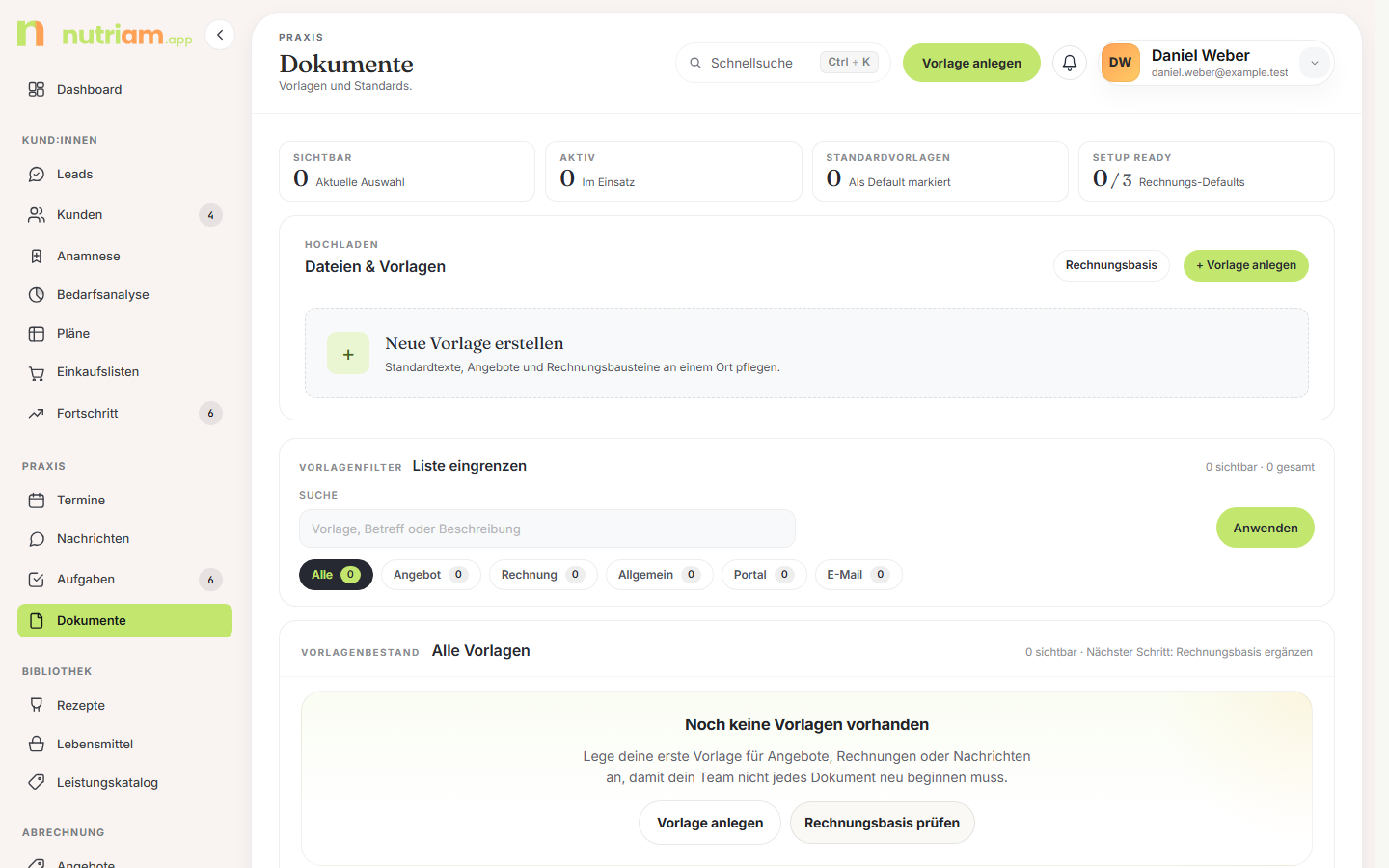
This is where your practice's templates live, not files. Where uploaded files are kept is explained in section 5. A template takes one of two routes:
| Route | What for | Result |
|---|---|---|
| Text template | Quotes, invoices, emails and text snippets | The text becomes the introduction text in the document PDF, a text snippet becomes the inserted text |
| PDF template (blocks) | Handouts, weekly plans, goal agreements | A separate PDF in your practice branding, section 1.6 |
Every template always has text content; PDF templates add the blocks. In the list you can recognise them by the PDF pill.
1.1 KPI tiles
| Tile | Meaning |
|---|---|
| Active | Templates with the “Active” box ticked |
| Default templates | Templates marked as default |
| Setup | X / 3 details in the invoice profile: sender, email and address |
Caution: “Setup” is purely informational and does not block anything. The three fields checked feed the sender block in the PDF and the reply-to address. If they are missing, you can still send, just without proper sender details. You add them on the Billing tab, see 08: Administration.
1.2 Card “Files & templates”
Below the KPIs there is a card with two buttons and an area that looks like an upload:
- Invoice basics: leads to Administration → Subscription & trial
(
/verwaltung/abo), not to the invoice profile. - + Create template: opens the same dialog as the button at the top right.
- Create a new template (the large area with the plus): despite looking like a drop zone, it does not upload anything; it only opens the create dialog.
1.3 Filter and list
The filter card has a search field (Template, subject or description) and below it a row of pills with match counts: All, Quote, Invoice, General, Text snippet, Email. There is no type dropdown.
The search works immediately: shortly after you type, from two characters, without a click. Clicking a pill keeps the search and vice versa. The Apply button is now only the fallback (e.g. in the first second after the page loads); as soon as a filter is active, Reset filters appears in the card header.
The list below has four columns plus an action:
| Column | Content |
|---|---|
| Name | Template name, linked to the detail page |
| Category | the template type |
| Status | “Default” pill (default templates only), “PDF” pill (block templates only) plus “Active” / “Inactive” |
| Updated | Time of the last change |
| (no heading) | Open button |
Sorting is always the same: default templates first, then the most recently changed.
1.4 Template types
| Type | What happens with it today |
|---|---|
| Quote | Selectable on the quote; the content becomes text in the quote PDF |
| Invoice | Selectable on the invoice; the content becomes text in the invoice PDF |
| General | Offered in both selection lists |
| Text snippet | Text to insert into messages and notes. Used to be called Portal |
| Offered in both selection lists |
So the selection on the document works across types: the quote dropdown shows Quote + General + Email, the invoice dropdown *Invoice + General
- Email*, in each case only active templates.
Text snippets do not appear in any document selection. You insert them using the Text snippet button: in the inbox in the reply line, in the client file in the reply line of the Messages tab, in the Notes and in the documentation on the appointment. How inserting works is described in 05: Communication under the reply line. All active text snippets of the practice are offered, those marked as default first.
Tip: When inserting, nutriam replaces
{Vorname}(first name),{Name},{Praxis}(practice) and{Datum}(date). The spelling must be exact, with single curly brackets. The double brackets of the document templates do not apply here.
1.5 Create a new template
At the top right, “Create template” opens the Create document template dialog.
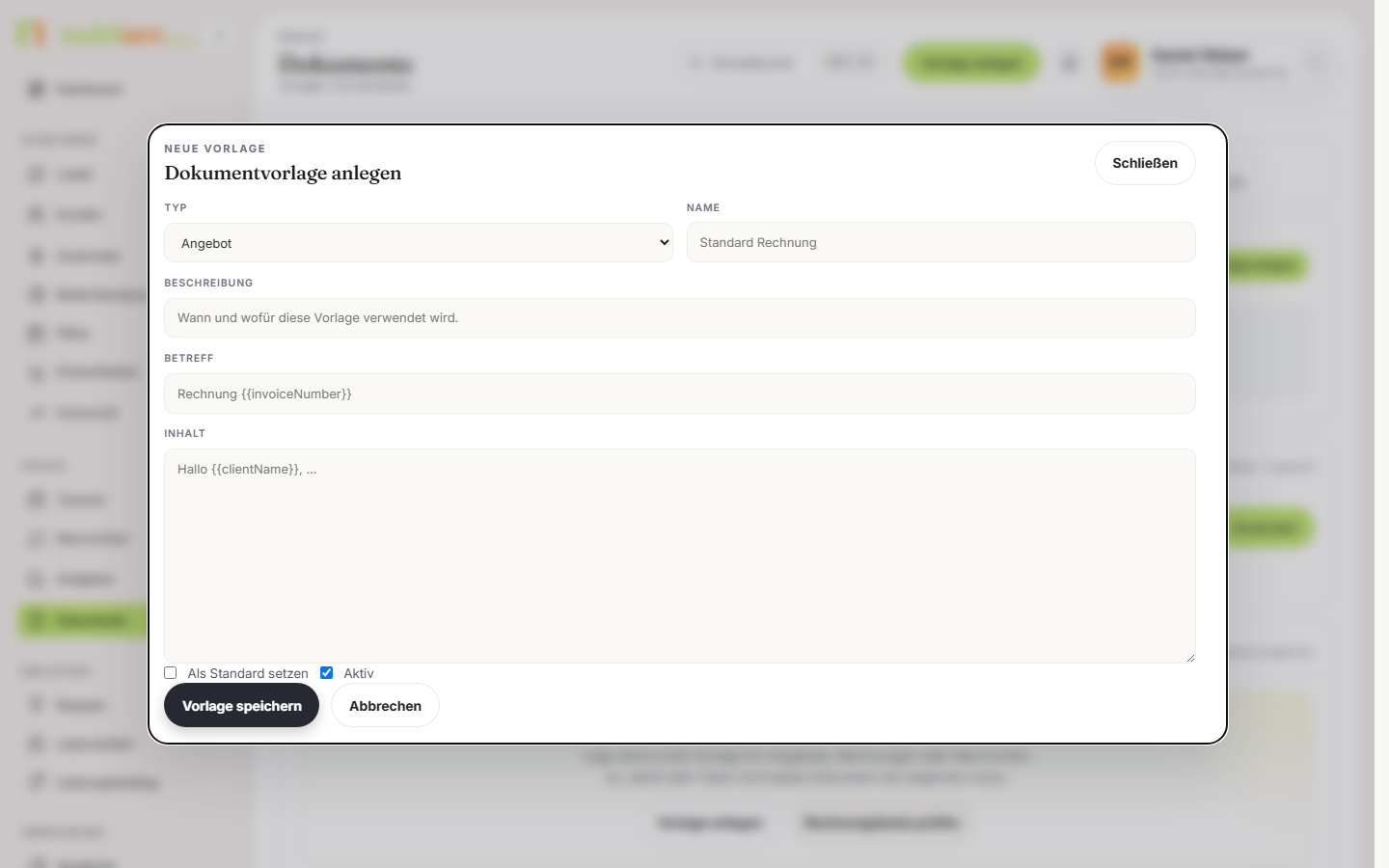
| Field | Note |
|---|---|
| Type | Quote (preselected), Invoice, General, Text snippet, Email |
| Name | Required, internal name, e.g. “Standard invoice” |
| Description | free text, tells the team when the template applies |
| Subject | no effect on text templates; on PDF templates, the title line in the document (section 1.6) |
| Content | Required: this text ends up in the document PDF. For a text snippet, it is the text that gets inserted |
| Set as default | makes the template the default template of its type |
| Active | preselected; only active templates appear in selection lists |
Save with “Save template”, cancel with “Cancel”.
The dialog is the quick route for text templates. For a PDF template, the
link “create the template on its own page” leads to /documents/new,
where you also get the ready-made drafts and the block editor. A second
note in the dialog lists the placeholders for text snippets and also leads
there, because four ready-made drafts for text snippets are on that page.
Caution: Only the Team admin role may create and change templates. A Practitioner sees the button but gets “Action failed” when saving. Also: name and content are required. If they are left empty, the app reports “Field name is missing.” or “Field body is missing.”.
Tip: If you set a new template as default, the previous default template of the same type loses its marking automatically. You don't need to untick anything first.
1.6 PDF templates with blocks
Sidebar → Practice → Documents → “Create template” → in the dialog
“create the template on its own page” (or go straight to /documents/new).

Use this to build documents your client takes home: weekly plan, summary, goal agreement. The result is a PDF on your practice letterhead, with logo, colours and font from the Invoice design tab, as for invoices and quotes. The footer shows your practice name, the creation date and the page number. nutriam prints the Footer for documents from the Billing tab (such as the court of registration or professional title) only on documents such as invoices and quotes, not on PDF templates.
Text template or PDF template
Below the basic fields there are two toggles:
- Text template: the existing route. Only the Content field, no PDF.
- PDF template (blocks): the block editor. The Content field disappears; nutriam derives the searchable text from the blocks itself when you save.
Caution: Switching overwrites the other version. If you switch a text template to blocks, the derived text replaces your previous free text when you save. If you switch back to Text template, the blocks are deleted when you save; the app asks first. Neither can be undone.
For the Text snippet type the toggles are missing. A text snippet is always plain text, there is only the Content field. If you change a PDF template to this type, the field immediately shows the text of its blocks. When you save, this text stays and the blocks are lost. As long as you haven't saved, switching back to the old type brings them back.
The seven block types
| Block | What for | Fields |
|---|---|---|
| Heading | Structure | Level (Main heading or Subheading) and text |
| Paragraph | Running text | multi-line text field |
| List | Focus areas, steps | one item per line, optionally Numbered |
| Table | Weekly plan, goals, shopping list | Columns (heading, alignment, width) and rows |
| Note box | Key message, context | optional heading and text, with a coloured background |
| Page break | everything after it on a new page | none |
| Spacing | Space between sections | Height (small / medium / large) |
There is deliberately nothing more: only what the PDF renderer can actually draw is offered. You change the order in the header of each block with the Move up and Move down arrows or, with a mouse or trackpad, using the drag handle (six dots); a line shows where the block will land. Remove it with Remove. The same applies under Adjust content for … when you create a document from the client file (section 1.9).
Tip: Empty table rows are kept. This is exactly how you create a form to fill in on paper, such as the three empty goal rows in the Goal agreement draft. Empty paragraphs, headings and list items, on the other hand, are removed when you save.
Limits
The editor footer keeps count: 200 blocks and 60,000 characters per template, 50 items per list, 8 columns and 120 rows per table, 5,000 characters per text field. These numbers are not about looks but about keeping the service running: the PDF is created synchronously, and an overly long template would slow down all other requests. If a limit is exceeded, a note with the block number appears above the save button.
Caution: Column width is a ratio, not a measurement in millimetres. Two columns with 1 and 3 appear in the PDF in a ratio of 1 : 3, regardless of the paper size.
1.7 Standard drafts
When you create a template on /documents/new, fourteen ready-made drafts
are shown at the top: ten for documents and four for text snippets. Each
card shows the number of blocks (for text snippets, of paragraphs) and the
placeholders it expects.
| Draft | What for |
|---|---|
| Weekly plan | Meal plan for a week plus shopping list |
| Initial consultation summary | What was discussed, what comes next |
| Goal agreement | Goals with a time frame and how-will-I-notice-it. The first goal row contains {Ziel} (goal), {ZielBisWann} (by when) and {ZielWoran} (how you will notice), which nutriam prefills from the needs assessment. Under “Your next steps” there is {NaechsteSchritte} (next steps) |
| Food diary guide | How the food diary is kept and why |
| Recommended approach | Starting point, approach, time frame after the needs assessment |
| Recommendation plan | Your recommendations under fixed headings: lifestyle, evaluation of your findings, nutrition, supplements (as a table with product, intake, period). You write the text afresh for each client in the client file, see section 1.9 |
| End of support | Review and what will carry the client through the time afterwards |
| Handout: nutrients | “The basics”: for each nutrient its role, requirement, sources, absorption |
| Handout: topic explained | Condition or intolerance: summary, background, nutrition |
| Cover letter for the document pack | Covering letter for the evaluation: what is enclosed, what is going well, what comes next |
| Text snippet: appointment confirmed | Short confirmation after arranging an appointment. You enter the appointment when inserting ({Termin}) |
| Text snippet: check-in pending | Friendly reminder when the check-in is outstanding |
| Text snippet: plan released | Note about a new or changed plan in the portal |
| Text snippet: documents missing | Request for missing documents. You enter what is missing when inserting ({Unterlagen}) |
The four text snippets set the type to Text snippet and fill the Content field, one paragraph per line. There is no block editor for this type. They are text to insert, not a document: in the list and on the detail page they carry no PDF, and they do not appear in the client file's “Document from template” dialog. Each has at most one placeholder that inserting does not fill itself; it is highlighted afterwards.
Both handouts and the cover letter reproduce formats that have become established in practice over the years. What has been adopted is the structure, not the professional content: reference values, quantities and food lists appear as labelled blanks. A draft that put someone else's professional statements under your letterhead would be the worse help.
“Use draft” fills the editor with the blocks and prefills type, name, description and subject, but only where you haven't entered anything yourself. What you have already typed stays. If there are already blocks, the app asks before replacing them.
Caution: The drafts are frameworks, not professional advice. Quantities, target values and recommendations are deliberately left empty or clearly marked as examples (“Focus area 1: enter here”). You set what is professionally binding yourself. Otherwise a generic text goes to a real client.
1.8 Preview and create PDF

In the editor, “PDF preview” opens the finished document without saving anything: the twin of the document preview when creating an invoice. On the detail page of a saved PDF template, the same dialog is called “Create PDF”.
The dialog contains:
- Title in the document: prefilled with the template's subject, otherwise with its name.
- For which client?: optional. If one is selected, nutriam fills
{Vorname},{Name}and{EMail}from the client file; these fields then disappear from the dialog. - One field for each further placeholder the template uses.
nutriam prefills three of them when a client is selected, without you
having to enter anything:
{Ziel},{ZielBisWann}and{ZielWoran}come from the three questions in the Goals section of the latest needs assessment,{Ziel}alternatively from the goal in the client file. The fields stay visible. What you type there takes priority over the prefilled value. If the answer is also missing in the assessment, the placeholder stays open like any other. nutriam fills{NaechsteSchritte}with a list: up to four open portal tasks in the General category (by due date, with date) and up to four active recommendations. If there are neither, this placeholder also stays open. - Store in the client file: see section 1.9.
- Regenerate PDF: renders again with the values entered.
- Download PDF: saves the file. The file name comes from the
title, with the placeholders filled in: “Weekly plan for {Vorname}” becomes
weekly-plan-for-laura.pdfwhen a client is selected.
Caution: If a placeholder stays empty, it appears literally in the document (
{Vorname}). The dialog lists these open placeholders above the preview. So fill them in before sending anything to a client.
Tip: If you used the Goal agreement draft earlier, your template still has an empty first goal row. Enter
{Ziel},{ZielBisWann}and{ZielWoran}there once, and the row will be filled from the needs assessment from the next PDF onwards. For the next steps, add a paragraph with{NaechsteSchritte}.
Tip: As a practitioner, you only see the clients assigned to you in the client selection, the same limit as everywhere in the app.
1.9 Store the document in the client file

Without the tick, the PDF you create is just a download: it is created afresh on every request and not stored anywhere.
If you tick “Store in the client file” in the dialog, the same PDF is also added as an attachment to the selected client's file, in the same way as an uploaded file. The second tick, “Visible in the client portal”, decides whether the client sees it in the portal; without it, it stays internal. After the PDF has been created, the dialog confirms that it has been stored.
If the document is visible in the portal, the client automatically gets a push notification (“New document available: …”) with a link to their documents, provided they have portal access and allow notifications. nutriam does not send an email for this.
It works the other way round too: in the client file → Intake → Findings & pre-assessments, above the upload field, there is the “Create from template” block with one button per active PDF template. The client is already set there.
Only on this route from the client file does the dialog also offer Adjust content for …: all blocks of the template can be edited there, and you write the text for exactly this client. This turns the Recommendation plan draft into a personal plan without you having to create a separate template for each client. The saved template stays unchanged; the history only records that the text was adjusted, not the text itself.
Caution: Storing is deliberately a separate decision, even when you come from the client file. A handout to take away doesn't have to end up in the client file; what is stored there is part of the documentation.
Tip: Stored documents are part of the client file and are deleted along with it in a GDPR (DSGVO, the EU General Data Protection Regulation) erasure. That is exactly why there is no silent auto-save route: a file created outside the client file would survive an erasure.
1.10 Placeholders in the content
PDF templates use the simple notation with one bracket:
{Vorname}. You enter values in the dialog when creating the PDF; nutriam
fills {Datum} (today's date) and {Praxis} (your practice's display name)
itself. When a client is selected, {Vorname}, {Name} and {EMail} come
from the client file, and {Ziel}, {ZielBisWann}, {ZielWoran} from the
Goals section of their needs assessment, as well as {NaechsteSchritte}
from their open tasks and recommendations (see section 1.8).
Unknown placeholders stay in place instead of disappearing, so a typo
gets noticed.
For the text of quote and invoice templates, the notation with
double brackets still applies. When the document is created,
{{…}} placeholders are replaced. Only this list is valid:
| Placeholder | Content |
|---|---|
{{practice.displayName}} |
Your practice's display name |
{{practice.email}} |
Billing or support email |
{{practice.address}} |
Billing address |
{{practice.websiteUrl}} |
Website |
{{practice.supportPhone}} |
Phone number |
{{client.name}} |
The client's name |
{{client.email}} |
Email address |
{{client.phone}} |
Phone number |
{{document.kind}} |
offer or invoice |
{{document.title}} |
Title of the document |
{{document.number}} |
Document number |
{{document.status}} |
Status of the document |
{{document.issueDate}} |
Issue date |
{{document.dueDate}} |
Due date (invoice) |
{{document.validUntil}} |
Valid until (quote) |
{{document.total}} |
Total amount |
{{document.paidAmount}} |
Amount already recorded |
Caution: Unknown placeholders are replaced by nothing: they disappear without a trace. This also applies to the sample texts shown in the empty form (
{{invoiceNumber}},{{clientName}}): these are mere placeholder texts of the input field, not valid variables.
Separately, there is a second, simpler syntax for the freely
configurable document text blocks (Introduction text and Closing text on the
Invoice design tab in Administration): {Vorname}, {Name}, {RechnungsNr} (invoice number),
{Praxis}, {Datum}. There, unknown placeholders stay unchanged.
Tip: Every new tenant (practice) starts with two ready-made templates, Standard quote and Standard invoice, both active and marked as default. They are the best reference for correctly written placeholders.
1.11 Template detail page
The Open button leads to /documents/{id}. The page has no tabs,
but three cards one below the other.

- Document template: fact block with status pills (“Active” / “Inactive”, plus “Default” and “PDF template”) as well as Type, Subject, Updated, Created and the Document row. For block templates, this row shows the number of blocks together with the Create PDF button (section 1.8); for text templates, a note that there is no PDF. For a text snippet the row is called Usage and says where it is inserted.
- Template details / Content and status: the same fields as when creating (Type, Name, Description, Subject), below them the toggle Text template / PDF template (blocks) with the respective content (for the type Text snippet only the Content field), plus the ticks Set as default and Active and the button Save template.
- Activity / History and notes: timeline of changes plus a note form with Title (prefilled “Template note”) and Detail, saved with Save entry.
There is no preview of the finished document (quote / invoice) here: the PDF preview shows the template itself, not the later document.
Caution: Templates cannot be deleted. Anything you no longer need, you take out of use with the Active tick: it then disappears from all selection lists but stays in the list.
Tip: Every PDF created is recorded in the template's history. So you can see there when the template was last actually used, not just when it was changed.
1.12 Where templates take effect
- Create / edit quote: in the expandable block Document template under “Template for PDF and email”.
- Create / edit invoice: in the same place.
- Quote and invoice detail: the Documents / Matching templates card lists up to five active templates that match the document and links directly to the template.
- If you don't choose a template, the app automatically uses the default template of the matching type. If that is missing too, a built-in default text is used.
- PDF templates don't take effect anywhere automatically: you create them deliberately using Create PDF on the detail page when you need the document.
Caution: There is no template selection in the inbox (
/communications). You write messages there freely. So to send a PDF created from a template, you download it and attach it.
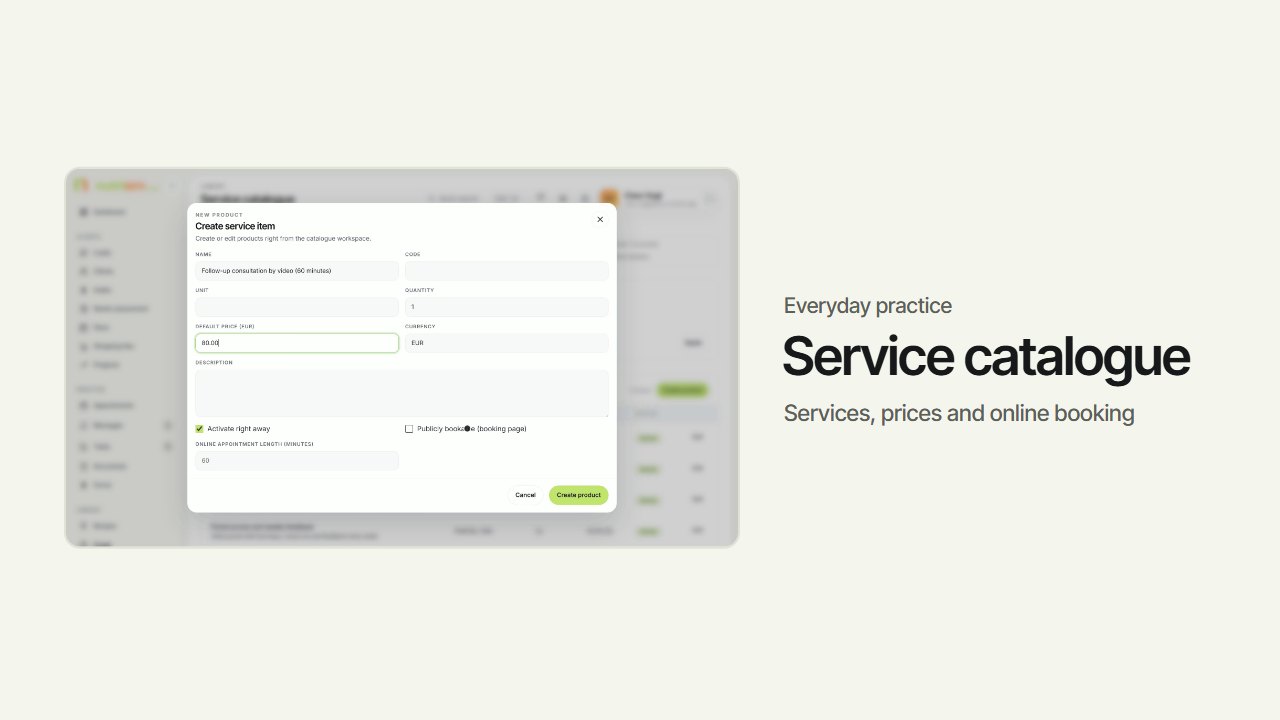
2. Service catalogue
Sidebar → Library → Service catalogue (/service-catalog), between
Recipes and Foods. Accordingly, the page header shows the eyebrow
Library.
2.1 Structure and use
At the top, four KPI tiles: Products (active in the catalogue), Packages (active and bookable), Prices (active rules), Contract clauses. Below them, the Narrow down the list filter card with four tab pills with counters and, below those, a search field whose placeholder changes per tab.
Switching tabs and searching take effect immediately: the pill on click, the search shortly after typing (from two characters). Apply is now only the fallback. Switching tabs keeps the search term, and an item currently open for editing stays open even if the search drops it from the results; the meta line then says “· Selection outside the results”. Reset filters only clears the search, not the tab.
| Tab | Content | Display |
|---|---|---|
| Products | Individual services | Table |
| Packages | Bundles of several line items | Card grid |
| Pricing rules | Discounts and fixed prices | Table |
| Contract clauses | Standard texts for quotes and invoices | Table |
The create button sits in the header of the overview card, not in the
page header, and is named differently per tab (“Create product”, “Create
package”, “Create pricing rule”, “Create clause”). Creating and editing
run through a dialog that is controlled via the address bar
(?tab=…&panel=create or panel=edit plus the relevant ID). So a
direct link to a dialog works.
Caution: As with templates, only the Team admin role may create and change entries. Practitioners may read the catalogue. There is no delete anywhere: here too, untick active.
2.2 Products
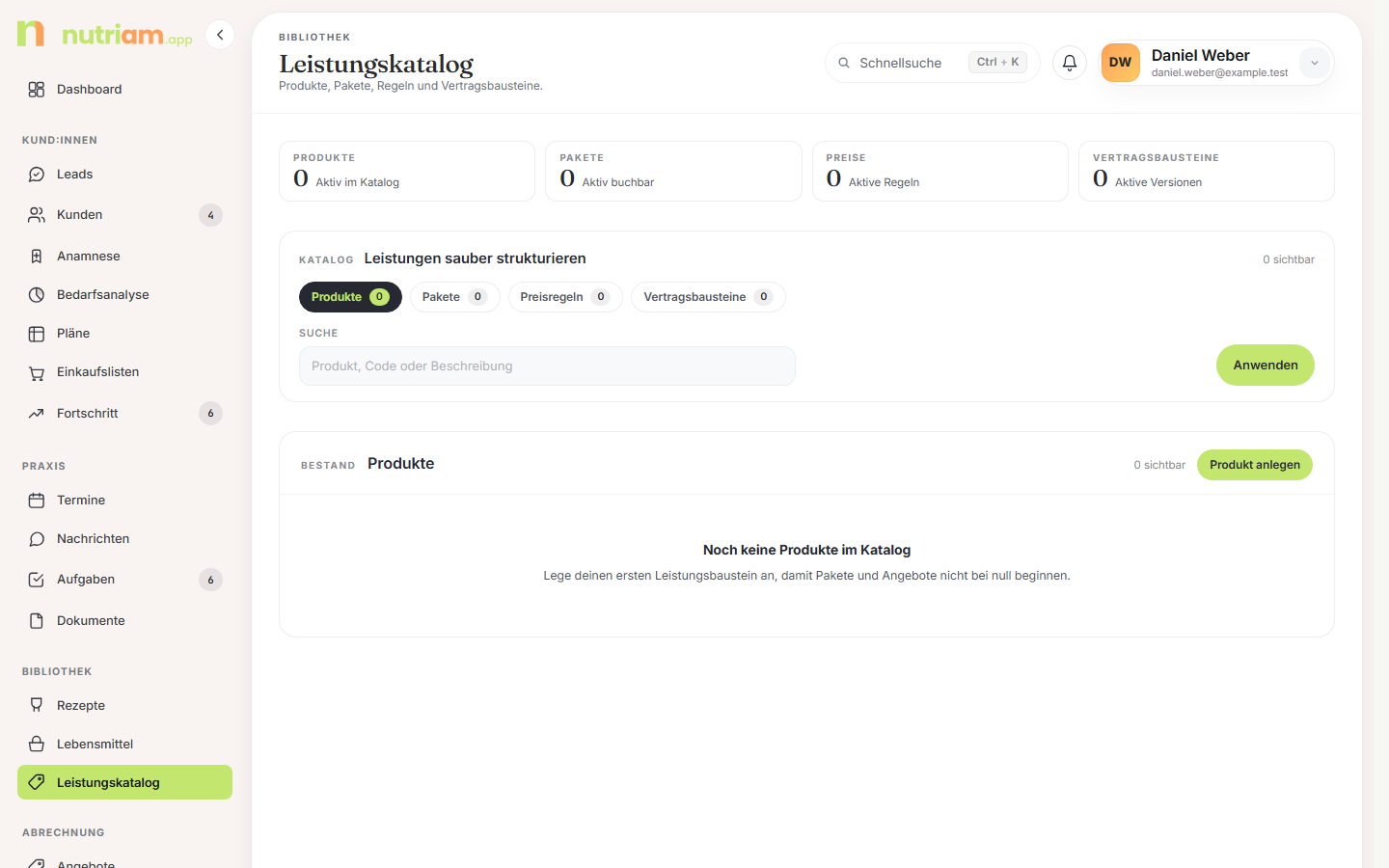
Columns: Product (with the description below), Code, Quantity, Price, Status and Edit.
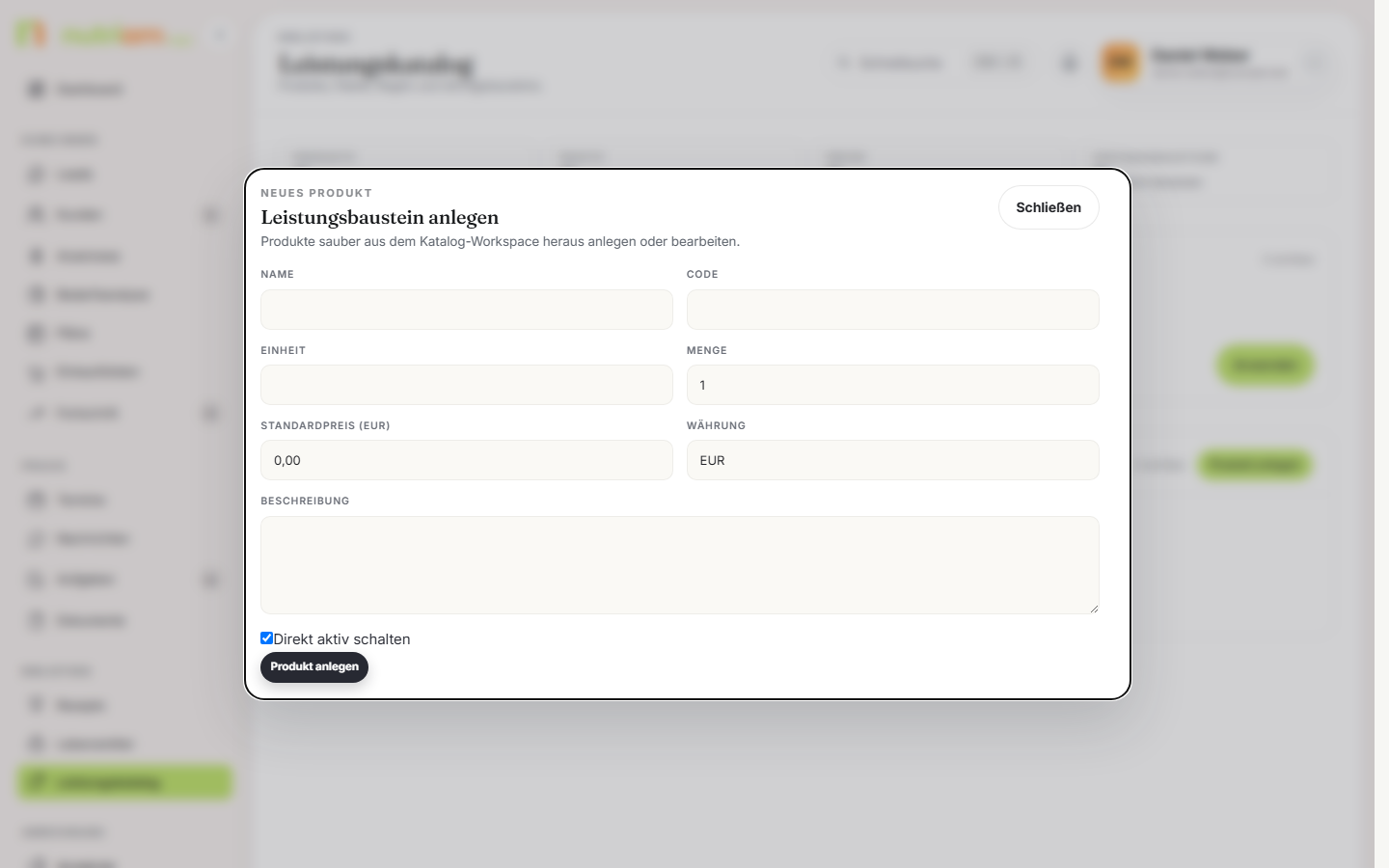
| Field | Note |
|---|---|
| Name | Required, e.g. “60-minute consultation” |
| Code | optional internal abbreviation |
| Unit | free text, e.g. “hour” or “session” |
| Quantity | Default quantity, preset to 1 |
| Default price (EUR) | Price per unit, net: under standard taxation, VAT is added on the document for taxable line items. The dialog then says so in a note above the form |
| Currency | preset to EUR |
| Description | is taken over into the document as the line item text |
| Publicly bookable (booking page) | Checkbox; makes the product a selectable appointment type on the public booking page |
| Online appointment length (minutes) | 15 to 240 minutes, suggested 60: the time an online booking of this service takes up |
| Activate right away | preselected active |
Tip: The bookable appointment types for online booking come from exactly these two fields, not from Administration. If no product is marked as publicly bookable, the built-in fallback list applies (Initial consultation, Follow-up consultation, Needs assessment). You maintain the opening hours for this under 08: Administration.
2.3 Packages
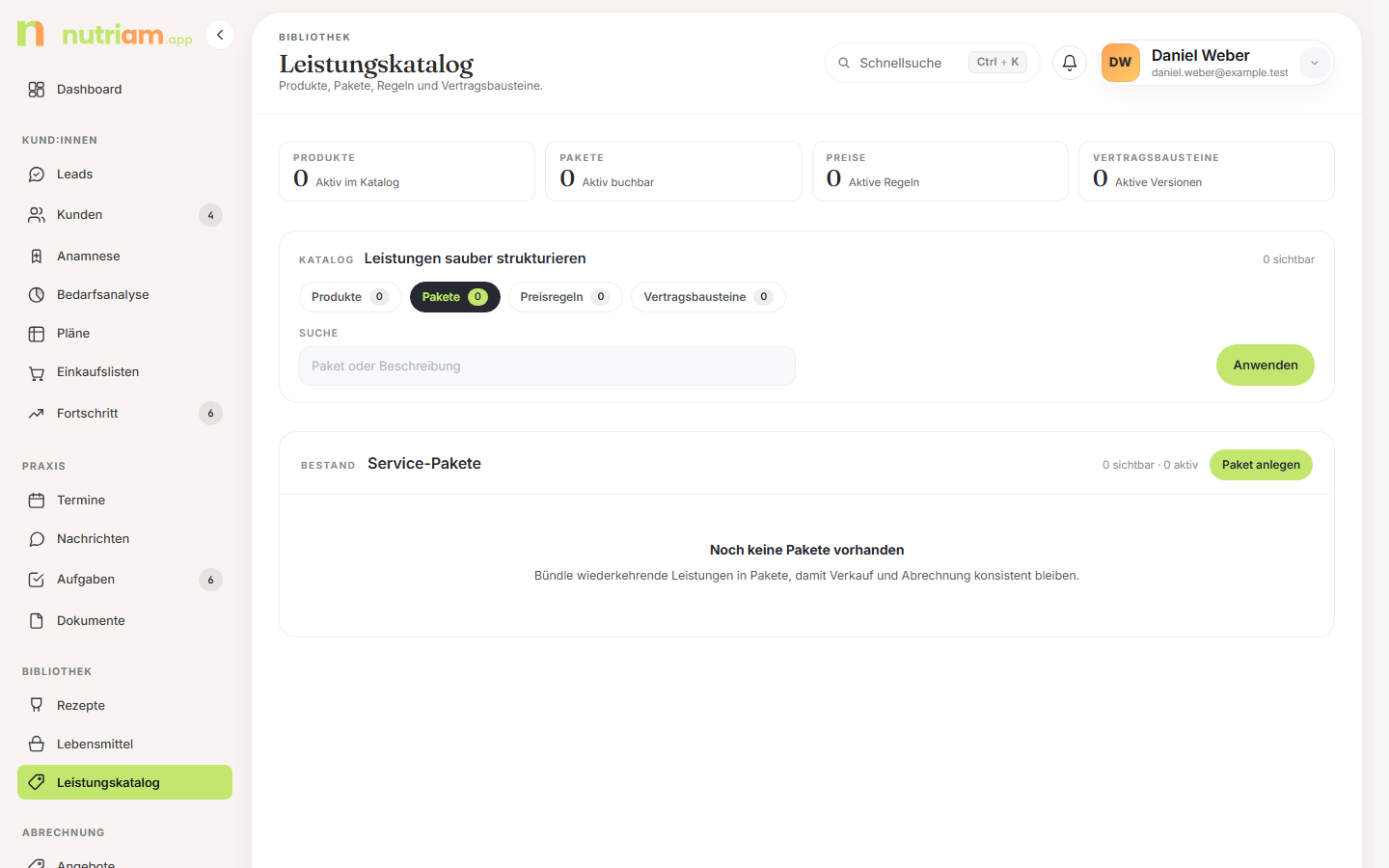
Packages appear as cards, not as a table. Each card shows the name, description, a status pill (Active or Paused), the package type, the currency, up to six line items as a checklist, the total number of line items and the Edit and Open buttons. “Open” only selects the package; there is no separate detail page.
In the form:
| Field | Note |
|---|---|
| Name | Required |
| Type | One-off, Consultation programme, Session bundle, Custom |
| Currency | preset to EUR |
| Default contract clause | No clause or an active clause |
| Description | appears on the card |
| Line items | Required, one row per line item |
| Package active | preselected active |
The type Consultation programme is preselected. You enter the line items as
text, one row per line item in the format
description | quantity | unit price (EUR) | note | product ID.
Tip: The card shows the type with shorter labels than the form: Consultation programme appears as “Consultation”, Session bundle as “Package”. Same thing, different label.
2.4 Pricing rules
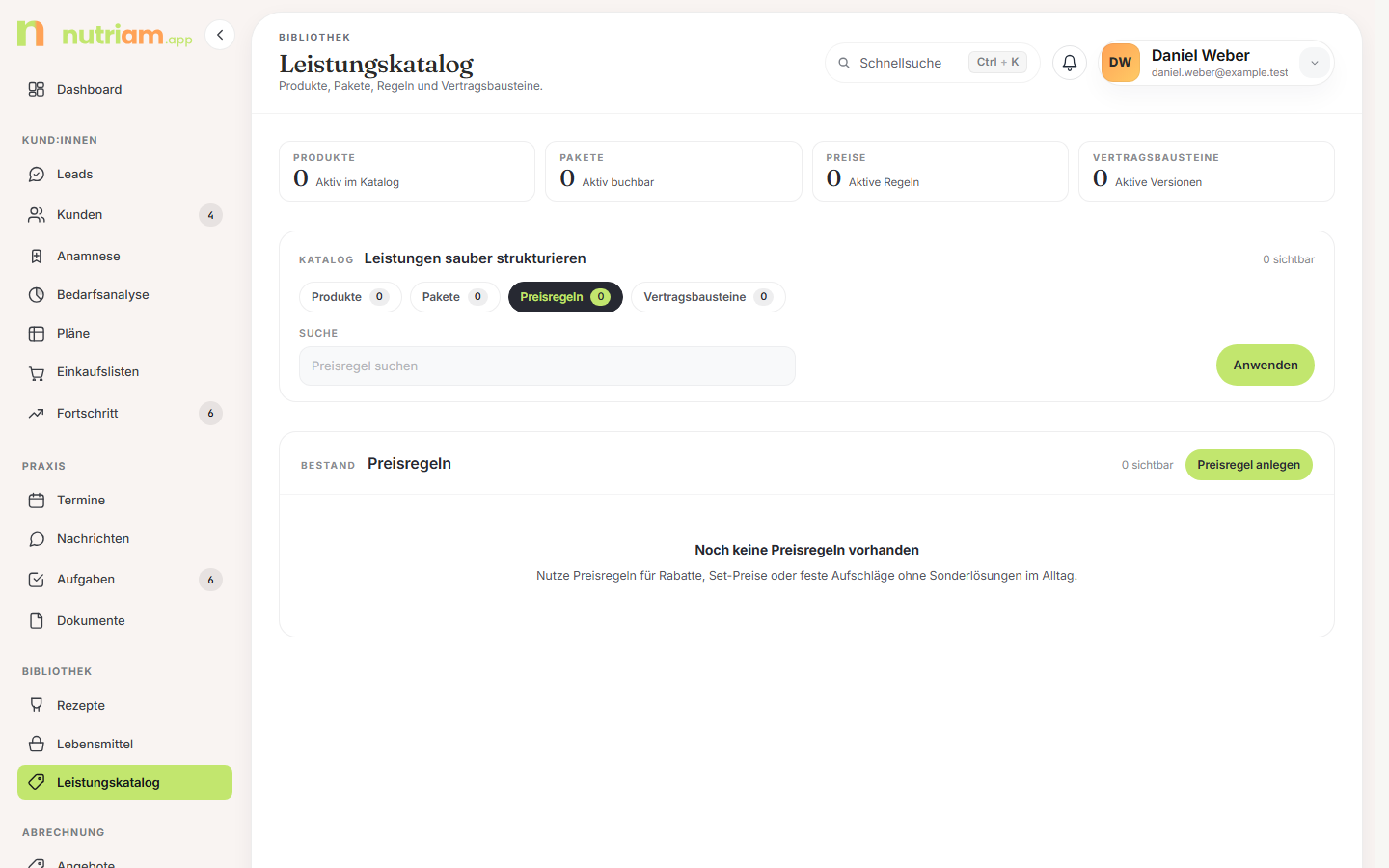
Columns: Pricing rule (with the rule type below), Scope, Priority, Amount, Target, Status and Edit.
| Field in the dialog | Note |
|---|---|
| Name | Required |
| Scope | Package (preselected) or Product |
| Rule type | Discount %, Fixed discount, Set total |
| Amount / percent | Percentage or euro amount |
| Priority | a smaller number is applied first |
| Product | Target product, otherwise No product |
| Package | Target package, otherwise No package |
| Pricing rule active | preselected active |
In the table, the rule types have the same names as in the dialog: Fixed discount and Set total.
In terms of calculation: Discount % deducts the percentage from the running total (limited to 0–100%), Fixed discount deducts at most the running total, Set total sets the total to the amount given. Each rule creates its own line item on the document, “Pricing rule: ”.
All amounts are net, like the prices in the catalogue: Fixed discount and Set total refer to the total before VAT. Under standard taxation, VAT is added in the quote on taxable line items according to your practice setting, so a set total of €299 for taxable services gives a total of €355.81 at 19%. In this case the dialog says so in a note above the form.
The pricing rule line item gets the same tax rate as the other line items in the quote. If the line items carry different rates, such as one tax-exempt and one taxable service, nutriam refuses to save: “Pricing rules cannot yet be combined with different tax rates in one quote. Remove the pricing rule or create separate quotes for the services.”
Caution: The scope must match the target you set. A rule with scope Product but no product selected never applies. How and where rules apply at all is described in section 2.6.
2.5 Contract clauses
Columns: Contract clause, Title, Applies to, Default (“Default” or “Optional”), Status and Edit.
| Field in the dialog | Note |
|---|---|
| Name | Required, internal name |
| Title | Heading in the document |
| Applies to | Quote, Invoice or Both (preselected) |
| Text | Required, the actual clause text |
| Set as default | preselected ticked |
| Clause active | preselected ticked |
Caution: Contract clauses have no versioning. The KPI “Active versions” is misleading: there is only the current text. Anyone who needs to trace which clause applied when will only find this in the finished document: title and text are copied into the document when a quote is created and do not change with it afterwards.
2.6 Where the catalogue takes effect
When creating and editing quotes and invoices, below the line items there is the selection “Add from service catalogue” with the entry Select a product …. It lists only active products and creates a new line item with description, quantity and unit price. The line item can then be edited freely.
Caution: Through the interface, only pricing rules with scope Product apply. If you take a product from the catalogue in a quote, the line item remembers the product; when saving, nutriam calculates the matching rule and adds the line item “Pricing rule: ”. If you save again, it is recalculated, not added a second time, and if the product is removed, it disappears. That is why it does not appear in the quote form as a separate line item; the live preview shows it. Quotes without any catalogue product get no pricing rule.
Rules with scope Package and contract clauses do not take effect in the interface, because quotes there have no package field. Invoices do not apply pricing rules and do not take over the pricing rule line item from a quote: the Create invoice page shows the name and amount, and you enter the discount as a reduced unit price (see 06: Billing, section 5). You enter discounts without a rule directly in the unit price. The form does not accept negative amounts.
A contract clause carries over from a quote into the invoice created from it, but getting it there also requires the API. Quotes and invoices themselves are described in 06: Billing.
3. Reporting
Sidebar → System → Reporting (/reporting).
3.1 Requirements
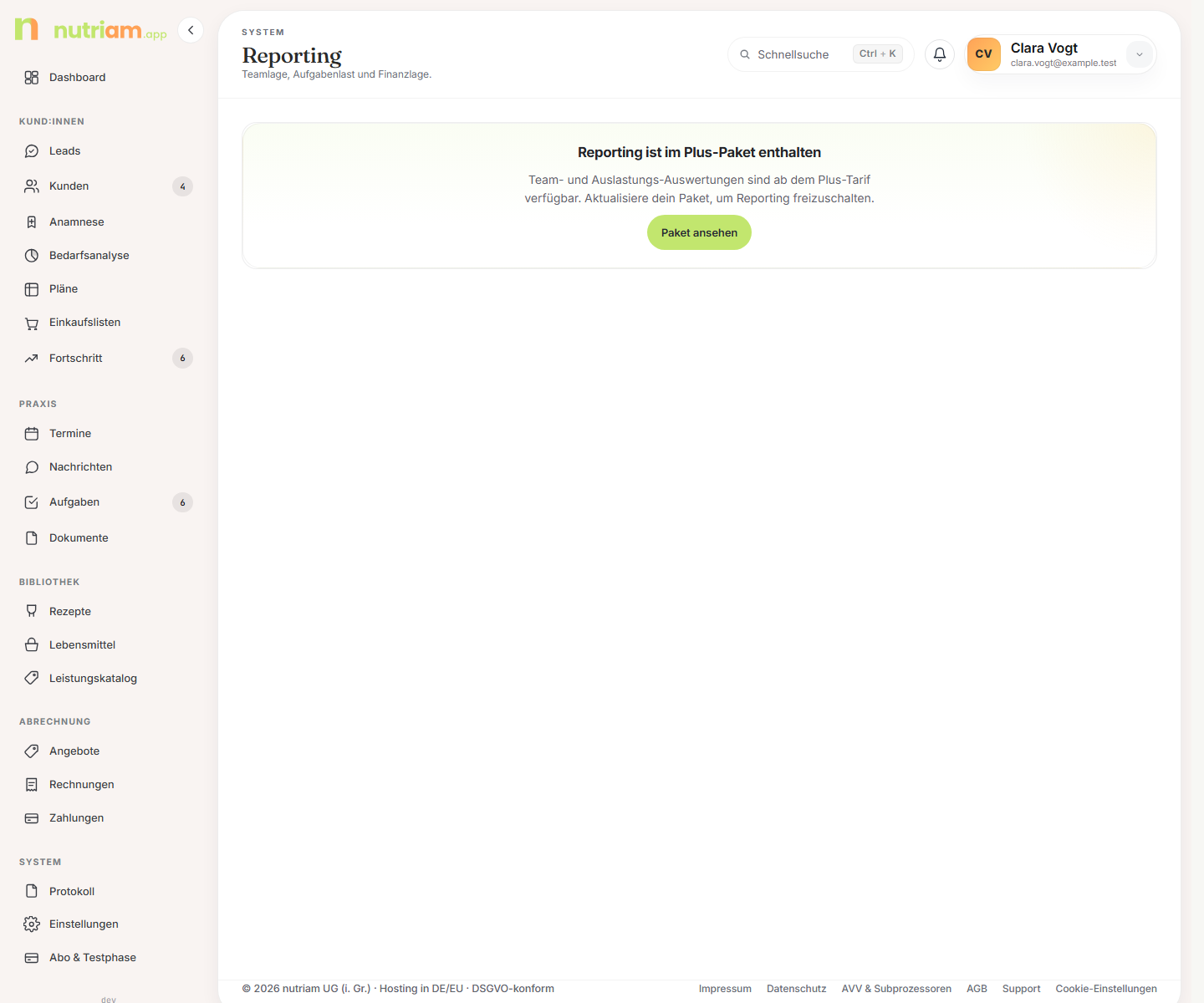
Note: Reporting is included in all packages, including during the trial. Only if the operator explicitly switches it off for your account is the sidebar item missing for team admins on a booked package; via the direct URL you then see the card “Reporting is not enabled for your account”.
The second requirement is the role. A Team admin sees the whole team. A Practitioner only sees their own figures: the server always sets the Practitioner filter to their own account, regardless of what is selected. For practitioners the dropdown therefore has no effect, and the workload table has exactly one row.
Views of reporting are only logged if they happen during a support session. In normal operation, nutriam does not store mere viewing (see chapter 10).
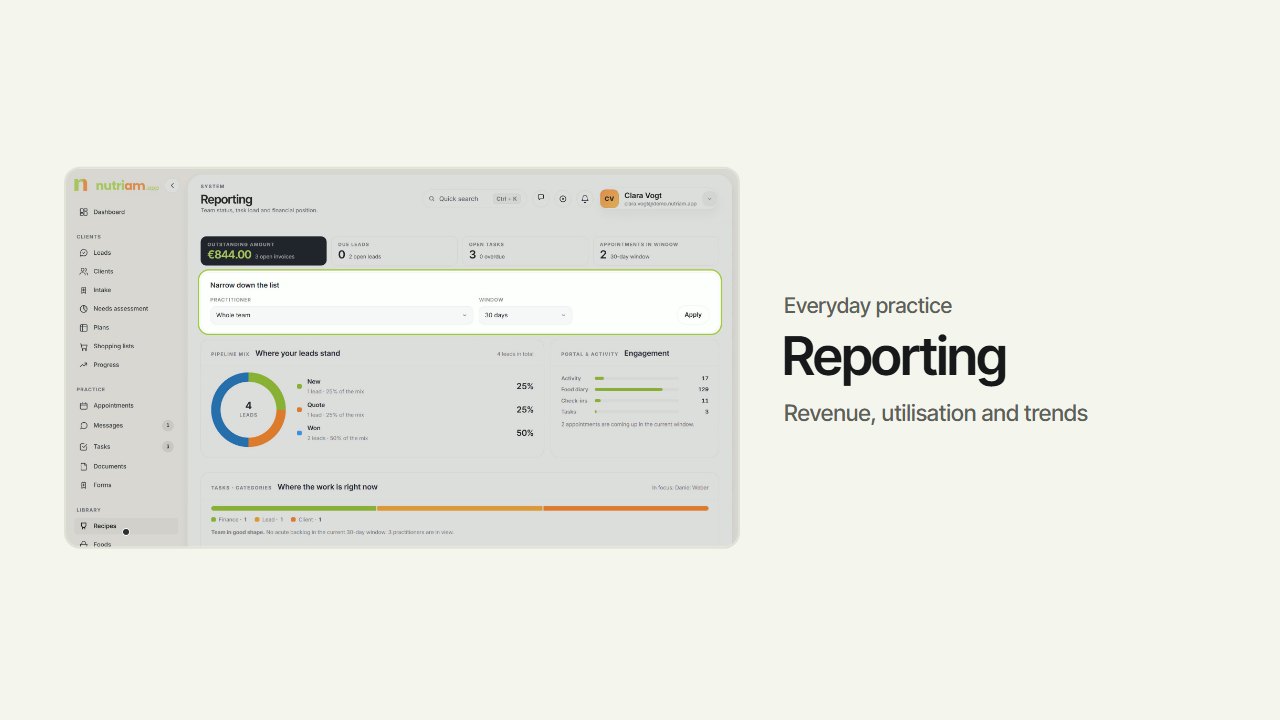
3.2 Filters
The Narrow down the list filter card has exactly two fields. There is no search field and there are no pills.
| Filter | Values |
|---|---|
| Practitioner | Whole team or a single user (everyone except clients). As a practitioner, only your name appears here: you only see your own figures anyway |
| Window | 7 days, 14 days, 30 days (default), 90 days |
Both selection fields take effect immediately: the report rebuilds straight away while the meta line briefly shows “Updating …”. The Apply button remains as a fallback. Without a filter, the meta line in the card header stays empty. As soon as a filter is active, it shows “N practitioners visible · N filters active” (for one person, “1 practitioner visible”), and Reset filters appears next to it (the 30 days window is the default and does not count as a filter).
Tip: The window does not affect everything. Appointments, the engagement figures and new clients are windowed. Leads, clients, open tasks and invoices always count the entire stock, so the pipeline donut shows all leads, not just those from the last 30 days.
The window extends in both directions: the KPI tile Appointments in window counts upcoming appointments forwards, the Appointment quality card (3.9) evaluates past appointments in the same period backwards.
3.3 KPI tiles
| Tile | Value | Subtitle |
|---|---|---|
| Outstanding amount | Total of open invoices | “N open invoices” |
| Due leads | Leads whose next step is due | “N open leads” |
| Open tasks | open team tasks | “N overdue” |
| Appointments in window | upcoming appointments until the end of the window | “X-day window” |
All monetary amounts in reporting are rounded to the cent and so match the invoice journal from the billing export to the cent.
3.4 Pipeline mix
A donut with a legend shows where the leads are: New, Qualified, Quote, Won, Lost. The total is in the middle, and each legend row gives the count and percentage. Stages without leads don't appear at all. If there are no leads, it says “No leads in this window yet”.
3.5 Engagement
Four share bars for portal use in the selected window: Activity (logged events), Food diary (entries in the food diary), Check-ins and Tasks (completed portal tasks). Below them is a context sentence that refers either to upcoming appointments, to the total number of activities or to missing activity.
3.6 Tasks by category
A stacked bar distributes the open team tasks across their categories, with a legend and a number per segment. The legend names the categories as in the task list: Finance, Lead, Client and Admin.
Below it there is a focus sentence that always names the most pressing issue first, in this order:
| Focus | Trigger |
|---|---|
| Outstanding payments in focus | at least one overdue invoice |
| Task backlog in focus | otherwise: at least one overdue task |
| Follow up on leads | otherwise: at least one lead whose next step is due |
| Team in good shape | otherwise |
3.7 Workload per practitioner
Directly below, the workload table:
| Column | Content |
|---|---|
| Practitioner | Name plus one sentence about the most pressing issue |
| Role | Team admin or Practitioner |
| Clients | assigned clients |
| Open tasks | open team tasks |
| Due leads | Leads whose next step is due |
| Outstanding amount | outstanding invoice total of their own clients |
| Status | “In focus” pill or “N open” |
Exactly one person gets the In focus pill: the one with the highest calculated workload. The weighting: overdue tasks count most, then open tasks, due leads, upcoming appointments and finally a capped share of the outstanding amount.
3.8 Team status
At the very bottom, a Team status / Team overview table with three columns (Area, Metric, Next step) and four fixed rows: Leads, Clients, Tasks, Portal & activity. There are no status badges here, only the short metric value and an action sentence.
3.9 Appointment quality
The last card, Appointment quality / Outcome of past appointments, evaluates the past appointments in the selected window. It is the only card that looks back instead of forward.
| Outcome | Counter |
|---|---|
| Completed | Appointments with status Completed |
| No-show | Appointments with status No-show |
| Cancelled | Appointments with status Cancelled |
The denominator is the important part: only appointments with a recorded outcome count, i.e. Completed, No-show or Cancelled. A past appointment that is still set to Scheduled or Confirmed does not appear in any of the three rates, neither in the numerator nor in the denominator. Otherwise the card would measure how diligently appointments are updated, not how reliably clients turn up.
Important: Nobody sets Completed and No-show automatically: both are manual work in the status field of an appointment. Only Cancelled happens by itself, for example when someone cancels via the portal. If you never update appointments, you will therefore see 100% for Cancelled. That is exactly why the line below the table always states how many past appointments still have no outcome.
If a row shows n/a instead of a percentage, there is not yet a single rated appointment in the window. This is deliberately not “0%”: zero percent No-show looks like a perfect result even though there is no data behind it.
The rate is a snapshot of the window, not a trend: the card does not show whether the No-show rate improves over the months.
4. Workflow automations
In the background, a set of automation rules runs that creates tasks without anyone having to think of it. Every tenant gets these rules and the associated workflow templates automatically when it is created.
| Trigger | What happens |
|---|---|
| New lead | starts the Standard lead qualification workflow; the tasks go to Responsible, or, if nothing is entered there, to the assigned practitioner |
| New client | starts Standard client onboarding (team and portal tasks) |
| Check-in submitted | creates a review task for the assigned practitioner |
| Intake submitted | creates a task to evaluate it |
| Invoice overdue | starts Follow up on open invoice |
| Payment reminder case closed, amount outstanding | starts Review closed payment reminder case |
| Manual | Portal reactivation as a task or as a whole workflow |
You see the result where you work anyway: team tasks under Tasks, portal tasks in the client file and in the client portal; see 05: Communication.
Caution: There is no interface for rules, workflow templates and the associated audit report. You can neither see nor switch them off in the workspace; changes can only be made via the API and require team admin rights. A further trigger (Appointment booked) exists technically but is not used in the standard set.
5. Files don't belong here
Despite its name, /documents does not manage files. Uploaded PDFs,
findings and pre-assessments are kept in the client file in the section
Attachments / Findings & pre-assessments, with file size, date and the pill
In portal or Internal, depending on whether the client sees the file
in the portal. Details in 03: Client file.
Attachments are not deleted there but archived. The only exception is progress photos, which may really be deleted because of their special legal basis.
If an upload is aborted with an error message, nothing has been stored: the file is only stored after permission and client assignment have been checked, and is discarded again if the entry cannot be created afterwards. So a failed upload doesn't leave an invisible copy in storage. This matters because the GDPR erasure only finds what is listed as an attachment.
When uploading, nutriam checks the content of the file, not just its extension. Allowed are PDF, images (JPEG, PNG, GIF, WebP, HEIC), Office documents and text and CSV files. If the content does not match the stated file type, such as a PDF posing as a photo, nutriam rejects the file with the note “The content of the file does not match the stated file type”. In that case, save it in its original format and upload it again.
Photos in JPEG format lose their metadata when saved: location (GPS), camera model and capture time. The orientation is kept, so a portrait photo still appears the right way up. In the client portal, the browser already re-encodes every photo before it is uploaded. If the browser cannot read an image format (for example HEIC outside Safari), the portal asks the client to save the image as JPEG or PNG.
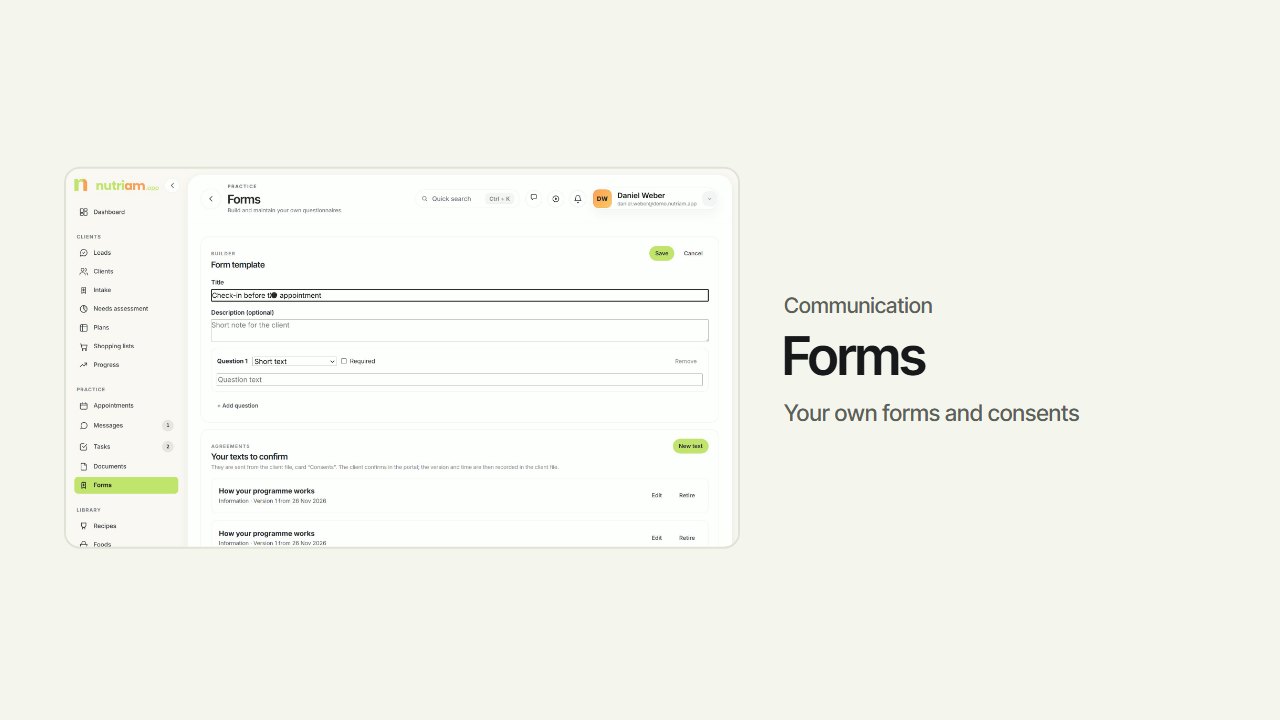
6. Forms
Sidebar → Practice → Forms (/forms).
Your own questionnaires: symptom diary, initial consultation, weekly check-in. The templates belong to the whole practice, not to a single client. That is why they are kept centrally here; a template is still assigned in the client file on the Forms tab (see 03: Client file).
New template opens the builder. Each question has a type:
| Type | The client's answer |
|---|---|
| Short text | Single-line field |
| Long text | Multi-line field |
| Single choice | Exactly one of the given options |
| Multiple choice | Any number of options |
| Scale | Number from 1 to the set maximum (2–10) |
| Yes / No | Toggle |
| Number | Number field |
| Section (heading) | No answer: divides the form into sections |
For single and multiple choice you enter the options one per line; at least two are required, at most 20. Required makes a question a condition for submitting. A form holds up to 100 questions, headings included.
You change the order on each question as soon as the form has more than one. The Move up and Move down arrows move it by one position; the focus moves with it, so you can press several times in a row. With the mouse, drag the question by the handle (the six dots to the left of the arrows) to another position; a line shows where it will land. This is also how a question gets into another section: it always belongs to the heading above it. The order is saved with Save. Forms already assigned keep their order.
If you add sections (type Section (heading)), the client fills in the form in the portal step by step: one section per page, at the top Section 3 of 12 with a progress bar, at the bottom Back and Next. Next checks the required questions of this section and saves automatically. If the client comes back later, they continue after the last section answered. Without a heading, the form stays on one page. In the client file the headings appear between the answers; question counters do not count them.
Clients don't have to fill in long forms in one go: with Save draft in the portal they save their answers, even if required questions are still empty, and continue later, even on a different device. The portal list then shows draft saved on … and the button is called Continue. You only see the answers once the client submits the form; until then the client file only shows Open, started on ….
Archive takes a template out of use: it can no longer be assigned, and forms already filled in remain readable in the client file. Archived templates appear on this page under Archived and can be reactivated there. This is only possible here, not in the client file.
Note: When you assign a form, the client gets a copy of the questions. If you edit the template afterwards, this only affects future assignments: forms already assigned stay unchanged, including those not yet filled in.
The client learns of an assignment in the portal inbox, by push and by email; all three lead directly to Forms in the portal. Push and inbox name your practice: “Praxis Grün has assigned you a form.” The name comes from the field Practice or brand name in the practice details (see chapter 08, Administration). If it is empty, it neutrally says “Your practice”.
Form via link without login
Not every client has a portal account, for example before the initial consultation. For such cases you send an assigned form as a link without login: in the client file under This client's forms, each open form has the Link without login button. You choose how long the link is valid (3, 7, 14 or 30 days, default 7) and whether nutriam emails it to the client. The client file then shows the link once for copying, for example for WhatsApp.
The client opens the link on their phone or computer and fills in the form just as in the portal, with sections and step view. The answers go into the same assignment, the client file then shows Completed on … via link without login, and you get the same notification as for an answer from the portal.
- Valid once: after submitting, the link is used up. If the client needs to correct something, assign the form again.
- Save draft only remembers the progress on the client's device. nutriam stores nothing via the link before it has been submitted.
- Create new link replaces the old one, Revoke link blocks it immediately.
- Forms that are waiting for an agreement don't get a link: agreeing is only possible in the portal.
Caution: Anyone who has the link can fill in the form. Only send it to the client themselves. nutriam doesn't store the link, only a fingerprint of it; that is why you only see it right after it has been created. If the feature has not yet been enabled for your practice, the button is missing.
Import questionnaire (AI)
If you already have a questionnaire as a PDF or on paper, you don't have to retype it: Import questionnaire (AI) next to New template takes a PDF (up to ten pages) or a photo as JPG or PNG, up to 12 MB. You choose the file via the field or drag it onto the card. The AI transfers headings, questions, question types and answer options in the order of the original; after 30 to 90 seconds the builder opens with the suggestion. Above it, AI suggestion imported appears with the number of questions. Check types, options and required fields and only then save: nothing has been created before that.
The AI does not transfer fields for personal details (name, address, date of birth, phone, signature), as these are already in the client file; the note above the builder lists them. A table such as Complaint: never, rarely, often becomes a single choice per row. If the form has more than 100 questions, you import the rest as a second form.
Important: Please only upload a blank form, not one that a client has filled in. Even then the AI only transfers the structure, but the file with their details would go to the AI service. The file is not stored.
You only see the button if AI recognition is switched on for your practice.
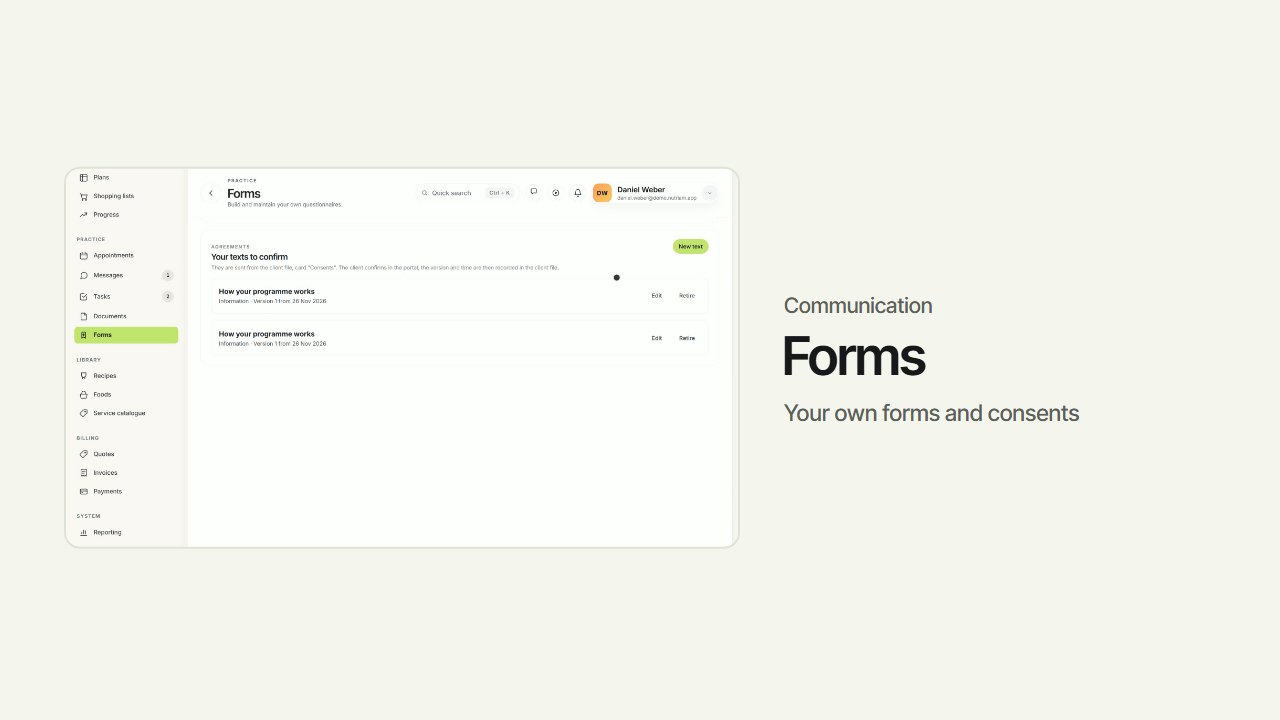
7. Agreements: your texts to confirm
Sidebar → Practice → Forms (/forms), below the form templates the
section Your texts to confirm.
This is where you create your own texts that your clients agree to in the portal or confirm as read. nutriam does not provide any wording: every practice works differently, and the text has to fit your work. As the controller for your clients' data, you are also responsible for the legal review of your text.
New text asks for three things:
| Field | Meaning |
|---|---|
| Title | What the text is called for you and in the portal, e.g. “Consent to processing health data” |
| Type | Consent (the client agrees or declines and can withdraw in the portal), Agreement (agree or decline, no withdrawal in the portal) or Information (the client only confirms that they have read the text). The type cannot be changed later |
| Your text | The wording, up to 20,000 characters. Paragraphs are kept |
Versions. Every saved text is a version with its own checksum. If you change the wording, a new version is created when you save; agreements already given stay with their old version and are not changed. Changing only the title does not create a new version.
Request automatically. If you tick Request automatically when creating or editing, the text becomes a standard: every client with portal access gets it to confirm the next time they open the portal, so new clients get it right after the invitation. This happens without push or email: the client sees the To confirm card on their home page. Anyone who has already received the text, even if they declined or withdrew, is not asked again. The list then shows automatically when the portal is opened, the history in the client file requested (automatic). Retiring ends the automatic requests.
Required before using the portal. With this second tick, the text becomes a requirement. It includes Request automatically. Until the client has agreed (for an information text: has read it), they can read in the portal, write to you, answer their agreements, set up notifications and withdraw other consents, but cannot enter anything: no food diary, no check-in, no form, no photos. If they try, the portal leads them to the open text. If they declined or withdrew, they can still agree in the portal at any time. This also applies to a new version as soon as you send it. The list then shows Required before using the portal. For consents, the prohibition of tying applies (Art. 7(4) GDPR): they must remain voluntary. So check whether using the portal really has to depend on it. The tick is mainly intended for agreements such as your consultation terms. Retiring removes the requirement.
New version, new agreement. If clients are still on an older version, the text below it shows 1 client is still on an older version. (or the number); under Who? you see names, status and version. Send current version to everyone asks for confirmation and then sends the current version to everyone with portal access; anyone without access is skipped and named in the result. Agreements, information texts that have been read and requests that are still open are counted. Anyone who declined or withdrew is deliberately left out of the bulk request: you decide that individually in the client file. The message tells the client that it is a new version. Retire takes a text out of the selection in the client file; agreements already given remain readable. Under Retired it can be reactivated.
Sending is done in the client file, Overview tab, card Consents (see chapter 03). The client needs access to the client portal for this. They get a notification in the portal, by push and by email, and the card To confirm appears on their home page. If the same text is already open for them in the current version, it cannot be sent a second time. If it is still open in an older version, this request is raised to the current version: the client then only sees the new wording, and the history keeps both versions.
What the client does. They read the text in the wording of the version sent. Agreeing is only possible once they have ticked I have read the text and agree; Decline is also possible. For a consent, a note above it says that they can withdraw at any time in the portal, and after agreeing there is Withdraw consent there. In support mode, nobody can agree on the client's behalf.
Record on paper. If a client has no portal access or has signed a form on paper, you record the decision in the client file: Record on paper next to Send for confirmation, then the text, agreed or declined (for an information text, read), the date of signature and the Scan of the form. You choose the scan via the field or drag it onto the form. The scan is required; it is filed under the client's documents and is not visible in the portal. If the text was still open for them in the portal, the paper answers exactly this request. If a withdrawal comes by letter, email or verbally, a given consent shows Record withdrawal; the scan is optional here. In the history, such entries show (Team, on paper), the date from the paper and a Scan link.
Proof as PDF. After every decision (agreed, declined, read, withdrawn; in the portal or on paper), nutriam puts a PDF in the client's documents: wording of the version, client, times, history and checksum. It is not visible in the portal, is not overwritten and cannot be archived. In the client file, Proof (PDF) opens the latest one. If you delete a client under Art. 17, the PDFs go with their other documents; if you need the proof for longer, download it beforehand.
What you see. Status, date, history with time and checksum as well as the wording of the version in the client file. Declines and withdrawals are reported to the assigned practitioner in the bell. The data subject access report (Art. 15) contains requests, history and the agreed versions; in the GDPR erasure of a client, their requests and the history are deleted too, while your texts remain.
Caution: An agreement in the portal is consent to your terms, not an online purchase. Separate rules apply to paid contracts that are concluded online; clarify this with your legal adviser.
Frequently asked questions
“Which placeholders work in a template?”
That depends on the route (section 1.10). In the text of quote and
invoice templates, only the list with double brackets, i.e.
{{document.number}} or {{client.name}}; everything else is replaced by
nothing when the document is created. The grey sample texts in the empty form
({{invoiceNumber}}, {{clientName}}) are not valid: they
disappear in the finished PDF. In PDF templates with blocks, on the other hand, the
simple notation {Vorname} applies, and unknown placeholders stay visible.
“Why can't I create a PDF from my template?” Because it is a text template. Only templates with blocks have their own PDF; in the list they carry the PDF pill. You can switch them on the detail page via PDF template (blocks); note the warning in section 1.6 that this replaces the previous free text. A text snippet always stays plain text: for this type there are neither blocks nor a PDF.
“Where can I find a PDF created from a template again?” Only if you stored it. Without the tick “Store in the client file” (section 1.9), the PDF is created afresh on every request and not stored anywhere; it then only exists as a download in your browser. With the tick, it is in the client file under Intake → Findings & pre-assessments.
“I changed a template. What happens to old invoices?” Nothing. The text is inserted when the document is created. Invoices already finalised stay as they are; only new documents use the new text.
“Why can't I create a template as a practitioner?” Because templates and the catalogue may only be changed by the Team admin role. You do see the buttons, but saving fails with “Action failed”. Ask your practice's team admin to do it.
“How do I give a discount on a quote?” Through an adjusted unit price; the form does not accept a line item with a negative amount. A pricing rule from the catalogue only applies in the quote if the line item is a product from the catalogue (scope Product), see section 2.6. Its amounts are net, and VAT is added according to your setting (section 2.4). The discount does not carry over into an invoice created from the quote by itself; you enter it there as a reduced unit price.
“Do I need contract clauses?” Only if you want to maintain recurring clause texts centrally. They are not versioned, so they don't document any legal history. What applied at the time of the quote is in the document created then.
“Why do I only see myself in reporting?” Because you are signed in as a practitioner. The server always limits reporting for practitioners to their own account, regardless of what is in the Practitioner filter. Only a team admin sees the team picture.
“The Reporting item has disappeared from my sidebar.” Then your plan no longer includes the feature, for example after the end of the trial. Under Administration → Subscription & trial you can see the current package.
“Why does the pipeline donut show more leads than were created in the window?” Because the donut distributes the entire lead stock. The time window only affects appointments, engagement figures and new clients.
What is still missing
- Preview for document templates. PDF templates recently got a preview (section 1.8). How the template text looks in the finished quote or invoice, you still only see on the generated document.
- Subject has no effect on text templates. The field is saved but not used for any sending; the email subject comes from a fixed system template. Only on PDF templates does it have a function (title line).
- Text snippets only practice-wide. There are no personal snippets per practitioner; team admins create and change them. In the appointment note on the appointment page and in the notes next to the video, the button is still missing.
- PDF templates by message. Storing in the client file and releasing to the portal works (section 1.9); sending directly from the dialog as an email does not yet: for that, you download the PDF and attach it.
- Packages and package pricing rules on documents. Both are finished in the backend, but have no control in quotes and invoices. Pricing rules with scope Product, on the other hand, take effect via the catalogue picker.
- Choosing a contract clause on the document. The interface has no field for this; today the clause only gets into the document via a package or the API.
- Interface for automations. Rules and workflow templates run, but cannot be viewed or switched off.
- Full page
/documents/new. Exists as a second creation route with identical fields, but is not linked from the app. - Time series in reporting. There are snapshots, no trends: no sparklines, no monthly comparisons, no export.