
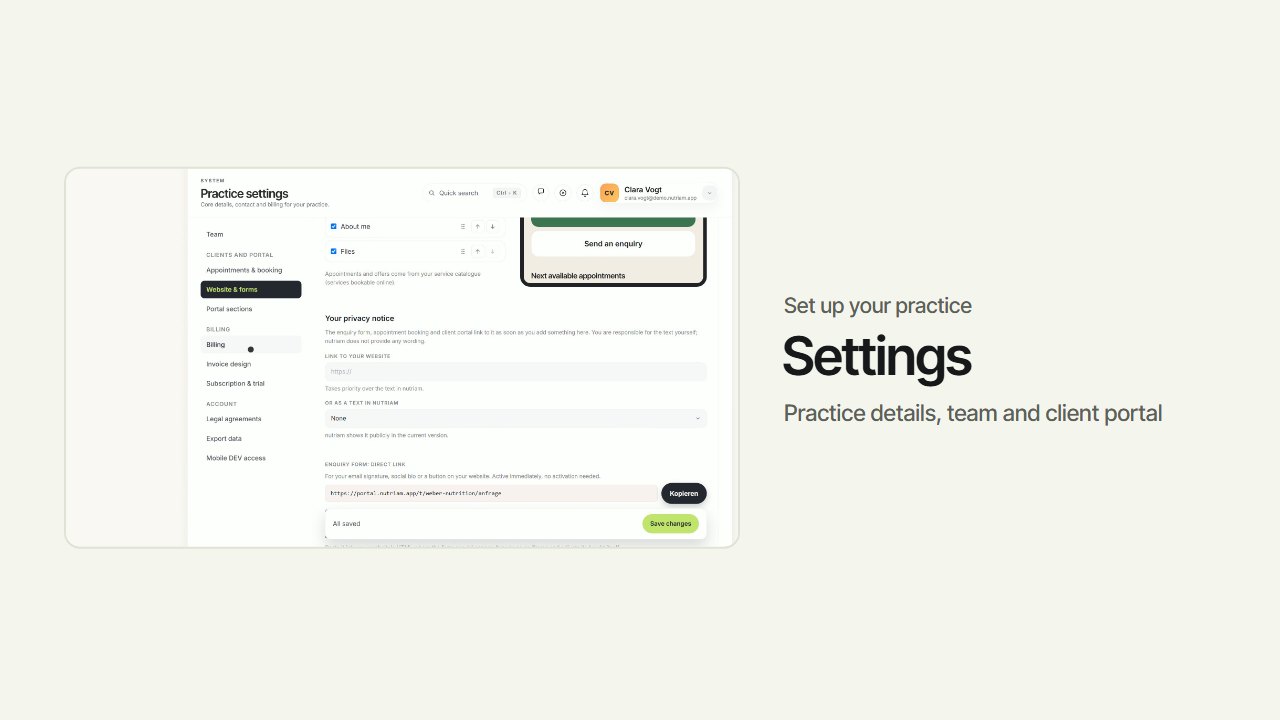
09 – Public enquiry and online booking
nutriam has three pages that can be reached without logging in: your practice page as the link for your social media bio, an enquiry form and an appointment booking, all under your own practice short name. Enquiry and booking are also available as a snippet for your own website. This chapter describes what interested people see there, what you can set and how a click turns into a lead or an appointment.
1. The four channels at a glance
Every practice has a fixed short name in the link, the slug. It is part of all public addresses.
| Channel | Address | What is created | Activation |
|---|---|---|---|
| Practice page (link in bio) | /t/<slug> |
nothing, it leads to enquiry and booking | Opt-in with legal notice link |
| Enquiry form | /t/<slug>/anfrage |
Lead | active straight away |
| Enquiry snippet | your own website, /embed/inquiry.js |
Lead | active straight away |
| Online booking | /t/<slug>/termin |
Lead and appointment | Opt-in required |
| Booking snippet | your own website, /embed/booking.js |
Lead and appointment | Opt-in required |
All links and both snippets are bundled in Administration, tab
Website & forms (/verwaltung?tab=website), each with a
copy button: the address of your practice page in the practice page editor, below it
the fields Enquiry form: direct link, Enquiry form:
website snippet, Online booking: direct link and Online booking:
website snippet. Otherwise, your slug only appears in the workspace when the
team is created (field Short name for your public addresses with a preview, see
01 Basics).
Caution: Team admins can change the slug in Administration (Administration → Website & forms, field Change short name (slug)). After a change, new addresses apply immediately: old links, embedded snippets and “Manage appointment” links from emails already sent lead nowhere, and there is no redirect. Details in 08 Administration.
If your tenant is deactivated, all addresses return a 404.
The practice page /t/<slug> (link in bio)
The practice page is the one link for your Instagram, TikTok or YouTube bio. It brings together on one mobile page, entirely in your background colour:
- a header with your profile picture (without a picture the logo, without a logo your initials), name or heading, short description and up to three badges (e.g. “Registered dietitian”). In the Portrait template optionally with a cover image above it, in the Clear template with a large heading and no photos,
- a row of icons: email and WhatsApp as well as all links to Instagram, TikTok, YouTube, Facebook and LinkedIn that the page recognises from the address,
- the main button with your own text (e.g. “Free initial consultation”). It leads to appointment booking, or to the enquiry without online booking. Below it, Send an enquiry as a second route,
- at the top right a share button: on a phone the share menu, otherwise the address is copied,
- Next available appointments: the next three free appointments (within 14 days) of your first service bookable online, or, without your own services, those of the initial consultation. Clicking an appointment opens the booking directly at the last step, the contact details. If the appointment has been taken in the meantime, the booking says so and shows the remaining free appointments. If the booking could not load the free times just then (for example because of a connection problem), it says exactly that instead and asks for the page to be reloaded,
- Services: all services you have made bookable online in the service catalogue, with duration and the next free appointment. Clicking a service opens the booking with that service already selected; interested people then only choose the appointment,
- Links as buttons (website, podcast, e-book …), each with its own preview image or a matching icon. A link with an image always becomes a button, even if it leads to Instagram,
- optionally a longer About me text,
- Downloads: your PDFs (info sheet, checklist, recipe booklet) as buttons with a title. A click downloads the file directly, and the file name comes from the title,
- in the footer your practice's Legal notice and Privacy links and the note “Made with nutriam”.
Appointments, services, links, “About me” and files are sections: you hide them individually and decide their order.
The page is off until you switch it on in Administration → Website & forms.
You can only switch it on with a link to your legal notice (Impressum,
the provider identification required by German law); without it, nutriam
rejects saving with a note. As long as the page
is off, /t/<slug> returns a 404. Search engines don't index it.
When shared in WhatsApp, DMs or emails, the link shows a preview with
name, short description and profile picture. Images and PDFs you upload
only become public once you save and the page is switched on.
One look for all public pages
The enquiry form, appointment booking, your privacy notice and forms sent by link look like your practice page: at the top your profile picture (without a picture the logo, without a logo your initials) and your name, plus the accent colour and the background you chose for the practice page. Without its own accent colour, nutriam uses the brand colour from the invoice design. Main buttons and progress appear in this colour. At the bottom, in small print, it says “Made with” followed by the nutriam mark. Forms embedded in your own website (section 4) keep their plain header; there your website provides the look.
2. The enquiry form /t/<slug>/anfrage
The simpler of the two pages: a contact form, nothing else. At the top is the eyebrow “First contact”, below it your practice name as the heading and the sentence “Briefly describe what you need. We'll get back to you by email or phone with the next steps.”
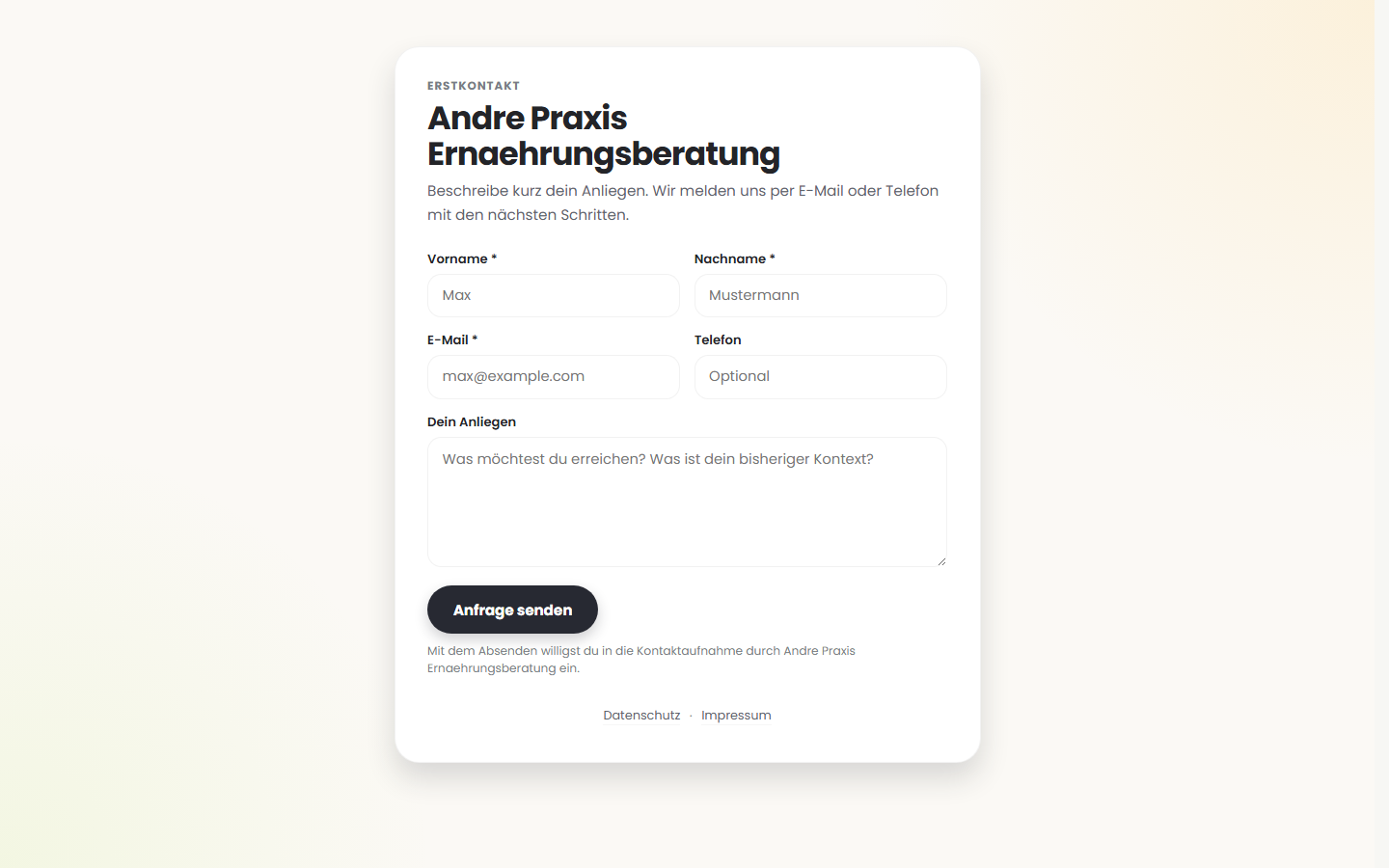
| Field | Required? | Limit |
|---|---|---|
| First name | ✓ | max. 80 characters |
| Last name | ✓ | max. 80 characters |
| ✓ | must be a valid address | |
| Phone | – | max. 40 characters |
| Your request | – | free text, five lines high |
It is submitted with “Send enquiry”. Directly below it is the consent note “By submitting, you agree to be contacted by .” At the very bottom, two links lead to nutriam's Privacy and Legal notice pages. If you have stored your own privacy notice (see section 9), the consent note also says “How handles your details is explained in the privacy notice.” with a link, and at the very bottom Privacy comes first.
After submitting, the person stays on the same page and sees a green box “Thank you!” with the text “Thank you, your enquiry has been received. We'll get back to you by email.” If something goes wrong, a red box “Enquiry failed” with the error message appears instead.
In addition, a short confirmation of receipt goes by email to the address given: “Enquiry received”, with the time of receipt, in your practice's branding. It only confirms receipt; the message that was typed in is deliberately not sent back. You can switch it off under 08 Administration in the “Appointments & booking” tab.
Caution: The confirmation only says “received”, not “dealt with”. Anyone who hears nothing personal from you after two days will think the enquiry got lost, so make following up a fixed part of your routine (see section 6).
3. Online booking /t/<slug>/termin
Here interested people choose a free slot themselves. The page guides them
through the booking in three steps; at the top are your practice name with its initial as an
avatar, the line “Nutrition counselling · Book an appointment” and a pill
nutriam.app.
a) Step 1 of 3: “What would you like to book?”
The appointment types offered are those you have marked in the service catalogue as Publicly bookable (booking page), each with the online appointment length maintained there. If no product is marked, this fallback list applies:
| Card | Description on the card | Duration |
|---|---|---|
| Initial consultation | Get to know each other, clarify goals and the current situation. | 60 min |
| Follow-up consultation | Review progress, adjust the plan. | 45 min |
| Needs assessment | Calculate energy and macro requirements in detail. | 60 min |
On the right of each card it says “Slots available” or, if nothing is free, “Waiting list”. While the times are still loading, it says “Loading”; if they could not be loaded, “Not loaded”.
Tip: If you want to offer your own appointment types, tick Publicly bookable (booking page) for the product in the service catalogue and enter the Online appointment length (minutes); see 07 Practice. As soon as at least one product is marked, your selection completely replaces the fallback list.
b) Step 2 of 3: “Choose an appointment”
Below the line “Next available slots” is a row of tiles with seven bookable days per page (weekday, date, “N free”). To the right are the month and two arrows: with Later days and Earlier days, the prospect pages through all bookable days up to the configured booking horizon (section 5). Clicking a day opens the time tiles below it. In addition, there is always the button “No suitable slot? Join the waiting list”.
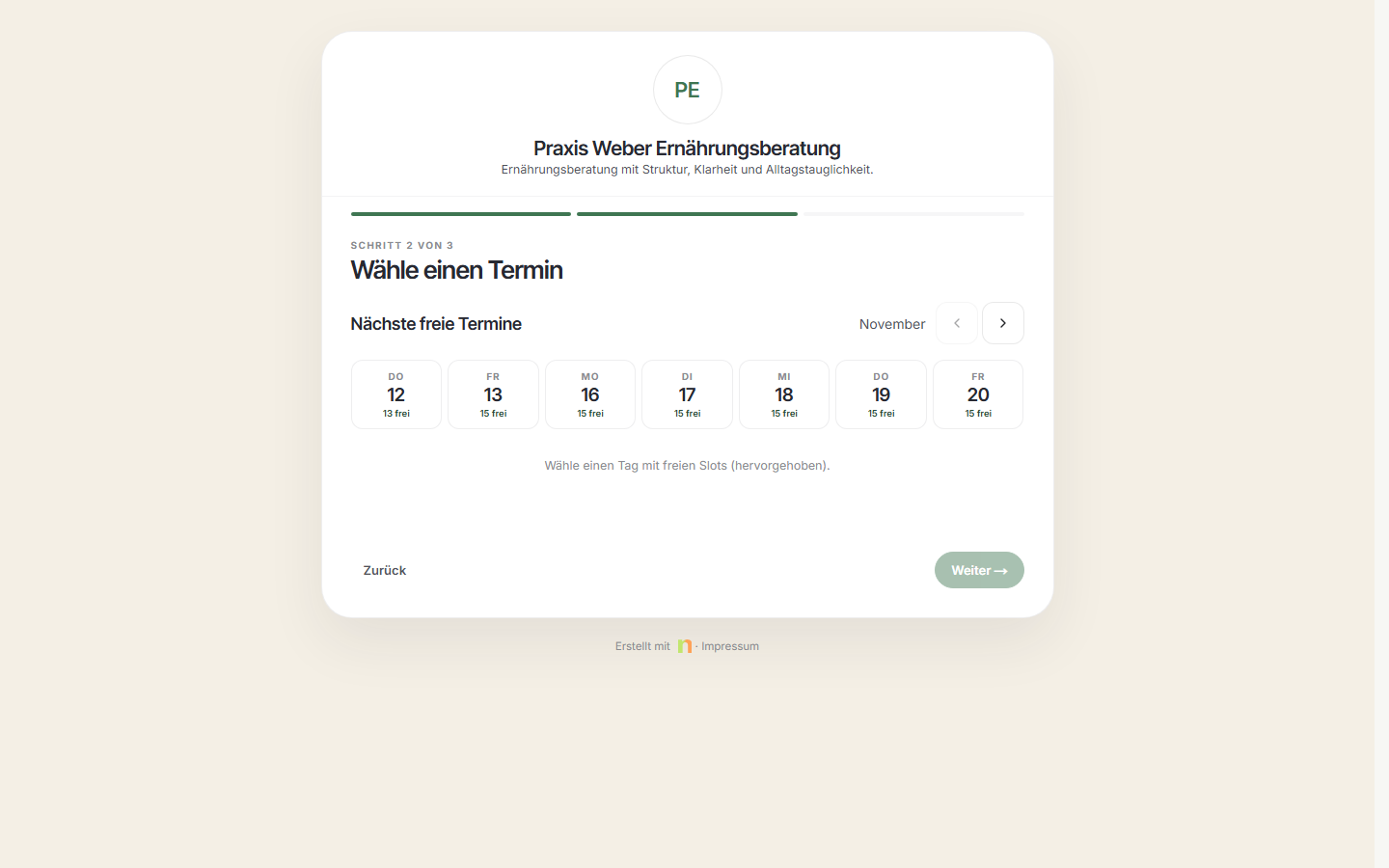
If there are no free slots at all, it shows the text “There are currently no slots available to book online. Join the waiting list; we’ll get back to you as soon as a slot opens up.” with the button “Join the waiting list”.
While the times are loading, it says “Loading available slots.”, still without a button. If they could not be loaded, it says “The available slots couldn’t be loaded just now. Reload the page or join the waiting list; we’ll get back to you.” The waiting list button then stays there. The practice page loads its next free appointments on the server, the booking in the browser: if the practice page shows appointments but the booking shows “Not loaded”, it is down to the request in the browser, not your calendar.
Tip: The booking page shows all free times up to your practice's booking horizon (default: 4 weeks, adjustable from 1 to 12 weeks). How many times a day has is shown in step 2 on the day tile.
c) Step 3 of 3: “Your details”
At the top a summary with the rows Service (e.g. “Initial consultation · 60 min”) and Appointment (e.g. “Tue 5 August · 10:30” or “Waiting list, we’ll get back to you”). Below it the same fields as in the enquiry form: First name*, Last name*, Email*, Phone and “Your request (optional)”. The button is called “Request appointment →” or “Join waiting list →”.
Then the confirmation page appears: “Request sent!” (or “You’re on the waiting list”), the status line “Awaiting confirmation” and the link “Start a new booking”. The text says “We usually confirm your requested appointment within one day.”
The confirmation email brings two things: an ICS file
(nutriam-termin.ics), with which the prospect adds the appointment to
their own calendar with one click, and the link “Cancel appointment online”. The
link leads to the public page /t/<slug>/termin/verwalten, which shows the
appointment (practice, date, time, status) and allows cancelling with an optional
reason, without any portal access, secured solely by the secret
token in the link. The same cancellation deadline applies as in the client portal
(Client portal cancellation deadline, empty = 24 hours); if it has passed
or the appointment is over, the page kindly refers to direct
contact with the practice. After a cancellation, your team is informed via the
notification bell and push.
d) How nutriam calculates the free slots
- Only times on the bookable weekdays are offered, within the time window of that weekday (each day has its own), in the configured slot grid and at the earliest after the configured notice period (section 5).
- A time is taken if the practitioner has an appointment there with the status Scheduled or Confirmed, or if the connected external calendar (Microsoft 365, Google, iCal subscription) reports something.
- Candidates are all active people with the role practitioner or team admin. For each slot, nutriam takes the first free person, alphabetically by display name. The prospect cannot choose anyone.
Caution: If an external calendar can't be read, the person concerned counts as busy for the whole window. That is intentional (better no slot than a double booking), but from the outside it looks like “fully booked”. If your booking page is suddenly empty, first check the calendar connection in your own profile.
Two people cannot book the same slot twice: whoever comes too late gets “The selected slot is no longer available.” If, on the other hand, the same person (same first and last name, same email) submits the same booking a second time, nutriam recognises this and does not create a second appointment.
4. Embedding both forms in your own website
Instead of linking, you can put the enquiry and booking directly into your website.
Both snippets consist of an empty <div> with your slug and
a script:
<div data-nutriam-inquiry data-tenant="your-slug"></div>
<script src="https://portal.nutriam.app/embed/inquiry.js" async defer></script>
<div data-nutriam-booking data-tenant="your-slug"></div>
<script src="https://portal.nutriam.app/embed/booking.js" async defer></script>
The script always comes from portal.nutriam.app. Under nutriam.app or
www.nutriam.app there is only nutriam's website, which has no
snippet, and your form would stay empty.
What the script does: it looks for all divs on the page with the attribute
data-nutriam-inquiry or data-nutriam-booking, reads the slug from
data-tenant and places an iFrame pointing to /embed/inquiry/<slug> or
/embed/booking/<slug> inside it. The embedded page keeps reporting its height
back, so the iFrame grows with it; you don't need to set a fixed
height. The starting values are 520 pixels (enquiry) and 640 pixels (booking), and the
width is always 100 %.
| Point | Behaviour |
|---|---|
| Several blocks | All matching divs on a page are filled |
| Missing slug | Without data-tenant, nothing happens at all |
| Frame | The iFrame has no border and a transparent background |
| Cache | The script is cached for one hour |
| Activation | None: the snippet runs on any website, and you don't have to register your domain anywhere |
The address in the script's src also determines where the
form is loaded from: script and iFrame always come from the same place.
Another reason not to type the snippet out by hand.
Caution: Your own iFrame pointing to the direct link
/t/<slug>/terminor/t/<slug>/anfragedoes not work. For security reasons, these pages may not be embedded in other websites; the browser shows an empty area or an error message in that spot. Only the snippets can be embedded or, if your website builder only knows iFrames, the addresseshttps://portal.nutriam.app/embed/inquiry/<slug>andhttps://portal.nutriam.app/embed/booking/<slug>. Without the snippet, the height then doesn't grow with the content, and you set it yourself.
Tip: Don't copy the snippets from the handbook, but from Administration, tab Website & forms, fields Enquiry form: website snippet and Online booking: website snippet. There they already contain your real slug and the correct address.
The embedded enquiry is tracked as a separate source
(tenant_embed_form), so you can see in the lead whether someone came via your website
or via the direct link: the Source column shows
“Enquiry form · Website embed” or “Enquiry form · Direct link”.
This does not apply to bookings: both
routes write the same source.
Caution: The embed lacks the footer links to privacy and legal notice that the full page has. On your own website you have to provide both yourself. The embeds do link your stored privacy notice, in the note below the form.
5. Activating and configuring
Online booking is opt-in. As long as it is off,
/t/<slug>/termin and the booking snippet show no free appointments but
the note “Appointments can’t be booked online right now” with your
practice name and the button Send enquiry. The button leads to your
enquiry form, in the snippet in a new tab. Nothing can be booked during
this time, not even by someone who knows the link. The
enquiry form is not affected by this and can always be reached. A 404
only appears for an unknown slug or a deactivated tenant.
You'll find it under System → Settings, tab “Appointments & booking”
(/verwaltung?tab=booking). The tab carries the title “Online booking &
appointment rules”.
| Field | Values | Default |
|---|---|---|
| Public online booking | Off / Active | Off |
| Bookable weekdays | Ticks Mon to Sun | Mon–Fri |
| Bookable from | Time | 09:00 |
| Bookable until | Time | 17:00 |
| Slot grid | 15 / 20 / 30 / 45 / 60 minutes | every 30 minutes |
| Notice period (hours) | 0–168 | 12 |
| Bookable in advance (weeks) | 1–12 | 4 |
| Client portal cancellation deadline (hours) | 0–720, empty = default | 24 |
| Appointment reminder lead time (hours) | 1–336, empty = default | 24 |
| Second reminder (hours before appointment) | 1–336, empty = off | off |
Saving is done with “Save”, and only by team admins. Practitioners see no fields in this tab, just the note “These settings are managed by the team admins.” and the reference to My profile, where they connect their own calendar.
To understand the deadlines:
- Notice period concerns public booking: this is the shortest notice at which a slot can be booked. With 12 hours, this afternoon disappears from the list during the morning.
- Bookable in advance is the counterpart: this is how far into the future the booking page and the client portal show free times. With 4 weeks, the selection ends 28 days after today, with 12 weeks after 84 days.
- Client portal cancellation deadline applies to cancellations in the client portal and to
the link “Cancel appointment online” from the confirmation email of the public
booking.
0means: no deadline, cancellation up to the last minute. - Appointment reminder and second reminder control the automatic reminder emails before appointments, see 05 Tasks, appointments, messages.
Caution: If you remove all ticks for the weekdays and save, nothing happens: the previous selection stays as it is. At least one day is required. To switch booking off, use the switch at the very top, not the weekdays.
6. The route from enquiry to lead
a) Enquiry form and enquiry snippet
A lead is created with the status New and stage New, without an assigned practitioner and without a responsible person. Directly afterwards, these run:
- the workflow “Standard lead qualification”, which creates the team tasks “Contact lead within one working day” (due in 1 day) and “Prepare a suitable quote” (due in 2 days),
- the update of the lead's follow-up task.
Notifications still go out: because nobody is assigned, an entry in the notification bell and a push notification (“New enquiry: ”) go to all active practitioners and team admins of the tenant, with a direct link to the lead. The push notification follows the New booking request row of your notification matrix and respects quiet hours.
Caution: Without an assignment, nobody feels responsible. The team tasks are the binding reminder, so look at Clients → Leads and the tasks every day.
b) Booking with a chosen slot
Here two records are created in one go:
| Object | What is set |
|---|---|
| Lead | Status and stage New; assigned practitioner and responsible = the person for the slot |
| Appointment | Status Scheduled, subject based on the service, “Your request” as the agenda, not visible in the client portal |
The appointment subject is built automatically: “Initial consultation: ”, “Follow-up appointment: ” or, for the Needs assessment service, “Programme demo: ”. This label is historical and cannot be changed; you can, however, overwrite the subject in the appointment at any time.
In addition:
- a timeline entry
appointment.createdon the lead, - the workflow for booked appointments,
- notification bell and push to the assigned person: “New online booking:
” with time and name, linked to
/appointments, - a confirmation email to the prospect. The sender is “ via nutriam”, and replies go to the support or billing address from the Contact tab in Administration. The email contains no portal link: the lead doesn't have access yet.
c) Waiting list
If someone doesn't choose a slot, only a lead is created, no appointment. The last day clicked is saved as the preferred date. Because there is no appointment, no confirmation email goes out either and nobody is informed by push: you have to actively pick up waiting list enquiries from the lead list.
d) These sources appear in the lead
| Source | Shown in the lead | Origin |
|---|---|---|
tenant_public_form |
Enquiry form · Direct link | Enquiry form /t/<slug>/anfrage |
tenant_embed_form |
Enquiry form · Website embed | Enquiry snippet on your website |
public_booking_page |
Online booking · Public booking page | Online booking, direct link and snippet |
More on the lead pipeline in 02 Leads and acquisition.
7. How a booking arrives in the workspace
On the appointments page (/appointments) there is the filter All appointment types →
“Public bookings”. Publicly booked appointments carry the badges
“Public booking” and “Public” in the list.
When you open such an appointment, there is a separate card above the normal form with the self-serve booking status in three stages:
| Stage | Meaning |
|---|---|
| Enquiry | always done: lead, appointment and context have been taken over |
| Confirmation | open as long as the appointment is Scheduled |
| Follow-up | becomes relevant after Completed or after a cancellation |
Below it is a grid of facts with Lead (linked), Assigned, Preferred format, Time of day, Preferred date and Alternative date. For a freshly booked appointment, it shows the note “Confirmation pending”.
Caution: The appointment stays Scheduled until you confirm it yourself. The prospect has submitted the booking and received an email that explicitly says confirmation is still pending, so the confirmation comes from you, not from the system.
On the lead detail page, the same appointment appears in the Appointment tile, with the line “Source: Public booking”.
8. Distinction: what does not go into your workspace
nutriam itself has public pages that look similar but have nothing to do with your practice:
| Page | Who it belongs to | What happens |
|---|---|---|
/demo |
nutriam sales | Live demo with the founder; lands in nutriam's calendar, no lead for you |
/support |
nutriam support | Product and support enquiries to nutriam |
/buchung |
the installation's default practice | fixed practice from the configuration, not your slug |
Caution: Always link
/t/<slug>/termin, never/buchung. The page/buchunglooks identical but books with the default practice stored in the installation, which as a rule is not you.
9. Spam protection, visibility and data protection
- Honeypot field. Both enquiry forms contain an invisible field “Website”. If a bot fills it in, it sees a perfectly normal success message, but nothing is saved. People never get to see the field.
- Rate limit. All public requests are throttled per IP address (default: 60 requests per minute). Anyone above that gets “Too many public actions.” and has to wait.
- Not findable. The practice page, enquiry page, booking page and both embed pages are set to “do not index” for search engines. They can only be reached via your link and don't show up on Google.
- Consent. Below both forms is the sentence “By submitting, you agree to be contacted by .”
- Your privacy notice. In Administration → Website & forms
you store a link to your website or choose one of your
texts of the type Information (created under Forms, see
07 Practice, section 7). nutriam shows the text
publicly at
/t/<slug>/datenschutz, always in the current version; the link takes precedence. The enquiry form, online booking (step 3), both embeds and, in the client portal, the Agreements page link to it. If you store nothing, this link doesn't exist; nutriam does not supply a text of its own for you. - Your legal notice. If you store a link to your legal notice in Administration → Website & forms, the practice page, enquiry form and online booking link to it instead of to nutriam's legal notice. For the practice page, the link is required.
- No login, no accounts. Anyone who comes via these pages gets no portal access. That is only created when you convert the lead into a client file; see 03 Client file.
Frequently asked questions
“Where do I find my slug and my links?” In Administration in the Website & forms tab. There you'll find the address of your practice page, the direct link to the enquiry, the direct link to the booking and both website snippets, each with your real slug and a copy button. In the same tab, team admins also change the slug. Careful: old links no longer work afterwards (see above).
“My booking page says ‘Appointments can’t be booked online right now’.” Then online booking has not been activated. A team admin has to set it to Active in Administration in the Appointments & booking tab. Until then, the page sends interested people to the enquiry form with Send enquiry; that always works. If, on the other hand, the page shows a 404, the slug in the link is wrong, for example after the slug has been changed.
“I embedded the booking page via an iFrame, and the area stays empty.”
The direct link /t/<slug>/termin cannot be embedded in other websites.
Use the Online booking: website snippet from Administration,
see section 4.
“The booking page only offers the waiting list, although I have time.” There are five possible causes: the requested day is not a bookable weekday, the time is outside “Bookable from/until”, the notice period cuts off the next few hours, a connected external calendar reports the time as busy (or can't be read right now), or there is no active person with the role practitioner or team admin.
“Why are there never more than ten free appointments?” Because the page loads at most ten slots per service. That is a display limit, not a reflection of your calendar.
“Does the person get a confirmation by email?” For a booking with a fixed slot, yes (with an ICS file), and for the enquiry form too, there as a short confirmation of receipt, which can be switched off in Administration under Appointments & booking. Only waiting list entries create no email; there the person only sees the confirmation on the page.
“Can someone choose which practitioner they book with?” No. nutriam automatically assigns the first free person for each slot (alphabetically by display name). You can reassign it afterwards in the appointment.
“Can the prospect cancel or reschedule their appointment themselves?” Cancel, yes: via the link “Cancel appointment online” in the confirmation email, up to the Client portal cancellation deadline (see above). Reschedule, no: for that they cancel and book again, or they contact you by email or phone.
“Why is a booked appointment called ‘Programme demo’?” That is the fixed subject for the Needs assessment service. You can overwrite the subject in the appointment; the label on the booking page is not affected.
“Is /demo the same as my booking page?”
No. /demo belongs to nutriam itself and does not create a lead in your
workspace. Your page is /t/<slug>/termin.
What is still missing here
- Waiting list without free days fails. If the booking page shows no bookable days at all, the waiting list button breaks off in the last step with a technical error message, exactly in the situation the waiting list is meant for.
- Raw error messages. If a booking fails, the page shows the server's raw response text, sometimes technical.
- Branding without your own fonts. Profile picture or logo, colour and background of the practice page carry over to all public pages; your own fonts or layouts are not available.
- No practitioner choice and no exceptions. The booking only knows about holidays or individual blocked times through real appointments or a connected external calendar; a public holiday calendar is missing.
- Booking embed not distinguishable. The direct link and snippet write the same source, so an evaluation of “how many came via my website” is not possible for bookings.
- Practice page without QR code and custom domain. You copy the link in Administration; nutriam doesn't generate a QR code for stories or flyers yet, and the page always runs under the nutriam address.
- No channel origin. The lead doesn't show yet whether an enquiry came via Instagram, TikTok or the website.
- No preferred appointment in the enquiry form. Anyone who only wants to send an enquiry can neither send a preferred date nor attach a file.